
1. וויכטיק סאַפעטי אינפֿאָרמאַציע
Please read all instructions carefully before using this monitor. Keep this manual for future reference.
- מאַכט מקור: Use only the power cord and adapter supplied with the monitor. Ensure the power outlet is properly grounded.
- ווענטילאַטיאָן: בלאָקירט נישט די ווענטילאַציע עפענונגען. לאָזט גענוג פּלאַץ אַרום דעם מאָניטאָר פֿאַר געהעריקן לופטפלוס.
- נעץ: Do not expose the monitor to rain, moisture, or high humidity. Avoid placing liquids near or on the monitor.
- רייניקונג: Disconnect the power cord before cleaning. Use a soft, dry cloth. Do not use liquid cleaners or aerosol cleaners.
- אָרט: Place the monitor on a stable, flat surface. Avoid direct sunlight or heat sources.
- סערוויס: דו זאלסט נישט פּרווון צו דינען דעם פּראָדוקט זיך. קאָנטאַקט אַלע קוואַלאַפייד סערוויס פּערסאַנעל.
2. פּעקל אינהאַלט
באַשטעטיקן אַז אַלע זאכן זענען פאַראַן אין פּעקל איידער איר גייט ווייטער מיט דער סעטאַפּ.
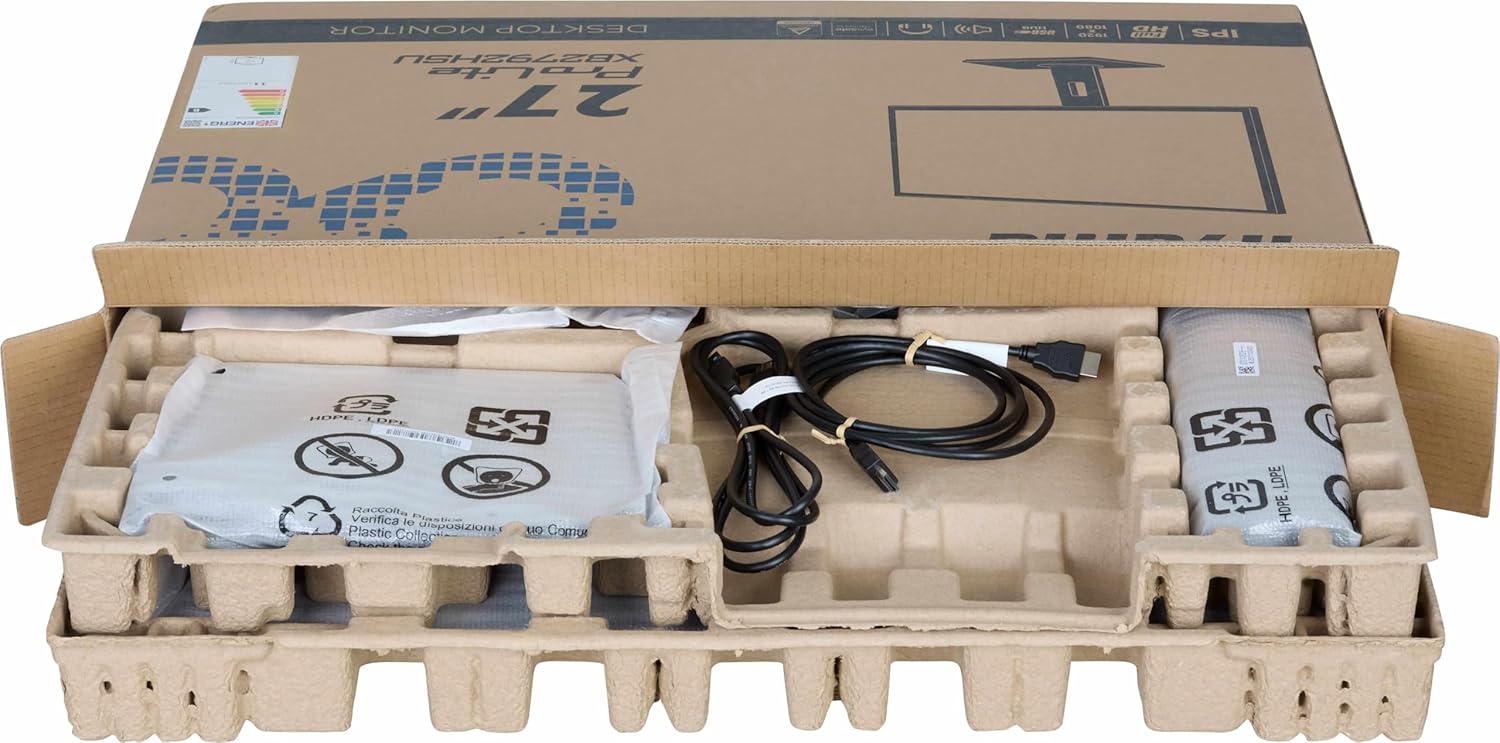
בילד: The iiyama ProLite XB2792QSU-B1 monitor and its accessories, including cables and stand components, neatly packed in the retail box.
- iiyama ProLite XB2792QSU-B1 Monitor
- מאָניטאָר שטאַנד (באַזע און האַלדז)
- מאַכט קאַבלע
- HDMI קאַבלע
- USB Cable (for USB hub functionality)
- Quick Start Guide / Safety Guide

בילד: אַ נאָענט-אַרויף view of the power cable, HDMI cable, and USB cable included with the monitor.
3. סעטאַפּ אינסטרוקציעס
3.1 צוזאַמענשטעלן דעם שטאַנד
- פֿאָרזיכטיק אַרויסנעמען דעם מאָניטאָר פֿון זײַן פּאַקאַדזשינג, האַלטנדיק עס באַשיצט אויף אַ ווייכער ייבערפֿלאַך (למשל, פּינע פּאַקאַדזשינג).
- באַפעסטיקט דעם שטאַנד האַלדז צו דער הינטערשטער זייט פון דעם מאָניטאָר. מאַכט זיכער אַז עס קליקט זיכער אין פּלאַץ אָדער איז באַפעסטיקט מיט שרויפן אויב עס איז צוגעשטעלט.
- Attach the stand base to the stand neck. Tighten the thumb screw or screws from the bottom of the base to secure it.

בילד: The rear of the iiyama ProLite XB2792QSU-B1 monitor, showing the stand securely attached to the monitor panel.
3.2 קאַנעקטינג קאַבלעס
זייט זיכער אז דער מאָניטאָר און אייער קאָמפּיוטער זענען אויסגעלאָשן איידער איר מאַכט קיין קאַנעקשאַנז.
- מאַכט קשר: פֿאַרבינדט דעם מאַכט קאַבל צום מאָניטאָר'ס מאַכט אַרייַנגאַנג און דערנאָך צו אַ געערדטער עלעקטרישער ווענטיל.
- ווידעא קשר: Connect one end of the HDMI or DisplayPort cable to the corresponding port on your computer's graphics card and the other end to the HDMI or DisplayPort input on the monitor.
- יו-עס-בי כאַב פֿאַרבינדונג (אָפּציאָנעל): Connect the supplied USB cable from your computer's USB port to the upstream USB port on the monitor to enable the monitor's built-in USB 3.2 hub.
- אַודיאָ קאַנעקשאַן (אַפּשאַנאַל): If you wish to use external speakers or headphones connected to the monitor, connect an audio cable from your computer's audio output to the monitor's audio input, or connect headphones directly to the monitor's audio output jack.

בילד: א דיטיילד view of the monitor's connectivity panel, showing the power input, HDMI ports, DisplayPort, USB 3.2 ports, and audio jack.
3.3 ערשט מאַכט אויף
- מאַכט אויף דיין קאָמפּיוטער.
- דריק דעם מאַכט קנעפּל אויפן מאָניטאָר. די מאַכט אינדיקאַטאָר ליכט זאָל אָנצינדן.
- דער מאָניטאָר זאָל אויטאָמאַטיש דעטעקטירן דעם אינפוט סיגנאַל. אויב נישט, דאַרפֿט איר אפשר מאַנועל אויסקלײַבן דעם אינפוט מקור ניצנדיק דעם אויף-סקרין דיספּליי (OSD) מעניו.
4. אַפּערייטינג די מאָניטאָר
4.1 אויף-סקרין ווייַז (אָסד) מעניו
The OSD menu allows you to adjust various monitor settings. The control buttons are typically located on the bottom or rear of the monitor.

בילד: די פראָנט view of the iiyama ProLite XB2792QSU-B1 monitor, displaying its slim bezel design and the location of the control buttons (usually on the bottom right bezel or rear).
- דריקן די מעניו קנעפּל צו עפענען די OSD.
- Use the navigation buttons (usually arrows) to move through the menu options.
- Press the Select/OK button to confirm a selection or enter a sub-menu.
- Press the Exit/Back button to return to the previous menu or exit the OSD.
4.2 געוויינטלעכע OSD סעטטינגס
- בילד: Adjust Brightness, Contrast, Sharpness, Gamma, OverDrive.
- קאָליר: Adjust Color Temperature, RGB levels, or select preset color modes.
- אַרייַנשרייַב אויסקלייַבן: מאַנועל באַשטימען צווישן HDMI און DisplayPort אינפוטס.
- אַודיאָ: Adjust volume for the built-in speakers or headphone output.
- OSD סעטטינגס: אַדזשאַסטירן די OSD שפּראַך, פּאָזיציע און טיימאַוט.
- אינפֿאָרמאַציע: Display current resolution, refresh rate, and model information.
4.3 ערגאָנאָמישע אַדזשאַסטמאַנץ
דער מאָניטאָר שטאַנד ערמעגליכט פֿאַרשידענע אַדזשאַסטמאַנץ צו אָפּטימיזירן אייער viewאין טרייסט.

בילד: א זייטיקער פּראָfile of the iiyama ProLite XB2792QSU-B1 monitor, illustrating its adjustable stand that allows for height, tilt, and swivel movements.
- הייך אַדזשאַסטמאַנט: דריק אדער ציה דעם מאָניטאָר פּאַנעל ארויף אָדער אַראָפּ צו סטרויערן זיין הייך.
- טילט אַדזשאַסטמאַנט: Hold the top and bottom edges of the monitor panel and gently tilt it forwards or backwards.
- סוויוואַל אַדזשאַסטמאַנט: Rotate the monitor panel left or right on its stand base.
- פּיוואַט פונקציע: The monitor can be rotated 90 degrees to a portrait orientation. Ensure the monitor is at its maximum height and tilted back slightly before pivoting to avoid hitting the desk.
5. וישאַלט
5.1 רייניקונג די מאָניטאָר
- שטענדיק ארויסנעמען דעם מאָניטאָר פֿון דער עלעקטרישער אַוטלעט איידער איר רייניגט.
- ניצן אַ ווייך, לינט-פֿרייַ שטאָף אַ ביסל דampאָפּגעווישט מיט וואַסער אָדער אַ מילד, נישט-אַברייסיוו פאַרשטעלן רייניגער.
- שפריצט נישט רייניגער גלייך אויפן עקראַן. טראָגט עס ערשט אויף דעם שטאָף.
- פֿאַרמײַדט ניצן בענזין, פֿאַרדינער, אַמאָניאַק-באַזירטע רייניגער, אָדער אַברייסיוו מאַטעריאַלן, ווײַל די קענען שאַטן דעם עקראַן אָדער קאָמפּיוטער.asing.
5.2 סטאָרידזש
If storing the monitor for an extended period, disconnect all cables and pack it in its original packaging if possible. Store in a cool, dry place away from direct sunlight and extreme temperatures.
6. טראָובלעשאָאָטינג
אויב איר טרעפט פּראָבלעמען מיט אייער מאָניטאָר, זעט די פאלגענדע געוויינטלעכע פּראָבלעמען און לייזונגען.
| פּראָבלעם | מעגלעך לייזונג |
|---|---|
| קיין מאַכט / מאַכט LED אויסגעלאָשן |
|
| No signal / "No Signal" message |
|
| בילד איז פארשוואומען אדער פארדרייט |
|
| קאָלאָרס זענען פאַלש |
|
| וסב פּאָרץ נישט ארבעטן |
|
If the problem persists after trying these solutions, please contact iiyama customer support.
7. טעכניש ספּעסאַפאַקיישאַנז
Below are the key technical specifications for the iiyama ProLite XB2792QSU-B1 monitor.
| שטריך | באַשרייַבונג |
|---|---|
| מאָדעל נומער | XB2792QSU-B1 |
| פאַרשטעלן גרייס | 27 אינטשעס |
| טאַפליע טיפּ | IPS |
| האַכלאָטע | 2560 רענטגענ 1440 (QHD) |
| דערפרישן קורס | 120 הז |
| אַספּעקט פאַרהעלטעניש | 16:9 |
| ענטפער צייט | 5 מיליסעקאַנדז |
| ברייטנאַס | 350 סי / מ² |
| Viewינג אַנגלע | 178° (H) / 178° (V) |
| ייַזנוואַרג קאַנעקטיוויטי | 1x HDMI, 1x DisplayPort, 2x USB 3.2 Gen 1, 3.5mm Audio Out |
| נומער דימענשאַנז (ד רענטגענ וו רענטגענ ה) | 8.25"ד רענטגענ 24.25"וו רענטגענ 15.59"ה |
| פּונקט וואָג | 5.5 קילאָגראַמס |
| קאָליר | שוואַרץ |
8. וואָראַנטי און שטיצן
This iiyama monitor comes with a manufacturer's warranty. For detailed warranty terms and conditions, please refer to the warranty card included in your product packaging or visit the official iiyama webפּלאַץ.
For technical support, troubleshooting assistance, or service inquiries, please contact iiyama customer support through their official channels. Have your monitor's model number (XB2792QSU-B1) and serial number ready when contacting support.
Official iiyama Webפּלאַץ: www.iiyama.com