
הקדמה
This manual provides instructions for the Brydge 10.9 MAX+ Wireless Keyboard Case. This product is designed to enhance your iPad experience by providing a physical keyboard with a multi-touch trackpad and a protective case. Please read this manual thoroughly before use to ensure proper operation and care.
קאַמפּאַטאַבילאַטי
The Brydge 10.9 MAX+ Wireless Keyboard Case is compatible with the following iPad models:
- iPad 10th Generation (Model Numbers: A2696, A2757, A2777)
- iPad A16 (11th Generation) (Model Numbers: A3354, A3355, A3356)
וויכטיק: This keyboard case is not designed for use with iPad Air, iPad Pro, iPad 9th Gen, or older iPad models.
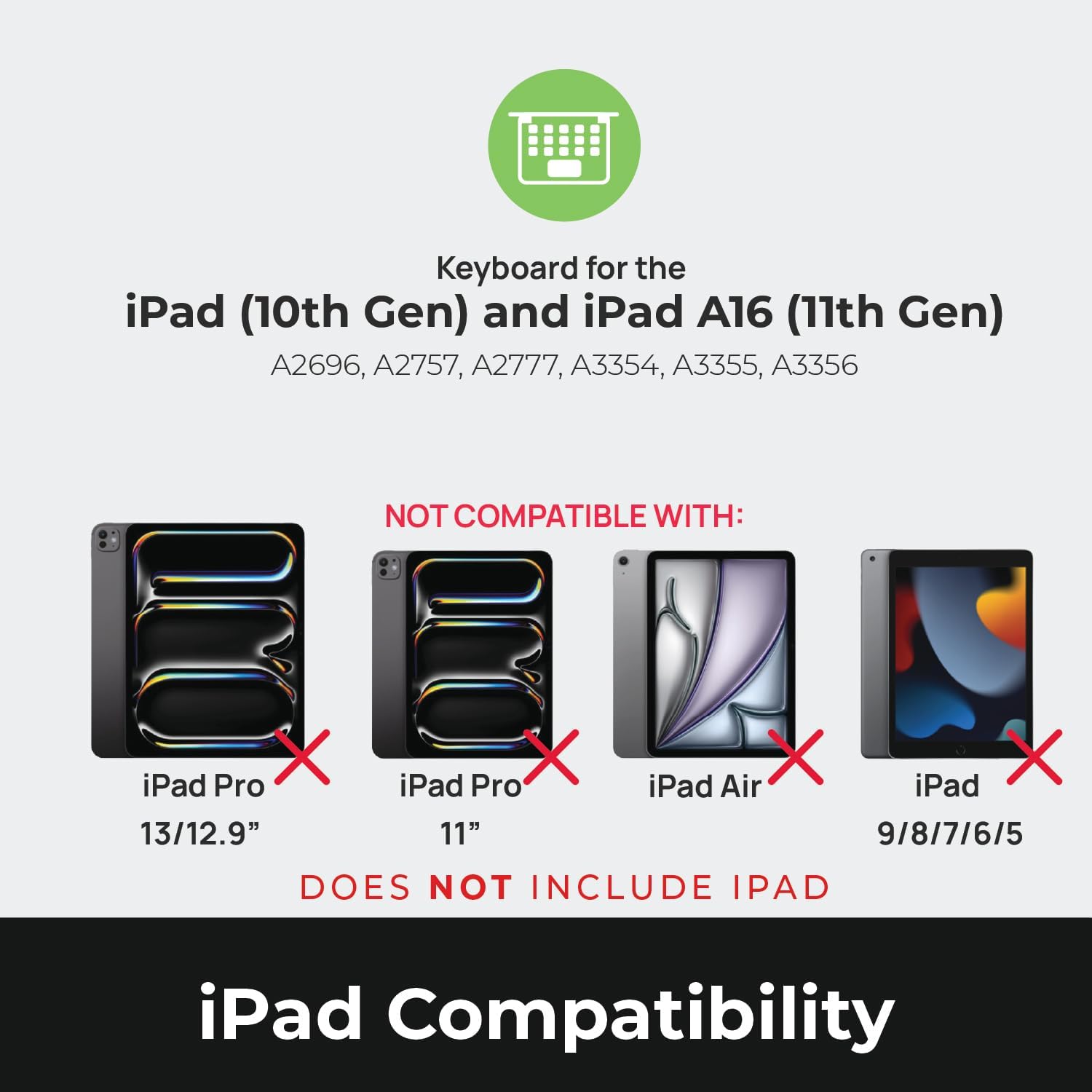
Image: Compatibility chart showing supported iPad models (10th Gen, A16 11th Gen) and incompatible models (iPad Pro 13/12.9", iPad Pro 11", iPad Air, iPad 9/8/7/6/5).
וואָס איז אין די קעסטל
ביים אויספּאַקן, זיכער מאַכן אַז אַלע זאכן זענען פאַראַן:
- 1 x Brydge 10.9 MAX+ Wireless Keyboard
- 1 x Detachable Magnetic SnapFit Case
- 1 x באַניצער מאַנואַל (דאָס דאָקומענט)
Note: An iPad and USB-C charging cable are not included. The USB-C cable typically comes with your iPad.

Image: Depiction of the box contents, including the keyboard, case, and user manual.
סעטאַפּ אינסטרוקציעס
1. Attaching Your iPad to the SnapFit Case
- Carefully align your iPad with the SnapFit Case.
- Gently press the iPad into the case until it is securely seated. The case is designed for a snug fit to provide protection.
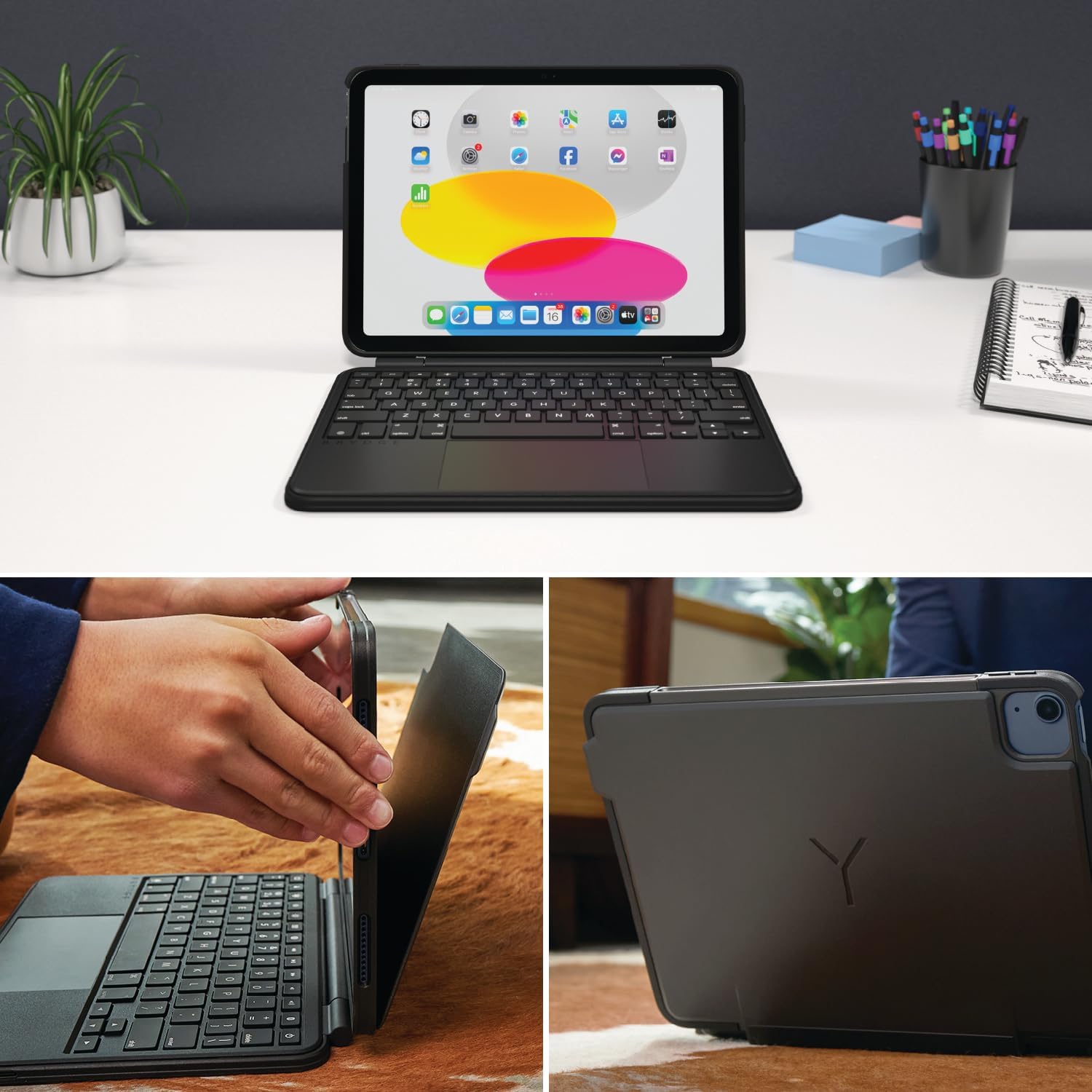
Image: Shows the process of attaching the iPad to the SnapFit case and the case attached to the keyboard.
2. Connecting the Case to the Keyboard
The SnapFit Case features a magnetic back cover that securely attaches to the Brydge keyboard. Simply align the back of the cased iPad with the magnetic area on the keyboard base until it snaps into place.
3. אויפלאָדן די קלאַוויאַטור
Before first use, it is recommended to fully charge the keyboard. Use a USB-C cable (not included) to connect the keyboard's charging port to a power source. The charging port is typically located on the side or back of the keyboard.
4. בלועטאָאָטה פּערינג
- זייט זיכער אז די קלאַוויאַטור איז אויפגעלאָדן און אנגעצונדן.
- אויף אייער אייפּאַד, גייט צו סעטטינגס > בלועטאָאָטה.
- קער אויף בלועטאָאָטה.
- The Brydge keyboard should appear in the "Other Devices" list. Tap on its name to connect.
- If prompted, enter the pairing code displayed on your iPad using the Brydge keyboard, then press אַרייַן.
The keyboard features Instant-On™ Connectivity via Bluetooth 5.0, providing a quick and stable connection once paired.

Image: Illustrates the keyboard's Bluetooth 5.0 and Instant-On connectivity features.
אַפּערייטינג ינסטראַקשאַנז
קלאַוויאַטור פאַנגקשאַנז
- באַקלייט שליסלען: The keyboard features adjustable backlit keys with 3 brightness levels. Use the dedicated function keys (usually located in the top row) to cycle through brightness settings or turn the backlight off.
- פֿונקציע קיז: The top row of keys provides quick access to iPadOS functions such as Home, Search, Brightness, Media Controls, and Volume.
מולטי-טאטש טרעקפּעד
The integrated multi-touch trackpad supports various iPadOS gestures for navigation and interaction. Refer to your iPad's settings for a full list of supported gestures.
- קליקינג: Press down on the trackpad to perform a click.
- סקראָללינג: ניצט צוויי פינגער צו סקראָלן אַרויף אָדער אַראָפּ.
- פארגרעסער: קניפּ מיט צוויי פינגער צו פארגרעסער אין אָדער אויס.
- אַפּ סוויטשער: Swipe up with three fingers to open the App Switcher.
- היים פאַרשטעלן: Swipe up with one finger from the bottom edge to return to the Home Screen.

Image: Highlights the detachable magnetic SnapFit case and the native multi-touch trackpad.
אַדזשאַסטינג Viewאין אַנגלעס
The keyboard allows for a screen rotation of up to 135 degrees, enabling various viewing angles for typing, drawing, or media consumption.

Image: Displays key features including up to 3-month battery life, 3 levels of backlit keys, and 0-130° viewינג אַנגלעס.
באַטערי לעבן
The keyboard offers up to 3 months of battery life on a single charge, depending on usage and backlight settings. To conserve battery, the keyboard will enter sleep mode after a period of inactivity.
וישאַלט
- רייניקונג: ניצן אַ ווייך, דamp, lint-free cloth to clean the keyboard and case. Avoid abrasive cleaners or solvents.
- סטאָרידזש: When not in use for extended periods, ensure the keyboard is fully charged and stored in a cool, dry place.
- באַטערי זאָרגן: כדי צו פארלענגערן די לעבן פון די באַטעריע, זאָלט איר נישט אָפט אויסלאָדן די קלאַוויאַטור. לאָדט עס אויף ווען די באַטעריע אינדיקאַטאָר איז נידעריק.
טראָובלעשאָאָטינג
קלאַוויאַטור פֿאַרבינדט זיך נישט דורך בלועטוט
- זייט זיכער אַז די קלאַוויאַטור איז אויפגעלאָדן.
- באַשטעטיקן אַז בלועטוט איז ענייבאַלד אויף דיין אייפּאַד.
- פארגעסט דעם דעווייס אין אייער אייפּאַד'ס בלועטוט סעטטינגס און פרובירט צו ווידער-פארן.
- ריסטאַרט ביידע דיין iPad און די קלאַוויאַטור.
Trackpad Not Responding or Moving Erratically
- Ensure the keyboard is fully charged. Low battery can affect trackpad performance.
- Clean the trackpad surface with a soft, dry cloth to remove any debris or smudges.
- דיסקאַנעקט און ריקאַנעקט די בלועטאָאָטה פֿאַרבינדונג.
- Check for any firmware updates for the Brydge keyboard via the Brydge Connect App (if available).
שליסלען ניט ריספּאַנדינג
- Confirm the keyboard is powered on and connected via Bluetooth.
- קוקט איבער פאר יעדע פיזישע שטערונג אונטער די קנעפלעך.
- If specific keys are not working, try restarting the keyboard and iPad.
ספּעסאַפאַקיישאַנז
| מאָדעל נומער | BRY8042 |
| פּראָדוקט דימענשאַנז | 10"ל x 7.65"ברייט x 0.8"ה (10 x 7.65 x 0.8 אינטשעס) |
| פּונקט וואָג | 1.85 פונט |
| קאַנעקטיוויטי טעכנאָלאָגיע | בלועטאָאָטה 5.0 |
| קלאַוויאַטור באַשרייַבונג | ווירעלעסס |
| ספּעציעלע פֿעיִקייטן | Backlit, Rechargeable, Multi-Touch Trackpad, Detachable Magnetic SnapFit Case |
| קאָליר | שוואַרץ |
| מאַטעריאַל | פּאָליקאַרבאָנאַט, טערמאָפּלאַסטיש פּאָליורעטאַן (TPU) |
| באַטערי | 1 Nonstandard Battery (included), up to 3 months battery life |
| Viewינג אַנגלע | אַרויף צו 135 דיגריז |
וואָראַנטי און שטיצן
This product is subject to a standard return policy, typically 30 days from the date of purchase for refunds or replacements. For specific warranty details, please refer to the documentation provided with your purchase or contact Brydge customer support.
For technical assistance, troubleshooting, or warranty claims, please visit the official Brydge support website or contact their customer service department. Contact information can usually be found on the Brydge webזייטל אדער אין די פּאַקקאַגינג מאַטעריאַלן.
Note: Protection plans may be available for purchase separately.