
1. פּראָדוקט איבערview
The WatchGuard Firebox T145 is a tabletop firewall designed to provide enterprise-grade network security for small branch offices and retail environments. This compact and affordable solution integrates advanced security features, including AI-powered anti-malware, threat correlation, and DNS filtering. It supports high throughput with a blend of 2.5Gb, 1Gb, and SFP/SFP+ ports, ensuring robust network defense.
All logging and reporting functions are included, offering over 100 dashboards and reports, including those for PCI and HIPAA compliance. The Firebox T145 is engineered for quick deployment and superior performance, featuring AI-driven threat detection for modern network environments.
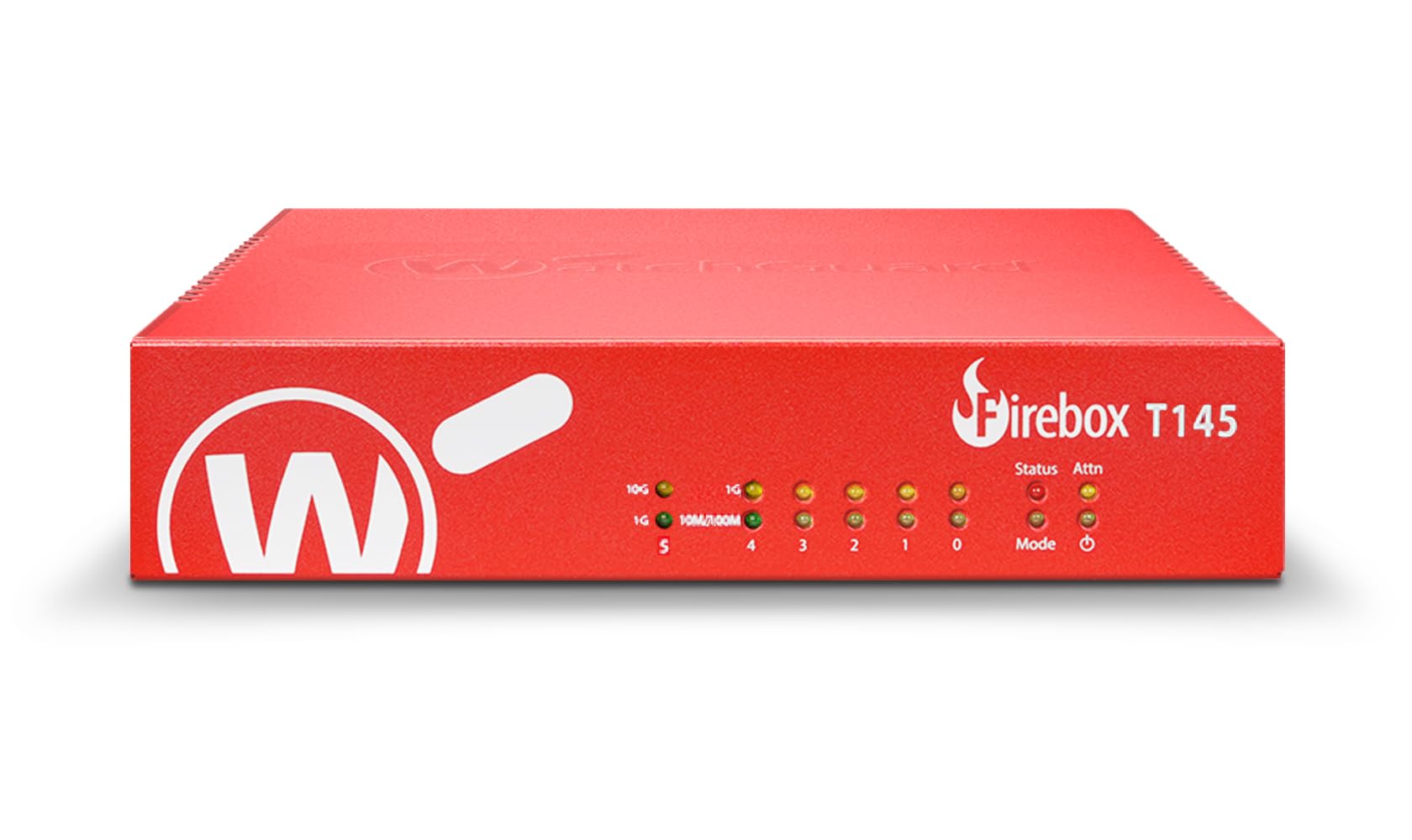
בילד 1.1: פראָנט view of the WatchGuard Firebox T145 tabletop firewall.
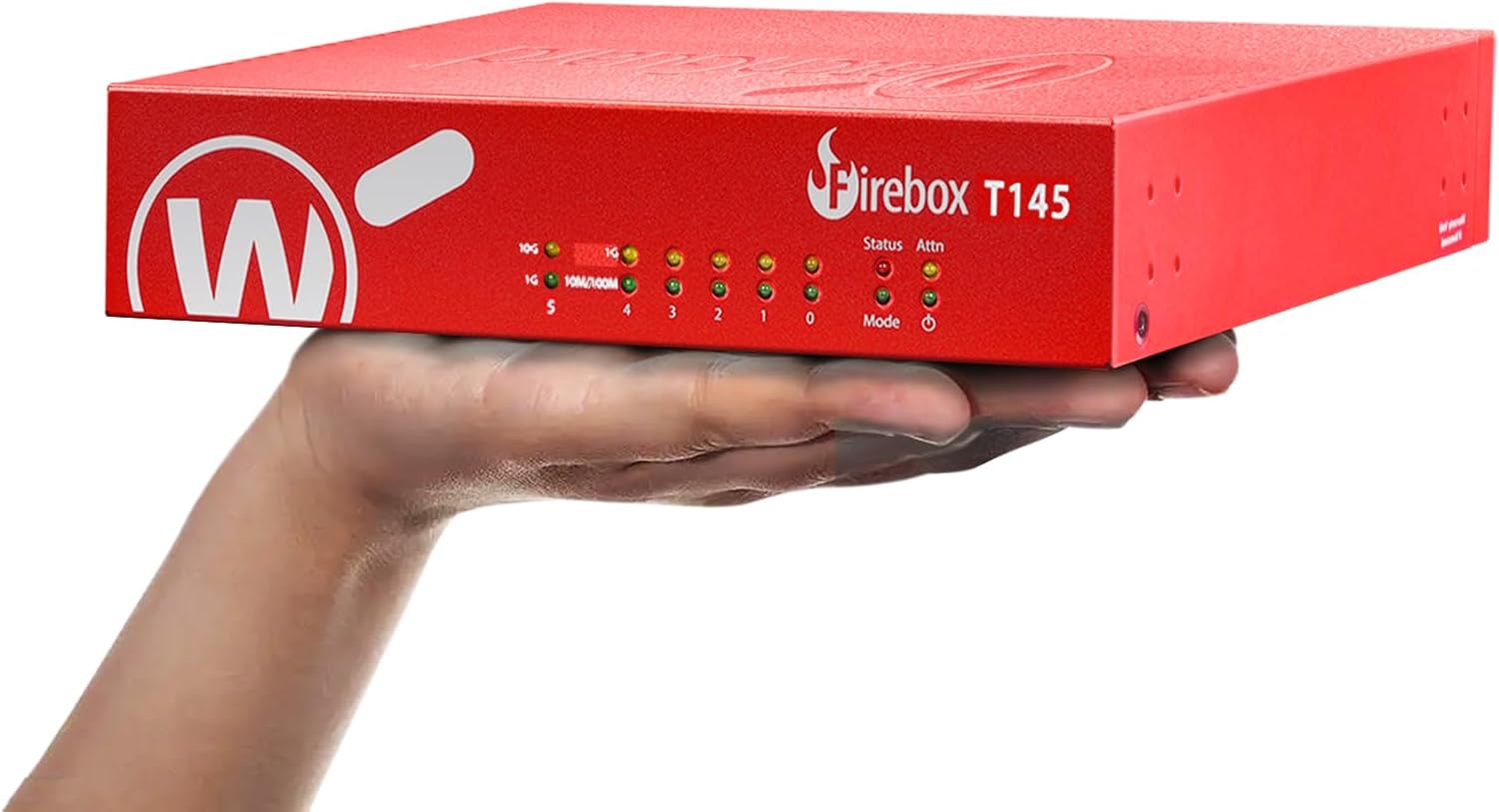
Image 1.2: The compact WatchGuard Firebox T145 device held in a hand, illustrating its small form factor.
2. סעטאַפּ און ייַנמאָנטירונג
This section guides you through the initial setup of your WatchGuard Firebox T145. The device supports zero-touch deployment for simplified installation.
2.1 פּעקל אינהאַלט
באַשטעטיקן אַז אַלע קאָמפּאָנענטן זענען פאַראַן אין דיין פּעקל:
- WatchGuard Firebox T145 appliance
- מאַכט אַדאַפּטער
- עטהערנעט קאַבלע
- שנעלע אָנהייב גייד (זעט דעם מאַנואַל פֿאַר דעטאַלירטע אינסטרוקציעס)
2.2 קאַנעקטינג די מיטל
Follow these steps to connect your Firebox T145:
- מאַכט קשר: Connect the power adapter to the 12VDC input on the rear panel of the Firebox T145 and then to a power outlet.
- נעץ קאַנעקשאַנז:
- Connect your internet service provider's modem or router to the 0/WAN 1/LAN port (often labeled as WAN) using an Ethernet cable.
- Connect your internal network devices (switches, computers) to the LAN ports (1-4) using Ethernet cables.
- Utilize the 2.5GbE, 1GbE, or SFP/SFP+ ports for high-speed connections as required by your network infrastructure.
- וסב פּאָרץ: The device includes USB 3.2 ports for potential future expansion or specific configurations.
- מאַכט אויף: Flip the power switch on the rear panel to the ON position. The front panel LEDs will illuminate to indicate device status.

בילד 2.1: דעטאַלירט view of the WatchGuard Firebox T145 showing front panel LEDs and rear panel ports including 2.5GbE, 1GbE, SFP/SFP+ ports, USB, and power input.

Image 2.2: Rear panel of the Firebox T145, highlighting the various connectivity options such as USB, 2.5 Gbps interface, 1 Gbps interfaces, 10 Gbps interface (SFP/SFP+), and power input.
2.3 Zero-Touch Deployment
The Firebox T145 supports zero-touch deployment, allowing for remote configuration and activation without requiring on-site technical personnel. This feature streamlines deployment for distributed environments.
Video 2.1: WatchGuard T145 Product Overview. This video demonstrates key features including zero-touch deployment, management options, and physical interfaces of the Firebox T145.
3. Operation and Security Features
The Firebox T145 provides comprehensive security and network management capabilities.
3.1 Security Suites
The Firebox T145 is available with different security suites to match your organizational needs:
- Basic Security Suite: Includes intrusion prevention, gateway antivirus, URL filtering, and spam blocking. These core protections are managed through WatchGuard Cloud.
- Total Security Suite (Upgrade Option): Adds AI-powered malware detection, cloud sandboxing, DNS filtering, and advanced threat correlation for enhanced protection.
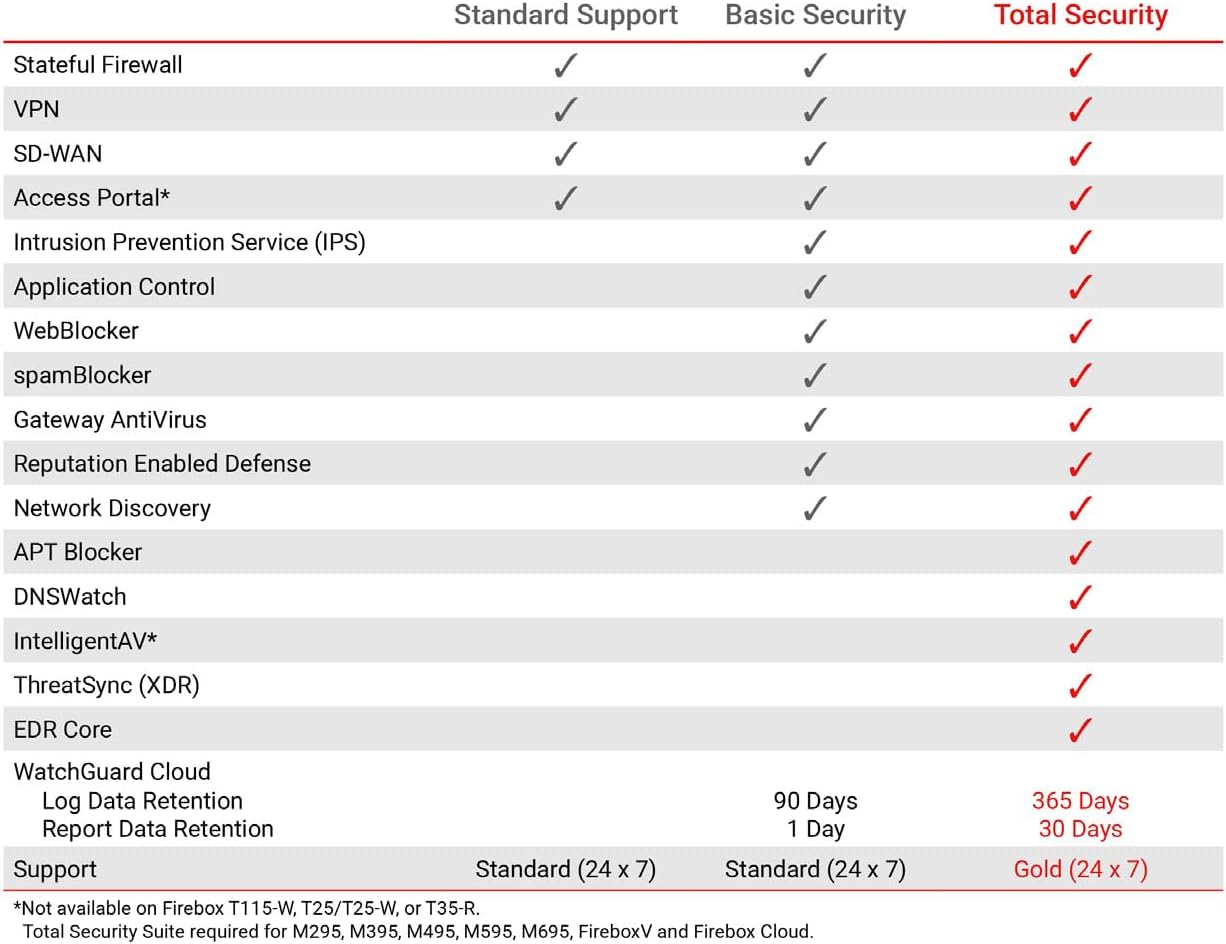
Image 3.1: Comparison table detailing features included in Standard Support, Basic Security, and Total Security suites for WatchGuard Firebox devices.
3.2 Network Adaptation (SD-WAN)
The device supports SD-WAN network adaptation, enabling flexible VPN topologies for hub-and-spoke or mesh designs, optimizing network performance and reliability across multiple locations.
3.3 פאָרשטעלונג
The Firebox T145 offers robust performance for demanding network environments:
- UTM throughput up to 710 Mbps with inspection enabled.
- Firewall Throughput (IMIX): 1.34 Gbps.
- IPS Throughput (full scan): 1.03 Gbps.
- VPN Throughput (IMIX): 680 Mbps.
- HTTPS (IPS enabled, full scan): 380 Mbps.
4. Maintenance and Monitoring
Effective maintenance and monitoring are crucial for maintaining optimal security and performance of your Firebox T145.
4.1 WatchGuard Cloud Management
The Firebox T145 can be managed locally or through WatchGuard Cloud. WatchGuard Cloud provides centralized management, monitoring, and reporting capabilities, simplifying the administration of your security infrastructure.
4.2 Logging and Reporting
The device includes comprehensive logging and reporting functions, offering over 100 dashboards and reports. These reports are essential for compliance (e.g., PCI, HIPAA) and for gaining insights into network activity and security events.
- Log Data Retention: 90 Days (Basic Security), 365 Days (Total Security).
- Report Data Retention: 1 Day (Basic Security), 30 Days (Total Security).
5. טראָובלעשאָאָטינג
This section provides general guidance for common issues. For detailed troubleshooting, refer to the WatchGuard support documentation or contact technical support.
5.1 פּראָסט ישוז און סאַלושאַנז
- קיין מאַכט: Ensure the power adapter is securely connected to the device and a working power outlet. Check the power switch on the rear panel.
- קיין נעץ קאָנעקטיוויטי: Verify all Ethernet and SFP/SFP+ cables are properly connected. Check the status LEDs on the front panel for port activity and link status. Confirm your internet service is active.
- פּאַמעלעך פאָרשטעלונג: Review your security policies and ensure they are optimized. Check the WatchGuard Cloud dashboards for any high-resource usage or active threats.
- LED ינדיקאַטאָרס: Refer to the device's LED status guide (usually found in the full product manual) to interpret the meaning of different light patterns, which can indicate operational status or errors.
5.2 צוריקשטעלן דעם מיטל
A reset button is located on the rear panel. Pressing this button can restore the device to factory default settings. וואָרענען: Performing a factory reset will erase all configurations. Only perform this action if instructed by WatchGuard support or if you have a backup of your configuration.
6. טעכניש ספּעסאַפאַקיישאַנז
Key technical specifications for the WatchGuard Firebox T145 (WGT145031):
| שטריך | דעטאַל |
|---|---|
| מאָדעל נומער | T145 |
| נעץ ינטערפייסיז | 1 x 2.5 GbE, 4 x 1 GbE, 1 x SFP/SFP+ |
| איך / אָ ינטערפייסיז | 1 Serial, 2 x USB-A 3.2 |
| אָפּערייטינג סיסטעם | פירעוואַרע |
| Firewall Throughput (IMIX) | 1.34 גבפּס |
| IPS Throughput (full scan) | 1.03 גבפּס |
| VPN Throughput (IMIX) | 680 מבפּס |
| HTTPS (IPS enabled, full scan) | 380 מבפּס |
| באַראַן | 4 גיגאבייט |
| דימענשאַנז (H X W X D) | 1.7" x 9" x 8.25" (44 x 230 x 210 מ"מ) |
| פּונקט וואָג | 3.75 פונט |

Image 6.1: Table summarizing key performance specifications for the WatchGuard T145/W, including throughput rates and network interfaces.
7. וואָראַנטי און שטיצן
7.1 פּראָדוקט וואָראַנטי
For detailed information regarding the product warranty, please refer to the official WatchGuard website or the warranty documentation included with your purchase. WatchGuard offers various protection plans, such as 4-Year Protection Plan and Complete Protect, which may extend coverage beyond the standard warranty.
7.2 טעכניש שטיצן
WatchGuard provides comprehensive technical support for its products. You can access support resources through the WatchGuard Cloud platform or by contacting WatchGuard's customer service. Many issues can be resolved by consulting the extensive documentation available online or by engaging with trusted MSP experts.