
1. הקדמה
Thank you for choosing the SGIN C10 10.1-inch Kids Tablet. This device is designed to provide an engaging and safe digital experience for children, featuring parental controls and educational content. This manual will guide you through the setup, operation, and maintenance of your tablet to ensure optimal performance and user safety.
2. פּראָדוקט איבערview
2.1 פּעקל אינהאַלט
ביים אויספּאַקן, ביטע זיכער מאַכן אַז אַלע די זאכן וואָס זענען אויסגערעכנט אונטן זענען פאַראַן:
- SGIN C10 10.1-inch Tablet
- פּראַטעקטיוו קאַסע
- טשאַרדזשער
- וסב קאַבלע
- ינסטראַקשאַנז מאַנואַל

Image: Diagram showing the tablet's ports and buttons, along with the included accessories: tablet, protective case, charger, USB cable, and instruction manual.
2.2 Tablet Components
Familiarize yourself with the physical components of your SGIN C10 tablet:
- מאַכט קנעפּל: געפינען זיך אויף דער זייט, גענוצט צו אנצינדן/אויסלעשן די טאַבלעט אדער עס אריינלייגן אין שלאף.
- באַנד קנעפּלעך: אַדזשאַסטירן דעם אַודיאָ אַרויסגאַנג לעוועל.
- כעדפאָון דזשאַק: פֿאַר פֿאַרבינדן דראָטיקע קאָפּהערער.
- וסב פּאָרט: פֿאַר טשאַרדזשינג און דאַטן אַריבערפירן.
- טף קאַרד שפּעלטל: For expanding storage with a microSD card.
- פראָנט אַפּאַראַט: פֿאַר ווידעאָ קאָלס און סעלפֿיז.
- דערציען אַפּאַראַט: פֿאַר נעמען בילדער און ווידעאָס.
- רעדנער: פֿאַר אַודיאָ רעזולטאַט.
- 10.1-אינטש HD IPS טאָוטש סקרין: הויפּט אַרויסווייַז פֿאַר אינטעראַקציע.
- Protective Case with Stand: Provides protection and allows for hands-free viewing.
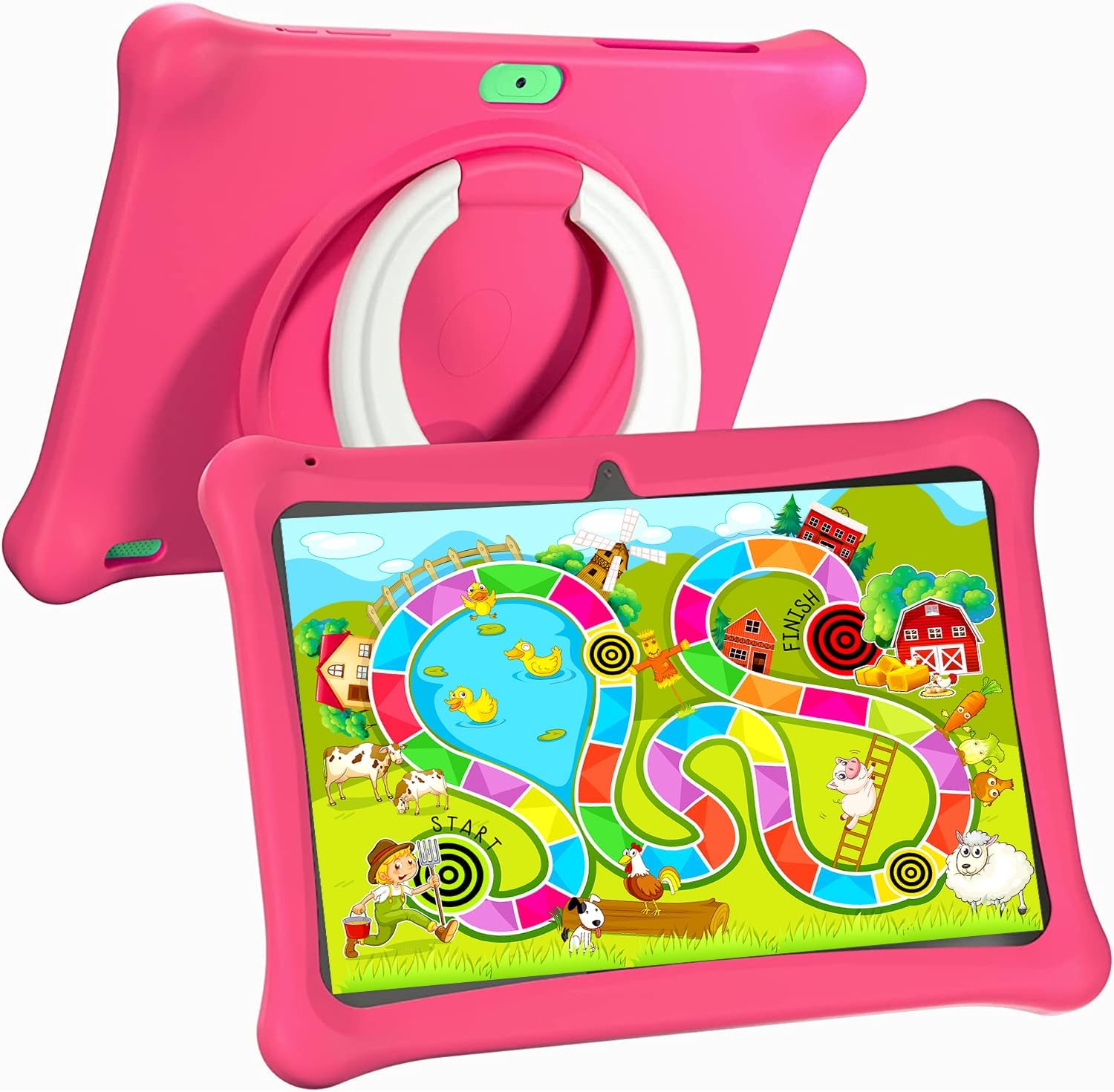
Image: The SGIN C10 tablet in its pink protective case, displaying a colorful educational game on its screen. The rear of the tablet shows the integrated stand.
2.3 שליסל פֿעיִקייטן
- הויך פאָרשטעלונג: Equipped with a 1.6GHz quad-core processor, 2GB RAM, and 32GB ROM (expandable up to 32GB via TF card).
- Kid-Proof Case: Durable pink case designed to protect against dust, bumps, and drops, with heat dissipation features.
- Pre-installed iWawa Kid's Software: Offers a safe and entertaining environment with thousands of free educational games and apps.
- עלטערן קאָנטראָל סיסטעם: Allows parents to manage screen time, content, and user accounts.
- לאנג באַטאַרייע לעבן: 5000mAh lithium battery provides 6-8 hours of usage.
- Eye Protection Screen: 1280*800 HD IPS touch screen for vibrant colors and comfortable viewing.
- צוויי קאַמעראַ: 2MP front camera and 5MP rear camera for photos and videos.

Image: Icons representing key features of the SGIN C10 tablet: Android 12, Quad-core processor, Dual Camera, 5000mAh battery, WiFi, HD Display, 2GB RAM + 32GB storage, 10 Inch screen, and Parental Control.

Image: Visual representation of the tablet's 2GB RAM and 32GB ROM (expandable via TF card), alongside a diagram of the 1.6 GHz Quad-core Processor.

Image: The 10-inch HD display showing vibrant content, and a close-up of the protective case's rotatable stand.

Image: A child using the tablet, highlighting the 5000mAh Lithium Battery, and a close-up of the tablet's dual camera system.
3. סעטאַפּ
3.1 ערשט טשאַרדזשינג
- Connect the USB cable to the tablet's USB port.
- פֿאַרבינדט דעם אַנדערן עק פֿונעם USB קאַבל צום צוגעשטעלטן טשאַרדזשער.
- צאַפּן די טשאַרדזשער אין אַ מאַכט ווענטיל.
- לאָזט דעם טאַבלעט זיך גאָר אויפלאָדן איידער איר ניצט עס צום ערשטן מאָל. דער באַטעריע אינדיקאַטאָר אויפן עקראַן וועט ווײַזן דעם אויפלאָדן סטאַטוס.
3.2 פּאַוערינג אויף / אַוועק
- צו מאַכט אויף: דריק און האלט דעם פּאַוער קנעפּל ביז דער SGIN לאָגאָ דערשיינט אויפן עקראַן.
- צו מאַכט אַוועק: Press and hold the Power Button until a menu appears. Select "Power off" and confirm.
- צו שלאפן/אויפוואכן: Briefly press the Power Button to put the tablet to sleep or wake it up.
3.3 קאַנעקטינג צו Wi-Fi
- פֿון דער היים־עקראַן, סווייפּ אַראָפּ פֿון אויבן צו עפֿענען דעם שנעל־סעטטינגס־פּאַנעל.
- Tap and hold the Wi-Fi icon to open Wi-Fi settings.
- Toggle Wi-Fi on if it's off.
- אויסקלייבן אייער געוואונטשענע Wi-Fi נעץ פון דער ליסטע.
- אַרייַן די נעץ פּאַראָל אויב געבעטן, און דאַן צאַפּן "פאַרבינדן".
3.4 Initial iWawa Setup
The SGIN C10 tablet comes with iWawa Kid's software pre-installed. Follow the on-screen prompts to set up the child-friendly environment and parental controls during the first launch.
4. אַפּערייטינג ינסטרוקטיאָנס
4.1 יקערדיק נאַוויגאַציע
- ריר: צאַפּן אויף אַן איקאָן אָדער אָפּציע צו עס אויסקלײַבן.
- לאַקכענען: שלעפּט אייער פינגער אַריבער דעם עקראַן צו סקראָלן דורך בלעטער אָדער רשימות.
- קניפּ: ניצט צוויי פינגער צו פארגרעסערן אדער פארקלענערן בילדער אדער web בלעטער.
- היים קנעפּל: ברענגט אייך צוריק צום היים עקראַן.
- צוריק קנעפּל: קערט איר צו די פריערדיקע פאַרשטעלן.
- לעצטע אַפּפּס קנעפּל: ווײַזט לעצטנס גענוצטע אַפּליקאַציעס.
4.2 ניצן די קאַמעראַ
- עפֿנט די קאַמעראַ אַפּ פֿון דער היים־עקראַן אָדער אַפּ־שוך.
- צאַפּן אויף די קאַמעראַ סוויטש ייקאַן צו טוישן צווישן די פראָנט און הינטערשטע קאַמעראַס.
- צאַפּן דעם שאַטער קנעפּל צו נעמען אַ פאָטאָ.
- Tap the video icon to switch to video recording mode, then tap the record button to start/stop recording.
4.3 Installing/Uninstalling Apps
- ינסטאָלינג אַפּפּס: Within the iWawa environment, access the Kids Store to download free games and educational applications. Parents can also approve apps from the Google Play Store via parental controls.
- אַראָפּנעמען אַפּפּס: From the parental control interface, select the app management option to uninstall unwanted applications.
4.4 אַדזשאַסטינג סעטטינגס
- באַנד: Use the physical Volume Buttons on the side of the tablet.
- ברייטקייט: Swipe down from the top of the screen to access Quick Settings and adjust the brightness slider. More detailed display settings are available in the main Settings app.
- אנדערע סעטטינגס: Access the main Settings app for Wi-Fi, Bluetooth, display, sound, storage, and other system configurations.
5. עלטערן קאָנטראָל
The SGIN C10 tablet features a robust parental control system integrated with the iWawa Kid's software, allowing you to create a safe and customized environment for your child.
5.1 אַקסעס פּערענטאַל קאָנטראָלס
To access parental control settings, you will typically need to exit the iWawa Kid's interface and enter a password-protected parent mode. Follow the on-screen instructions within the iWawa app to set up and manage this access.
5.2 Key Parental Control Features
- שטעלן פּאַראָלס: Establish a secure password to prevent children from exiting the iWawa environment or altering settings.
- סקרין צייט לימיטן: Define daily usage limits and specific time periods when the tablet can be used.
- אינהאַלט פאַרוואַלטונג: Control access to apps, games, videos, and websites. You can whitelist appropriate websites and block unwanted content.
- App Approval: Manage which applications your child can access, including those downloaded from the Kids Store or Google Play Store.
- Multiple User Accounts: שאַפֿן אַ באַזונדער פּראָfiles for each child, allowing personalized settings and content for individual users.
- Ad Elimination: The system helps eliminate unwanted advertisements within the child's environment.
6. וישאַלט
6.1 רייניקונג די מיטל
- Always power off the tablet before cleaning.
- ניצט אַ ווייכן, לינט-פֿרייע שטאָף צו ווישן דעם עקראַן און קערפּער.
- פֿאַר שווערע פֿלעקן, אַ ביסל דampווישט דעם שטאָף מיט וואַסער אָדער אַ פאַרשטעלן-זיכער רייניגער. פֿאַרמייַדט שטרענגע כעמיקאַלן.
- זיכער מאַכן אַז קיין נעץ זאָל נישט אַרייַן אין די פּאָרץ אָדער עפענונגען.
6.2 באַטערי קער
- פֿאַרמײַדט אָפֿט פֿולשטענדיק אויסצולאָדן די באַטעריע.
- שטעלט נישט אויס די טאַבלעט צו עקסטרעמע טעמפּעראַטורן.
- ניצט נאָר דעם צוגעשטעלטן טשאַרדזשער און קאַבל.
6.3 ווייכווארג דערהייַנטיקונגען
Periodically check for system updates in the tablet's Settings menu under "System" or "About tablet." Keeping your software updated ensures optimal performance and security.
6.4 סטאָרידזש פאַרוואַלטונג
To manage storage, you can:
- Delete unused apps and files.
- Move photos and videos to a computer or cloud storage.
- Insert a TF (microSD) card into the designated slot to expand storage capacity up to 32GB.
7. טראָובלעשאָאָטינג
| פּראָבלעם | מעגלעך לייזונג |
|---|---|
| די טאַבלעט טוט זיך נישט אָן. | זיכער מאַכן אַז די באַטאַרייע איז אויפגעלאָדן. פֿאַרבינדט דעם טשאַרדזשער און וואַרט אַ פּאָר מינוט איידער איר פּרוּווט ווידער אָנצוצינדן. |
| די פאַרשטעלן איז ניט ריספּאַנדאַבאַל. | Restart the tablet by holding the Power Button for about 10 seconds until it powers off, then power it on again. |
| קענען ניט פאַרבינדן צו ווי-פי. | Check if Wi-Fi is enabled. Ensure the password is correct. Restart your Wi-Fi router. |
| אַפּפּס קראַשן אָדער לויפן פּאַמעלעך. | Close background apps. Clear app cache (Settings > Apps > [App Name] > Storage > Clear cache). Ensure sufficient storage space. |
| Parental controls are not working as expected. | Re-enter the parental control settings and verify all configurations (time limits, content filters, app approvals). Ensure the correct child profile איז אַקטיוו. |
8. ספּעסאַפאַקיישאַנז
| שטריך | באַשרייַבונג |
|---|---|
| סאָרט | SGIN |
| מאָדעל נאָמען | C10 |
| אָפּערייטינג סיסטעם | אַנדרויד |
| פאַרשטעלן גרייס | 10 אינטשעס |
| מאַקסימום סקרין האַכלאָטע | 1280 פּיקסעלס |
| פּראַסעסער | 1.6GHz Quad-core (Intel Processor Brand) |
| באַראַן | 2 גיגאבייט |
| אינערלעכער סטאָרידזש (ראַם) | 32 גיגאבייט |
| יקספּאַנדאַבאַל סטאָרידזש | TF קאַרד אַרויף צו 32 גב |
| פראָנט אַפּאַראַט | 2MP |
| דערציען אַפּאַראַט | 5MP |
| באַטאַרייע קאַפּאַציטעט | 5000 מאַה |
| קאַנעקטיוויטי | וויפי, בלועטאָאָטה |
| פּונקט וואָג | 2.35 פונט |
| פּראָדוקט דימענשאַנז | 1 X 1 X 1 אינטשעס |
9. וואָראַנטי און שטיצן
For warranty information and technical support, please refer to the documentation included with your purchase or visit the official SGIN website. If you encounter issues not covered in this manual, please contact SGIN customer service for assistance.