
וויכטיק סאַפעטי אינסטרוקציעס
Please read these instructions carefully before using the Avtech DGM5907SVSGAT IP Dome Camera. Keep this manual for future reference.
- Ensure proper power supply (PoE or compatible adapter) to prevent damage.
- Do not expose the camera to extreme temperatures, humidity, or direct sunlight beyond its operating specifications.
- Handle the camera with care. Avoid dropping or subjecting it to strong vibrations.
- Installation should be performed by qualified personnel and comply with local electrical codes.
- פרובירט נישט צו צענעמען אדער מאדיפיצירן די קאמערא. דאס וועט בטל מאכן די גאראנטיע.
- Clean the camera lens and housing with a soft, dry cloth. Avoid harsh chemicals.
פּראָדוקט איבערview
The Avtech DGM5907SVSGAT is a 5MP AI IP Dome Camera designed for advanced surveillance. It features AI-based human and vehicle detection to minimize false alarms, ONVIF support for system integration, and Power-over-Ethernet (PoE) for simplified installation. The camera provides clear images with Starlight visibility, an integrated microphone for audio recording, and an effective IR range of up to 50 meters for night surveillance. Its WDR (Wide Dynamic Range) function enhances image clarity in challenging lighting conditions, and the IP66 housing ensures durability in various environments.
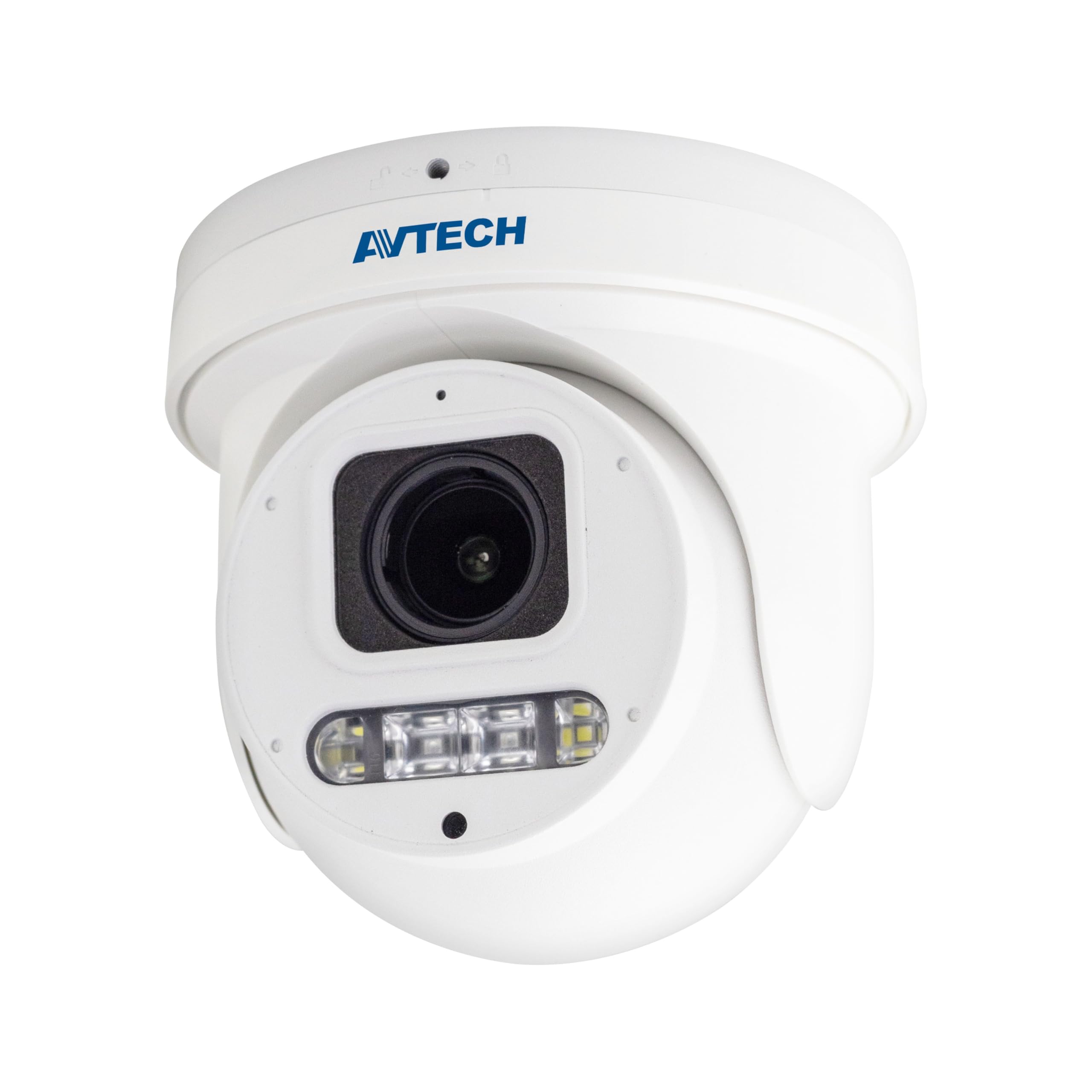
פיגורע 1: פראָנט view of the Avtech DGM5907SVSGAT 5MP AI IP Dome Camera. This image shows the dome-shaped camera housing, the lens assembly, and the IR LEDs visible around the lens.
פּעקל אינהאַלט
Verify that all items are present in the package. If any items are missing or damaged, contact your dealer immediately.
- Avtech DGM5907SVSGAT 5MP AI IP Dome Camera
- Mounting Screw Kit (screws, wall anchors)
- Waterproof Connector for Ethernet Cable
- שנעל אָנהייב גייד
- דרילינג מוסטער
סעטאַפּ
1. גשמיות ייַנמאָנטירונג
Before mounting, ensure the installation location provides a clear field of view and is within range of your network infrastructure (PoE switch/injector).
- צוגרייטן די מאַונטינג ייבערפלאַך: Use the provided drilling template to mark the screw holes on the wall or ceiling.
- בויער האָלעס: Drill pilot holes at the marked positions. Insert wall anchors if mounting on drywall or masonry.
- Secure the Camera Base: באַפעסטיקט די קאַמעראַ'ס מאָנטירונג באַזע צו דער ייבערפלאַך מיט די צוגעשטעלטע שרויפן.
- פאַרבינדן נעץ קאַבלע: Connect an Ethernet cable (RJ-45) from your PoE switch/injector to the camera's network port. Ensure the waterproof connector is properly sealed if installing outdoors.
- סטרויערן די אַפּאַראַט ווינקל: Loosen the adjustment screws on the dome to position the camera lens for the desired viewווינקל. פֿעסט ציען די שרויפֿן נאָכדעם ווי זיי זענען אַדזשאַסטירט.
פיגורע 2: Illustrative diagram of the Avtech DGM5907SVSGAT camera mounting process. This image depicts the camera base being secured to a surface, with an Ethernet cable connected.
2. נעטוואָרק קאָנפיגוראַטיאָן
The camera typically obtains an IP address automatically via DHCP. If your network does not use DHCP, you may need to use a discovery tool provided by Avtech or manually configure the IP address.
- פאַרבינדן צו די נעץ: Ensure the camera is powered via PoE and connected to your local network.
- אַנטדעקן IP אַדרעס: Use the Avtech IP Camera Utility software (available on the Avtech website) to discover the camera's IP address on your network.
- אַקסעס Web צובינד: עפענען א web browser (Internet Explorer 6+, Microsoft Edge, or Google Chrome) and enter the camera's IP address in the address bar.
- לאָגין: Enter the default username and password (refer to the Quick Start Guide for default credentials). It is highly recommended to change the default password immediately for security.
- ערשט סעטאַפּ וויזערד: Follow the on-screen wizard to configure basic network settings, date/time, and user accounts.
אַפּערייטינג ינסטראַקשאַנז
1. לייוו View און רעקאָרדינג
אַמאָל לאָגד אין די web interface, you can access the live video feed and manage recording settings.
- לעבן View: נאַוויגירן צו די 'לעבן View' section to see the real-time video feed from the camera.
- Recording to MicroSD: The camera supports a MicroSD card up to 256 GB. Insert the card into the designated slot (usually accessible by opening the dome cover). Configure recording schedules and event-triggered recording (e.g., motion detection, AI detection) in the 'Storage' or 'Recording' settings.
- ווידעא קאַמפּרעשאַן: The camera supports H.265 and H.264 compression. H.265 offers better compression efficiency, reducing storage and bandwidth requirements. Adjust this in the 'Video Settings'.
2. AI Detection (Human and Vehicle)
The AI detection feature helps reduce false alarms by distinguishing between humans/vehicles and other moving objects.
- Enable AI Detection: Go to 'Event' or 'AI Settings' in the web interface. Enable 'Human Detection' and/or 'Vehicle Detection'.
- קאָנפיגורירן דעטעקציע זאָנעס: Draw specific areas on the live view where you want AI detection to be active.
- שטעלן סענסיטיוויטי: Adjust the sensitivity levels to optimize detection performance and minimize false positives.
- Configure Actions: Specify actions to be taken upon detection, such as recording, sending notifications, or triggering alarms.
3. Image Enhancement Features
- IR נאַכט וויזשאַן: The camera automatically switches to IR mode in low light conditions, providing clear black and white images up to 50 meters. Ensure the IR LEDs are not obstructed.
- WDR (ברייט דינאַמיק ראַנגע): Enable WDR in 'Image Settings' to improve image quality in scenes with both very bright and very dark areas, such as entrances or windows.
- Starlight Visibility: This feature enhances low-light performance, allowing the camera to capture color images in very dim conditions before switching to IR mode.
וישאַלט
רעגולערע אויפהאלטונג גאראנטירט אפטימאלע פאָרשטעלונג און לאַנגלעבעדיקייט פון אייער קאַמעראַ.
- רייניקונג: Periodically clean the camera lens and housing with a soft, lint-free cloth. For stubborn dirt, use a mild cleaning solution specifically designed for optical lenses. Do not use abrasive cleaners.
- Firmware דערהייַנטיקונגען: Check the Avtech official website regularly for firmware updates. Firmware updates can improve performance, add new features, and enhance security. Follow the instructions provided with the firmware update package carefully.
- סטאָרידזש פאַרוואַלטונג: If using a MicroSD card for recording, periodically review רעקאָרדעד פוtage and manage storage space. Format the MicroSD card occasionally to maintain performance.
- קאַבלע דורכקוק: For outdoor installations, inspect network cables and waterproof connectors for any signs of wear or damage.
טראָובלעשאָאָטינג
די סעקציע באהאנדלט אלגעמיינע פראבלעמען וואס איר קענט באגעגענען מיט אייער קאמערא.
| פּראָבלעם | מעגלעך סיבה | לייזונג |
|---|---|---|
| קיין בילד/ווידעא פיד | No power; Network connection issue; Incorrect IP address | Check PoE connection; Verify network cable; Use IP utility to find camera IP; Ensure firewall is not blocking access. |
| אַפּאַראַט אָפפלינע | Network cable disconnected; Router/switch issue; IP address conflict | Check physical network connections; Restart network equipment; Verify unique IP address. |
| נעבעך בילד קוואַליטעט | Dirty lens; Incorrect resolution settings; Insufficient lighting; WDR not enabled | Clean the lens; Adjust resolution in settings; Ensure adequate lighting or enable IR; Enable WDR for high contrast scenes. |
| אָפט פאַלש אַלאַרמס | Sensitivity too high; Detection zone too wide; Environmental factors (e.g., moving branches) | Adjust AI detection sensitivity; Refine detection zones; Ensure AI detection is enabled for human/vehicle only. |
| קענען ניט צוטריט web צובינד | Incorrect IP address; Browser compatibility; Firewall blocking | Verify IP address; Use recommended browsers (IE, Edge, Chrome); Temporarily disable firewall for testing. |
ספּעסאַפאַקיישאַנז
Detailed technical specifications for the Avtech DGM5907SVSGAT IP Dome Camera.
- בילד סענסאָר: 1/2.8 "קמאָס
- מאַקסימום האַכלאָטע: 2592 רענטגענ 1944 (5 מפּ)
- לענס: f2.7 ~ 13.5mm / F1.6 ~ F2.2
- Viewing Angle (Diagonal): Tele 40° ~ Wide 117°
- מינימום יללומינאַטיאָן: 0.001 Lux (IR off), 0 Lux (IR on)
- Shutter Speed: אַוטאָ, 1/25 ס ~ 1/100000 ס
- יר לעדס: 4 וניץ
- Effective IR Distance: אַרויף צו 50 מעטער
- טאָג / נאַכט מאָדע: אָטאַמאַטיק
- WDR: יאָ (120 דב)
- RTC (רעאַל-צייט זייגער): יא
- מיקראָסד שפּעלטל: אַרויף צו 256 גיגאבייט
- ווידעא קאַמפּרעשאַן: H.265 / H.264
- Main Stream Resolution: 5MP (2592x1944) / 4MP (2560x1440) / 3MP (2304x1296) / 2MP (1080P) / 720P
- ראַם קורס: 5MP @ 25FPS
- Multiple Video Streams: 2 סטרימז
- ביטראַטע קאָנטראָל: 512Kbps - 12Mbps, VBR/CBR
- בילד פֿאַרבעסערונג: WDR / BLC / HLC / 2D DNR / 3D DNR
- אַודיאָ: ינטעגראַטעד מיקראָפאָן
- נעץ פּראָטאָקאָלס: ONVIF supported
- מאַכט: PoE (Power-over-Ethernet)
- הויז: IP66 וועאַטהערפּראָאָף
- קאַמפּאַטאַבילאַטי: Internet Explorer 6+, Microsoft Edge, Google Chrome, Windows 10/8/7, DirectX 9.0+
וואָראַנטי און שטיצן
Avtech products are designed for reliability and performance. This product comes with a standard manufacturer's warranty against defects in materials and workmanship.
- וואָראַנטי פּעריאָד: Please refer to your purchase documentation or the Avtech official website for specific warranty terms and duration applicable in your region.
- טעכניש שטיצן: For technical assistance, troubleshooting, or warranty claims, please contact Avtech customer support.
- אָנליין רעסורסן: Visit the official Avtech website for FAQs, driver downloads, firmware updates, and additional product information.
קאָנטאַקט אינפֿאָרמאַציע:
Webפּלאַץ: www.avtech.com.tw
בליצפּאָסט: support@avtech.com
טעלעפֿאָן: +1-XXX-XXX-XXXX