
1. הקדמה
This manual provides detailed instructions for the ETOE Google TV Streaming Device. This device transforms any compatible TV into a smart TV, offering access to a wide range of streaming services, apps, and smart features powered by Google TV. Please read this manual thoroughly before use to ensure proper setup and operation.

Image: The ETOE Google TV Streaming Device connected to a television, showcasing its streaming capabilities.
2. פּעקל אינהאַלט
באַשטעטיקן אַז אַלע זאכן זענען פאַראַן אין דיין פּעקל:
- ETOE Google TV Streaming Device (T2 Stick) x1
- ווייַט קאָנטראָל קס 1
- Power Cable (Micro USB) x1
- HDMI Extension Cable x1
- באַניצער מאַנואַל x1
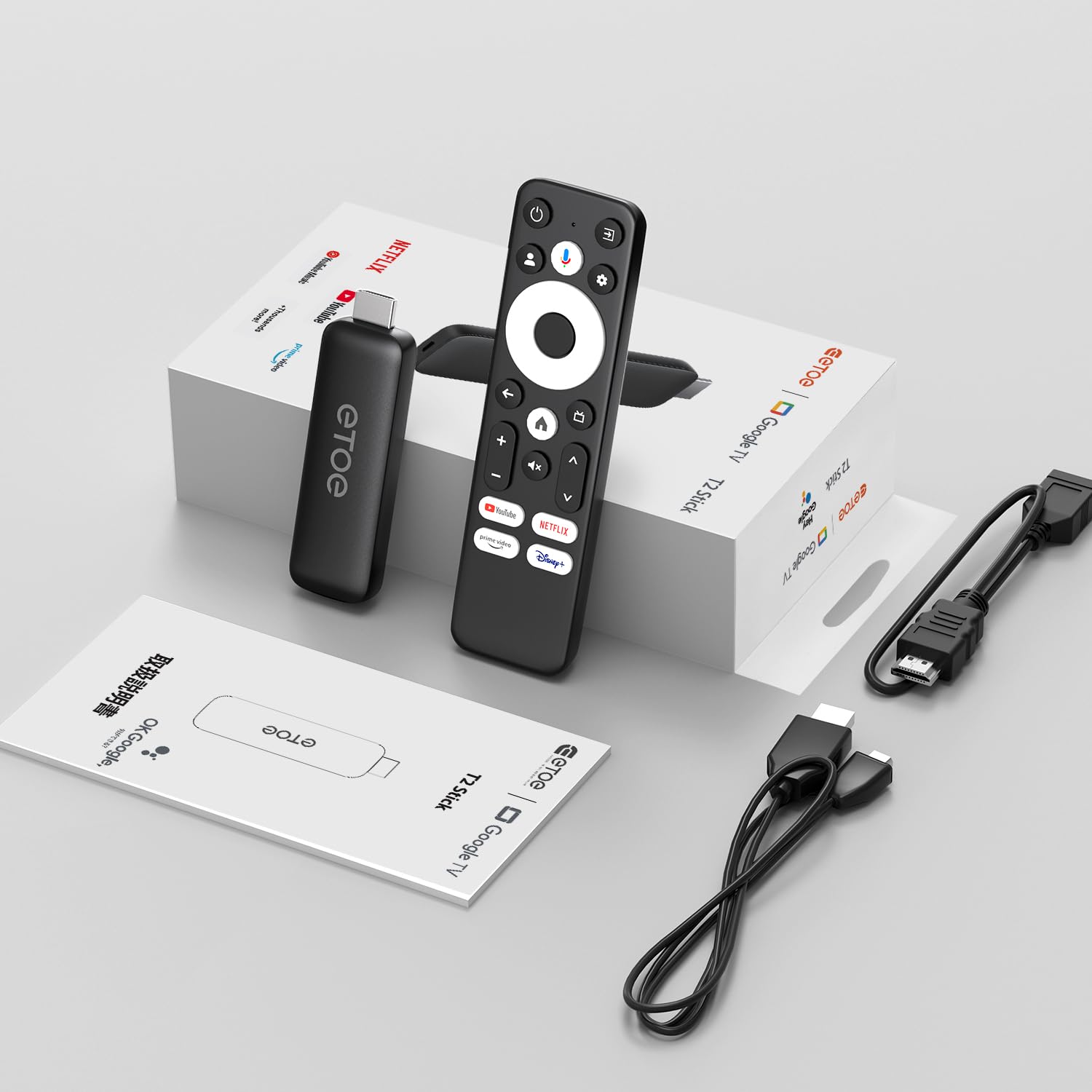
Image: All components included in the ETOE Google TV Streaming Device package.
3. סעטאַפּ גייד
Follow these steps to set up your ETOE Google TV Streaming Device:
3.1. פֿאַרבינדן דעם מיטל
- מאַכט קשר: Connect one end of the USB cable to the TV stick and the other end to a power adapter (not included). Plug the power adapter into a nearby power outlet. Alternatively, you can connect the USB cable directly to a USB port on your TV or monitor for power.
- HDMI קשר: Insert the TV stick into an available HDMI port on your television. If the HDMI port is difficult to access, use the included HDMI extension cable.
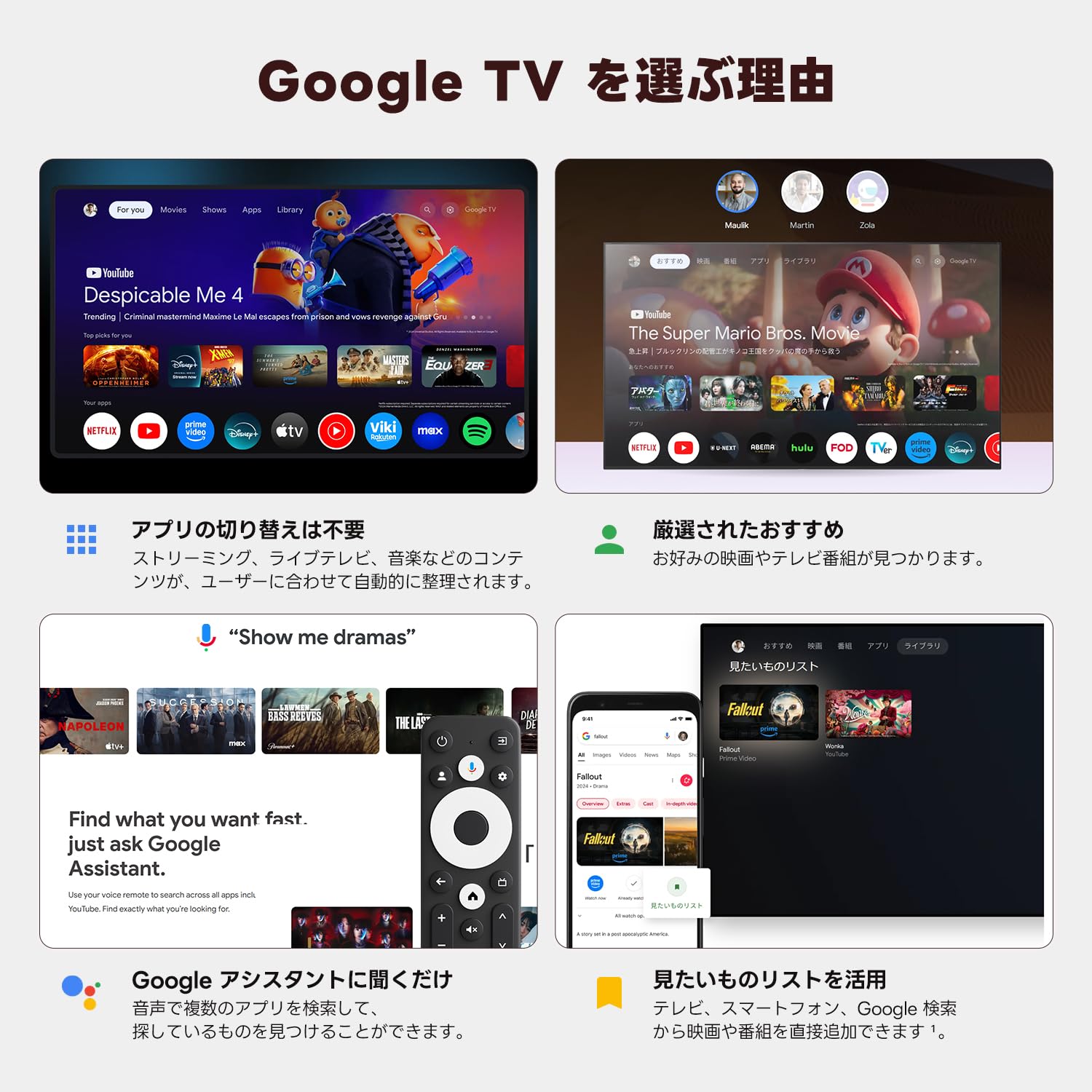
Image: Connection diagram for the ETOE Google TV Streaming Device.
3.2. ערשטע סעטאַפּ און ווײַטפּאַרינג
Turn on your TV and select the correct HDMI input. The device will boot up, and you will see a welcome screen. Follow the on-screen instructions to complete the initial setup, which includes pairing your remote control.
צו פאַרבינדן די ווייַט קאָנטראָל, דריקן און האַלטן די היים און צוריק buttons simultaneously for approximately 5 seconds, or until the LED on the remote blinks green. Keep the remote within 3 feet of the streaming device during pairing.
3.3. Video Guide: Unboxing and Setup
Video: A short demonstration of unboxing the ETOE Google TV Streaming Device and performing the initial setup steps, including remote pairing and language selection.
4. אַפּערייטינג ינסטרוקטיאָנס
Once set up, navigate the Google TV interface using your remote control.
4.1. נאַוויגאַציע די צובינד
- Use the directional pad (D-pad) on the remote to move between menu items.
- דרוק די צענטער קנעפּל צו אויסקלייַבן אַ נומער.
- דרוק די צוריק קנעפּל צו צוריקקומען צו די פריערדיקע פאַרשטעלן.
- דרוק די היים button to go to the Google TV home screen.
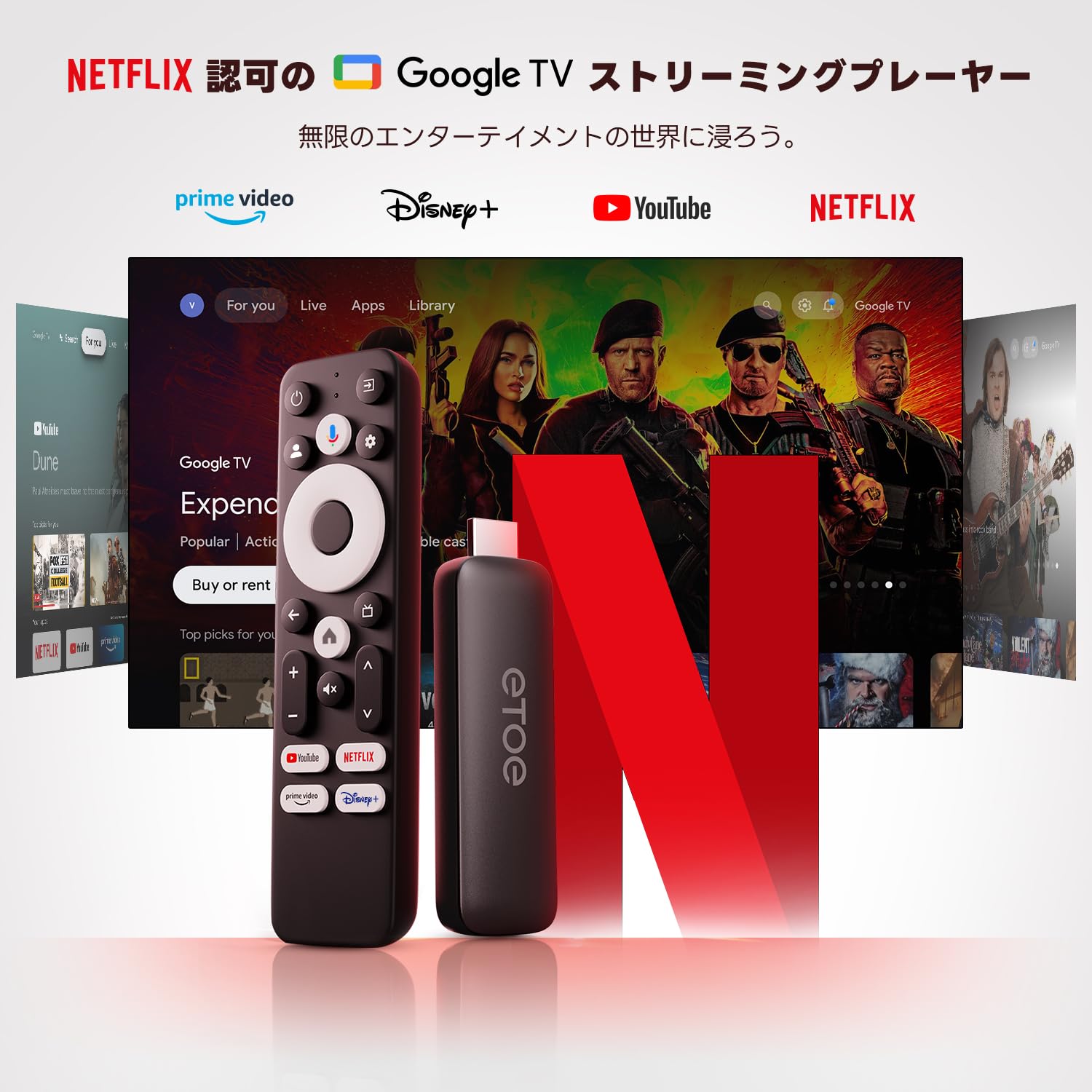
Image: The ETOE Google TV interface with the remote control.
4.2. שטימע קאנטראל מיט גוגל אסיסטענט
The ETOE Google TV Streaming Device supports Google Assistant for hands-free control. Press the Google אַססיסטאַנט button on your remote or say "OK Google" (if enabled) to activate voice commands.
- זוכן פֿאַר פֿילמען און טעלעוויזיע שאָוז.
- עפֿענען אַפּליקאַציעס.
- Control playback (play, pause, skip).
- סטרויערן די באַנד.
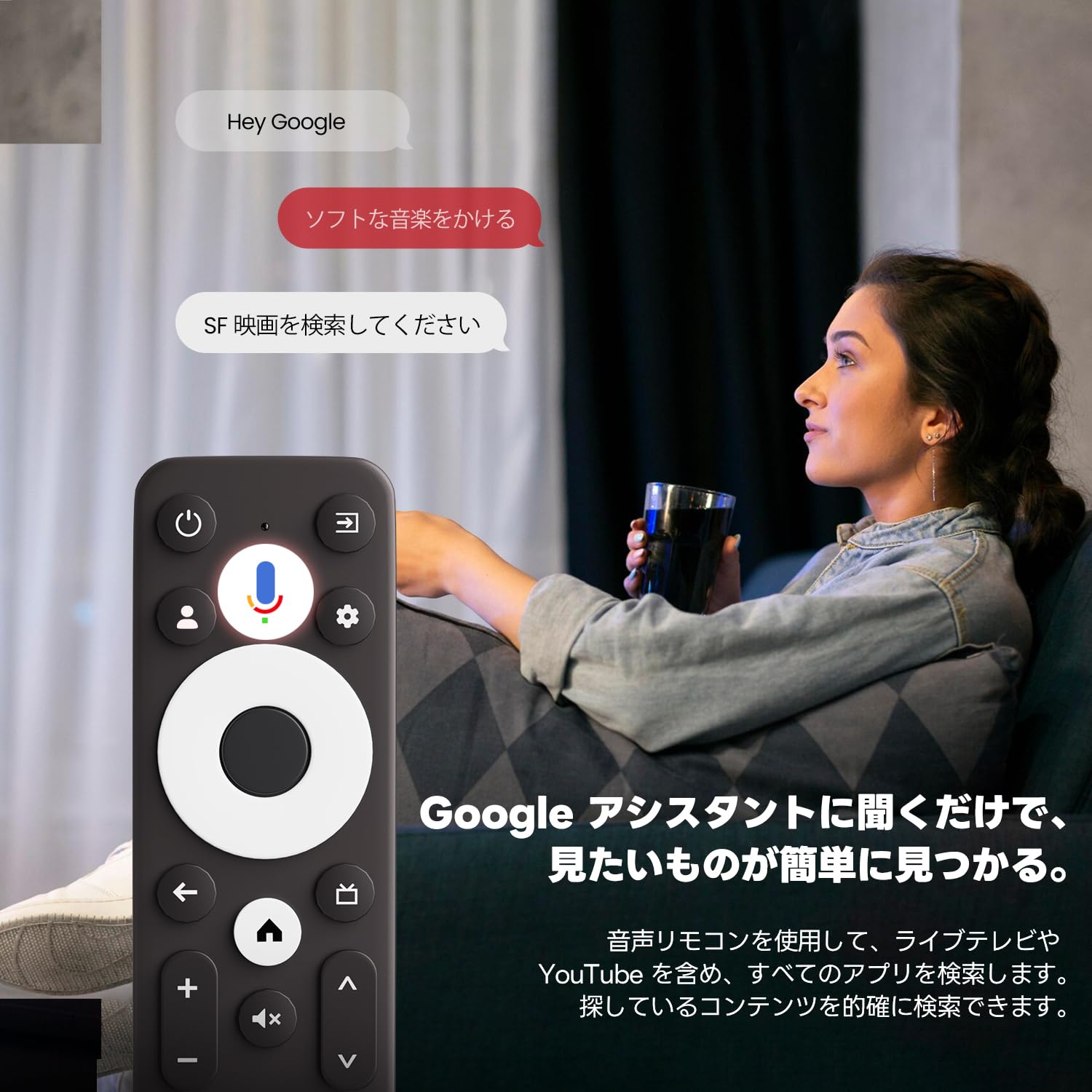
Image: Using voice commands with the ETOE Google TV remote.
4.3. סטרימינג אַפּליקאַציעס
Access a vast library of content from popular streaming services like Netflix, YouTube, Prime Video, Disney+, and many more. The Google TV interface organizes content from all your subscriptions, making it easy to discover new shows and movies.
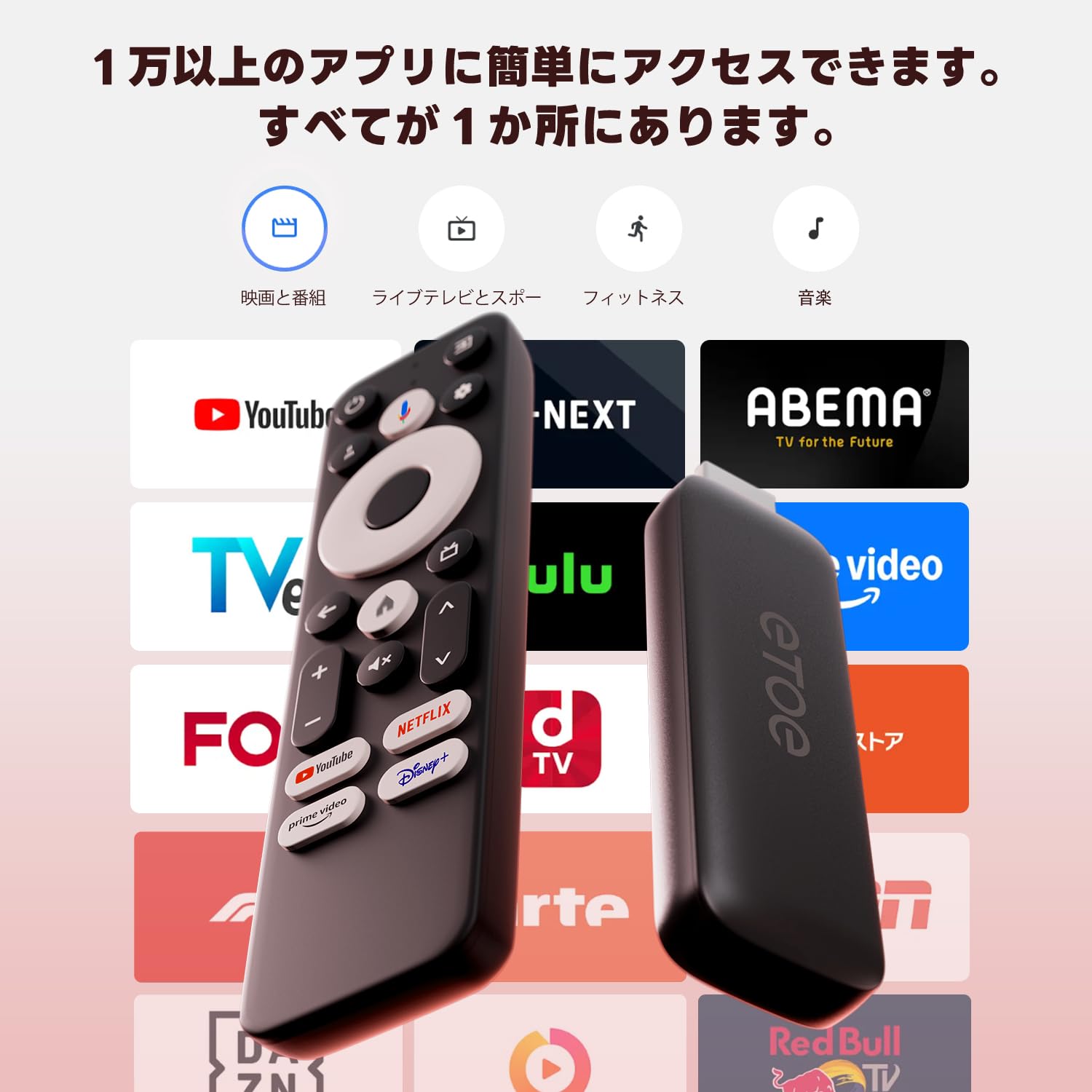
בילד: איבערview of popular streaming applications accessible on the device.
4.4. Google Cast / Screen Mirroring
The device supports Google Cast, allowing you to mirror content from your smartphone or tablet directly to your TV screen. This feature is ideal for sharing photos, videos, or presentations.
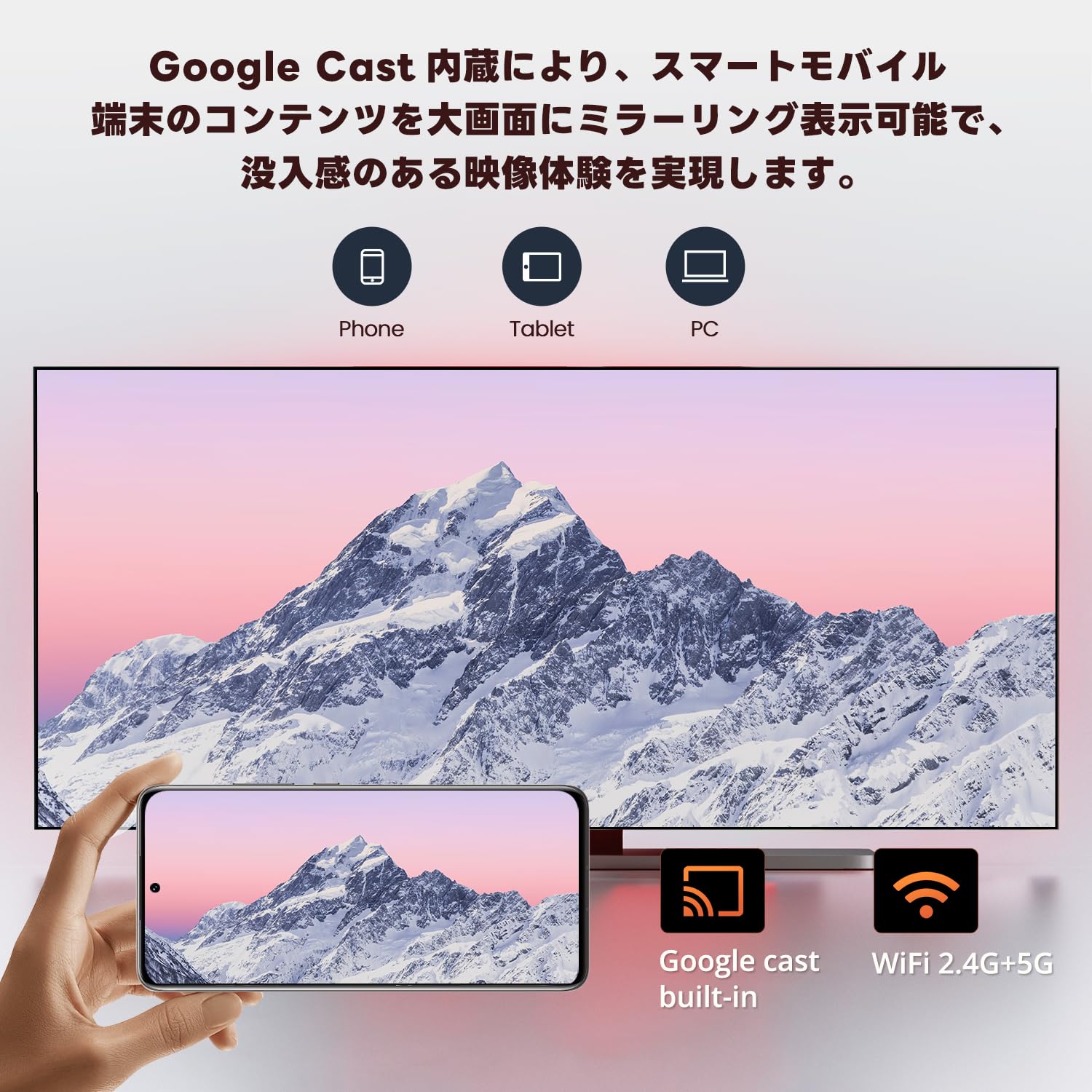
Image: Smartphone screen mirroring to a TV using Google Cast.
5. פֿעיִקייטן
The ETOE Google TV Streaming Device offers a range of features designed to enhance your entertainment experience:
- Official Google TV: Access over 700,000 movies and TV episodes from various streaming services.
- פול HD 1080p רעזולטאַט: Enjoy vivid and clear images with 1080p resolution support.
- צוויי-באַנד Wi-Fi (2.4G און 5G): Ensures stable and fast wireless connectivity for smooth streaming.
- בלועטאָאָטה 5.0: Connect wireless accessories such as headphones or game controllers.
- גוגל אַססיסטאַנט: Use voice commands for search, playback control, and more.
- גוגל קאַסט איינגעבויט: Easily cast content from your mobile devices to your TV.
- פערזענליכע רעקאמענדאציעס: Google TV learns your preferences and suggests content tailored to you.
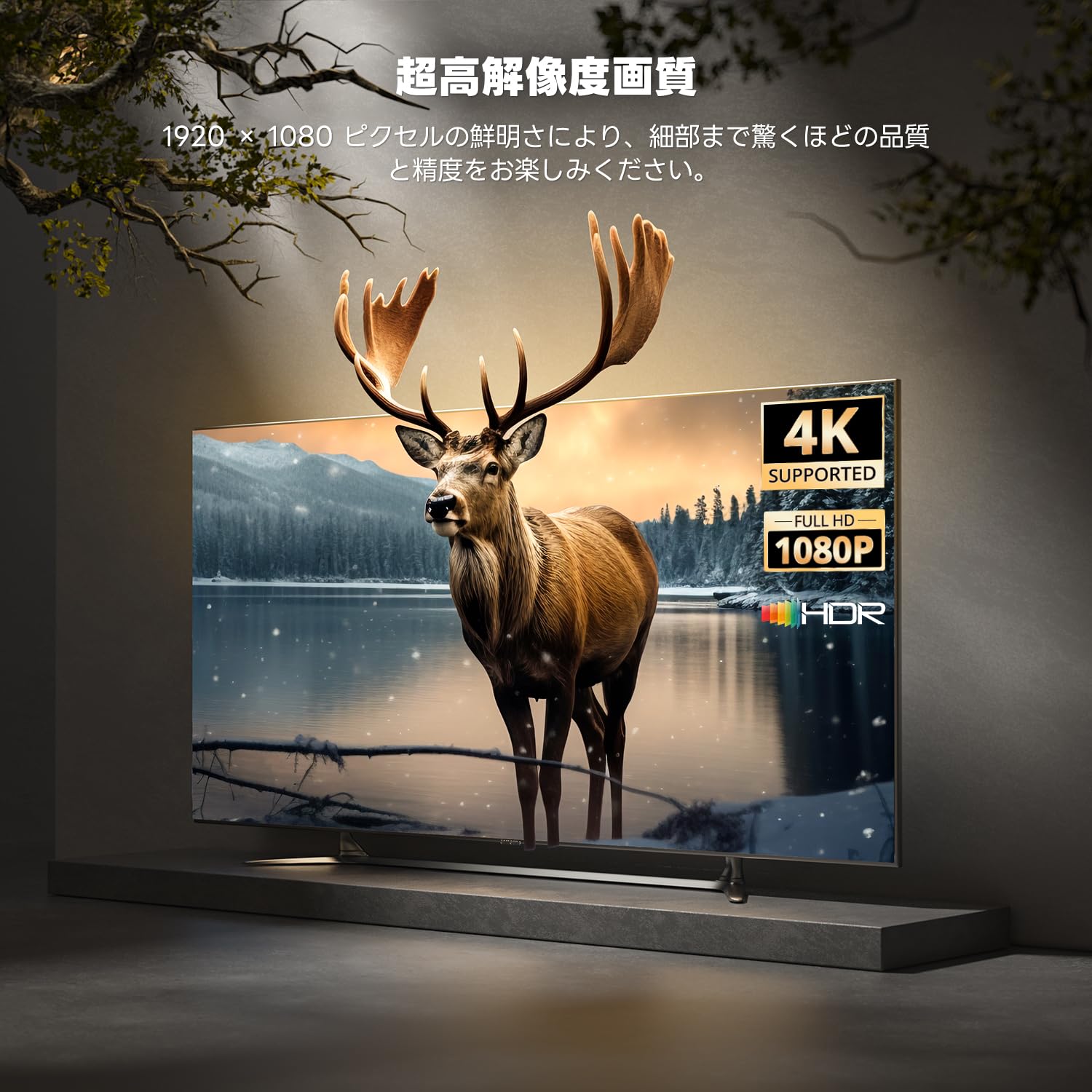
Image: High-resolution display capabilities of the device.
6. וישאַלט
To ensure the longevity and optimal performance of your ETOE Google TV Streaming Device, follow these maintenance guidelines:
- רייניקונג: Use a soft, dry cloth to clean the device. Do not use liquid cleaners or aerosol sprays.
- ווענטילאַטיאָן: זיכער מאַכן אַז דער אַפּאַראַט איז געשטעלט אין אַ גוט ווענטילירטן אָרט צו פאַרמייַדן איבערהיצונג. דעקט נישט דעם אַפּאַראַט צו.
- סטאָרידזש: ווען נישט אין באַנוץ פֿאַר לענגערע פּעריאָדן, אָפּשטעקן דעם אַפּאַראַט פֿון עלעקטריע און האַלטן עס אין אַ קיל, טרוקן אָרט.
- ווייכווארג דערהייַנטיקונגען: Keep the device's software updated to the latest version for improved performance and security. Updates are typically managed automatically by Google TV.
7. טראָובלעשאָאָטינג
If you encounter issues with your ETOE Google TV Streaming Device, refer to the following common problems and solutions:
| פּראָבלעם | מעגלעך לייזונג |
|---|---|
| קיין מאַכט/אַפּאַראַט טוט זיך נישט אָן | Ensure the power cable is securely connected to the device and a working power outlet. Try a different power adapter or USB port. |
| קיין סיגנאַל אויף טעלעוויזיע | Verify the HDMI cable is securely connected to both the device and the TV. Ensure your TV is set to the correct HDMI input. Try a different HDMI port or cable. |
| רימאָוט נישט ריספּאַנדינג | Check the remote's batteries and replace if necessary. Re-pair the remote by holding the Home and Back buttons for 5 seconds. |
| ווי-פי קשר ישוז | Restart your Wi-Fi router. Go to the device's Wi-Fi settings and reconnect to your network. Ensure the device is within range of your router. |
| אַפּ פֿרירט אָדער קראַשט | Restart the application. Clear the app's cache and data in the device settings. If the problem persists, uninstall and reinstall the app. |
| נעבעך ווידעא קוואַליטעט | Check your internet connection speed. Ensure your TV supports the resolution being streamed. Adjust video quality settings within the streaming app if available. |
8. ספּעסאַפאַקיישאַנז
Key technical specifications for the ETOE Google TV Streaming Device (Model D2861):
- סאָרט: ETOE
- מאָדעל נומער: D2861
- פאָרם פאַקטאָר: טעלעוויזיע שטעקן
- קאָליר: שוואַרץ
- קאַנעקטיוויטי טעכנאָלאָגיע: Wi-Fi (2.4G & 5G), Bluetooth 5.0
- קאַנעקטער טיפּ: HDMI
- ווידעא רעזולטאַט האַכלאָטע: 1080p (1920x1080)
- ווידעא קאָדעקס: H.264, H.265/HEVC
- פּראָדוקט וואָג: 190 ג
- פּעקל דימענשאַנז: 19.3 X 9.1 X 4.6 סענטימעטער
9. וואָראַנטי און שטיצן
ETOE provides a 12-month warranty and 30-day return policy for this product. For any initial defects or compatibility issues, please contact customer support. Japanese language support is available, and manufacturer warranty ensures comprehensive post-purchase assistance.
For further assistance, please visit the official ETOE store or contact customer support through the provided channels.
- אַפישאַל קראָם: ETOE Official Store on Amazon.co.jp