
1. הקדמה
Thank you for choosing the Darmoshark M5PRO Mini Wireless Gaming Mouse. This manual provides detailed instructions for setting up, operating, and maintaining your new gaming mouse. The M5PRO features a tri-mode connection (2.4G wireless, Bluetooth, wired), a high-precision PAW3950 optical sensor, and a lightweight design for optimal performance.
2. פּראָדוקט איבערview
The Darmoshark M5PRO is designed for competitive gaming, offering versatile connectivity and advanced sensor technology. Its ergonomic shape is ideal for finger grip players, providing responsive control and comfort during extended use.

Image: Darmoshark M5PRO Mini Wireless Gaming Mouse in various colors, highlighting its design.
שליסל פֿעיִקייטן:
- טריי-מאָד קאַנעקטיוויטי: Seamlessly switch between 2.4G wireless, Bluetooth 5.0, and wired USB connections.
- PAW3950 אָפּטישער סענסאָר: Provides up to 30000 DPI, 750 IPS tracking speed, and 50G acceleration for precise and responsive tracking.
- 8KHz פּאָלינג ראַטע: Experience ultra-low latency with an 8KHz polling rate in 2.4G wireless mode, ensuring rapid response times.
- אולטרא-לייכטע דיזיין: Weighing approximately 38 grams, the mouse reduces hand fatigue during long gaming sessions.
- 5 פּראָגראַממאַבלע קנעפּלעך: Customize button functions via the dedicated software.
- געבויט-אין ליטהיום באַטערי: High-capacity rechargeable battery for extended wireless usage.
- ברייט קאַמפּאַטאַבילאַטי: Compatible with Windows and Apple Mac operating systems.
3. פּעקל אינהאַלט
ביטע טשעק די פּאַקעט פֿאַר די פאלגענדע זאכן:
- Darmoshark M5PRO Mini Wireless Gaming Mouse
- 2.4G וויירלעס ריסיווער (USB דאָנגל)
- USB-C to USB-A Cable (for charging and wired connection)
- באַניצער מאַנואַל (דעם דאָקומענט)
- Grip Tape (optional accessory, if included)
4. סעטאַפּ און קאַנעקטיוויטי
4.1. ווייערד מאָדע
- פֿאַרבינדט דעם USB-C עק פֿונעם צוגעשטעלטן קאַבל צום מויז.
- פֿאַרבינדט דעם USB-A עק פֿונעם קאַבל צו אַ פֿאַראַן USB פּאָרט אויף אייער קאָמפּיוטער.
- די מויז וועט זיך אויטאמאטיש איבערקערן צו ווייערד מאָדע און אָנהייבן טשאַרדזשינג.
4.2. 2.4G Wireless Mode (with 8KHz Receiver)
- Locate the 2.4G wireless receiver (USB dongle) in the package.
- שטעקט אריין דעם 2.4G וויירלעסן ריסיווער אין א פאראן USB פארט אויף אייער קאמפיוטער.
- On the bottom of the mouse, locate the tri-mode switching key. Switch it to the 2.4G wireless icon (usually indicated by a small antenna or 'G' symbol).
- The mouse should automatically connect. If not, press and hold the pairing button (if available, refer to the diagram) on the mouse until the indicator light flashes, then release.

Image: M5PRO mouse with its 8KHz wireless receiver for 2.4G connectivity.
4.3. בלועטאָאָטה מאָדע
- On the bottom of the mouse, switch the tri-mode switching key to the Bluetooth icon.
- The mouse's indicator light will start flashing, indicating it is in pairing mode.
- אויף אייער קאָמפּיוטער אָדער מיטל, עפֿנט די בלועטוט סעטטינגס.
- זוכן פֿאַר new devices and select "Darmoshark M5PRO" from the list.
- גיי קיין פּראַמפּס אויף דעם עקראַן צו פאַרענדיקן דעם פּערינג פּראָצעס.
5. אפערירן די מויז
5.1. קנעפּל פאַנגקשאַנז
The M5PRO mouse features 5 programmable buttons and a scroll wheel.
- לינק קליקט: Standard primary click.
- רעכט גיט: Standard secondary click.
- Track Roller Key (Scroll Wheel): Scrolls up/down, and acts as a middle click button.
- DPI Adjustment Key: גייט דורך פאָרגעשטעלטע DPI לעוועלס.
- פֿאָרווערטס קנעפּל: Default function for navigating forward in web בראַוזערז אָדער file עקספּלאָרערס.
- Backspace קנעפּל: Default function for navigating backward in web בראַוזערז אָדער file עקספּלאָרערס.

בילד: עקספּלאָדירט view of the M5PRO mouse showing internal components and button layout.
5.2. דפּי אַדזשאַסטמאַנט
Press the DPI Adjustment Key (located on the underside of the mouse, refer to the product diagram) to cycle through different DPI sensitivity levels. The default DPI settings can be customized using the Darmoshark software.
5.3. אויפלאָדן די מויז
When the battery is low, the mouse's indicator light will typically flash red. Connect the mouse to your computer using the provided USB-C cable to charge it. The indicator light will show charging status and turn off or change color when fully charged.
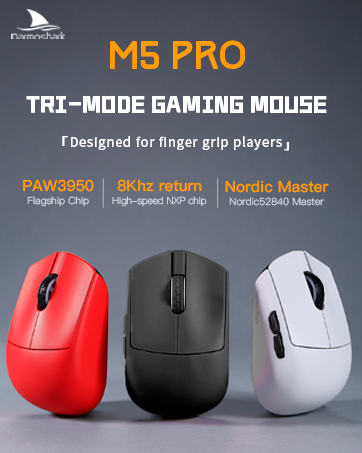
Image: Darmoshark M5PRO mouse charging via USB-C cable, highlighting its built-in lithium battery.
6. ווייכווארג קאַסטאַמייזיישאַן
To unlock the full potential of your Darmoshark M5PRO mouse, download and install the official Darmoshark driver software from the manufacturer's webזייטל. די ווייכווארג ערלויבט אייך צו:
- Customize DPI settings and create multiple profiles.
- Program button functions and macros.
- צופּאַסן די פּאָלירונג קורס.
- Manage power settings and battery life.
- דערהייַנטיקן פירמוואַרע.

Image: Darmoshark proprietary driver software interface for mouse customization.
7. ספּעסאַפאַקיישאַנז
| מאָדעל | M5PRO |
| סענסאָר | PAW3950 אָפּטישער סענסאָר |
| דפּי | אַרויף צו 30000 דפּי |
| טראַקינג ספּיד | 750 יפּס |
| אַקסעלעריישאַן | 50G |
| פּאָללינג קורס | 8KHz (2.4G Wireless), 1KHz (Wired/Bluetooth) |
| קאַנעקטיוויטי | 2.4G ווירעלעס, בלועטוט 5.0, USB-C מיט ווייערס |
| קנעפּלעך | 5 פּראָגראַממאַבלע קנעפּלעך |
| וואָג | בעערעך. 38 ג |
| דימענסיעס (L X W X H) | 91.7 מם רענטגענ 57.4 מם רענטגענ 35.7 מם |
| באַטערי | געבויט-אין ליטהיום באַטערי (300 מאַה) |
| קאַמפּאַטאַבילאַטי | Windows, Apple Mac |
Image: Product parameter diagram with mouse dimensions.
8. וישאַלט
- רייניקונג: ניצט אַ ווייכע, טרוקענע שטאָף צו רייניקן די מויז. פֿאַרמייַדט ניצן שטרענגע כעמיקאַלן אָדער שרײַבנדיקע מאַטעריאַלן.
- סטאָרידזש: האַלט די מויז אין אַ קיל, טרוקן אָרט אַוועק פון דירעקט זונשייַן און עקסטרעמע טעמפּעראַטורן.
- באַטערי זאָרגן: כדי צו פארלענגערן די באַטעריע לעבן, זאָלט איר נישט אָפט אויסלאָדן די מויז גאָר. לאָדט זי אויף ווען דער אינדיקאַטאָר פֿאַר נידעריקע באַטעריע דערשיינט.
9. טראָובלעשאָאָטינג
9.1. מויז רעאַגירט נישט
- ווייערד מאָדע: זיכער מאַכן אַז דער USB קאַבל איז זיכער פארבונדן צו ביידע די מויז און דעם קאָמפּיוטער. פּרוּווט אַן אַנדער USB פּאָרט.
- 2.4G ווירעלעסס מאָדע: Ensure the 2.4G receiver is plugged in and the mouse is switched to 2.4G mode. Try re-pairing the mouse with the receiver. Ensure the mouse battery is charged.
- בלועטאָאָטה מאָדע: Ensure Bluetooth is enabled on your device and the mouse is in Bluetooth pairing mode. Try re-pairing the mouse in your device's Bluetooth settings. Ensure the mouse battery is charged.
9.2. Cursor Movement is Erratic or Inaccurate
- רייניקט דעם אָפּטישן סענסאָר אויף דער אונטערשטער זײַט פֿון דער מויז מיט אַ ווייכן, טרוקענעם שטאָף.
- זייט זיכער אז איר ניצט די מויז אויף א פאסיגע אויבערפלאך (למשל, א מויז-פאד). פארמיידט שטארק רעפלעקטיווע אדער דורכזיכטיקע אויבערפלאכן.
- Adjust the DPI settings using the DPI Adjustment Key or the software.
- Check for any software conflicts or outdated drivers. Update mouse drivers if necessary.
9.3. Wireless Connection Issues
- פארקלענערן די דיסטאַנץ צווישן דער מויז און דעם ופנעמער/אַפּאַראַט.
- Avoid placing the receiver near other wireless devices or sources of interference (e.g., Wi-Fi routers, cordless phones).
- זיכער מאַכן אַז די מויז איז גאָר אויפגעלאָדן.
10. אפיציעלע פּראָדוקט ווידעאָ
Watch the official product video for a visual guide on the Darmoshark M5PRO Mini Wireless Gaming Mouse.
ווידעא: אן איבערview of the Darmoshark M5PRO Wireless Gaming Mouse, showcasing its design and features in various colors.
11. וואָראַנטי און שטיצן
For warranty information and technical support, please refer to the warranty card included with your product or visit the official Darmoshark webפּלאַץ.
פאַבריקאַנט: דאַרמאָשאַרק
Webפּלאַץ: Darmoshark Official Store