
1. פּראָדוקט איבערview
The PeriPage P92 is a compact and lightweight thermal tattoo stencil printer designed for both professional tattoo artists and enthusiasts. It utilizes inkless thermal technology to produce clear and precise tattoo lines, streamlining the stencil creation process. This printer offers versatile connectivity options, including Bluetooth and USB, making it compatible with a wide range of devices such as smartphones, tablets, and PCs.

Image: The PeriPage P92 Tattoo Stencil Printer, a sleek black device, shown on a desk with a printed tattoo stencil.
שליסל פֿעיִקייטן:
- פּאָרטאַטיוו פּלאַן: Compact and lightweight (approximately 15.2 ounces) for easy transport.
- טינטלאָז טערמאַל טעכנאָלאָגיע: Eliminates the need for ink cartridges, reducing operational costs.
- הויך קאַמפּאַטאַבילאַטי: Supports Android, iOS, Windows, and macOS devices.
- ווערסאַטאַל קאַנעקטיוויטי: Connects via Bluetooth for wireless printing or USB for wired connections.
- Powerful Mobile App: The "PeriPage APP" provides abundant resources, including built-in tattoo templates and design editing tools.
- עפעקטיוו דרוק: Capable of printing clear and precise tattoo lines in seconds.
- לאנג באַטאַרייע לעבן: Built-in 2600mAh rechargeable battery, capable of printing up to 200 pages per charge.
2. סעטאַפּ גייד
2.1 אויספּאַקן און ערשטע אָפּצאָל
Carefully remove all components from the packaging. Before first use, ensure the printer is fully charged using the provided USB cable and a compatible power adapter. The power indicator light will typically change to indicate a full charge.
2.2 ווייכווארג ינסטאַלירונג
To operate the PeriPage P92, you will need to install the appropriate software:
- For Smartphones/Tablets (Android/iOS): Download the "PeriPage APP" from your device's respective app store (Google Play Store for Android, Apple App Store for iOS).
- For PCs (Windows/macOS): Download the printer driver from the official PeriPage webפּלאַץ: https://www.ileadtek.com/en/download.html.

Image: The PeriPage P92 printer connected to a laptop via USB and a smartphone via Bluetooth, illustrating multi-device compatibility.
2.3 לאָדן שאַבלאָן פּאַפּיר
- Ensure the printer is powered off or in standby mode.
- Gently insert the tattoo stencil paper (thermal paper, 8.5x11 inches) into the paper feed slot at the front of the printer.
- The printer will automatically detect and feed the paper into position. Ensure the transfer film side is facing up.

Image: A step-by-step visual guide showing how to power on the printer, insert stencil paper, and initiate printing via the app.
3. אַפּערייטינג ינסטרוקטיאָנס
3.1 פּאַוערינג אויף / אַוועק
To power on the printer, press and hold the power button (usually located on the top or side) for approximately 2 seconds until the indicator light illuminates. To power off, press and hold the power button again until the light turns off.
3.2 פֿאַרבינדן זיך צו דיין מיטל
- בלועטאָאָטה קאַנעקשאַן:
- זיכער מאַכן אַז בלועטוט איז ענייבאַלד אויף דיין סמאַרטפאָון אָדער טאַבלעט.
- Open the "PeriPage APP".
- Within the app, search for and select the PeriPage P92 printer to establish a connection.
- USB קשר:
- Connect the printer to your PC using the provided USB cable.
- Ensure the printer driver is installed on your PC.
- The printer should be recognized as a printing device.
3.3 Using the PeriPage App for Printing
The "PeriPage APP" is your primary interface for creating and printing tattoo stencils.
- Open the "PeriPage APP" on your connected device.
- You can choose to use built-in tattoo templates or import your personal designs. The app offers tools for editing, resizing, and adjusting your designs.
- Once your design is ready, select the print option within the app.
- Confirm print settings (e.g., density, size) if prompted.
- The printer will then feed the stencil paper and print your design.

Image: Screenshots of the PeriPage mobile application interface, demonstrating design editing, template selection, and 3D preview פֿעיִקייטן.

Image: The PeriPage P92 printer actively printing a tattoo stencil design onto thermal paper, with a smartphone displaying the design.
4. וישאַלט
4.1 רייניקונג די פּרינטער
רעגולערע רייניקונג העלפט אויפהאלטן די דרוק קוואַליטעט און פארלענגערט די לעבן פון אייער דרוקער.
- עקסטעריע: ווישט אָפּ די אויסערלעכע זייט פון דעם דרוקער מיט אַ ווייכן, טרוקענעם שטאָף. פֿאַרמייַדט ניצן אַברייסיוו רייניגער אָדער סאָלווענטן.
- Thermal Print Head: If print quality degrades, gently clean the thermal print head with an alcohol wipe or a specialized thermal printer cleaning pen. Ensure the printer is off and cooled down before cleaning.
- פּאַפּיר וועג: Periodically check the paper path for any dust or debris and remove it carefully.
4.2 סטאָרידזש
האַלט דעם דרוקער אין אַ קיל, טרוקן אָרט אַוועק פון דירעקט זונשייַן און עקסטרעמע טעמפּעראַטורן. ווען נישט אין באַנוץ פֿאַר לענגערע פּעריאָדן, זאָרגט אַז דער דרוקער איז גאָר אויפגעלאָדן און דערנאָך אויסגעלאָשן.
5. טראָובלעשאָאָטינג
This section addresses common issues you might encounter with your PeriPage P92 printer.
5.1 שלעכטע דרוק קוואַליטעט
- Faint Prints:
- Check if the thermal paper is loaded correctly with the transfer film side facing up.
- Ensure the printer's battery is sufficiently charged.
- רייניקט דעם טערמישן דרוק קאָפּ (זעט סעקציע 4.1).
- Adjust print density settings within the PeriPage APP.
- Streaks or Gaps:
- Clean the thermal print head.
- Ensure the paper is free from wrinkles or damage.
- Incomplete Designs (Large Shadows/Complex Images): The printer is optimized for clear line drawings. Complex images with large shaded areas may not transfer optimally.
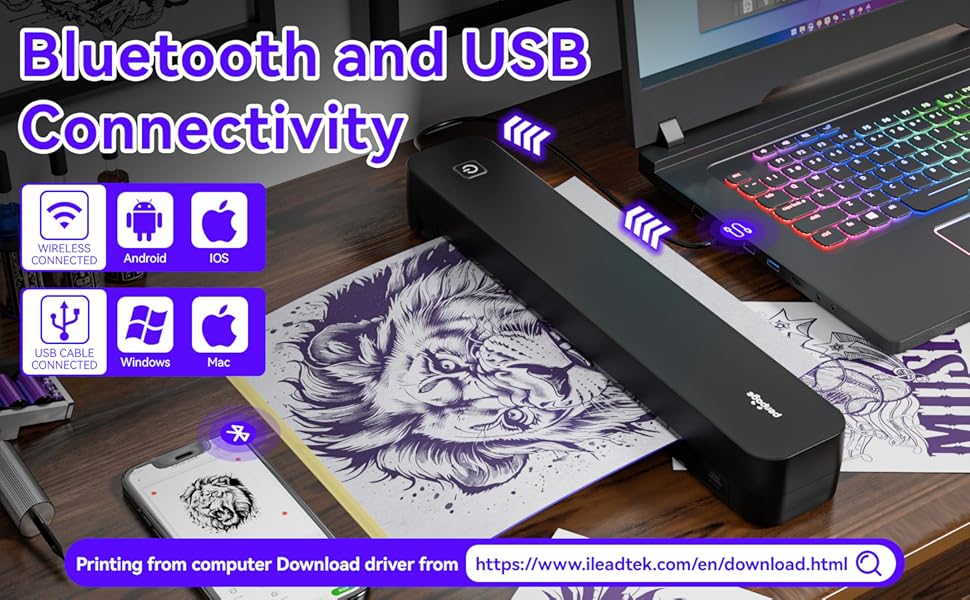
Image: A comparison showing effective line drawings and less shadowy prints versus bad effects with large shadows and complex images, illustrating optimal design types for the printer.
5.2 קאָנעקטיוויטי פּראָבלעמען
- בלועטאָאָטה ניט קאַנעקטינג:
- Ensure the printer is powered on and within range of your device.
- באַשטעטיקן אַז בלועטוט איז ענייבאַלד אויף דיין מיטל.
- ריסטאַרט ביידע דעם דרוקער און אייער דעווייס.
- פארגעסט דעם דעווייס אין אייערע בלועטוט סעטינגס און פרובירט נאכאמאל צו פארבינדן.
- USB Not Recognized:
- Ensure the USB cable is securely connected to both the printer and your PC.
- Verify that the correct printer drivers are installed on your PC.
- פּרוּווט אַ אַנדערש וסב פּאָרט אָדער קאַבלע.
5.3 פּאַפּיר קלעם
If paper gets jammed, gently pull the paper out in the direction of the paper path. Avoid forcing it, as this can damage the printer mechanisms. Ensure paper is loaded straight and not wrinkled.
6. ספּעסאַפאַקיישאַנז
| שטריך | דעטאַל |
|---|---|
| סאָרט | PeriPage |
| מאָדעל נאָמען | HDD-P92 |
| קאַנעקטיוויטי טעכנאָלאָגיע | בלועטאָאָטה, וסב |
| דרוק טעכנאָלאָגיע | טערמיש (טינטלאָז) |
| ספּעציעלע שטריך | פּאָרטאַטיוו |
| קאָליר | שוואַרץ |
| דרוקער רעזולטאַט | מאָנאָטשראָמע |
| Max Print Speed (B&W) | 6 בלעטער פּער מינוט |
| פּונקט וואָג | 15.2 אונסעס |
| נומער דימענשאַנז (ד רענטגענ וו רענטגענ ה) | 2.13"ד רענטגענ 4"וו רענטגענ 11.4"ה |
| קאָנטראָללער טיפּ | אַנדרויד, יאָס |
| דרוק מידיאַ | טערמאַל פּאַפּיר |
| קאַמפּאַטאַבאַל דעוויסעס | לאַפּטאַפּס, פּיסי, סמאַרטפאָונז, טאַבלעטן |
| קאָנטראָל מעטאָד | אַפּ |
| מאַקסימום מעדיע גרייס | A4, 8.5x11 Inches |
| באַטערי | 2600mAh rechargeable, prints ~200 pages per charge |
7. וואָראַנטי אינפֿאָרמאַציע
לויט די פּראָדוקט ספּעציפֿיקאַציעס, עס איז דאָ "Not Application" for warranty. Please refer to your retailer's return policy or contact the seller directly for any issues or concerns regarding your purchase.
8. שטיצן
For further assistance, please refer to the following resources:
- PeriPage APP: The mobile application often includes help sections, FAQs, and direct support contact options.
- באַאַמטער Webפּלאַץ: Visit the PeriPage official website for updated drivers, FAQs, and support contact information: www.ileadtek.com.
- פארקויפער שטיצע: Contact the seller (Ileadtek Inc.) through the platform where you purchased the product for specific purchase-related inquiries.