
1. הקדמה
The Yinker 4K HDMI Splitter 1 in 2 Out is designed to duplicate a single HDMI source to two HDMI displays simultaneously. This device supports resolutions up to 4K@30Hz and is ideal for mirroring content across multiple screens in various settings.
2. פּעקל אינהאַלט
ביטע טשעק די פּאַקעט פֿאַר די פאלגענדע זאכן:
- 1 x Yinker 4K HDMI Splitter 1 in 2 Out
- 1 x 1.5m/5ft HDMI 2.0 Cable
- 1 X 1Amp USB מאַכט קאַבל (מאַכט אַדאַפּטער נישט אַרייַנגערעכנט)
- 1 x באַניצער מאַנואַל
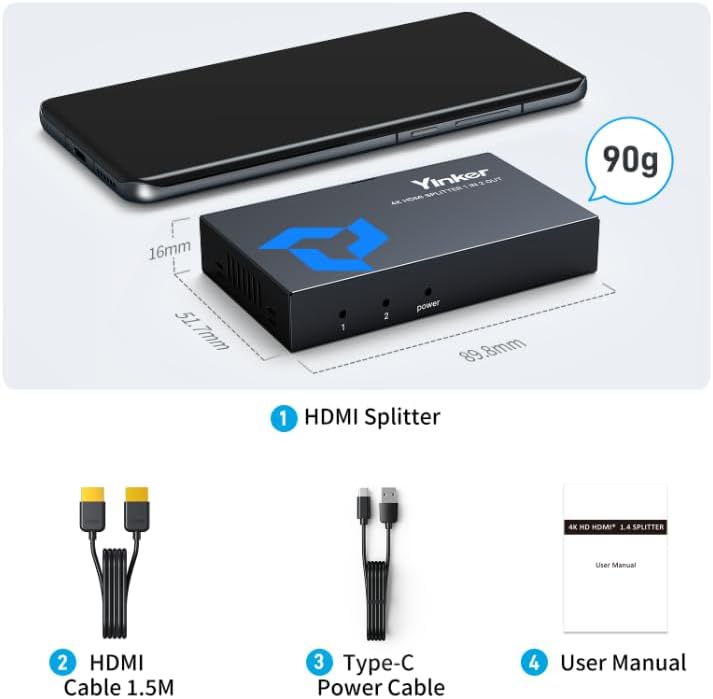
Image: The Yinker 4K HDMI Splitter and its included accessories: a 1.5m HDMI cable, a USB power cable, and the user manual.
Video: An unboxing video demonstrating the contents of the Yinker HDMI Splitter package, including the device, cables, and manual.
3. פּראָדוקט פֿעיִקייטן
- 4K@30Hz Resolution: Supports high-definition video up to 3840x2160 at 30Hz, as well as 1080P@60Hz and 720P@60Hz.
- שפּיגל מאָדע: Duplicates one HDMI source to two displays simultaneously (does not support extended display).
- Durable Metal Shell: Solid metal housing provides fire and corrosion resistance, with air vents for efficient heat dissipation.
- Enhanced Stability: פֿעיִקייטן amplified chipsets for stable signal transmission, even over longer cable distances.
- ברייט קאַמפּאַטאַבילאַטי: Compatible with HDCP 1.4, 3D, DTS-HD, Dolby-ture HD, LPCM7.1, DTS, Dolby-AC3, DSD, and EDID.
- לאַנג טראַנסמיסיע דיסטאַנס: Supports up to 30m (100ft) for 1080P@60Hz and 15m (50ft) for 4K@30Hz using HDMI 2.0 AWG 26 cables.
- ניט-סליפּ פּלאַן: Equipped with non-slip pads for secure placement.
- USB Powered: Convenient USB power supply (5V power adapter not included).

Image: Visual representation of the splitter's key features including its amplified chipset, air vents for cooling, non-slip pads, and robust metal casing.

בילד: אן איבערview of the splitter's technical capabilities, including supported resolutions, audio formats, and compliance standards.
Video: A detailed look at the physical attributes and build quality of the Yinker HDMI Splitter, emphasizing its robust design.
4. סעטאַפּ אינסטרוקציעס
Follow these steps to set up your Yinker 4K HDMI Splitter:
- Connect your HDMI source device (e.g., laptop, gaming console) to the 'IN' port of the splitter using an HDMI cable.
- Connect your two HDMI display devices (e.g., monitors, TVs) to the 'OUT 1' and 'OUT 2' ports of the splitter using HDMI cables.
- Connect the provided USB power cable to the 'DC 5V' port on the splitter and plug the other end into a 5V USB power adapter (not included) or a USB port on your source device/display.
- Ensure all connections are secure. The indicator lights on the splitter will illuminate upon successful connection.
Video: A step-by-step guide on how to properly connect the Yinker HDMI Splitter to your source and display devices.
5. אַפּערייטינג ינסטרוקטיאָנס
The Yinker 4K HDMI Splitter operates automatically once connected and powered. It functions in a mirror/duplicate mode, meaning both connected displays will show the exact same content from the single HDMI input source.
- מאַכט ינדיקאַטאָר: The 'power' LED will light up when the device is receiving power.
- רעזולטאַט ינדיקאַטאָרס: LEDs labeled '1' and '2' correspond to 'OUT 1' and 'OUT 2' ports. They will light up when a display is successfully connected to the respective output.
- ווייַז מאָדע: This splitter supports mirroring (A-AA mode) where the source content is duplicated on both output screens. It does נישט support extended display (MST) or acting as a 2-in-1-out switch.

בילד: עקסamples of display modes, clearly showing that the splitter supports mirroring content to two screens but not extending the desktop across them.
Video: Demonstrates how the HDMI splitter provides a solution for displaying content on multiple monitors in a mirrored configuration.
6. קשר דיאַגראַמע
Below is a typical connection setup for the Yinker 4K HDMI Splitter:

Image: A visual diagram illustrating how to connect various input devices (laptop, Blu-ray player, TV box, gaming console, Fire Stick) to the splitter's 'IN' port, and how the 'OUT 1' and 'OUT 2' ports connect to displays (monitor, projector, TV, VR headset).

בילד: עקסamples of common usage scenarios for the HDMI splitter, such as home entertainment, digital signage, and educational presentations.
7. ספּעסאַפאַקיישאַנז
| שטריך | באַשרייַבונג |
|---|---|
| מאָדעל | B0FHJYGL3X |
| אַרייַנשרייַב פּאָרץ | קסנומקס רענטגענ הדמי |
| רעזולטאַט פּאָרץ | קסנומקס רענטגענ הדמי |
| מאַקס האַכלאָטע | 4K (3840x2160) @ 30Hz |
| שטיצט רעזאַלושאַנז | 4K@30Hz, 1080P@60Hz, 720P@60Hz |
| קאָליר דעפּט | 36-ביסל טיף קאָליר |
| HDCP קאָמפּליאַנסע | HDCP 1.4 |
| 3 ד סופּפּאָרט | יא |
| אַודיאָ פֿאָרמאַטירונגען | DTS-HD, Dolby-ture HD, LPCM7.1, DTS, Dolby-AC3, DSD |
| EDID שטיצן | Yes (Auto Scan) |
| מאַקסימום טראַנסמיסיע דיסטאַנסע | 30m (100ft) for 1080P@60Hz, 15m (50ft) for 4K@30Hz (using HDMI 2.0 AWG 26 cables) |
| מאַכט צושטעלן | USB 5V (Power adapter not included) |
| האָוסינג מאַטעריאַל | מעטאַל |
| קאָליר | שוואַרץ |
8. טראָובלעשאָאָטינג
If you encounter issues, please refer to the following common troubleshooting steps:
- No Display or Flickering Screen:
- Ensure the USB power cable is securely connected to a 5V power source.
- Verify that all HDMI cables are firmly connected to both the splitter and the devices.
- Check the resolution of your source device. If it's higher than 4K@30Hz, try lowering it to 1080P@60Hz or 4K@30Hz.
- Try using different HDMI cables, especially if experiencing flickering, as cable quality can affect signal integrity.
- קיין אַודיאָ:
- If the source is a laptop, check your laptop's audio output settings and ensure the correct Audio Output Device is selected.
- For other video devices, ensure the audio format is set to PCM mode.
- Verify that your display devices support audio output via HDMI.
- בילד קוואַליטעט ישוז:
- Ensure you are using high-quality HDMI 2.0 cables, especially for 4K resolutions and longer distances.
- Check that your source and display devices are configured to output and receive the desired resolution.
Video: A troubleshooting guide for common issues encountered with the Yinker HDMI Splitter, providing solutions for flickering screens, no display, and audio problems.
9. וישאַלט
To ensure the longevity and optimal performance of your Yinker 4K HDMI Splitter, follow these maintenance guidelines:
- Keep the device in a cool, dry place away from direct sunlight, high temperatures, and humidity.
- Avoid placing heavy objects on the splitter or subjecting it to physical shock.
- רייניקט דעם אפאראט מיט א ווייכן, טרוקענעם טוך. ניצט נישט קיין פליסיקע אדער אייראזאל רייניגער.
- Ensure proper ventilation around the device to facilitate heat dissipation.
- אָפּשטעקן די מאַכט ווען די דעווייס איז נישט אין באַנוץ פֿאַר לאַנגע פּעריאָדן.
10. וואָראַנטי און שטיצן
The Yinker 4K HDMI Splitter 1 in 2 Out comes with a 1 יאָר וואָראַנטי פון די דאַטע פון קויפן.
For technical support, warranty claims, or any questions regarding your product, please contact Yinker customer service through the retailer's platform or visit the official Yinker webפּלאַץ פֿאַר קאָנטאַקט אינפֿאָרמאַציע.
ביטע באַהאַלטן אייער קויפן-באַווייַז פֿאַר גאַראַנטיע צוועקן.