
הקדמה
This manual provides essential information and instructions for the Blackview Tab 20 WiFi tablet. Please read this manual carefully before using your device to ensure proper operation and to maximize its features. Keep this manual for future reference.
וואָס איז אין די קעסטל
באַשטעטיקן אַז אַלע זאכן זענען פאַראַן אין פּעקל:
- שוואַרץview טאַב 20 WiFi טאַבלעט
- TPU Protective Case
- באַניצער מאַנואַל
- מאַכט אַדאַפּטער
- וסב קאַבלע
Note: The user manual included in the box may not be in English. This digital manual provides English instructions.
פּראָדוקט איבערview
Familiarize yourself with the key components and features of your Blackview Tab 20 WiFi tablet.
פיגורע 1: פראָנט view of the Blackview Tab 20 WiFi tablet, showing the display and front camera.

פיגורע 2: צוריק view of the Blackview Tab 20 WiFi tablet, highlighting the rear camera module.

פיגורע 3: זייַט view of the Blackview Tab 20 WiFi tablet, illustrating the USB Type-C charging port.

פיגורע 4: זייַט view of the Blackview Tab 20 WiFi tablet, showing the dual speaker grilles.
שליסל פֿעיִקייטן:
- דזשעמיני קינסטלעכע אינטעליגענץ 2.0: Integrated AI assistant for intelligent control and real-time interaction.
- 10.1-inch HD+ Display: Expansive screen with 800 x 1200 pixel resolution for clear visuals.
- Dual Box Speakers: Enhanced audio experience with Smart-K powered dual speakers.
- קאַמעראַס: 8MP הינטערשטע קאַמעראַ און 5MP פראָנט קאַמעראַ פֿאַר פאָטאָס און ווידעאָ רופן.
- זכּרון און סטאָרידזש: Up to 12GB RAM (4GB physical + 8GB expansion) and 64GB internal storage, expandable up to 2TB via microSD.
- 6000 מאַה באַטאַרייע: High-capacity battery designed for extended usage.
- אויג שוץ מאָדעס: Three dedicated modes (Reading, Night Light, Dark) to reduce eye strain.
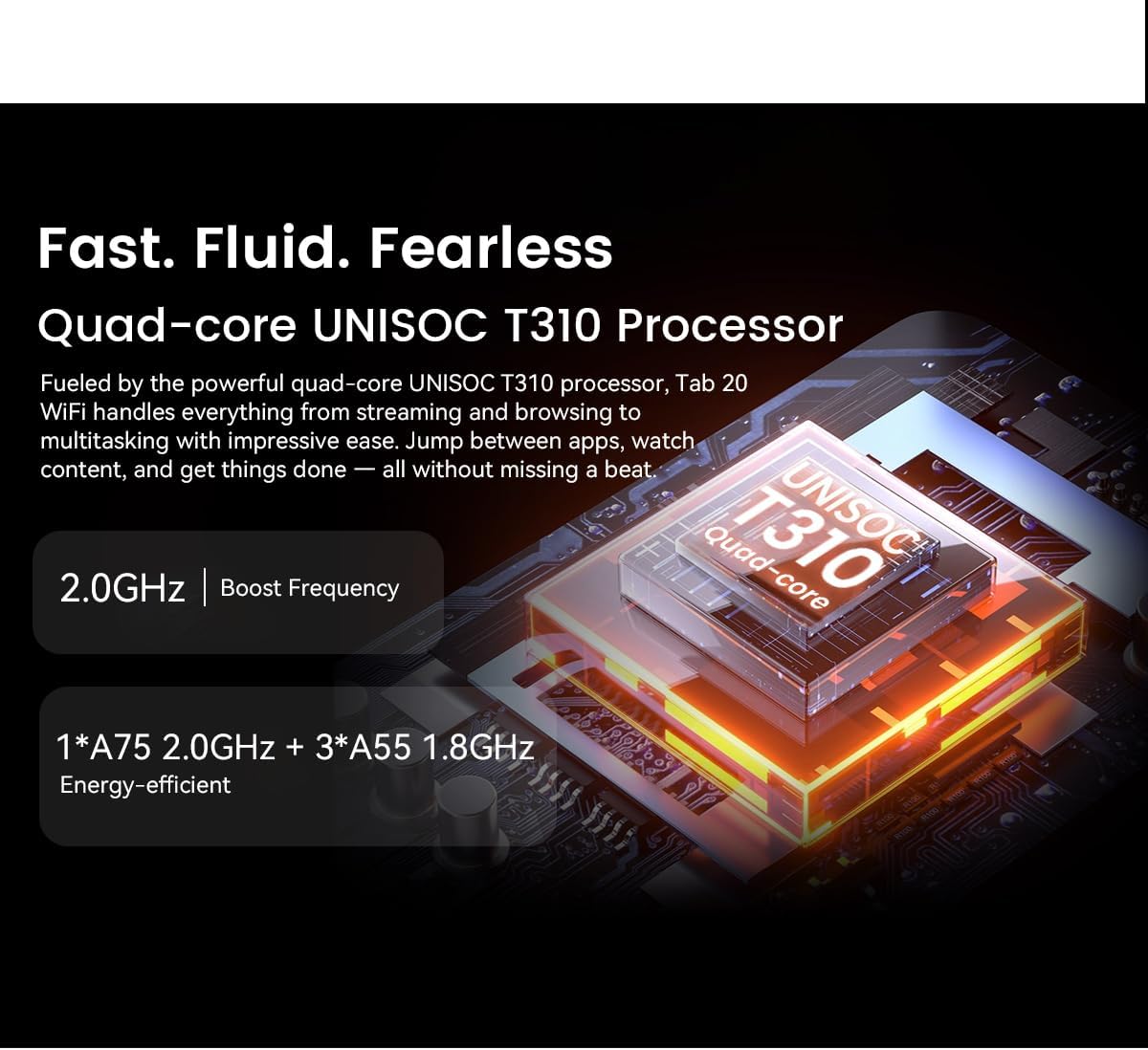
- UNISOC T310 Processor: Quad-core processor for smooth multitasking and performance.
סעטאַפּ
- טשאַרדזשינג די טאַבלעט:
Before first use, fully charge the tablet using the provided power adapter and USB cable. Connect the USB cable to the tablet's Type-C port and the adapter to a power outlet. The charging indicator will show the charging status.
- מאַכט אויף / אַוועק:
To power on, press and hold the power button until the Blackview logo appears. To power off, press and hold the power button, then select "Power off" from the options.
- ערשט סעטאַפּ:
Follow the on-screen prompts to complete the initial setup. This includes selecting your language, connecting to a Wi-Fi network, setting up your Google account, and configuring facial unlock.
- אַרײַנשטעלן מיקראָסד קאַרטל (אָפּציאָנאַל):
If you wish to expand storage, locate the SIM/microSD card tray on the side of the tablet. Use the provided ejector tool to open the tray. Insert a microSD card (up to 2TB) into the designated slot, ensuring correct orientation, then close the tray securely.
אַפּערייטינג ינסטראַקשאַנז
גרונטלעכע נאַוויגאַציע:
- ריר דזשעסטשערז: צאַפּן צו סעלעקטירן, סווייפּן צו סקראָלן, צוקניפּן צו פארגרעסערן.
- היים פאַרשטעלן: צוטריט צו אַפּפּס, ווידזשעטס און נאָוטאַפאַקיישאַנז.
- אָנזאָג פּאַנעל: לאַקכענען אַראָפּ פֿון די שפּיץ פון דעם עקראַן צו view נאָטיפיקאַציעס און שנעלע סעטטינגס.
קאַנעקטינג צו Wi-Fi:
- גיין צו סעטטינגס > נעץ און אינטערנעט > ווי-פי.
- קער אויף ווי-פי.
- אויסקלייבן אייער געוואונטשענע נעץ פון דער ליסטע און אַרייַן די פּאַראָל אויב נייטיק.
Using Gemini AI:
די שווארצעview Tab 20 WiFi integrates Gemini AI 2.0 for intelligent assistance. You can activate it via voice commands or specific gestures (refer to on-screen tutorials during initial setup or in the AI settings). Gemini AI can assist with tasks, provide information, and control smart features.

פיגורע 5: Visual representation of Gemini AI 2.0's integration with various applications and smart controls.
אַפּאַראַט אָפּעראַציע:
עפֿנט די קאַמעראַ אַפּ צו כאַפּן בילדער און ווידעאָס.
- הינטערשטע קאַמעראַ (8MP): Suitable for general photography and document scanning.
- פראָנט קאַמעראַ (5MP): אידעאל פֿאַר ווידעאָ רופן און סעלפֿיז.
Tap the shutter button to take a photo. Switch between photo and video modes as needed.

פיגורע 6: נאָענט-אַרויף view of the tablet's rear and front cameras.
אויג שוץ מאָדעס:
To reduce eye strain, activate one of the three eye protection modes:
- לייענען מאָדע: Adjusts screen color temperature for a paper-like reading experience.
- נאַכט ליכט מאָדע: Filters blue light to reduce eye fatigue during evening use.
- טונקל מאָדע: Inverts colors to a dark theme, reducing brightness in low-light environments.
These modes can typically be found in סעטטינגס > ווייַז or via the quick settings panel.

פיגורע 7: Visual guide to the tablet's eye protection modes.
וישאַלט
- רייניקונג: ניצט אַ ווייכע, לינט-פֿרייע שטאָף צו רייניקן דעם עקראַן און קערפּער פֿון דער טאַבלעט. פֿאַרמייַדט ניצן שטרענגע כעמיקאַלן אָדער אַברייסיוו מאַטעריאַלן.
- ווייכווארג דערהייַנטיקונגען: קאָנטראָלירט און אינסטאַלירט רעגולער סיסטעם דערהייַנטיקונגען צו זיכער מאַכן אָפּטימאַלע פאָרשטעלונג און זיכערהייט. גייט צו סעטטינגס > סיסטעם > סיסטעם דערהייַנטיקן.
- באַטערי זאָרגן: כדי צו פארלענגערן די לעבן פון די באַטעריע, זאָלט איר אויסמיידן עקסטרעמע טעמפּעראַטורן. לאָזט נישט די באַטעריע גאָר אויסליידיקן אָפט.
- סטאָרידזש פאַרוואַלטונג: פּעריִאָדיש אויסמעקן נישט-נייטיקע fileאון אַראָפּנעמען נישט גענוצטע אַפּפּס צו באַפֿרײַען סטאָרידזש פּלאַץ און אויפֿהאַלטן פאָרשטעלונג.
טראָובלעשאָאָטינג
| פּראָבלעם | מעגלעך סיבה | לייזונג |
|---|---|---|
| די טאַבלעט גייט נישט אָן. | נידעריגע באַטעריע; ווייכווארג קראַך. | Charge the tablet for at least 30 minutes. Press and hold the power button for 10-15 seconds to force restart. |
| קענען ניט פאַרבינדן צו ווי-פי. | אומרעכט פּאַראָל; ראַוטער פּראָבלעם; Wi-Fi דיסייבאַלד. | Ensure correct password. Restart your Wi-Fi router. Check if Wi-Fi is enabled in settings. |
| אַפּפּס זענען פּאַמעלעך אָדער פרירן. | צו פיל אַפּפּס לויפן; ווייניק סטאָרידזש; אַלטמאָדישע ווייכווארג. | Close background apps. Clear cache/data for problematic apps. Free up storage. Update system software. |
| באַטאַרייע דריינז געשווינד. | הויכע ברייטקייט פון דעם עקראַן; הינטערגרונט אַפּפּס; איבערגעטריבענע באַניץ. | Reduce screen brightness. Close unused apps. Limit background data usage. Check battery usage in settings. |
| Facial unlock not working. | Poor lighting; face not recognized; sensor obstruction. | Ensure adequate lighting. Clean the front camera. Re-register your face in settings. |
ספּעסאַפאַקיישאַנז
| שטריך | דעטאַל |
|---|---|
| סאָרט | שוואַרץview |
| מאָדעל נאָמען | TAB 20 WIFI |
| אָפּערייטינג סיסטעם | אַנדרויד 15 |
| פּראַסעסער | UNISOC T310 (Quad-core) |
| באַראַן | Up to 12GB (4GB physical + 8GB expansion) |
| אינערלעכער סטאָרידזש | 64 גיגאבייט |
| יקספּאַנדאַבאַל סטאָרידזש | microSD slot, up to 2TB |
| פאַרשטעלן גרייס | 10.1 אינטשעס |
| פאַרשטעלן האַכלאָטע | 800 X 1200 בילדצעלן |
| דערציען אַפּאַראַט | 8 מעגאַפּיקסעלס |
| פראָנט אַפּאַראַט | 5 מעגאַפּיקסעלס |
| באַטאַרייע קאַפּאַציטעט | 6000 מאַה |
| קאַנעקטיוויטי | ווי-פי, בלועטאָאָטה, וסב טיפּ-C |
| ספּעציעלע פֿעיִקייטן | Gemini AI Assistant, Facial Unlock, Google Lens |
| Dimensions (L x W x Thickness) | 24.2L x 16W x 0.9Thickness cm |
| GTIN/UPC | 810154306572 |
וואָראַנטי און שטיצן
וואָראַנטי אינפֿאָרמאַציע:
די שווארצעview Tab 20 WiFi tablet comes with a לימיטעד וואָראַנטי. Please refer to the warranty card included in your product packaging for specific terms and conditions, including coverage duration and claim procedures. Keep your proof of purchase for warranty claims.
קונה שטיצן:
For technical assistance, troubleshooting beyond this manual, or warranty inquiries, please contact Blackview customer support. You can typically find contact information on the official Blackview website or through the retailer where you purchased the tablet.
Always provide your product model (TAB 20 WIFI) and serial number when contacting support for faster service.