
1. איבערview
The ARMOURY Scout A-150 is a high-performance gaming PC designed for demanding applications and immersive gaming experiences. It features an AMD Ryzen 7 5700 processor, an NVIDIA GeForce RTX 3050 graphics card, 16GB of RAM, and a 1TB NVMe SSD for rapid data access. This system comes pre-installed with Windows 11 Home and includes integrated Wi-Fi and Bluetooth connectivity.

פיגורע 1.1: פראָנט און זייַט view of the ARMOURY Scout A-150 Gaming PC.
2. סעטאַפּ אינסטרוקציעס
2.1 אַנפּאַקינג
- נעמט פֿאָרזיכטיק אַרויס דעם קאָמפּיוטער פֿון זײַן פּאַקעט.
- Inspect the PC for any signs of damage during transit.
- Remove any protective films or packaging materials from the exterior and interior (if applicable).
2.2 קאַנעקטינג פּעריפעראַלס
Connect your monitor, keyboard, mouse, and other peripherals to the appropriate ports on the rear and top of the PC.
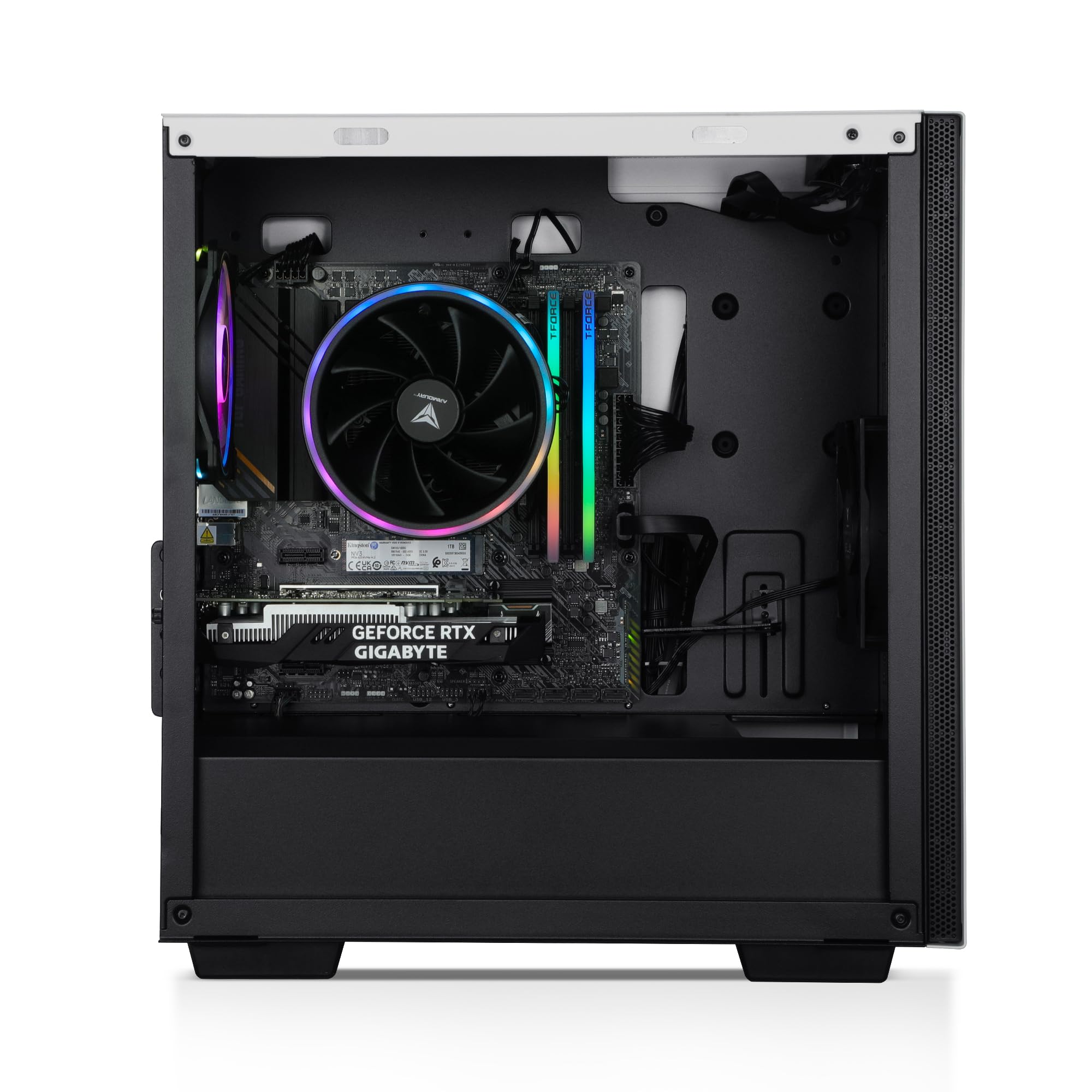
Figure 2.1: Rear panel connections including USB, HDMI, DisplayPort, Ethernet, and audio ports.
- מאָניטאָר: Connect your monitor to the graphics card's HDMI or DisplayPort outputs. Ensure the cable is securely fastened.
- קלאַוויאַטור און מויז: פֿאַרבינדט אייער קלאַוויאַטור און מויז צו אַלע פֿאַראַן USB פּאָרץ.
- אַודיאָ: Connect speakers or headphones to the audio output jacks on the rear or top panel.
- נעץ: For a wired connection, connect an Ethernet cable to the LAN port. For wireless, ensure the Wi-Fi antennas (if provided) are attached.
- מאַכט: Connect the power cable to the PC's power supply unit (PSU) and then to a grounded electrical outlet.
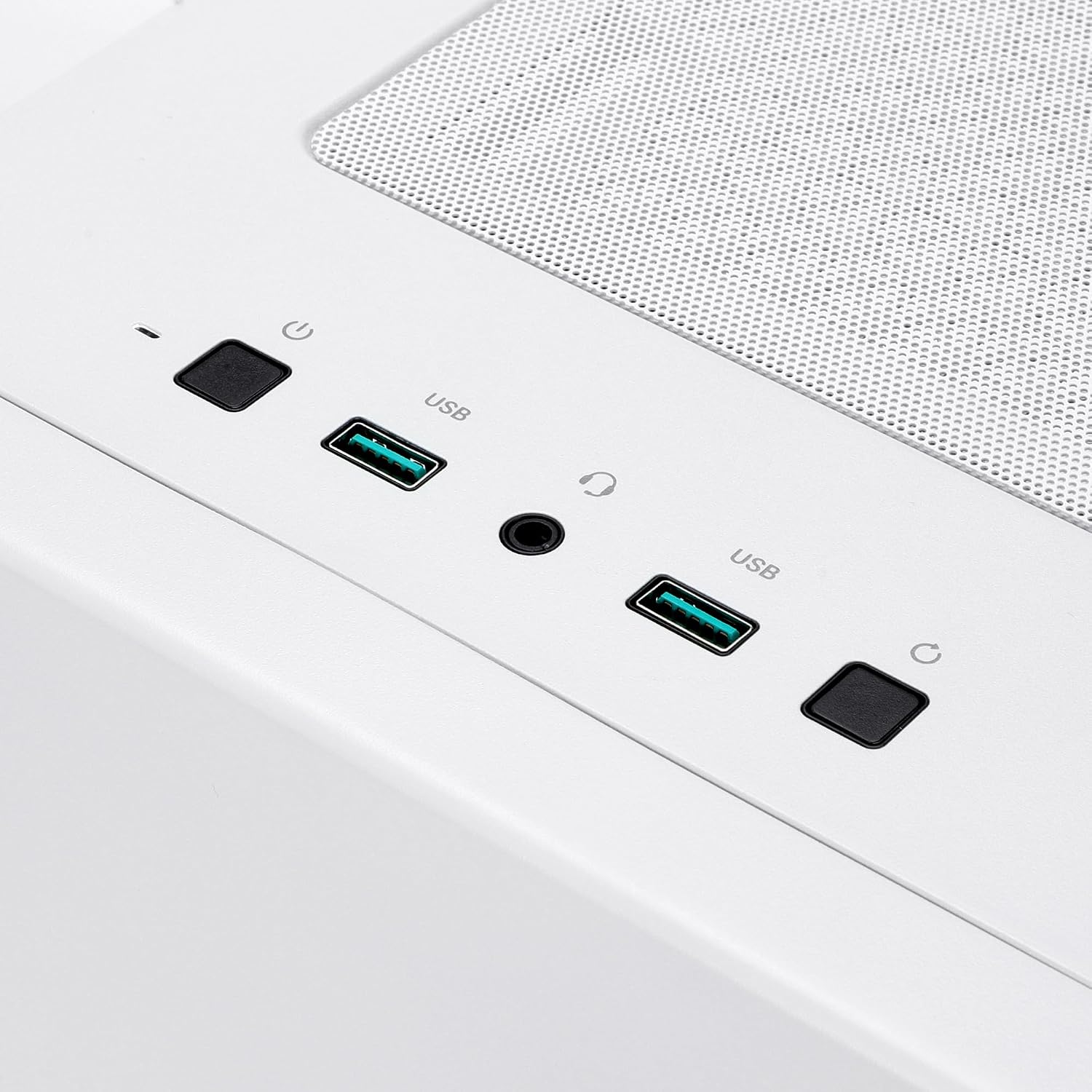
Figure 2.2: Top panel connections including USB ports and audio jack.
2.3 ערשט מאַכט-אויף
- מאַכן זיכער אַז אַלע קאַנעקשאַנז זענען זיכער.
- Press the power button located on the top panel of the PC.
- The system will boot into Windows 11 Home. Follow the on-screen instructions to complete the initial setup, including language, region, network connection, and user account creation.
3. אַפּערייטינג ינסטרוקטיאָנס
3.1 מאַכט אויף און אַוועק
- צו מאַכט אויף: Press the power button on the top of the PC.
- צו פאַרמאַכן אַראָפּ: Click the Start button in Windows, then select Power > Shut down. Avoid directly unplugging the PC or holding the power button for extended periods during normal operation, as this can lead to data loss or system instability.
- צו ריסטאַרט: דריקט דעם סטאַרט קנעפּל אין ווינדאָוס, און דערנאָך סעלעקטירט מאַכט > ריסטאַרט.
3.2 פֿאַרבינדן זיך צו נעטוואָרקס
- ווי-פי: In Windows 11, click the network icon in the taskbar, select your desired Wi-Fi network, enter the password, and click Connect.
- בלועטאָאָטה: To pair Bluetooth devices, go to Settings > Bluetooth & devices, ensure Bluetooth is enabled, and then select 'Add device'.
3.3 Gaming and Performance
- Ensure your PC has adequate ventilation, especially during extended gaming sessions.
- Keep graphics drivers updated for optimal performance. You can download the latest drivers from the NVIDIA webפּלאַץ.
- Close unnecessary background applications to free up system resources for gaming.
4. וישאַלט
4.1 שטויב פאַרוואַלטונג
Dust accumulation can hinder cooling performance and potentially damage components. Regular cleaning is recommended.

פיגורע 4.1: אינערלעכער view of the PC, highlighting the CPU cooler and graphics card, areas prone to dust accumulation.
- אָפטקייַט: Clean the interior of your PC every 3-6 months, or more frequently if in a dusty environment.
- פּראָצעדור:
- Shut down the PC completely and unplug the power cable.
- עפֿנט די זײַט־טאַפֿעל פֿונעם פּיסי־קעסטל.
- Use compressed air to gently blow dust out of fans (CPU cooler, case fans, GPU fans) and heatsinks. Hold fans in place to prevent over-spinning.
- Wipe down accessible surfaces with a microfiber cloth.
- Close the side panel securely.
4.2 ווייכווארג דערהייַנטיקונגען
- ווינדאָוס דערהייַנטיקונגען: Regularly check for and install Windows updates via Settings > Windows Update to ensure system stability and security.
- דרייווער דערהייַנטיקונגען: Keep your graphics card drivers (NVIDIA) and motherboard drivers updated for optimal performance and compatibility.
5. טראָובלעשאָאָטינג
| פּראָבלעם | מעגלעך סיבה | לייזונג |
|---|---|---|
| פּיסי גייט נישט אָן | Loose power cable, PSU switch off, faulty outlet | קאָנטראָלירט די מאַכט קאַבל קאַנעקשאַנז, זיכער מאַכן אַז די PSU סוויטש איז אויף, פּרוּווט אַן אַנדער מאַכט ווענטיל. |
| קיין אַרויסווייַזונג אויף מאָניטאָר | Monitor cable loose, incorrect input selected on monitor, monitor off, graphics card issue | Ensure monitor cable is securely connected to the graphics card, check monitor power, select correct input source on monitor. |
| Slow system performance | Too many background programs, outdated drivers, dust accumulation, malware | Close unnecessary applications, update drivers, clean PC interior, run antivirus scan. |
| Wi-Fi/בלוטוט קאנעקטיוויטי פראבלעמען | Antennas loose, drivers outdated, interference | Ensure Wi-Fi antennas are securely attached, update wireless drivers, move PC away from potential interference sources. |
6. ספּעסאַפאַקיישאַנז
| קאָמפּאָנענט | דעטאַל |
|---|---|
| סאָרט | אַרמאָרי |
| מאָדעל | Scout A-150 (RTARU00150) |
| פאָרם פאַקטאָר | מיד טאַוער |
| אָפּערייטינג סיסטעם | Windows 11 היים |
| קפּו | AMD Ryzen 7 5700 (8 Cores / 16 Threads, 3.8 GHz up to 4.6 GHz Boost) |
| גפּו | NVIDIA GeForce RTX 3050 (6GB Graphics Memory) |
| באַראַן | 16GB DDR SDRAM (4 Memory Slots Available) |
| סטאָרידזש | 1TB Kingston NVMe SSD |
| מאָטהערבאָאַרד | A520M-PLUS WIFI |
| ווירעלעסס קאַנעקטיוויטי | Wi-Fi + בלועטאָאָטה |
| קאָאָלינג | נידעריק-פּראָfile Air Cooler with RGB, Armoury 120mm Case Fans |
| מאַכט צושטעלן | 650W 80PLUS Bronze |
| פאַל | Armoury MACUBE110 |
| פּאָרץ | HDMI, DisplayPort, USB (Total 6), Ethernet, Audio Jacks |
| נאָך פֿעיִקייטן | RGB לייטינג |
7. וואָראַנטי אינפֿאָרמאַציע
According to product information, there is no explicit warranty description provided for this product.
8. שטיצן
For technical assistance or further inquiries regarding your ARMOURY Scout A-150 Gaming PC, please contact the manufacturer:
פאַבריקאַנט: Armoury
Refer to the official ARMOURY website or your purchase documentation for specific contact methods and hours of operation.