
הקדמה
This manual provides detailed instructions for setting up and operating your VEDINDUST KVM HDMI Switch 2x2. This device allows you to control two computers or laptops using a single set of keyboard and mouse, while sharing two monitors and up to four USB devices. It supports high resolutions up to 8K@60Hz and 4K@120Hz, with backward compatibility for lower resolutions. Please read this manual thoroughly before use to ensure proper installation and functionality.
פּעקל אינהאַלט
ביטע באַשטעטיקן אַז אַלע זאכן וואָס זענען ליסטעד אונטן זענען אַרייַנגערעכנט אין דיין פּעקל:
- 1 x VEDINDUST KVM HDMI Switch 2x2
- 1 x Desktop Control (Wired Remote)
- 2 x USB 3.0 A to USB-C Cables
- 1 x DC12V Power Adapter
- 1 x באַניצער מאַנואַל

Image: Contents of the VEDINDUST KVM HDMI Switch package, showing the KVM switch unit, a wired desktop controller, two USB-A to USB-C cables, a DC12V power adapter, and a printed user manual.
פּראָדוקט איבערview
פראָנט פּאַנעל
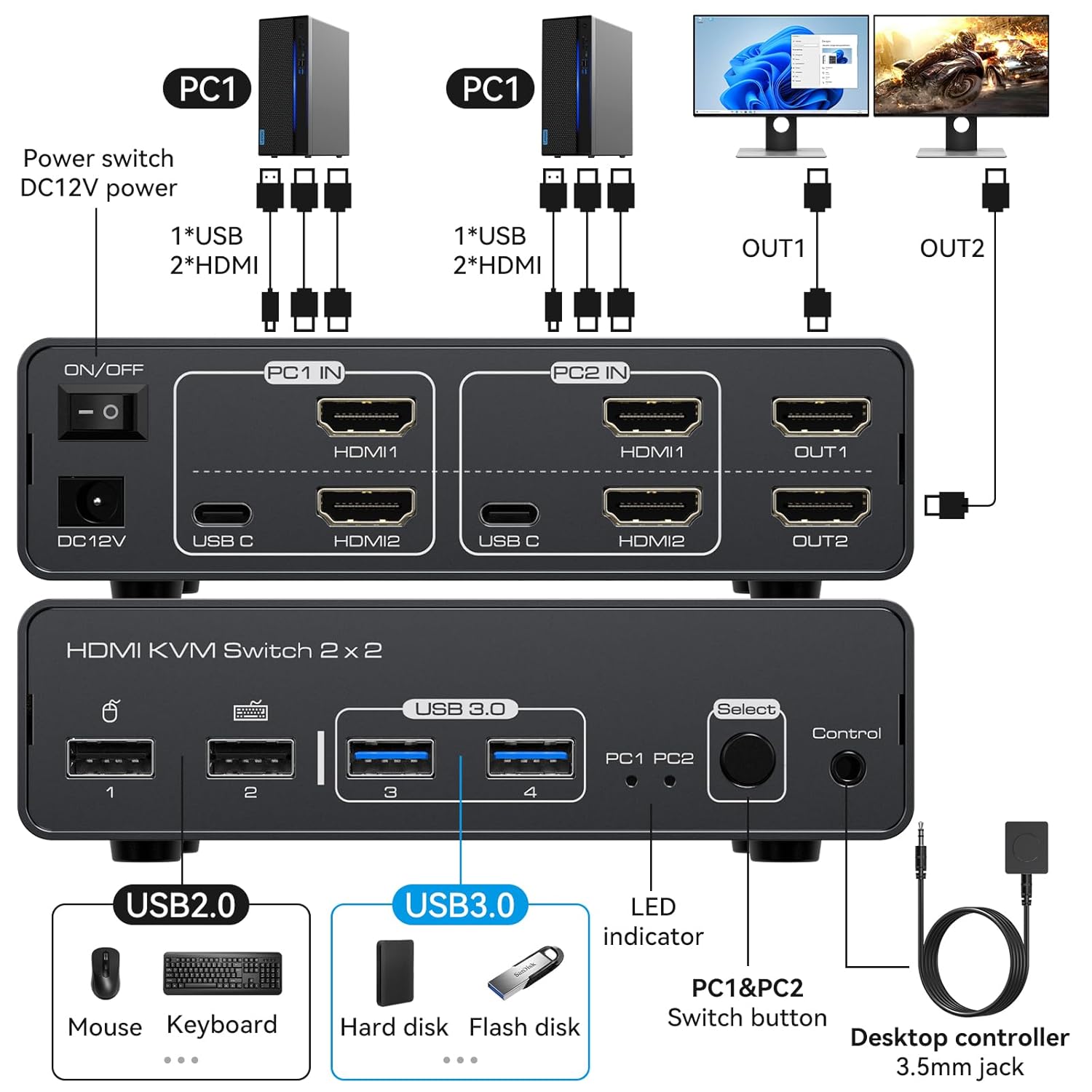
Image: The front panel of the KVM switch, highlighting two USB 2.0 ports (typically for mouse and keyboard), two USB 3.0 ports (for high-speed data devices like hard drives or flash drives), a 'Select' button for switching between PCs, a 'Control' port for the wired desktop controller, and an LED indicator for the active PC.
- USB 2.0 Ports (1, 2): For connecting low-speed USB devices such as mouse and keyboard.
- USB 3.0 Ports (3, 4): For connecting high-speed USB devices like external hard drives or flash drives.
- אויסקלייַבן קנעפּל: Press to switch between PC1 and PC2.
- LED Indicator (PC1, PC2): Illuminates to show which PC is currently active.
- קאָנטראָל פּאָרט: Connects to the wired desktop controller for remote switching.
צוריק פּאַנעל

Image: The back panel of the KVM switch, displaying the DC12V power input, an ON/OFF switch, two input sections labeled 'PC1 IN' and 'PC2 IN'. Each PC input section includes a USB-C port, HDMI1, and HDMI2 ports. Additionally, there are two HDMI output ports labeled 'OUT1' and 'OUT2' for connecting monitors.
- DC12V: מאַכט אַרייַנשרייַב פּאָרט.
- אויף/אַוועק באַשטימען: Power toggle for the KVM switch.
- PC1 IN / PC2 IN: Each input section includes:
- וסב- C: For data transfer from the computer to the KVM. Note: This USB-C port does not support video transfer.
- HDMI1 / HDMI2: HDMI video inputs from the computer. Both HDMI1 and HDMI2 must be connected to the same computer for dual monitor output from that computer.
- OUT1 / OUT2: HDMI video outputs to connect to your monitors.
סעטאַפּ אינסטרוקציעס
Follow these steps to connect your KVM HDMI Switch:
- מאַכט אַוועק דעוויסעס: Ensure all computers and monitors are powered off before making any connections.
- פאַרבינדן מאָניטאָרס: Connect your two monitors to the KVM's OUT1 און OUT2 HDMI ports using HDMI cables.
- Connect PC1:
- Connect the USB-C cable from PC1 to the KVM's PC1 IN USB-C פּאָרט.
- Connect two HDMI cables from PC1's video outputs to the KVM's PC1 IN HDMI1 און PC1 IN HDMI2 פּאָרץ.
- Connect PC2:
- Connect the USB-C cable from PC2 to the KVM's PC2 IN USB-C פּאָרט.
- Connect two HDMI cables from PC2's video outputs to the KVM's PC2 IN HDMI1 און PC2 IN HDMI2 פּאָרץ.
וויכטיק באַמערקונג: For dual monitor output from a single PC, both HDMI1 and HDMI2 inputs for that specific PC must be connected. Ensure your computers support dual monitor output. The USB-C ports on the KVM are for data transfer only and do not support video.
- פאַרבינדן USB פּעריפעראַלז: Connect your mouse and keyboard to the KVM's USB 2.0 ports (1, 2) on the front panel. Connect any other USB devices (e.g., external hard drives, flash drives) to the KVM's USB 3.0 ports (3, 4).
- Connect Wired Remote (Optional): Plug the wired desktop controller into the קאָנטראָל port on the KVM's front panel.
- פאַרבינדן מאַכט: Plug the DC12V power adapter into the KVM's DC12V port and then into a power outlet.
- מאַכט אויף: Turn on the KVM switch using the ON/OFF switch on the back panel, then power on your monitors and computers.
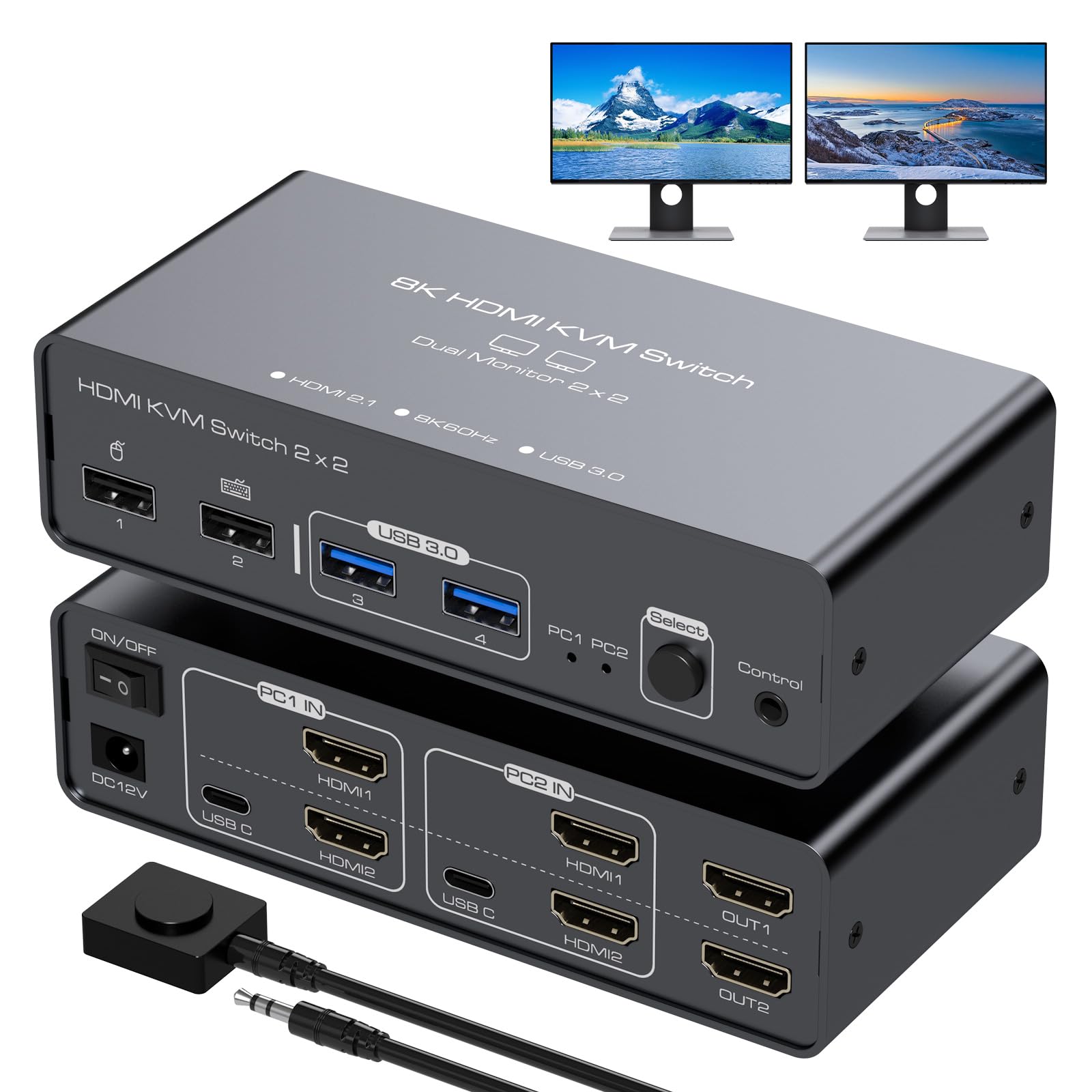
Image: A comprehensive connection diagram illustrating how to set up the KVM switch. It shows two PCs connected via USB-C and dual HDMI cables to the KVM's input ports. Two monitors are connected to the KVM's HDMI output ports. A mouse, keyboard, and other USB devices are connected to the KVM's front USB ports. The KVM is powered by a DC12V adapter, and a wired desktop controller is also connected.
אַפּערייטינג ינסטראַקשאַנז
באַשטימען צווישן קאָמפּיוטערס
You can switch between PC1 and PC2 using one of the following methods:
- פראָנט פּאַנעל קנעפּל: דרוק די אויסקלייַבן button on the front panel of the KVM switch. The LED indicator will change to show the currently active PC (PC1 or PC2).
- Wired Desktop Controller: If connected, press the button on the wired desktop controller to switch between PC1 and PC2. This allows for convenient switching if the KVM is placed out of reach.
באַמערקונג: Hotkey switching via keyboard shortcuts is not supported by this KVM switch.

Image: A visual guide on switching between PC1 and PC2. It shows a close-up of a hand pressing the 'Select' button on the KVM's front panel, and an image of the wired desktop controller, both used for switching the active computer.
Display Working Modes
The KVM switch supports two primary display modes, which are configured on your computer's operating system:
- פאַרברייטערן מאָדע: This mode allows your two monitors to display different content, extending your desktop across both screens. One monitor acts as the main screen, and the other as an extended screen.
- Duplicate (Mirror) Mode: In this mode, both monitors display the exact same content, mirroring your main screen.
To switch between these modes, adjust your display settings within your computer's operating system (e.g., Windows Display Settings or macOS System Preferences). Ensure your computer supports dual or multiple monitors to utilize these modes effectively.

Image: A diagram showing two display working modes. The 'Extend' mode depicts two monitors showing different parts of a desktop, while the 'Duplicate' mode shows both monitors displaying identical content.
טראָובלעשאָאָטינג
If you encounter issues, please refer to the following common troubleshooting steps:
- No Display or Incorrect Resolution:
- Ensure all HDMI cables are securely connected to both the KVM and your computers/monitors.
- Verify that your source devices (computers), monitors, and HDMI cables all support the desired resolution (e.g., 8K@60Hz or 4K@120Hz).
- Confirm that both HDMI1 and HDMI2 inputs for the active PC are connected to that PC for dual monitor output.
- Check your computer's display settings to ensure dual monitors are detected and configured correctly (Extend or Duplicate mode).
- Try restarting the KVM switch and then your computers and monitors.
- USB דעוויסעס אַרבעטן נישט:
- Ensure the USB-C cables from your computers are properly connected to the KVM's PC IN USB-C ports.
- For external hard drives or flash drives, check your computer's power management settings for USB ports. Some operating systems may put USB ports to sleep, causing devices to disconnect during switching. Disabling these power-saving features for USB root hubs can resolve this.
- Try connecting the USB device directly to the computer to confirm it functions independently.
- Wired Desktop Controller Not Responding:
- Ensure the controller cable is securely plugged into the KVM's 'Control' port.
- Test switching using the 'Select' button on the KVM's front panel to confirm the KVM itself is functioning.
ספּעסאַפאַקיישאַנז
| מאָדעל | 241011003 |
| סאָרט | VEDINDUST |
| דימענסיעס (L X W X H) | 14.1 X 6.8 X 3.8 סענטימעטער (5.6 X 2.7 X 1.5 אינטשעס) |
| וואָג | 530 ג |
| ווידעא האַכלאָטע שטיצן | Up to 8K@60Hz, 4K@120Hz, 1440P@60Hz, 1080P@60Hz |
| וסב פּאָרץ | 2 רענטגענ וסב 2.0, 2 רענטגענ וסב 3.0 |
| קאָנטראָל מעטאָד | Manual button, Wired remote control |
| מאַכט אַרייַנשרייַב | DC 12V |
| מאַטעריאַל | Aluminum (shell), Copper, Brass (contact material) |
| אַפּערייטינג סיסטעם קאַמפּאַטאַבילאַטי | Windows, Vista, XP, Linux, Unix |

בילד: א דעטאַלירטע view of the KVM switch's front panel, illustrating the two USB 2.0 ports for mouse and keyboard, and two USB 3.0 ports for high-speed devices like hard disks and flash drives, along with their respective data transfer speeds.

Image: A setup featuring two monitors displaying ultra-high-definition content, demonstrating the KVM switch's support for 8K@60Hz and 4K@120Hz resolutions, with backward compatibility for 1080P.
וואָראַנטי און שטיצן
VEDINDUST is committed to providing high-quality products and customer satisfaction. If you encounter any problems during the use of your KVM HDMI Switch, please do not hesitate to contact our professional after-sales support team. We are dedicated to providing timely and effective solutions to ensure your product functions correctly.
For support, please refer to the contact information provided with your purchase or visit the official VEDINDUST webפּלאַץ.
פּראָדוקט ווידעאָ איבערview
ווידעא: א קורצע איבערבליקview of the VEDINDUST KVM HDMI Switch, demonstrating its front and back panels, connection points, and the process of switching between two computers. It also highlights the extend and mirror display modes and the use of USB 2.0 and USB 3.0 ports.