
OMOTON B0FCMD15TF
OMOTON Foldable Bluetooth Keyboard with Touchpad (QWERTZ Layout)
Model: B0FCMD15TF
בראַנד: אָמאָטאָן
1. הקדמה
Thank you for choosing the OMOTON Foldable Bluetooth Keyboard with Touchpad. This portable QWERTZ keyboard is designed for convenience and efficiency, offering multi-device connectivity and an integrated touchpad. This manual provides detailed instructions for setup, operation, and maintenance to ensure optimal performance.
2. פּעקל אינהאַלט
ביטע טשעק די פּאַקעט פֿאַר די פאלגענדע זאכן:
- OMOTON Foldable Bluetooth Keyboard
- טרייַבל סטאַנד
- טיפּ-C טשאַרדזשינג קאַבלע
- קעריינג קאַסע
- באַניצער מאַנואַל
3. פּראָדוקט איבערview
The OMOTON Foldable Bluetooth Keyboard features a compact QWERTZ layout with 78 full-size keys and a multi-touch touchpad. It supports connection to up to three devices simultaneously across iOS, Android, and Windows operating systems. Its magnetic folding design makes it highly portable.
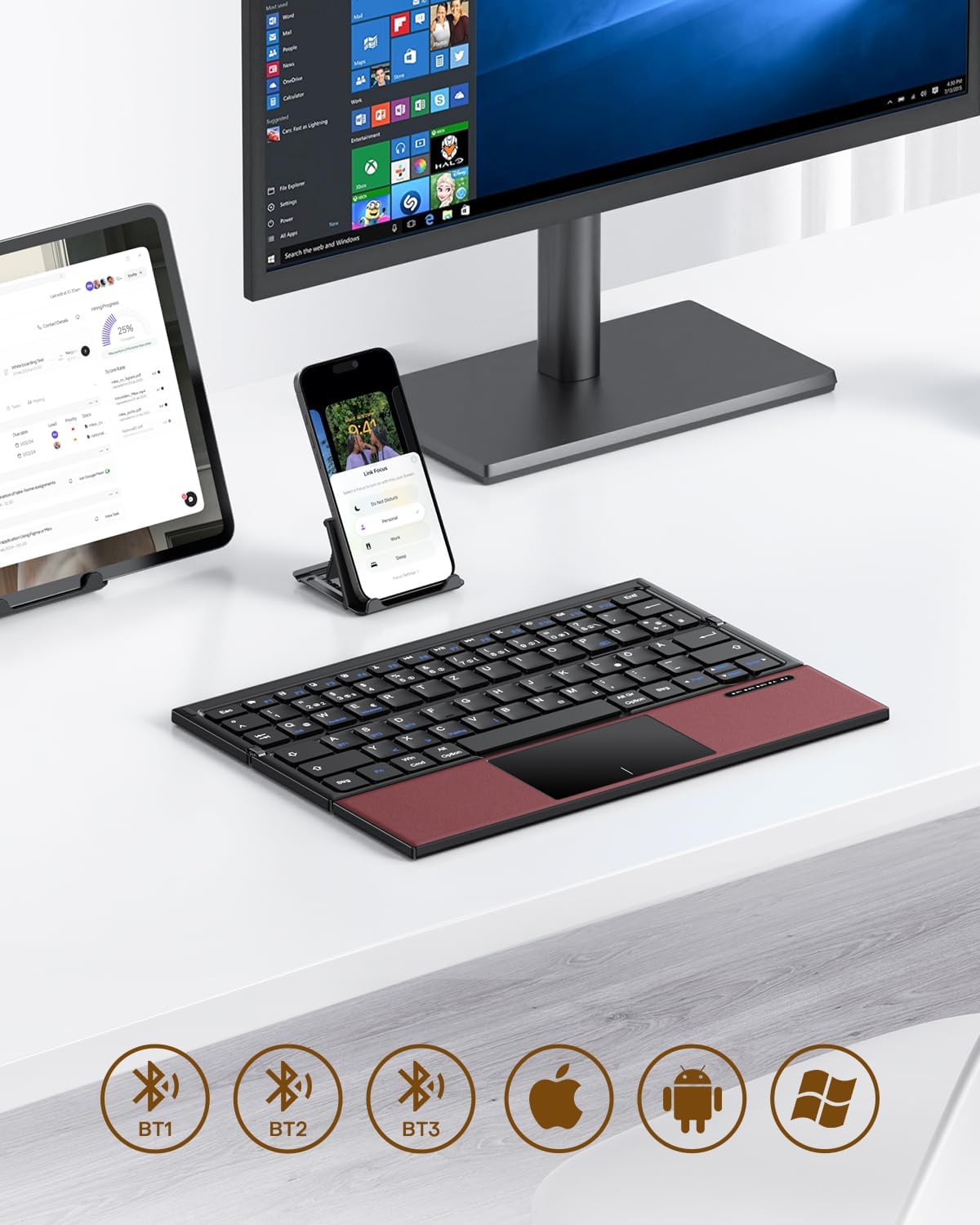
Image 3.1: The OMOTON Foldable Bluetooth Keyboard in use with a tablet, smartphone, and monitor, demonstrating multi-device connectivity via BT1, BT2, and BT3 channels.
שליסל פֿעיִקייטן:
- דריי-פאַרלייגן פּלאַן: Compact and portable for travel.
- אינטעגרירטע טאָוטשפּאַד: Multi-touch functionality for navigation without an external mouse.
- מולטי דיווייס קאַנעקטיוויטי: Connects to up to three Bluetooth-enabled devices (BT1, BT2, BT3).
- QWERTZ Layout: Standard German keyboard layout with 78 full-size keys.
- קריקאָנלאָדלעך באַטערי: Built-in 180mAh battery with Type-C charging.

Image 3.2: Close-up details of the keyboard, highlighting its magnetic closure, indicator lights, silent scissor keys, elegant PU leather finish, and durable metal hinge.
פּאָרטאַביליטי:
The keyboard's compact, tri-fold design makes it ideal for travel and on-the-go use. It easily fits into bags and pockets, making it a convenient companion for various environments.

Image 3.3: The keyboard in use in a cafe, on an airplane, and in a meeting room, demonstrating its versatility for different work and travel scenarios.

Image 3.4: The folded keyboard being placed into a carrying case inside a bag and slipped into a jacket pocket, illustrating its compact size and ease of transport.
4. סעטאַפּ
4.1 אויפלאָדן די קלאַוויאַטור
Before first use, fully charge the keyboard. Use the included Type-C charging cable to connect the keyboard to a power source (e.g., computer USB port, USB wall adapter).
- The power indicator light will show charging status.
- א פול אָפּצאָל טיפּיקלי נעמט 2-3 שעה.
- The keyboard offers up to 60 hours of operating time and 90 days of standby time on a full charge.

Image 4.1: The keyboard connected via its Type-C port for charging, with icons indicating charging time, working time, and standby time.
4.2 פּערינג מיט אַ מיטל
The keyboard supports up to three Bluetooth connections (BT1, BT2, BT3). Follow these steps to pair your keyboard with a device:
- מאַכט אויף: Unfold the keyboard to automatically power it on. The indicator light will flash.
- אויסקלייַבן קאַנאַל: דרוק די Fn + BT1, Fn + BT2, אָדער Fn + BT3 keys simultaneously to select a Bluetooth channel. The corresponding indicator light will flash slowly.
- אַרייַן די פּערינג מאָדע: דרוק Fn + C (or the Bluetooth icon key) to enter pairing mode. The selected channel indicator light will flash rapidly.
- אַקטיווירן בלועטוט אויף מיטל: אויף אייער דעווייס (סמאַרטפאָן, טאַבלעט, לאַפּטאָפּ), גייט צו בלועטוט סעטטינגס און אַקטיווירט בלועטוט.
- אויסקלייבן קלאַוויאַטור: זוכן פֿאַר "OMOTON Keyboard" (or similar) in the list of available devices and select it to connect.
- באַשטעטיקן קשר: Once connected, the indicator light on the keyboard will stop flashing and remain solid for a few seconds before turning off.
Note: The Type-C cable is for charging only and does not support wired connectivity.
4.3 וועקסלען צווישן דעוויסעס
צו בייטן צווישן פארבונדענע דעווייסעס, דריק פשוט Fn + BT1, Fn + BT2, אָדער Fn + BT3 to select the desired channel. The keyboard will automatically connect to the last paired device on that channel.
5. אַפּערייטינג ינסטרוקטיאָנס
5.1 קלאַוויאַטור אויסלייג און ספּעציעלע קנעפּלעך
The keyboard features a QWERTZ layout with 78 standard keys and 12 multimedia shortcuts. Familiarize yourself with the layout for efficient typing.

Image 5.1: The keyboard displaying its full-size keys and integrated multi-touch touchpad, designed for a laptop-like typing experience.
5.2 ניצן דעם טאָוטשפּאַד
The multi-touch touchpad supports various gestures for navigation. This eliminates the need for an external mouse.
- איין פינגער טאַפּ: לינקס-גיט.
- צוויי פינגער טאַפּ: Right-click (context menu).
- צוויי פינגער סקראל: סקראָלן אַרויף/אַראָפּ אָדער לינקס/רעכטס.
- קניפּ צו פארגרעסערן: Zoom in/out (supported on some devices/apps).
- סווייפּ דזשעסטשערז: Specific gestures may vary by operating system (Windows, Android, iOS).
Note for iPad users: You may need to enable "AssistiveTouch" in your iPad settings for full touchpad functionality. Some gestures may vary between applications. Scrolling direction can be adjusted in your device settings.
5.3 מאַכט שפּאָרן מאָדע
To conserve battery, the keyboard will automatically enter sleep mode after 30 minutes of inactivity. To wake it up, press any key.
5.4 Ergonomic Usage
For comfortable and ergonomic typing, ensure your screen is positioned correctly to maintain a healthy posture.

Image 5.2: A visual guide showing the recommended ergonomic posture for using the keyboard with a screen, emphasizing proper neck and back alignment.
6. וישאַלט
- רייניקונג: Use a soft, dry cloth to clean the keyboard surface. For stubborn dirt, slightly dampווייקט דעם שטאָף מיט וואַסער אָדער אַ מילדער רייניקונג לייזונג. פֿאַרמייַדט איבעריקע פֿײַכטקייט.
- סטאָרידזש: When not in use, fold the keyboard and store it in the provided carrying case to protect it from dust and scratches.
- באַטערי זאָרגן: Avoid fully discharging the battery frequently. Charge the keyboard regularly, especially if it will be stored for an extended period.
- ויסמיידן עקסטרעמע טנאָים: Do not expose the keyboard to extreme temperatures, direct sunlight, or high humidity.
7. טראָובלעשאָאָטינג
7.1 קלאַוויאַטור פֿאַרבינדט זיך נישט
- Ensure the keyboard is powered on (unfolded).
- מאַכן זיכער אַז בלועטאָאָטה איז ענייבאַלד אויף דיין מיטל.
- Check if the keyboard is in pairing mode (indicator light flashing rapidly after pressing Fn+C).
- Ensure you have selected the correct Bluetooth channel (BT1, BT2, or BT3).
- פּרוּווט אָפּצופּאַרן און ווידער צופּאַרן די קלאַוויאַטור פֿון די בלועטוט סעטטינגס פֿון אייער דעווייס.
- זיכער מאַכן אַז די קלאַוויאַטור באַטאַרייע איז אָפּגעלאָדן.
7.2 טאָוטשפּאַד רעאַגירט נישט
- זיכער מאַכן אַז די קלאַוויאַטור איז ריכטיק פארבונדן דורך בלועטוט.
- For iPad users, verify that "AssistiveTouch" is enabled in your iPad settings.
- Restart the keyboard and your device.
- רייניקט די טאָוטשפּאַד ייבערפלאַך צו באַזייַטיקן קיין שמוץ אָדער דעבריס.
7.3 Incorrect Key Output (QWERTZ vs. QWERTY)
- This keyboard has a QWERTZ layout. Ensure your device's software keyboard setting is also set to QWERTZ (German layout) for correct character output.
- If your device is set to QWERTY, some keys (e.g., Y/Z, special characters) will not match the physical keyboard. Adjust your device's input language/keyboard layout settings.
7.4 קורצע באַטעריע לעבן
- זיכער מאַכן אַז די קלאַוויאַטור איז גאָר אויפגעלאָדן איידער נוצן.
- The keyboard automatically enters sleep mode after 30 minutes of inactivity to save power.
- Avoid leaving the keyboard unfolded and powered on when not in use for extended periods.
8. ספּעסאַפאַקיישאַנז
| סאָרט | אָמאָטאָן |
| מאָדעל | B0FCMD15TF |
| קאַנעקטיוויטי טעכנאָלאָגיע | בלועטאָאָטה |
| קאַמפּאַטאַבאַל דעוויסעס | iPadOS, iOS, Android, Windows (Laptops, PCs, Tablets, Smartphones) |
| קלאַוויאַטור אויסלייג | QWERTZ (German Layout) |
| נומער פון קיז | 78 |
| ספּעציעלע פֿעיִקייטן | Foldable, Portable, Rechargeable, Integrated Multi-touch Touchpad |
| מאַטעריאַל | פּלאַסטיק, פּאָליורעטאַן (PU) |
| באַטאַרייע קאַפּאַציטעט | 180 מאַה לי-יאָן |
| טשאַרדזשינג פּאָרט | טיפּ-C |
| טשאַרדזשינג צייט | בעערעך. 2-3 שעה |
| אַפּערייטינג צייט | אַרויף צו 60 שעה |
| סטאַנדביי צייט | אַרויף צו 90 טעג |
| פאָולדיד דימענשאַנז | 25.3 X 6 X 2.1 סענטימעטער |

Image 8.1: Visual representation of the keyboard's dimensions when unfolded and folded, alongside a tablet and smartphone for scale.
9. וואָראַנטי & שטיצן
OMOTON products come with a standard warranty. For detailed warranty information, please refer to the warranty card included in your package or visit the official OMOTON webפּלאַץ.
If you encounter any issues or have questions regarding your OMOTON Foldable Bluetooth Keyboard, please contact OMOTON Customer Support:
- Webפּלאַץ: OMOTON Official Store on Amazon
Please have your model number (B0FCMD15TF) and purchase details ready when contacting support.
פֿאַרבונדענע דאָקומענטן - B0FCMD15TF
 |
OMOTON KB568 פאָלדאַבאַל קלאַוויאַטור באַניצער מאַנואַל באַניצער מאַנואַל פֿאַר די OMOTON KB568 פאָולדאַבאַל קלאַוויאַטור, דעטאַלירנדיק ספּעסיפיקאַציעס, פֿעיִקייטן, בלועטוט פּערינג, טאָוטשפּאַד פאַנגקשאַנז פֿאַר ווינדאָוז, אַנדרויד און iOS, ענערגיע שפּאָרן, אָפֿט געשטעלטע פֿראַגעס און זיכערהייט מיטלען. |
 |
OMOTON KB515 ווירעלעס קלאַוויאַטור באַניצער מאַנואַל און ספּעסיפיקאַציעס אן אויספירלעכע אנווייזונג פארן OMOTON KB515 ווייערלעס קלאַוויאַטור, וואָס דעקט סעטאַפּ, פּערינג, פֿעיִקייטן, טראָובלעשווטינג, און זיכערהייט מיטלען פֿאַר מעק און אַנדערע קאָמפּאַטיבלע סיסטעמען. |
 |
OMOTON KB515 ווירעלעסס קיבאָרד באַניצער מאַנואַל באַניצער מאַנואַל פֿאַר די OMOTON KB515 וויירלעס קלאַוויאַטור, דעטאַלירנדיק ספּעסיפיקאַציעס, פֿעיִקייטן, פּערינג אינסטרוקציעס, טראָובלעשווטינג, און זיכערהייט מיטלען. |
 |
OMOTON KB066 ווירעלעסס קיבאָרד באַניצער מאַנואַל User manual for the OMOTON KB066 Wireless Keyboard, detailing product specifications, package contents, setup instructions, troubleshooting, and important safety precautions for Mac users. |
 |
OMOTON KB088 ווירעלעס קלאַוויאַטור מיט גליטשנדיקן שטאַנד באַניצער מאַנואַל באַניצער מאַנואַל פֿאַר די OMOTON KB088 וויירלעס קלאַוויאַטור, וואָס גיט אינסטרוקציעס ווי צו נוצן דעם גליטשנדיקן שטאַנד, עצות פֿאַר פּראָבלעם לייזונג, אינפֿאָרמאַציע וועגן באַטאַרייע אינדיקאַטאָרן, און פּאַקעט אינהאַלט. לערנט ווי צו פאַרבינדן און נוצן דיין OMOTON קלאַוויאַטור. |
 |
OMOTON KC003 טאַבלעט קלאַוויאַטור באַניצער מאַנואַל באַניצער מאַנואַל פֿאַר די OMOMOTON KC003 טאַבלעט קלאַוויאַטור, מיט דעטאַלן וועגן אירע פֿעיִקייטן, ספּעציפֿיקאַציעס און באַניצער אינסטרוקציעס. |
Ask a question about this manual
Ask about setup, troubleshooting, compatibility, parts, safety, or missing instructions. Manuals+ will review the question and use this page’s manual context to help answer it.