
1. הקדמה
This manual provides detailed instructions for the Tenlamp G9 Podcast Equipment Audio Mixer. Please read this manual thoroughly before using the device to ensure proper operation and to maximize its features. The G9 mixer is designed for podcasting, live streaming, short video recording, and other audio content creation, offering a range of audio control and enhancement functions.
2. פּראָדוקט איבערview
The Tenlamp G9 is a versatile audio mixer featuring a 4.5-inch HD screen for real-time audio adjustments. It includes a 3-band EQ, dual reverb, voice changer, and noise reduction capabilities. The device is designed for plug-and-play compatibility with PCs, Macs, and mobile devices.
2.1 שליסל פֿעיִקייטן
- צאַפּן און שפּיל: Quick connection to PC, Mac, or mobile devices without complex setup.
- Visual Audio Mixing: 4.5-inch HD screen displays audio adjustments in real-time.
- ראַש רעדוקציע: Ensures clear voice output for recordings and live broadcasts.
- פולשטענדיק קאָנטראָל: Individual controls for microphone, music, headphone, main output, 3-band EQ, dual reverb, and pitch.
- קול קוסטאָמיזאַטיאָן: Includes voice changer and auto-tune functions.
2.2 פּעקל אינהאַלט
- 1x Tenlamp G9 Audio Mixer
- 1x USB A-C Cable
- 1x 3.5mm TRRS Audio Cable
- 1x USB-C OTG Cable
- 1x באַניצער מאַנואַל (דאָס דאָקומענט)
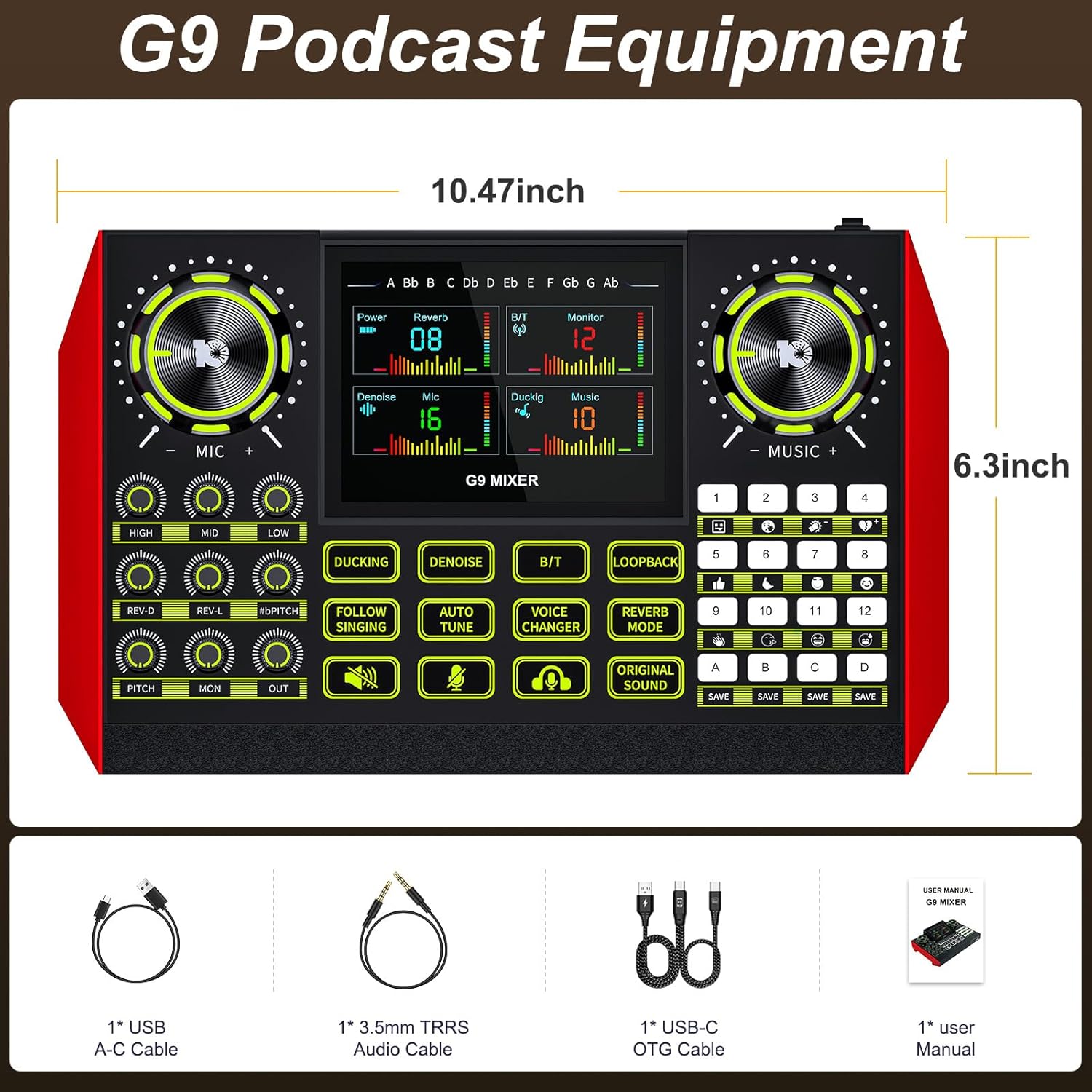
The G9 mixer measures approximately 10.47 inches in width and 6.3 inches in height.
3. סעטאַפּ
The Tenlamp G9 mixer is designed for straightforward setup. Follow these steps to connect your device.
3.1 קאַנעקטינג צו מאַכט
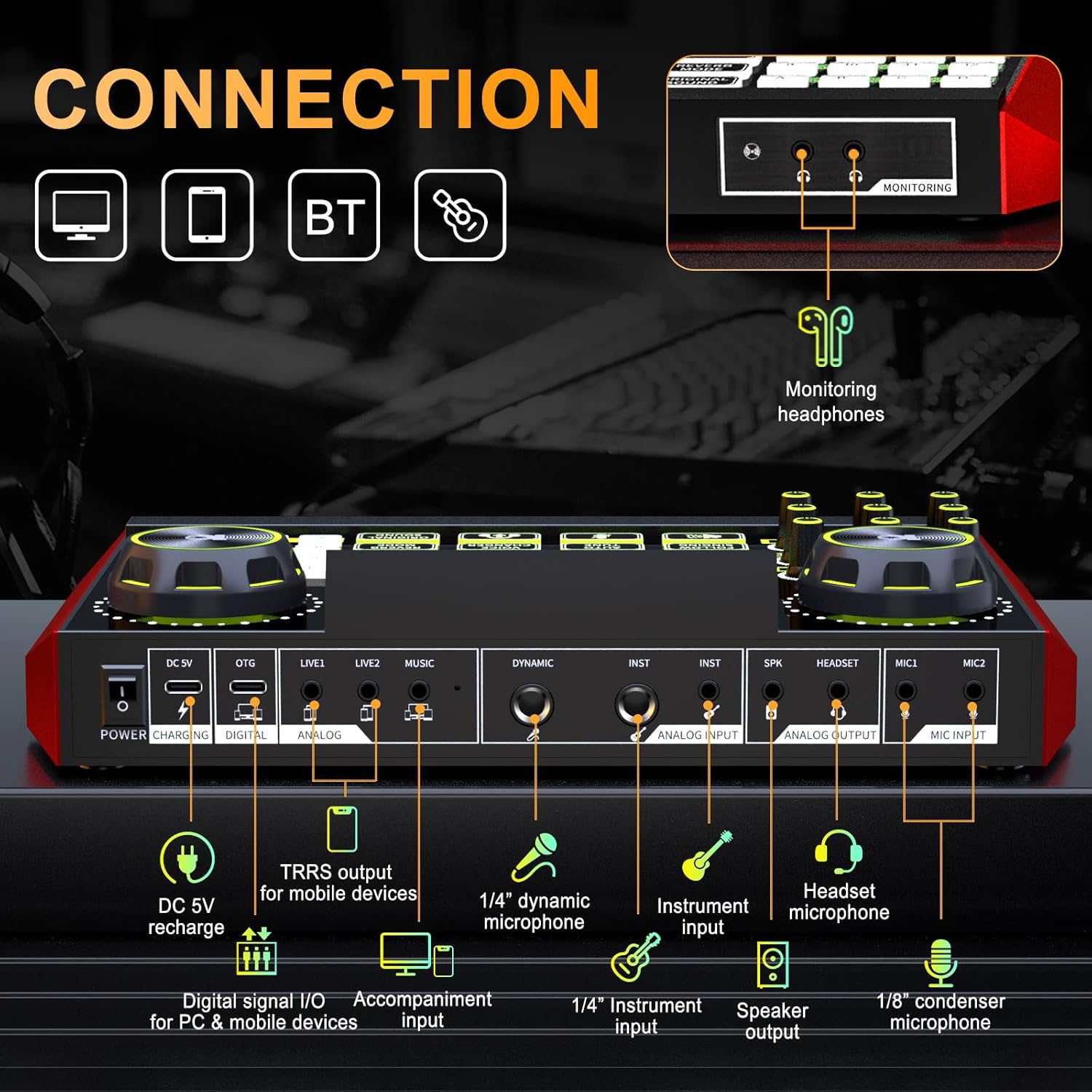
Connect the provided USB A-C cable to the DC 5V port on the mixer and to a power source (e.g., computer USB port, USB wall adapter). The mixer also features a built-in battery for portable use.
3.2 פֿאַרבינדן מיקראָפֿאָנען און אינסטרומענטן
- Microphone Input (MIC1, MIC2): Use 1/8" (3.5mm) condenser microphones.
- Dynamic Microphone Input (DYNAMIC): Use a 1/4" dynamic microphone.
- Instrument Input (INST): Connect instruments via a 1/4" jack.
- כעדסעט מיקראָפאָן: Connect a headset with a microphone to the dedicated headset port.
3.3 Connecting to Devices (PC, Mac, Mobile)
- Digital Signal I/O (DIGITAL): Use the USB-C OTG cable to connect to a PC, Mac, or compatible mobile device for digital audio input and output.
- Analog Input/Output (LIVE1, LIVE2, MUSIC): Use 3.5mm TRRS audio cables for analog connections to mobile devices or other audio sources.
- בלועטאָאָטה (BT): Activate Bluetooth on the mixer and your device to pair wirelessly for music input.
3.4 Monitoring Headphones and Speaker Output
- Monitoring Headphones (MONITORING): Connect headphones to the 3.5mm monitoring jack to hear your mix in real-time.
- Speaker Output (SPK): Connect external speakers for audio playback.
4. אָפּעראַציע
The G9 mixer provides intuitive controls for managing your audio. The 4.5-inch HD screen displays current settings and levels, allowing for precise adjustments.
4.1 מאַכט אויף / אַוועק
Press and hold the Power button to turn the mixer on or off. The screen will illuminate upon activation.
4.2 Adjusting Microphone Settings
Use the dedicated knobs for הויך, MID, און נידעריק to adjust the 3-band equalizer for your microphone. The REV-D און רעוו-ל knobs control the dual reverb depth and length. The פּעך knob adjusts the microphone's pitch.

4.3 Music and Output Volume
די מוזיק knob controls the input volume of background music. The MON knob adjusts the monitoring volume for your headphones, and the OUT knob controls the main output volume.
4.4 ספּעציעלע פאַנגקשאַנז
- DUCKING: Automatically lowers background music volume when you speak.
- דענאָיס: Activates the noise reduction feature for clearer vocals.
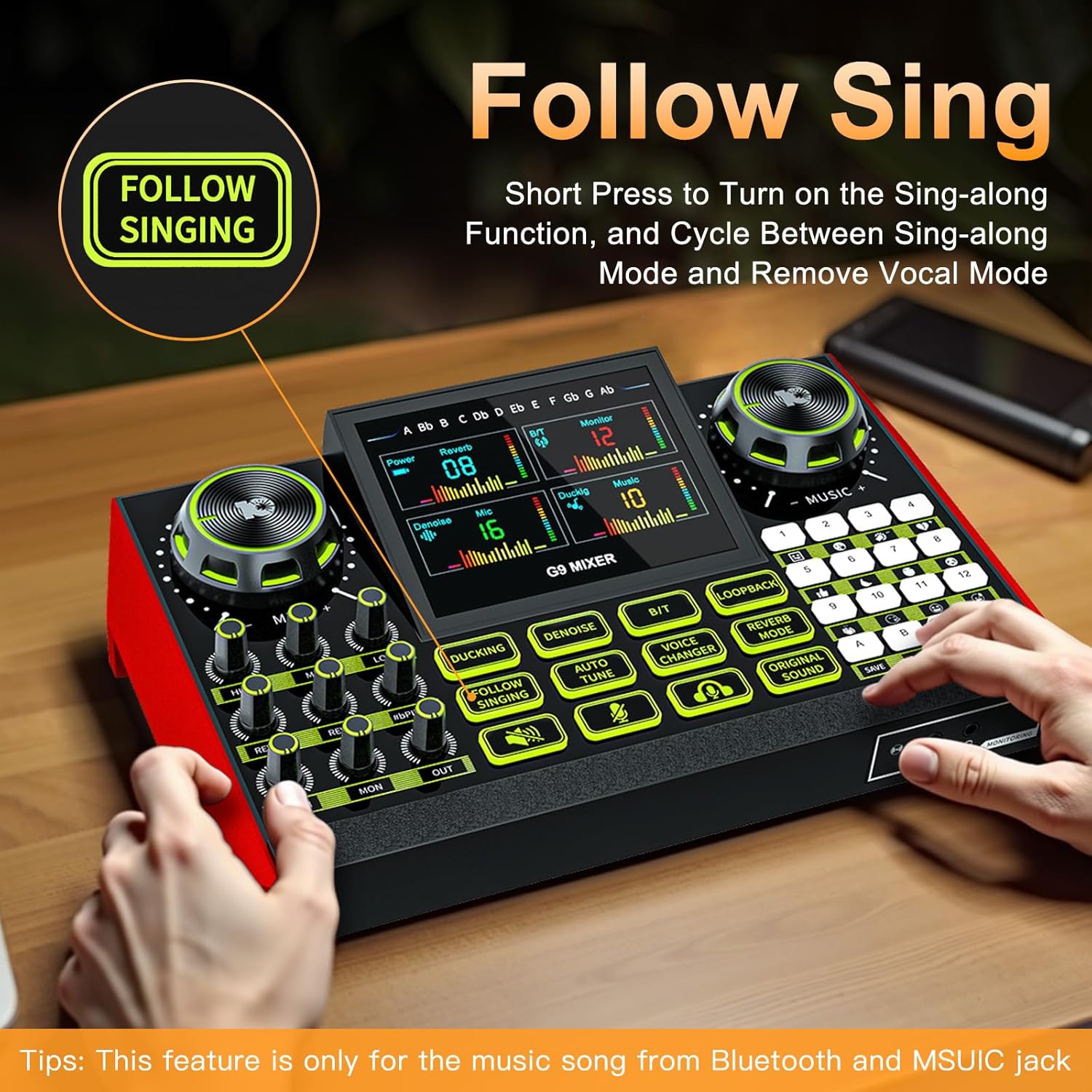
- FOLLOW SINGING: Short press to turn on the sing-along function, which cycles between sing-along mode and vocal removal mode. Note: This feature is primarily for music from Bluetooth and the MUSIC jack.
- AUTO TUNE: Engages the auto-tune effect for vocals.
- VOICE CHANGER: Cycles through four different voice changing modes (female voice, uncle voice, baby voice, magic voice).
- LOOPBACK: Enables or disables the loopback function, which sends the output audio back to the input for recording or streaming.
- רעווערב מאָדע: אַדזשאַסץ די ריווערב ווירקונג.
- ORIGINAL SOUND: Restores the original sound without effects.

4.5 Customizable Sound Pads
The G9 mixer features four customizable sound pads (A, B, C, D). You can save your favorite voice modes, including current microphone volume, EQ, reverb, pitch, and auto-tune settings, to these pads for quick recall.

5. וישאַלט
To ensure the longevity and optimal performance of your Tenlamp G9 Audio Mixer, follow these maintenance guidelines:
- רייניקונג: Use a soft, dry cloth to clean the surface of the mixer. Avoid using abrasive cleaners, solvents, or harsh chemicals.
- סטאָרידזש: האַלט דעם מיקסער אין אַ קיל, טרוקן אָרט אַוועק פון דירעקט זונשייַן און עקסטרעמע טעמפּעראַטורן.
- האַנדלינג: באַהאַנדלט דאָס אַפּאַראַט מיט פֿאָרזיכט. פֿאַרמײַדט עס צו לאָזן פֿאַלן אָדער אויסשטעלן עס צו שטאַרקע קלאַפּן.
- פליסיק ויסשטעלן: Keep the mixer away from liquids. Moisture can damage internal components.
6. טראָובלעשאָאָטינג
If you encounter issues with your Tenlamp G9 Audio Mixer, refer to the following common problems and solutions:
6.1 קיין קלאַנג אַרויסגאַנג
- טשעק קאַנעקשאַנז: Ensure all audio cables (microphone, headphones, speakers, device connections) are securely plugged into the correct ports.
- באַנד לעוועלס: באַשטעטיקן אַז די MIC, מוזיק, MON, און OUT volume knobs are not set to minimum or muted.
- מיטל סעטטינגס: On your connected PC, Mac, or mobile device, ensure the G9 mixer is selected as the default audio input and output device.
- מאַכט: Confirm the mixer is powered on and has sufficient battery charge or is connected to a power source.
6.2 Poor Audio Quality / Noise
- ראַש רעדוקציע: אַקטאַווייט די דענאָיז function to reduce background noise.
- מיקראָפאָן אָרט: זיכער מאַכן אַז דער מיקראָפאָן איז ריכטיק פּאַזיציאָנירט און נישט צו ווייט פֿון דער קלאַנג מקור.
- קאַבלע קוואַליטעט: Use high-quality, shielded audio cables to minimize interference.
- געווינען לעוועלס: Adjust microphone gain to prevent clipping or distortion.
6.3 Voice Changer / Effects Not Working
- פונקציע אַקטאַוויישאַן: Ensure the specific effect button (e.g., קול ענדערונג, AUTO TUNE) is pressed and active.
- מיקראָפאָן אַרייַנשרייַב: Confirm that your microphone is properly connected and receiving input.
6.4 Difficulty with Initial Setup
While the G9 is plug-and-play, some users may find initial setup challenging. Double-check all physical connections and ensure the mixer is recognized by your operating system. Refer to the
Ask a question about this manual
Ask about setup, troubleshooting, compatibility, parts, safety, or missing instructions. Manuals+ will review the question and use this page’s manual context to help answer it.