
1. הקדמה
Welcome to the JMGO PicoPlay Portable Mini Projector user manual. This guide provides essential information for the safe and efficient use of your new projector. Please read it thoroughly before operation and retain it for future reference.
זיכערקייַט אינפֿאָרמאַציע
- Do not look directly into the projector lens when the device is operating.
- האַלטן די מיטל אַוועק פון וואַסער אָדער אנדערע ליקווידס.
- פאַרזיכערן געהעריק ווענאַליישאַן צו פאַרמייַדן אָוווערכיטינג.
- ניצן בלויז די צוגעשטעלט מאַכט אַדאַפּטער.
- Avoid dropping or subjecting the projector to strong impacts.
2. פּראָדוקט איבערview
The JMGO PicoPlay is a versatile portable mini projector designed for immersive entertainment. It combines a 1080P FHD projector, an immersive Bluetooth speaker, and dynamic ambient lighting.
שליסל פֿעיִקייטן:
- 1080P גאַנץ הד האַכלאָטע: Delivers crisp and clear images up to 200 inches.
- 400 ISO לומען: Provides bright visuals for various environments.
- Google TV with Licensed Netflix: Access a wide range of streaming apps and content.
- 8W Dolby Audio Speakers: Offers rich and powerful sound.
- 88° Rotatable Gimbal: Allows flexible projection angles from wall to ceiling.
- Automatic Image Optimization: Features auto-focus, auto-keystone correction, and intelligent screen alignment.
- 3D and HDR10 Support: Enhances visual depth and color.
- פּאָרטאַטיוו פּלאַן: סאָליד און לייטווייט פֿאַר גרינג אַריבערפירן.
- אַמביאַנט ליכט מאָדע: Customizable lighting to set the mood.
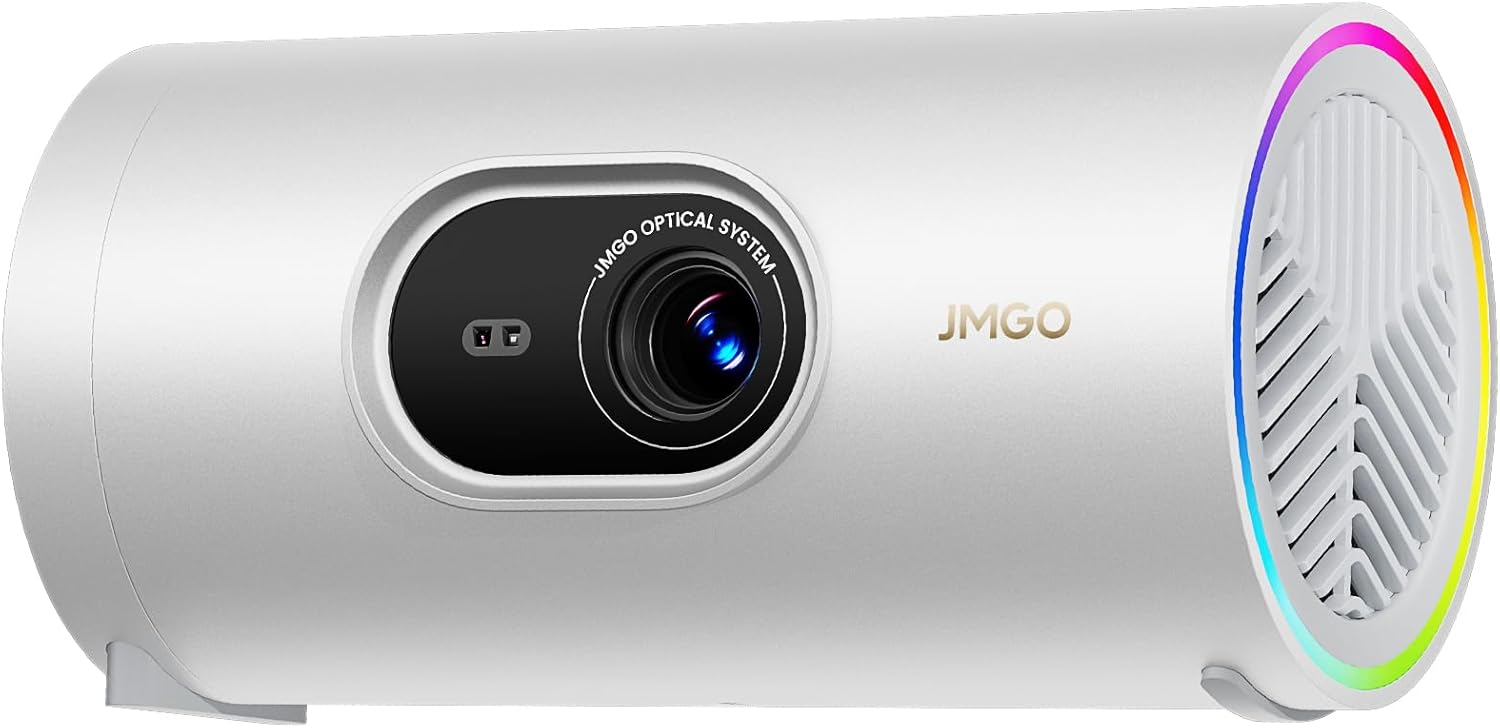
Figure 2.1: The JMGO PicoPlay Portable Mini Projector, showcasinג זײַן קאָמפּאַקטן דיזײַן און לינז.
וואָס איז אין די קעסטל:
- JMGO PicoPlay Projector
- באַניצער מאַנואַל
- ווייַט קאָנטראָל
- מאַכט שנור
- Optical Filter (for ambient light mode)
- קעריינג טאַש

Figure 2.2: All items included in the JMGO PicoPlay packaging.
3. סעטאַפּ
3.1 מאַכט אויף
- פֿאַרבינדט דעם צוגעשטעלטן מאַכט שנור צום פּראָיעקטאָר'ס מאַכט אַרייַנגאַנג פּאָרט.
- צאַפּן די מאַכט אַדאַפּטער אין אַ וואַנט ווענטיל.
- Alternatively, connect to a 65W Type-C external battery for portable use (sold separately).
- דרוק די מאַכט קנעפּל אויף די פּראַדזשעקטער אָדער ווייַט קאָנטראָל צו קער אויף די מיטל.

Figure 3.1: The PicoPlay projector connected to an external battery for extended use.
3.2 Initial Setup & Remote Pairing
- Upon first power-on, the projector will guide you through the initial setup process.
- Follow the on-screen instructions to select your language and connect to a Wi-Fi network.
- To pair the remote control, press and hold the indicated buttons on the remote until pairing is successful.
- Log in to your Google account to access Google TV features and licensed Netflix.
3.3 בילד אַדזשאַסטמאַנט
The PicoPlay features Flexismart System for automatic image optimization:
- אַוטאָ-פאָקוס: The projector automatically adjusts the focus for a clear image.
- אַוטאָ-קיסטאָנע קערעקשאַן: קאָריגירט פֿאַרדרייטע בילדער פֿאַראורזאַכט דורך ווינקלדיקע פּראָיעקציע.
- ינטעליגענט סקרין אַליינמאַנט: Automatically aligns the projected image to the screen or wall.
- 88° Rotatable Gimbal: Manually adjust the projection angle by rotating the projector on its base to project from wall to ceiling.

Figure 3.2: Illustration of the automatic focus, keystone correction, and screen alignment.

Figure 3.3: The projector's 88° rotatable gimbal allows for flexible projection angles.
4. אַפּערייטינג ינסטרוקטיאָנס
4.1 נאַוויגאַציע און קאָנטראָלס
Control your PicoPlay using the included remote control, the JMGO app, or the touch buttons on the device.
- ווייַט קאָנטראָל: Use the directional pad and dedicated buttons for navigation, volume, and quick access to apps like Netflix and YouTube.
- On-Device Touch Buttons: Located on the projector, these buttons allow basic control for volume, power, and menu navigation.
- JMGO אַפּ: Download the official JMGO app for advanced control and settings adjustments from your smartphone.

Figure 4.1: Various control methods for the PicoPlay projector.
4.2 קאַנעקטיוויטי
The PicoPlay offers multiple connectivity options:
- הדמי (קרייַזבויגן): פֿאַרבינדט עקסטערנע דעוויסעס ווי לאַפּטאַפּס, גיימינג קאַנסאָולז, אָדער בלו-רэй פּלייַערס.
- USB-A: For connecting USB drives or other peripherals.
- וסב- C: For power input or data transfer.
- ווי-פי: Connect to your home network for streaming and online features.
- בלועטאָאָטה: Pair with external speakers or use the PicoPlay as a standalone Bluetooth speaker.

פיגורע 4.2: דערציען view of the PicoPlay showing available ports.
4.3 Using Google TV & Streaming
With integrated Google TV, you can access a vast library of entertainment:
- Navigate the Google TV interface to browse movies, TV shows, and apps.
- Enjoy licensed Netflix directly on the projector.
- Use Google Cast to stream content from your smartphone or tablet.
- Utilize Google Assistant for voice commands.

Figure 4.3: The Google TV home screen displaying available streaming applications.
4.4 בלועטוט רעדנער מאָדע
Transform your PicoPlay into a powerful Bluetooth speaker:
- Place the projector in a vertical position.
- Select Bluetooth speaker mode from the menu or by pressing the dedicated action button.
- Pair your smartphone or other Bluetooth device with the PicoPlay to play music.
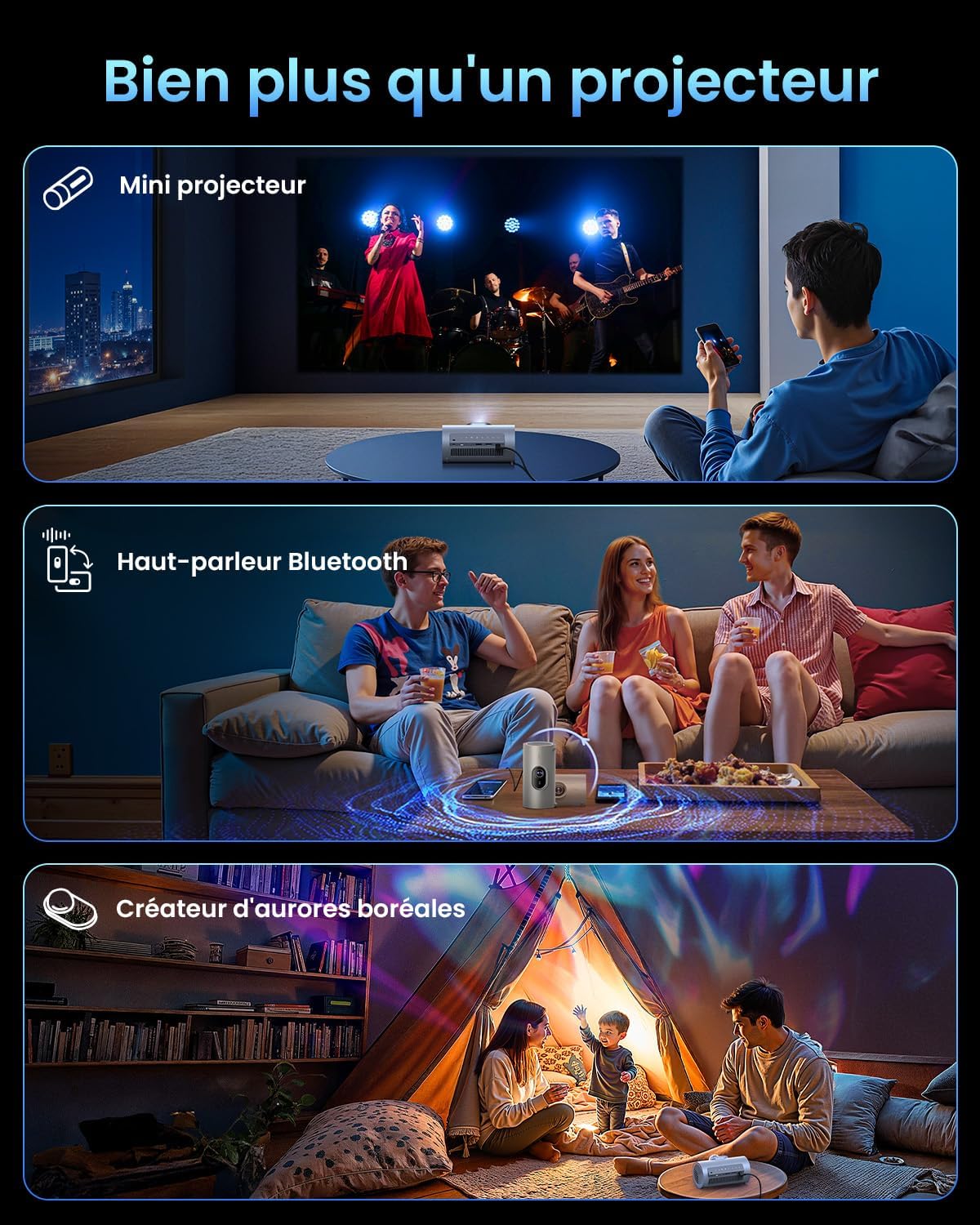
Figure 4.4: The PicoPlay in Bluetooth speaker mode, providing immersive audio.
4.5 Ambient Light Mode
Use the optical filter to create dynamic ambient lighting:
- Attach the optical filter to the projector lens.
- Select Ambient Light mode from the settings.
- Customize colors and effects to create your desired atmosphere.

Figure 4.5: The PicoPlay projecting customizable ambient lighting.
5. וישאַלט
5.1 רייניקונג
- לענס: ניצט אַ ווייכע, לינט-פֿרייע שטאָף ספּעציעל דיזיינד פֿאַר אָפּטישע לענסעס. ניצט נישט קיין שרײַבנדיקע רייניגער.
- עקסטעריע: ווישט אָפּ דעם פּראָיעקטאָר'ס אויסערלעכן טייל מיט אַ ווייכן, טרוקענעם שטאָף. פֿאַר שווערע פֿלעקן, ניצט אַ לייכט טרוקענעם שטאָף.amp שטאָף און טרוקן מיד.
- ווענטילאַטיאָן גרילז: Use a soft brush or compressed air to gently remove dust from the ventilation grilles.
5.2 סטאָרידזש
When not in use, store the projector in a cool, dry place, away from direct sunlight and extreme temperatures. Use the provided carrying pouch for protection during transport or storage.
6. טראָובלעשאָאָטינג
פּראָסט ישוז און סאַלושאַנז:
| אַרויסגעבן | מעגלעך סיבה | לייזונג |
|---|---|---|
| קיין מאַכט | שטראָם קאַבל נישט פארבונדן; פּראָבלעם מיט שטראָם אַוטלעט. | זיכער מאַכן אַז דער עלעקטרישער קאַבל איז זיכער פֿאַרבונדן. פּרוּווט אַן אַנדער אַוטלעט. |
| קיין בילד | Input source incorrect; cable loose; lens cap on. | Select correct input source. Check HDMI/USB connections. Remove lens cap. |
| בלערד בילד | Out of focus; projector too close/far. | Allow auto-focus to adjust. Adjust projector distance from screen. |
| פאַרקרימט בילד | Projector not aligned with screen. | Allow auto-keystone correction to adjust. Manually adjust if needed. |
| קיין געזונט | Volume too low; external audio device connected. | Increase volume. Disconnect external audio or select internal speakers. |
7. ספּעסאַפאַקיישאַנז
| שטריך | דעטאַל |
|---|---|
| סאָרט | JMGO |
| מאָדעל | PicoPlay |
| ווייַז טעכנאָלאָגיע | DLP, LED |
| געבוירן האַכלאָטע | 1920 רענטגענ 1080 (פול הד) |
| ברייטנאַס | 400 יסאָ לומענס |
| אַודיאָ | 8W Dolby Audio Speakers |
| קאַנעקטיוויטי | Wi-Fi, HDMI (ARC), USB-A, USB-C |
| ספּעציעלע פֿעיִקייטן | HDR10, 3D, APP Control, Google TV, Netflix, 88° Rotatable Gimbal, Auto-focus |
| דימענסיעס (L X W X H) | 8.5 X 8.5 X 16.6 סענטימעטער |
| פאָרם פאַקטאָר | פּאָרטאַטיוו |
| רעקאַמענדיד נוצן | Home cinema, Gaming, Business, Education |
8. וואָראַנטי און שטיצן
8.1 מאַנופאַקטורער וואָראַנטי
The JMGO PicoPlay projector comes with a 2-year manufacturer warranty. Please retain your proof of purchase for warranty claims.
8.2 קונה שטיצן
For technical assistance, troubleshooting, or warranty inquiries, please contact JMGO customer service. You can find contact information on the official JMGO webוועבזייטל אדער דורך אייער הענדלער.

פֿאַר מער אינפֿאָרמאַציע, באַזוכן די JMGO Brand Store.