
הקדמה
This manual provides detailed instructions for the setup, operation, maintenance, and troubleshooting of your Azeyou 12 Inch Android 15 Tablet, model T12. Please read this manual thoroughly to ensure proper use and to maximize your device's performance and longevity.
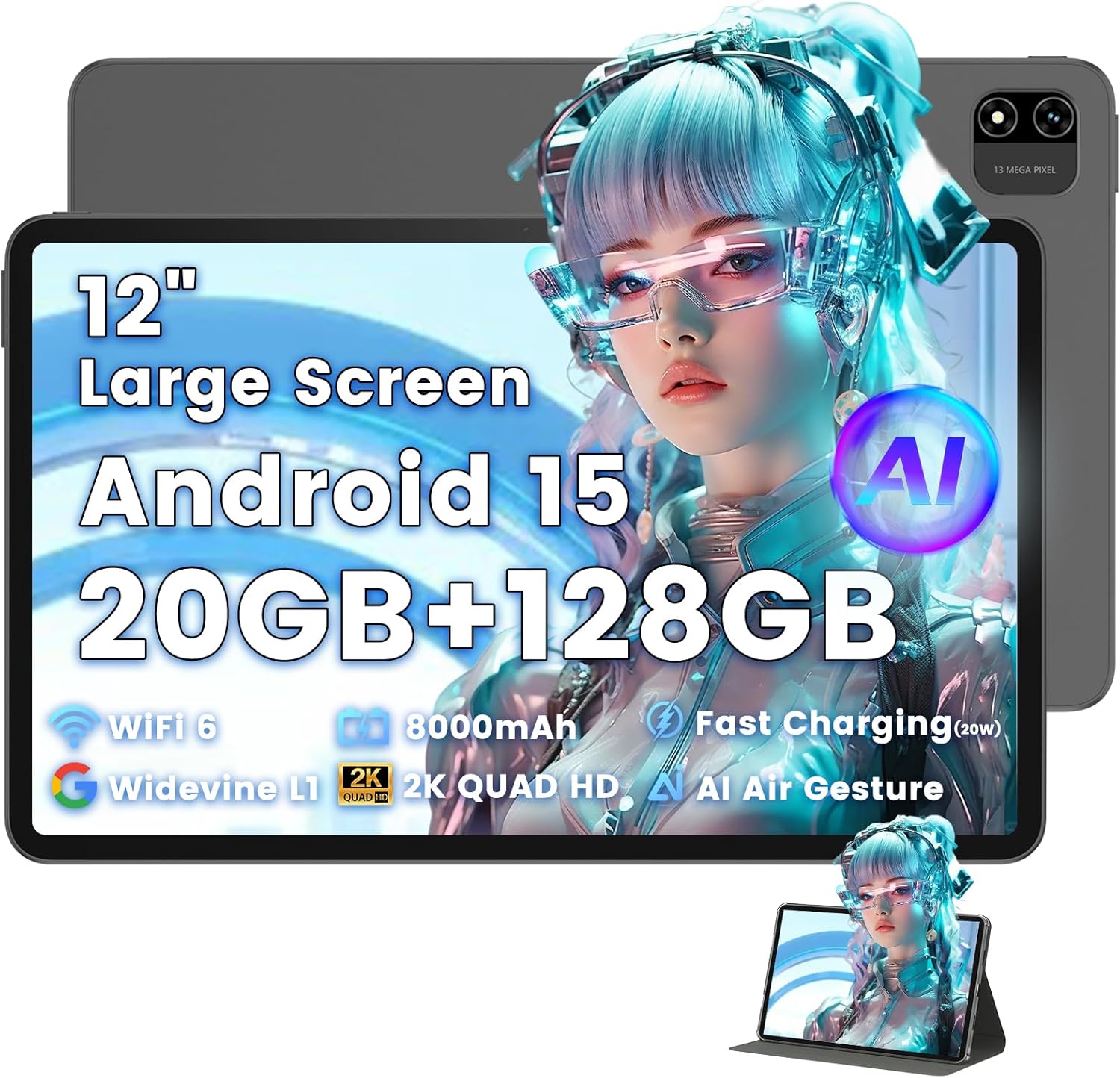
Image: The Azeyou T12 tablet, shown with its protective case, highlighting its large display and sleek design.
וואָס איז אין די קעסטל
באַשטעטיקן אַז אַלע זאכן זענען פאַראַן אין פּעקל:
- 1x Azeyou Tablet (T12)
- 1x טשאַרדזשינג קאַבל (טיפּ-C)
- 1x באַניצער מאַנואַל
- 1x טאַבלעט קאַסע
סעטאַפּ
1. ערשטע אויפלאָדונג
Before first use, fully charge the tablet. Connect the provided Type-C charging cable to the tablet's charging port and the other end to a compatible 20W Power Delivery (PD) charger. The battery indicator on the screen will show charging status.

Image: An infographic detailing key features of the Azeyou T12 tablet, including its Android 15 operating system, AI octa-core processor, Wi-Fi 6, Bluetooth 5.0, dual cameras, storage capacity, Widevine L1 support, parental control, split-screen function, and 8000mAh battery.
2. פּאַוערינג אויף און אויסגעלאשן
- צו מאַכט אויף: Press and hold the Power button located on the side of the tablet until the Azeyou logo appears.
- צו מאַכט אַוועק: Press and hold the Power button until the power options appear on the screen, then select "Power Off".
- צו ריסטאַרט: דריק און האלט דעם פּאַוער קנעפּל ביז די פּאַוער אָפּציעס דערשייַנען, און דערנאָך סעלעקטיר "ריסטאַרט".
3. ערשט סעטאַפּ וויזערד
ביים ערשטן מאָל אנצינדן, וועט די טאַבלעט אייך פירן דורך אַן ערשטן סעטאַפּ פּראָצעס:
- שפּראַך סעלעקציע: קלייַבן דיין בילכער שפּראַך.
- Wi-Fi קאַנעקשאַן: אויסקלייבן אייער Wi-Fi נעץ און אַרייַן די פּאַראָל צו פאַרבינדן זיך צום אינטערנעט.
- גוגל אקאונט: לאָג אַרײַן מיט אײַער גוגל אַקאַונט אָדער שאַפֿט אַ נײַעם. דאָס איז נייטיק צו דאַונלאָודן אַפּפּס פֿון גוגל פּליי סטאָר און סינקראָניזירן דאַטן.
- טאָג און צייט: שטעלט איין דעם ריכטיקן דאטום און צייט, אדער לאזט דעם נעץ עס אויטאמאטיש שטעלן.
- זיכערהייט: שטעלט אויף אַ פאַרשטעלן שלאָס (PIN, מוסטער, פּאַראָל, אָדער פּנים אַנלאַק).
4. אריינשטעלן א TF קארטל (אפציאנאל)
The tablet supports storage expansion up to 1TB via a TF (microSD) card. Locate the TF card slot, gently insert the card until it clicks into place. Ensure the tablet is powered off before inserting or removing the TF card.

Image: A visual representation of the tablet's memory and storage, indicating 20GB RAM (6GB physical + 14GB virtual), 128GB internal storage, and support for up to 1TB TF card expansion, alongside popular application icons.
אַפּערייטינג ינסטראַקשאַנז
1. גרונטלעכע נאַוויגאַציע און געשטן
- צאַפּן: אויסקלייבן אַן אייטעם אָדער עפֿענען אַן אַפּ.
- טאַפּ און האַלטן: צוטריט קאנטעקסטועלע מעניוס אדער באוועג איקאנעס.
- לאַקכענען: סקראָלן דורך סקרינז אדער רשימות.
- קניפּ-צו-זומען: פארגרעסערן אדער פארקלענערן בילדער און web בלעטער.
2. ווייַז פֿעיִקייטן
The Azeyou T12 features an 11.97-inch 2K FHD (2000x1200) display with a 90Hz refresh rate for smooth visuals.
- ברייטנאַס אַדזשאַסטמאַנט: Swipe down from the top of the screen to access the Quick Settings panel and adjust the brightness slider.
- בלוי ליכט פילטער: The tablet includes a built-in blue light filter that automatically adjusts brightness to reduce eye strain. This can be managed in Display Settings.
- Widevine L1: Enjoy high-definition content from streaming services like Netflix and Prime Video due to Widevine L1 certification.

Image: A visual representation of the tablet's display specifications, emphasizing its 12-inch screen, 16:10 aspect ratio, 2000x1200 resolution, and 90Hz refresh rate, with a child watching content on the screen.

Image: An illustration demonstrating the tablet's Widevine L1 certification for HD streaming and its quad-speaker system for rich, immersive audio, surrounded by logos of popular streaming services.
3. פאָרשטעלונג און מולטיטאַסקינג
The tablet is equipped with an A733 octa-core processor and 20GB RAM (6GB physical + 14GB virtual) for smooth operation.
- שפּאַלט-סקרין מאָדע: To use two apps simultaneously, open one app, then swipe up from the bottom of the screen and hold to access recent apps. Tap the app icon at the top of the window and select "Split screen". Choose a second app to open in the other half of the screen.
- אַפּ פאַרוואַלטונג: Close background apps from the recent apps menu to optimize performance.
4. AI Smart Features
The A733 octa-core processor includes an AI chip that enables several intelligent functions:
- AI Posture Reminder: The tablet can monitor your sitting posture and provide gentle reminders to encourage better habits, especially useful for online learning or extended use.
- AI Gesture Control: Navigate the tablet without touching the screen. Use simple hand movements in front of the camera to flip pages, pause videos, or browse content.
- AI בילד ענכאַנסמאַנט: The AI engine can enhance low-resolution photos and videos in real-time, improving clarity, detail, and overall visual quality.

Image: A collage demonstrating the tablet's AI capabilities, including an AI Posture Reminder for healthy habits, AI Gesture Control for touch-free navigation, and AI Image Enhancement for improved photo and video quality.
5. קאַמעראַס
The tablet features a 5MP front camera and a 13MP rear camera with autofocus and flash.
- פראָנט אַפּאַראַט: Ideal for video calls, online classes, and selfies.
- דערציען אַפּאַראַט: Suitable for capturing photos and videos. Features autofocus and flash for improved image quality.
- פּנים ופשליסן: Utilize the front camera for quick and secure access to your device.

Image: A graphic highlighting the tablet's 5MP front camera and 13MP AI rear camera, showcasing features like AI-enhanced photos and Face Unlock for secure access.
6. קאַנעקטיוויטי
- Wi-Fi 6: Connect to high-speed Wi-Fi networks for stable streaming and low-latency online activities. Access Wi-Fi settings via the Quick Settings panel or the Settings app.
- בלועטאָאָטה 5.0: Pair with wireless keyboards, headphones, and other Bluetooth accessories. Enable Bluetooth in Quick Settings or the Settings app.
- טיפּ-C פּאָרט: Used for charging, fast data transfer, and audio output with compatible Type-C headphones.

Image: A visual representation of the tablet's connectivity features, including Wi-Fi 6, Bluetooth 5.0, and support for Type-C headsets, illustrating seamless integration with various devices and networks.
7. באַטערי מאַנאַגעמענט
די 8000mAh באַטעריע גיט פארלענגערטע נוצן. צו אָפּטימיזירן די באַטעריע לעבן:
- רעדוצירן פאַרשטעלן ברייטנאַס.
- דיאַקטיווירן Wi-Fi און בלועטוט ווען נישט אין באַנוץ.
- נאָענט ומנייטיק הינטערגרונט אַפּלאַקיישאַנז.
- Use power-saving modes available in Battery Settings.
8. עלטערן קאָנטראָל
The tablet includes a parental control mode to manage screen time, restrict content, and control app access for children. This feature can be configured in the tablet's settings under 'Digital Wellbeing & parental controls'.

Image: A screenshot of the Android 15 interface on the tablet, highlighting features such as HD streaming, parental control, and split-screen functionality, with various app icons visible.
וישאַלט
1. רייניקן די טאַבלעט
- ניצט אַ ווייכן, לינט-פֿרייע שטאָף צו רייניקן דעם עקראַן און קערפּער פֿון דער טאַבלעט.
- פֿאַר שווערע פֿלעקן, אַ ביסל דampווישט דעם שטאָף מיט וואַסער אָדער אַ פאַרשטעלן רייניגער דיזיינד פֿאַר עלעקטראָניק.
- פֿאַרמײַדן ניצן שטרענגע כעמיקאַלן, אַברייסיוו מאַטעריאַלן, אָדער איבערגעטריבענע פֿײַכטקייט.
2. ווייכווארג דערהייַנטיקונגען
קאָנטראָלירט און אינסטאַלירט רעגולער ווייכווארג דערהייַנטיקונגען צו ענשור אָפּטימאַלע פאָרשטעלונג, זיכערהייט און צוטריט צו נייַע פֿעיִקייטן. גייט צו סעטטינגס > סיסטעם > סיסטעם דערהייַנטיקונג.
3. סטאָרידזש מאַנאַגעמענט
To maintain performance, periodically manage your tablet's storage:
- אויסמעקן אומנייטיקע אַפּפּס און files.
- ויסמעקן קאַש דאַטן פֿאַר אַפּפּס אין סעטטינגס > אַפּפּס און נאָוטאַפאַקיישאַנז > [אַפּפּ נאָמען] > סטאָרידזש און קאַש.
- ניצן וואָלקן סטאָרידזש אָדער אַריבערפירן גרויסע files to an external TF card or computer.
טראָובלעשאָאָטינג
If you encounter issues with your Azeyou T12 tablet, refer to the following common solutions:
- טאַבלעט איז נישט פּאַוערינג:
- זיכער מאַכן אַז די באַטאַרייע איז אויפגעלאָדן. פֿאַרבינדט דעם טשאַרדזשער און וואַרט אַ פּאָר מינוט איידער איר פּרוּווט עס אָנצוצינדן.
- דורכפירן א געצוואונגענע ריסטארט דורך האַלטן די פּאַוער קנעפּל פֿאַר 10-15 סעקונדעס.
- לאַנגזאַמע פאָרשטעלונג אָדער איינפֿרירן:
- נאָענט ומנייטיק הינטערגרונט אַפּלאַקיישאַנז.
- Clear app cache and data.
- ריסטאַרט די טאַבלעט.
- קוק פֿאַר פֿאַראַן סיסטעם דערהייַנטיקונגען.
- Wi-Fi קאַנעקשאַן ישוז:
- Ensure Wi-Fi is enabled on the tablet.
- ריסטאַרט דיין Wi-Fi ראַוטער.
- פארגעסט די נעץ אין די Wi-Fi סעטינגס און פארבינדט זיך ווידער.
- Apps Crashing or Not Responding:
- געצוואונגען צו שליסן די אַפּ (Settings > Apps & notifications > [App Name] > Force stop).
- ויסמעקן די אַפּ ס קאַש און דאַטן.
- נעם אַוועק און ריינסטאַל די אַפּ.
- זיכער מאַכן אַז די אַפּ איז דערהייַנטיקט צו איר לעצטער ווערסיע.
- סקרין ענטפערט נישט:
- Perform a forced restart.
- זיכער מאַכן אַז דער עקראַן איז ריין און פריי פון שמוץ.
ספּעסאַפאַקיישאַנז
- מאָדעל נאָמען:
- ט 12 טאַבלעט
- אַפּערייטינג סיסטעם:
- אַנדרויד 15
- פּראַסעסער:
- A733 Octa-Core Processor (Unisoc)
- באַראַן:
- 20 גיגאבייט (6 גיגאבייט פיזיש + 14 גיגאבייט ווירטועל)
- אינערלעכע סטאָרידזש (ROM):
- 128 גיגאבייט
- יקספּאַנדאַבאַל סטאָרידזש:
- ביז 1TB דורך TF קאַרטל
- פאַרשטעלן גרייס:
- 11.97 אינטשעס
- פאַרשטעלן האַכלאָטע:
- 2000x1200 FHD
- דערפרישן קורס:
- 90 הז
- גראַפיקס קאָופּראַסעסער:
- Imagination Technologies BXM-4-64 MC1
- דערציען אַפּאַראַט:
- 13 מפּ מיט אַוטאָפאָקוס און פלאַש
- פראָנט אַפּאַראַט:
- 5MP
- באַטאַרייע קאַפּאַציטעט:
- 8000 מאַה
- טשאַרדזשינג:
- 20W Power Delivery (PD) Fast Charging via Type-C
- ווירעלעסס קאַנעקטיוויטי:
- Wi-Fi 6 (802.11a/b/g/n/ac), בלועטוט 5.0
- אַודיאָ:
- Quad-Speakers, Type-C Audio Output
- דימענשאַנז (LxWxH):
- 11 X 7 X 0.3 אינטשעס
- נומער וואָג:
- 3.1 פונט
- קאָליר:
- גרוי
- ספּעציעלע פֿעיִקייטן:
- AI Posture Reminder, AI Gesture Control, AI Image Enhancement, Widevine L1, Parental Control, Split-Screen Mode, Face Unlock
וואָראַנטי און שטיצן
וואָראַנטי אינפֿאָרמאַציע
Azeyou products typically come with a standard manufacturer's warranty. Please refer to the warranty card included in your product packaging or visit the official Azeyou website for specific warranty terms and conditions. The warranty generally covers manufacturing defects but does not cover damage caused by misuse, accidents, or unauthorized modifications.
קונה שטיצן
For technical assistance, troubleshooting beyond this manual, or warranty claims, please contact Azeyou customer support. Contact details can usually be found on the official Azeyou website or on the product packaging. When contacting support, please have your tablet's model number (T12) and purchase information ready.
איר קענען באַזוכן די Azeyou Store on Amazon פֿאַר מער פּראָדוקט אינפֿאָרמאַציע און שטיצע רעסורסן.