
1. הקדמה
This manual provides essential information for the safe and efficient use of your Azeyou A733 Android 15 Tablet. Please read this manual thoroughly before operating the device to ensure proper functionality and to prevent damage. Keep this manual for future reference.

Image: The Azeyou A733 Android 15 Tablet, showcasing its 12-inch display and core specifications.
2. זיכערקייַט אינפֿאָרמאַציע
- שטעלט נישט אויס די טאַבלעט צו עקסטרעמע טעמפּעראַטורן, דירעקטע זונשייַן, אדער הויכע הומידיטי.
- פֿאַרמײַדט צו לאָזן פאַלן אָדער אויסשטעלן די טאַבלעט צו שווערע קלאַפּן.
- ניצן בלויז פאַבריקאַנט-באוויליקט טשאַרדזשערז און אַקסעסעריז.
- Do not attempt to disassemble or repair the tablet yourself. Refer to authorized service personnel.
- Keep the tablet away from children and pets to prevent accidental damage or injury.
3. פּעקל אינהאַלט
באַשטעטיקט אַז אַלע זאכן זענען פאַראַן אין אייער פּראָדוקט פּאַקעט:
- Azeyou A733 Android 15 Tablet
- וסב טיפּע- C טשאַרדזשינג קאַבלע
- מאַכט אַדאַפּטער (20W שנעל טשאַרדזשער)
- באַניצער מאַנואַל (דעם דאָקומענט)
- SIM Ejector Tool (if applicable for models with cellular support)
4. דיווייס איבערview
מאַכט זיך באַקאַנט מיט די גשמיות קאָמפּאָנענטן פון אייער טאַבלעט.

בילד: זייט view of the Azeyou A733 tablet, illustrating the placement of buttons and ports.
- מאַכט קנעפּל: געפינען זיך אויף דער זייט, גענוצט צו אנצינדן/אויסלעשן דעם טאבלעט אדער אויפוועקן/שלאפן דעם עקראן.
- באַנד קנעפּלעך: סטרויערן די אַודיאָ באַנד.
- וסב טיפּ-C פּאָרט: פֿאַר טשאַרדזשינג און דאַטן אַריבערפירן.
- רעדנער גרילז: Located on the sides for audio output.
- פראָנט אַפּאַראַט: For video calls and selfies (5MP).
- דערציען אַפּאַראַט: For taking photos and videos (13MP).
- מיקראָפאָן: פֿאַר קול אַרייַנשרייַב.
- טף קאַרד שפּעלטל: פֿאַר יקספּאַנדאַבאַל סטאָרידזש ביז 1TB.
5. סעטאַפּ
5.1 ערשט טשאַרדזשינג
Before first use, fully charge your tablet. Connect the provided USB Type-C cable to the tablet's Type-C port and the power adapter, then plug the adapter into a wall outlet. The tablet supports 20W fast charging.
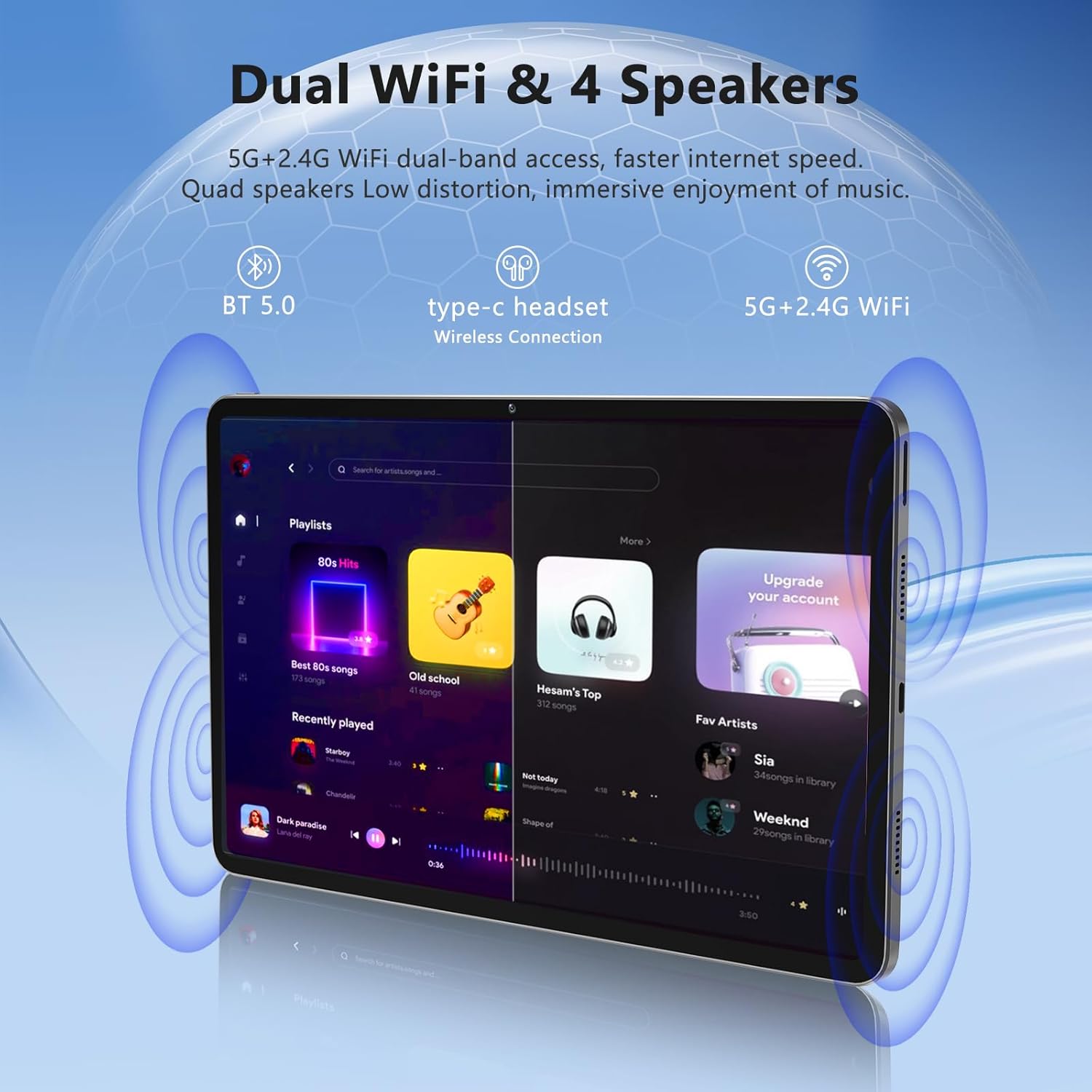
Image: The Azeyou A733 tablet connected to a charger, illustrating its fast charging feature.
5.2 מאַכט אויף / אַוועק
- צו מאַכט אויף: Press and hold the Power button until the Azeyou logo appears.
- צו מאַכט אַוועק: Press and hold the Power button until the power options appear on screen, then select "Power off."
- צו ריסטאַרט: Press and hold the Power button until the power options appear, then select "Restart."
5.3 ערשטע סעטאַפּ וויזאַרד
ביים ערשטן מאָל אנצינדן, וועט די טאַבלעט אייך פירן דורך אַן ערשטן סעטאַפּ פּראָצעס:
- אויסקלייַבן דיין בילכער שפּראַך.
- פאַרבינדן צו אַ Wi-Fi נעץ.
- לאָג אַרײַן מיט אײַער גוגל אַקאַונט אָדער שאַפֿט אַ נײַעם.
- Review און אָננעמען די תּנאים און באַדינגונגען.
- שטעלט אויף דעם עקראַן שלאָס (PIN, מוסטער, אדער פּאַראָל).
5.4 Expandable Storage
צו פארברייטערן די סטאָרידזש, לייגט אריין א TF (microSD) קארטל אין דעם באשטימטן סלאָט. די טאַבלעט שטיצט ביז 1TB אויסברייטערונג.

Image: Visual representation of the tablet's memory configuration, including 20GB RAM, 128GB ROM, and 1TB expandable storage.
6. אפערירן די טאַבלעט
6.1 יקערדיק נאַוויגאַציע
The Azeyou A733 tablet uses touch gestures for navigation:
- צאַפּן: אויסקלייבן אַן אייטעם אָדער עפֿענען אַן אַפּ.
- לאַקכענען: סקראָלן דורך סקרינז אדער רשימות.
- קניפּ: פארגרעסערן אדער פארקלענערן בילדער און web בלעטער.
- לאנג פּרעס: צוטריט קאנטעקסטועלע מעניוס אדער באוועג איקאנעס.
6.2 ווי-פי קאַנעקשאַן
צו פאַרבינדן צו אַ Wi-Fi נעץ:
- גיין צו סעטטינגס > נעץ און אינטערנעט > ווי-פי.
- טוישן Wi-Fi On.
- אויסקלייבן אייער געוואונטשענע נעץ פון דער ליסטע.
- אַרייַן די פּאַראָל אויב געבעטן, און דאַן צאַפּן פאַרבינדן.
The tablet supports Wi-Fi 6 for faster and more stable connections.

Image: The tablet showcasing its dual Wi-Fi capabilities and quad speakers for enhanced audio experience.
6.3 בלועטאָאָטה קאַנעקשאַן
To pair with a Bluetooth device (e.g., headphones, keyboard, mouse):
- גיין צו סעטטינגס > קאָננעקטעד דעוויסעס > בלועטאָאָטה.
- באַשטימען בלועטאָאָטה On.
- מאַכן זיכער אַז דיין בלועטאָאָטה מיטל איז אין פּערינג מאָדע.
- Select the device from the list and follow any on-screen prompts to complete pairing.
6.4 אַפּ פאַרוואַלטונג
Your Azeyou A733 tablet is GMS certified, allowing full access to the Google Play Store for downloading and managing applications.
- ינסטאַלירן אַפּפּס: Open the Play Store app, search for your desired app, and tap ינסטאַלירן.
- נעם אַוועק אַפּפּס: Long-press an app icon on the home screen or app drawer, then drag it to "Uninstall" or select "App info" and choose "Uninstall."
6.5 קאַמעראַ באַניץ
די טאַבלעט פֿאַרמאָגט אַ 5MP פֿראָנט קאַמעראַ און אַ 13MP הינטערשטע קאַמעראַ.
- עפענען די אַפּאַראַט אַפּ.
- צאַפּן אויף די קאַמעראַ סוויטש ייקאַן צו טוישן צווישן פראָנט און הינטערשטע קאַמעראַס.
- צאַפּן דעם שאַטער קנעפּל צו נעמען אַ פאָטאָ אָדער אָנהייבן/אָפּשטעלן ווידעאָ רעקאָרדינג.
בילד: דעטאַלירט view of the tablet's 13MP rear camera and 5MP front camera, illustrating their positions and use.
6.6 Split-Screen Function
To use two apps simultaneously:
- עפֿנט די ערשטע אַפּ.
- Tap the recent apps button (usually a square icon).
- Long-press the icon of the first app at the top of its card.
- Select "Split screen."
- Choose the second app from the recent apps list or app drawer.
6.7 AI Air Gesture
The tablet supports AI Air Gesture for hands-free control. Specific gestures and their functions can be configured in סעטטינגס > סמאַרט קאָנטראָלס (or similar menu name).
6.8 Sitting Posture Detection
This feature helps users maintain a healthy sitting posture by providing alerts or guidance. Access and configure this feature in סעטטינגס > דיגיטאַל וועללבעינג און פּערענטאַל קאָנטראָלס or a dedicated health/posture app.

Image: Demonstrations of AI air gesture for tablet control and the sitting posture detection system.
6.9 Media Playback (Widevine L1)
The tablet is Widevine L1 certified, enabling high-definition (HD) content streaming on platforms such as Netflix, Amazon Prime Video, Hulu, and HBO.

Image: The tablet displaying logos of popular streaming services, signifying its Widevine L1 certification for HD playback.
7. וישאַלט
7.1 רייניקונג
Use a soft, lint-free cloth to clean the tablet screen and body. Avoid using harsh chemicals or abrasive materials.
7.2 באַטערי קער
די 8000mAh באַטעריע גיט פארלענגערטע נוצן. צו פארלענגערן די באַטעריע לעבן:
- פֿאַרמײַדט אָפֿט פֿולשטענדיק אויסצולאָדן די באַטעריע.
- Do not leave the tablet charging for excessively long periods after it's full.
- Keep the tablet within a moderate temperature range.

Image: An infographic detailing the 8000mAh battery and its estimated performance across various activities.
7.3 ווייכווארג דערהייַנטיקונגען
קאָנטראָלירט און אינסטאַלירט רעגלמעסיק ווייכווארג דערהייַנטיקונגען צו ענשור אָפּטימאַל פאָרשטעלונג און זיכערהייט. גייט צו סעטטינגס > סיסטעם > סיסטעם דערהייַנטיקן.
7.4 סטאָרידזש פאַרוואַלטונג
To manage your 128GB internal storage (expandable to 1TB):
- גיין צו סעטטינגס > סטאָרידזש צו view באַניץ און באַפֿרײַען פּלאַץ.
- Regularly clear cache data from apps.
- מאַך גרויס files to an inserted TF card.
8. טראָובלעשאָאָטינג
8.1 פּראָסט ישוז
- טאַבלעט טוט זיך נישט אָן: זיכער מאַכן אַז די באַטאַרייע איז אויפגעלאָדן. פֿאַרבינדט זיך צום טשאַרדזשער פֿאַר לפּחות 30 מינוט איידער איר פּרוּווט עס אָנצוצינדן.
- אַפּפּס קראַשן אָדער פרירן: Close and reopen the app. If the issue persists, clear the app's cache (Settings > Apps > [App Name] > Storage & cache > Clear cache). Restart the tablet.
- ווי-פי קשר ישוז: ריסטאַרט דיין Wi-Fi ראַוטער און די טאַבלעט. פֿאַרגעסט וועגן די נעץ אין די טאַבלעט סעטטינגס און פֿאַרבינדט זיך ווידער.
- לאַנגזאַמע פאָרשטעלונג: שליסט אומנייטיקע הינטערגרונט אַפּפּס. רייניקט קאַש און צייטווייליגע files. Consider performing a factory reset if performance issues persist after other troubleshooting steps.
8.2 פאַבריק באַשטעטיק
A factory reset will erase all data from your tablet and restore it to its original factory settings. Back up important data before proceeding.
- גיין צו סעטטינגס > סיסטעם > באַשטעטיק אָפּציעס.
- אויסקלייַבן מעקן אַלע דאַטן (פאַבריק באַשטעטיק).
- באַשטעטיקן אייער באַשלוס און נאָכפאָלגן די אינסטרוקציעס אויף דעם עקראַן.
9. ספּעסאַפאַקיישאַנז

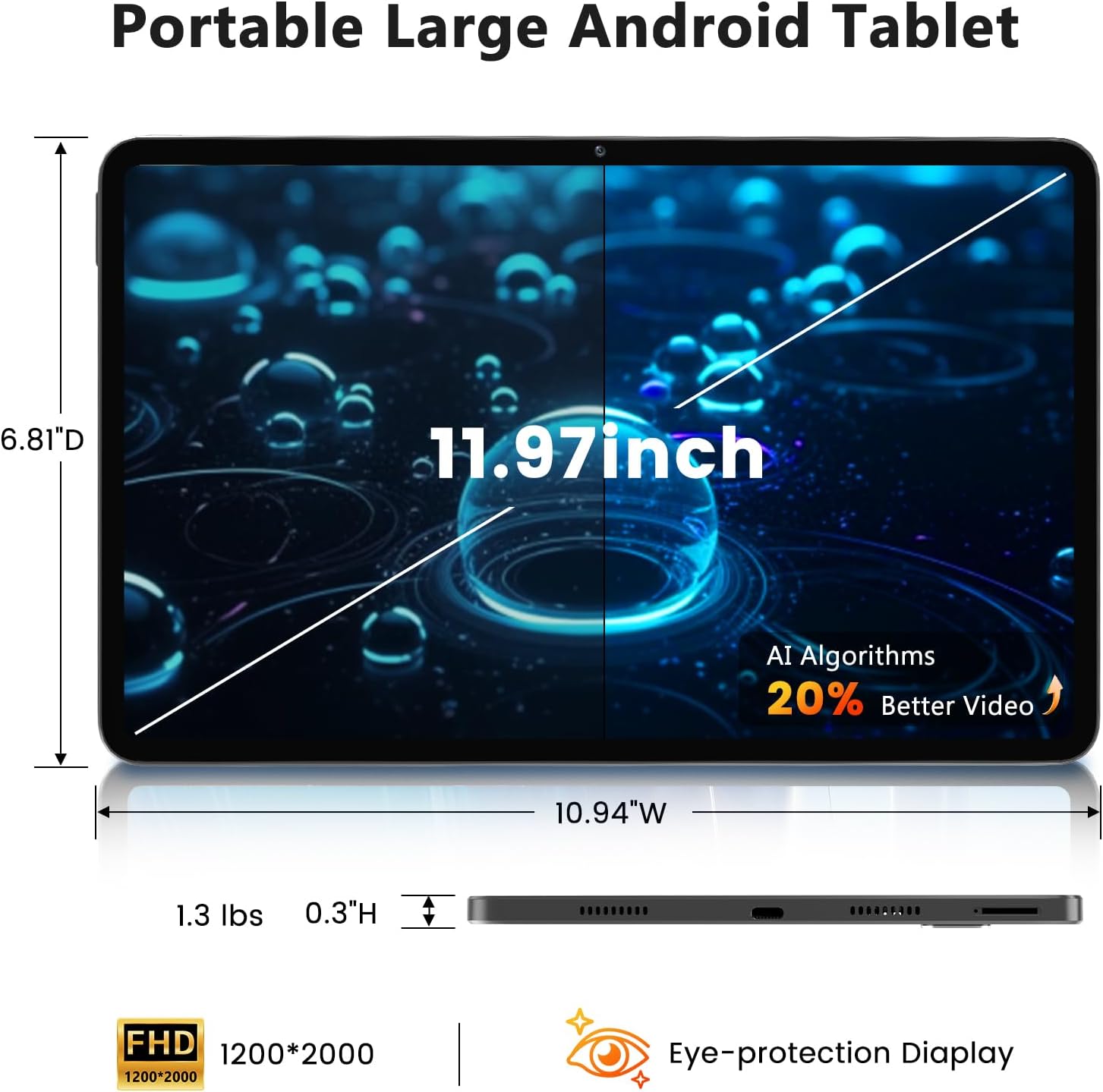
Image: A visual representation of the tablet's physical dimensions and weight.
| שטריך | באַשרייַבונג |
|---|---|
| סאָרט | אַזיאָו |
| מאָדעל | A733 |
| אָפּערייטינג סיסטעם | אַנדרויד 15 |
| פּראַסעסער | A733 Octa-Core |
| באַראַן | 20 גיגאבייט (6 גיגאבייט פיזיש + 14 גיגאבייט ווירטועל) |
| אינערלעכער סטאָרידזש (ראַם) | 128 גיגאבייט |
| יקספּאַנדאַבאַל סטאָרידזש | ביז 1TB דורך TF קאַרטל (נישט אַרייַנגערעכנט) |
| פאַרשטעלן גרייס | 11.97 אינטשעס |
| פאַרשטעלן האַכלאָטע | 1200 x 2000 Pixels (2K Display) |
| דערציען אַפּאַראַט | 13 מפּ |
| פראָנט אַפּאַראַט | 5 מפּ |
| באַטאַרייע קאַפּאַציטעט | 8000 מאַה |
| טשאַרדזשינג | 20W Fast Charge, Type-C Port |
| ווירעלעסס קאַנעקטיוויטי | WiFi 6 (802.11ax), בלועטוט 5.0 |
| דימענשאַנז (LxWxH) | 11.97 X 6.81 X 0.3 אינטשעס |
| פּונקט וואָג | 3.15 פונט |
| ספּעציעלע פֿעיִקייטן | GMS Certified, Widevine L1, Dual Speakers, AI Air Gesture, Sitting Posture Detection, Split-screen function |
10. וואָראַנטי און שטיצן
Your Azeyou A733 Tablet comes with a standard manufacturer's warranty. Please refer to the warranty card included in your package for specific terms and conditions, including warranty duration and coverage details.
For technical support, troubleshooting assistance, or warranty claims, please contact Azeyou customer service through the retailer where the product was purchased or visit the official Azeyou support webפּלאַץ (אויב בנימצא).
Please have your product model number (A733) and purchase information ready when contacting support.