
1. הקדמה
The VGN F1 PRO Wireless Gaming Mouse is engineered for precision and speed, featuring an ultralight 49g design, a high-performance 26,000 DPI sensor, and versatile wireless and wired connectivity. This manual will guide you through its features and functionalities to ensure optimal performance.
2. פּעקל אינהאַלט
באַשטעטיקט אַז אַלע זאכן וואָס זענען ליסטעד אונטן זענען אַרייַנגערעכנט אין דיין פּראָדוקט פּאַקאַדזשינג:
- VGN F1 Pro Gaming Mouse
- USB Type A Receiver
- Paracord style USB-C to USB-A Cable
- USB Extension Adapter
- מויז גריפּ טייפּ

Figure 2.1: The VGN F1 PRO Wireless Gaming Mouse shown with its USB Type A receiver and USB-C cable.
3. פּראָדוקט איבערview
3.1. שליסל קאַמפּאָונאַנץ

Figure 3.1: Detailed diagram illustrating the mouse's components including the LED Indicator, Scroll Wheel, Left Button, Right Button, Forward Button, Backward Button, DPI Button, Optical Sensor, Power Switch, Receiver Storage Slot, and Feet.
3.2. Ultralight Design
Weighing only 49g, the VGN F1 PRO features a solid shell design, providing a lightweight yet sturdy build for rapid movements and reduced fatigue during extended use.

Figure 3.2: The mouse is depicted on a hand, emphasizing its minimal weight and ergonomic form factor.
3.3. High-Performance Sensor
Equipped with the PixArt PAW 3395 sensor, the mouse offers adjustable DPI up to 26,000, 650 IPS tracking, and 50G acceleration for precise and responsive control.

Figure 3.3: Visual representation of the mouse's optical sensor and its high tracking capabilities.
3.4. Advanced Chipset
The Nordic nRF52833 MCU ensures ultra-low latency and a 1000Hz polling rate, providing fast and accurate game control.
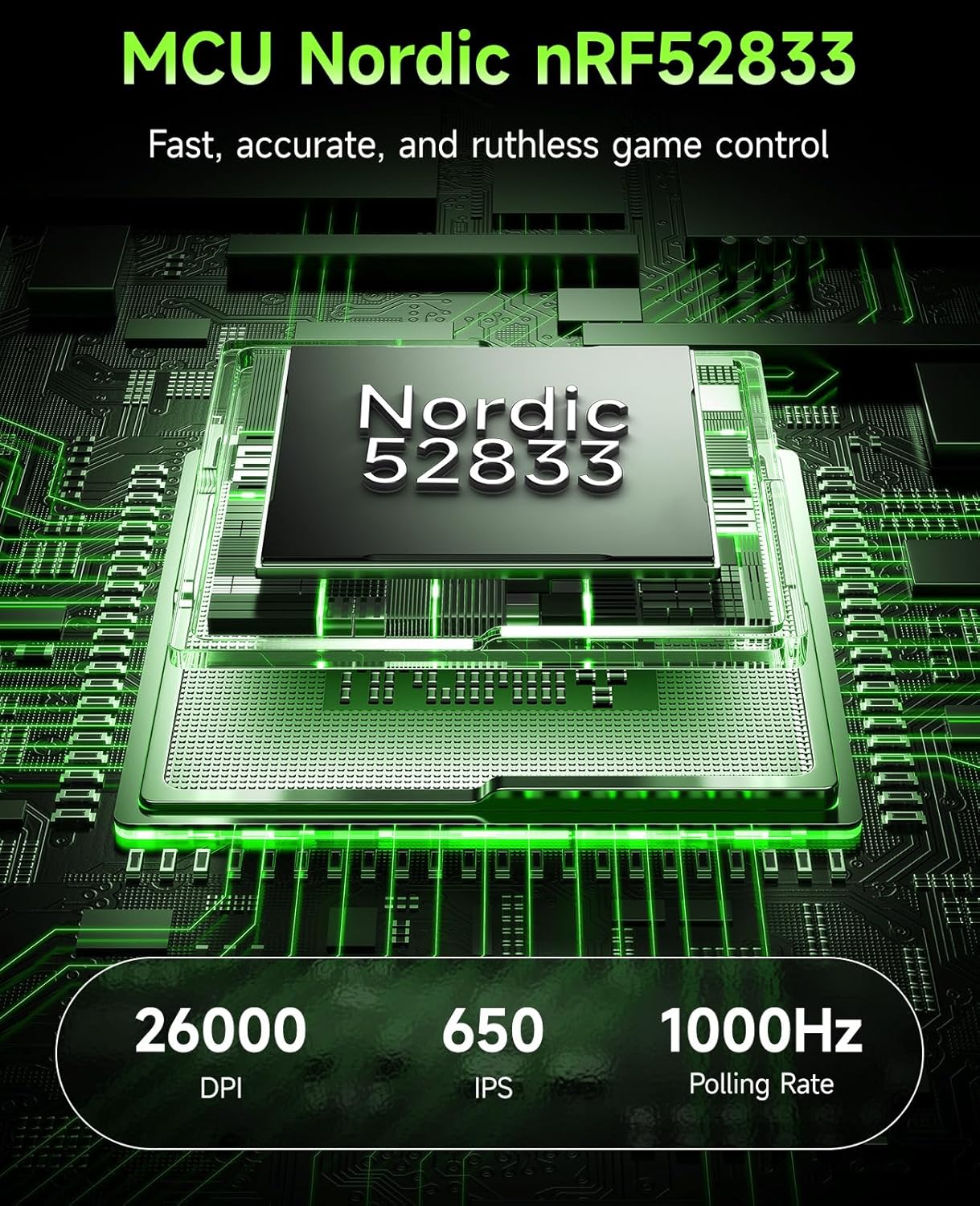
Figure 3.4: Diagram showing the Nordic nRF52833 chip, highlighting its role in performance and polling rate.
3.5. לאַנגע באַטאַרייע לעבן
Enjoy up to 65 hours of uninterrupted wireless use, ensuring prolonged gaming sessions without frequent recharging.

Figure 3.5: The mouse is shown on a mousepad with an overlay indicating its 65-hour battery capacity.
3.6. Customizable Controls
The 6 programmable buttons can be fully customized using the VGN HUB software, allowing for personalized keybinds and macros.

Figure 3.6: A visual representation of the VGN HUB software, demonstrating the customization options for mouse buttons and settings.
3.7. Wired/Wireless Flexibility
The mouse supports both 2.4GHz wireless mode for ultra-low latency and wired Type-C connection for continuous play and charging.

Figure 3.7: The mouse is shown connected via both wireless and wired modes, with indicators for battery level.
3.8. Durable Switches
Equipped with Kailh Black Mamba switches, rated for 100 million clicks, ensuring long-lasting performance and tactile feedback.

פיגורע 3.8: נאָענט-אַרויף view of a Kailh Golden Black Mamba switch, highlighting its robust construction.
4. סעטאַפּ אינסטרוקציעס
4.1. אויפלאָדן די מויז
Before first use, it is recommended to fully charge your VGN F1 PRO mouse.
- Locate the USB-C port on the front of the mouse.
- Connect the provided USB-C to USB-A cable to the mouse.
- Plug the USB-A end of the cable into a powered USB port on your computer or a USB wall adapter.
- The LED indicator on the mouse will show charging status (Orange: Charging in Progress). It will turn Green when fully charged.
4.2. Connecting Wirelessly (2.4GHz)
For wireless operation, use the provided USB Type A receiver.
- Locate the USB Type A receiver. It may be stored in the compartment on the underside of the mouse.
- Plug the USB Type A receiver into an available USB port on your computer.
- Turn on the mouse using the Power Switch located on the underside of the mouse.
- The mouse should automatically connect to the receiver. The LED indicator will show Green for normal battery level.
4.3. Connecting via Wired Mode
The mouse can also be used in wired mode, which also charges the device.
- Connect the provided USB-C to USB-A cable to the mouse's USB-C port.
- Plug the USB-A end of the cable into a USB port on your computer.
- The mouse will function immediately in wired mode and begin charging.
5. אַפּערייטינג ינסטרוקטיאָנס
5.1. דפּי אַדזשאַסטמאַנט
The DPI (Dots Per Inch) can be adjusted to control cursor sensitivity. The mouse features a dedicated DPI button on its underside.
- דרוק די דפּי קנעפּל on the underside of the mouse to cycle through preset DPI levels.
- For fine-tuning DPI from 50 to 26,000, use the VGN HUB software.
5.2. קנעפּל קאַסטאַמייזיישאַן
The 6 buttons on the VGN F1 PRO mouse are fully programmable via the VGN HUB software.
- Download and install the VGN HUB software from the official VGN webפּלאַץ.
- Launch the VGN HUB software.
- Navigate to the "Remap Keys" or "Button Assignment" section.
- Select the button you wish to customize and assign a new function, macro, or keybind.
- Save your changes to apply the new settings.
5.3. מאַכט מאַנאַגעמענט
The mouse features an On/Off switch to conserve battery life when not in use.
- To turn off the mouse, slide the מאַכט סוויטש צו דער "אויס" פאזיציע.
- To turn on the mouse, slide the מאַכט סוויטש צו דער "ON" פאזיציע.
- The LED indicator will display battery status: Green (Normal), Orange (Charging in Progress), Red (Battery Low - Recharge Soon).
6. וישאַלט
6.1. רייניקונג
To maintain optimal performance and appearance, clean your mouse regularly.
- ניצן אַ ווייך, לינט-פֿרייַ שטאָף אַ ביסל דampמיט וואַסער אָדער אַ מילד רייניקונג לייזונג.
- ויסמיידן ניצן שטרענגע כעמיקאַלן, אַברייסיווז, אָדער סאָלוואַנץ.
- Clean the optical sensor area gently to prevent dust buildup.
6.2. סטאָרידזש
ווען נישט אין באַנוץ, האַלט די מויז אין אַ קיל, טרוקן אָרט אַוועק פון דירעקט זונשייַן און עקסטרעמע טעמפּעראַטורן.
- If storing for an extended period, ensure the mouse is fully charged and turned off.
- The USB receiver can be stored in the dedicated compartment on the underside of the mouse for safekeeping.
7. טראָובלעשאָאָטינג
7.1. מויז רעאַגירט נישט
- טשעק מאַכט: זיכער מאַכן אַז די מויז איז אָנגעצונדן און האט גענוג באַטאַרייע. לאָדט עס אויף אויב נייטיק.
- קוק די קשר: For wireless mode, ensure the USB receiver is securely plugged into a working USB port. For wired mode, ensure the USB-C cable is properly connected to both the mouse and the computer.
- Re-pair Receiver: If using wireless, try unplugging and re-plugging the USB receiver.
- פרובירט אן אנדערן USB פארט: Connect the receiver or cable to a different USB port on your computer.
- ריסטאַרט קאָמפּיוטער: א סיסטעם ריסטאַרט קען אָפט סאָלווען קאַנעקטיוויטי פּראָבלעמען.
7.2. DPI Issues
- DPI קנעפּל: Ensure you are pressing the correct DPI button on the underside of the mouse to cycle through settings.
- ווייכווארג סעטטינגס: Verify DPI settings within the VGN HUB software. Ensure no conflicting profiles זענען אַקטיוו.
7.3. Battery Life Concerns
- גאַנץ אָפּצאָל: Ensure the mouse is fully charged before use. The LED indicator should turn green.
- מאַכט אַוועק: Turn off the mouse when not in use to conserve battery.
- באַניץ פּאַטערנז: High polling rates and frequent button presses can consume more battery.
8. ספּעסאַפאַקיישאַנז
| שטריך | דעטאַל |
|---|---|
| סאָרט | VGN |
| מאָדעל נומער | F1 Pro-Black |
| קאַנעקטיוויטי טעכנאָלאָגיע | 2.4GHz ווירעלעס, USB ווייערד |
| באַוועגונג דעטעקשאַן טעכנאָלאָגיע | Optical (PixArt PAW 3395 Sensor) |
| מאַקסימום דפּי | 26,000 DPI (אַדזשאַסטאַבאַל) |
| פּאָללינג קורס | 1000 הז |
| טראַקינג ספּיד | 650 יפּס |
| אַקסעלעריישאַן | 50G |
| באַטערי לעבן | אַרויף צו 65 שעה |
| סוויטשיז | Kailh Black Mamba (100 million clicks) |
| פּונקט וואָג | 1.73 אונסעס (בעערעך 49 ג) |
| קאַמפּאַטאַבילאַטי | ווינדאָוס, מאַקאָס, לינוקס, קראָום אָ.עס. |
9. וואָראַנטי און שטיצן
VGN products are designed and manufactured to the highest standards. For detailed warranty information and technical support, please refer to the official VGN webזייטל אדער קאנטאקט זייער קאסטומער סערוויס. האלט אייער באווייז פון קויפן פאר גאראנטיע טענות.