
1. וויכטיק סאַפעטי אינפֿאָרמאַציע
Please read all safety instructions carefully before using the Aurzen BOOM Air projector. Keep this manual for future reference.
- מאַכט מקור: Use only the provided power adapter or a compatible USB-C power bank (65W+ output) to prevent damage.
- ווענטילאַטיאָן: זיכערט זיך אז עס איז דא גענוג ווענטילאציע ארום דעם פראיעקטאר. בלאקירט נישט די ווענטילאציע עפענונגען.
- אויג זיכערקייַט: קוק נישט גלייך אריין אין די פּראָיעקטאָר לינז ווען די לamp is on. The bright light can cause eye strain or damage.
- וואַסער און נעץ: שטעלט נישט אויס דעם פּראָיעקטאָר צו רעגן, פייכטקייט, אדער קיין פליסיקייטן.
- היץ: ויסמיידן פּלייסינג די פּראַדזשעקטער לעבן היץ קוואלן אָדער אין דירעקט זונשייַן.
- רייניקונג: אָפּשטעקן די מאַכט איידער רייניקונג. ניצט אַ ווייכע, טרוקענע שטאָף. ניצט נישט פליסיקע אָדער אַעראָזאָל רייניגער.
- סערוויס: דו זאלסט נישט פּרווון צו דינען דעם פּראָדוקט זיך. קאָנטאַקט אַלע קוואַלאַפייד סערוויס פּערסאַנעל.
2. פּעקל אינהאַלט
באַשטעטיקן אַז אַלע זאכן זענען פאַראַן אין דיין פּעקל:
- 1 × Aurzen BOOM Air Smart Projector
- 1 × Power Cord & Adapter
- 1 × רימאָוט קאָנטראָל
- 1 × Cleaning Kit
- 1 × באַניצער מאַנואַל (דאָס דאָקומענט)
Note: An HDMI cable is not included.
3. פּראָדוקט איבערview
The Aurzen BOOM Air is a portable Google TV projector designed for versatile entertainment. It features native 1080P resolution with 4K support, 300 ANSI Lumens brightness, ToF real-time focus, Dolby Audio, and a flexible adjustable stand. It is powered via USB-C, allowing for use with compatible power banks.
פּראַדזשעקטער קאַמפּאָונאַנץ
מאַכט זיך באַקאַנט מיט די הויפּט קאָמפּאָנענטן פון דיין פּראָיעקטאָר:
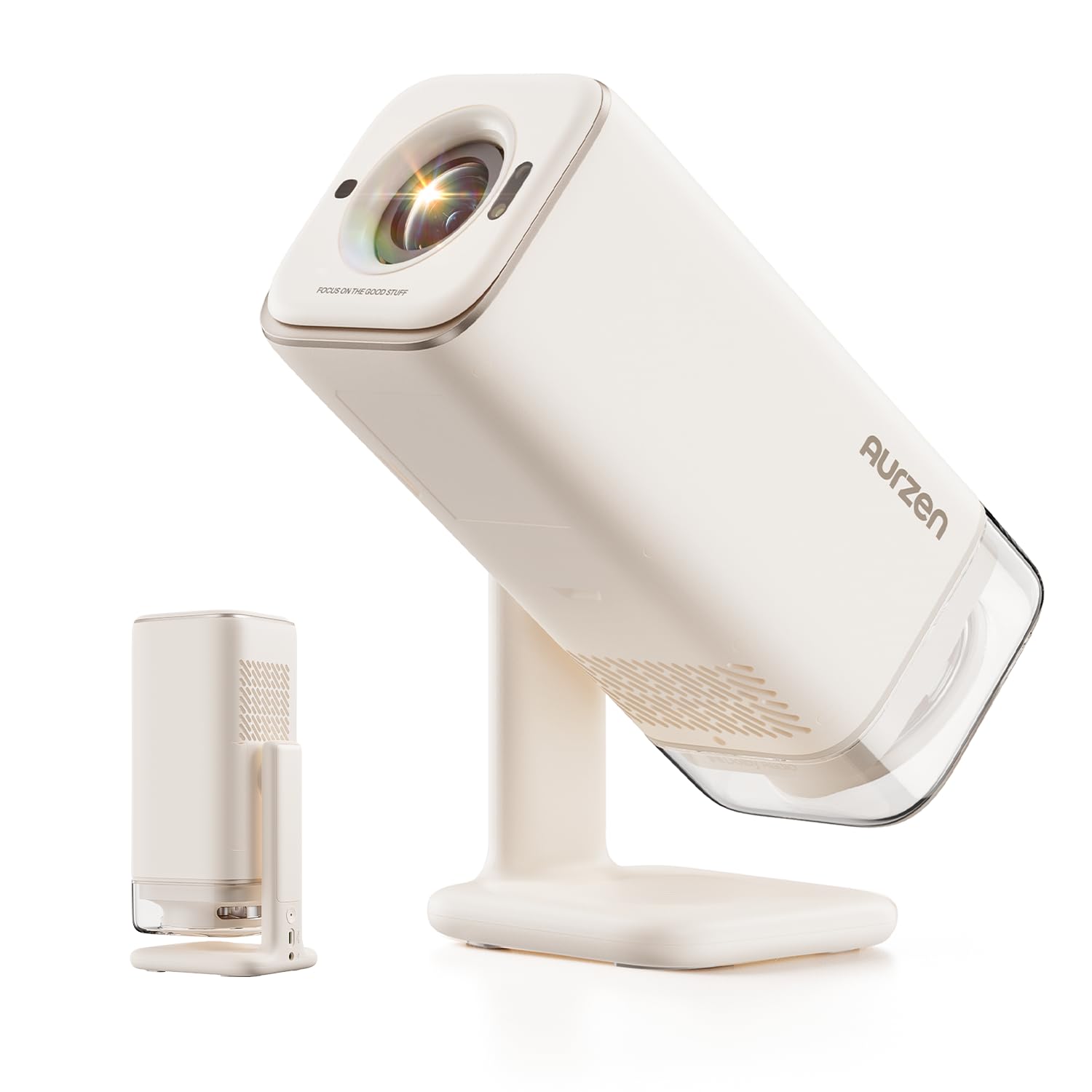
בילד: פראָנט view of the Aurzen BOOM Air Portable Projector, showing the lens and compact design.

Image: Close-up of the Aurzen BOOM Air Projector, highlighting the USB and HDMI ports, and the overall compact design.
4. סעטאַפּ
4.1 מאַכט אויף
- Connect the provided power adapter to the projector's DC input port.
- Plug the power adapter into a wall outlet. Alternatively, connect a compatible USB-C power bank (65W or higher output) to the projector's USB-C power input.
- דריק דעם מאַכט קנעפּל אויף דעם פּראָיעקטאָר אָדער ווײַטקאָנטראָל צו עס אנצינדן.
4.2 Initial Google TV Setup
Upon first use, you will be guided through the Google TV setup process:
- פֿאָלגט די אינסטרוקציעס אויף דעם עקראַן צו אויסקלײַבן אײַער שפּראַך און ראַיאָן.
- פֿאַרבינדט זיך צו אייער Wi-Fi נעץ דורך עס אויסצוקלײַבן פֿון דער רשימה און אַרײַנגעבן דאָס פּאַראָל.
- Sign in with your Google account to access Google TV features and apps.
Video: Instructions on how to pair the Bluetooth remote control with the projector. This is a crucial step for initial setup and navigation.
4.3 פּלאַצירונג און פּראָיעקציע
Position the projector on a stable surface. The adjustable stand allows for flexible projection angles, including ceiling projection.
- רעקאַמענדיד דיסטאַנסע: For a 60-inch image, a projection distance of approximately 5.58 feet (1.78 meters) is recommended. Adjust the distance as needed for your desired screen size.
- סוויווע: For optimal clarity and brightness, use the projector in a dim or dark environment.

Image: The Aurzen BOOM Air Projector demonstrating its adjustable stand for various projection angles, including wall and ceiling projection.
Video: Demonstrates the recommended optimal viewing size and distance for the projector, showing a 60-inch image at 5.58 feet.
4.4 פאָקוס און קיסטאָון קאָרעקציע
The BOOM Air features ToF (Time-of-Flight) technology for real-time focus and automatic keystone correction, ensuring a clear and properly shaped image even when the projector is moved or placed at an angle.
- אָטאַמאַטיק אַדזשאַסטמאַנט: The projector will automatically adjust focus and keystone.
- מאַנואַל אַדזשאַסטמאַנט: If needed, you can manually adjust the focus using the dedicated focus buttons on the remote control.
Video: Shows how the electric focus function works, including manual adjustment using the remote control.
5. אַפּערייטינג ינסטרוקטיאָנס
5.1 נאַוויגירן גוגל טיווי
Use the remote control to navigate the Google TV interface. The directional pad and select button are used for menu navigation, while dedicated buttons provide quick access to home, back, and app functions.
5.2 סטרימינג אַפּליקאַציעס
The projector comes with official Google TV built-in, providing access to over 10,000 streaming applications such as Netflix, YouTube, Prime Video, Hulu, HBO, Peacock, and Paramount+. Ensure a stable Wi-Fi connection for optimal streaming performance.

Image: The projector displaying the Google TV home screen, featuring various streaming application icons like Paramount+, YouTube, HBO Max, Peacock, Prime Video, and Hulu.
5.3 Google Voice Control
Utilize the built-in Google Assistant for voice control. Press the dedicated voice button on your remote and speak commands to search for content, control playback, or adjust settings.
5.4 Casting Content
The projector supports Google Cast, allowing you to stream content wirelessly from Android, iOS, or laptop devices.
Video: A step-by-step guide on how to cast content from an Android phone to the projector.
5.5 עקסטערנע דעווייס קאָנעקטיוויטי
דער פּראָיעקטאָר אָפפערט פֿאַרשידענע פּאָרטן פֿאַר פֿאַרבינדן עקסטערנע דעוויסעס:
- הדמי: Connect laptops, PCs, TV sticks, or gaming consoles (e.g., PS5).
- וסב: Connect USB disk drives for media playback or charge compatible devices.
- אַודיאָ אַרויס (3.5 מם דזשעק): פֿאַרבינדט עקסטערנע רעדנערס אָדער כעדפאָונז.
- בלועטאָאָטה: Connect wireless headphones or Bluetooth speakers for audio output, or use the projector as a Bluetooth speaker (two-way Bluetooth).

Image: A visual guide illustrating the various input and output connections available on the BOOM Air projector, including HDMI, USB, Audio Out, and USB-C Power.
Video: Explains the different input source interfaces available on the projector and their uses.
5.6 קידס מאָדע
The projector includes a Kids Mode feature that allows for managing screen time, filtering age-appropriate content, and supporting multi-user accounts for a safe viewא גוטע דערפאַרונג פֿאַר קינדער.
6. וישאַלט
רעגולערע אויפהאלטונג העלפט זיכער מאכן די לאנגעוויטי און אפטימאלע פערפארמאנס פון אייער פראיעקטאר.
6.1 רייניקן די לינז
Use the provided cleaning kit or a soft, lint-free cloth specifically designed for optical lenses. Gently wipe the lens surface to remove dust or smudges. Avoid using abrasive materials or harsh chemicals.
6.2 Cleaning Air Vents
Periodically check and clean the air vents to prevent dust buildup, which can affect cooling and performance. Use a soft brush or compressed air to clear any obstructions.

Image: A visual representation of the projector's air filter cover and air outlet, indicating areas for maintenance.
7. טראָובלעשאָאָטינג
If you encounter issues with your Aurzen BOOM Air projector, refer to the following common problems and solutions:
| פּראָבלעם | מעגלעך סיבה | לייזונג |
|---|---|---|
| פּראָיעקטאָר גייט נישט אָן. | No power, loose connection, insufficient power bank output. | Ensure power adapter is securely connected and plugged in. If using a power bank, confirm it provides 65W or higher output. |
| No image or blurry image. | Lens cap on, incorrect focus, incorrect input source, projector too far/close. | Remove lens cap. Allow auto-focus to engage or manually adjust focus. Verify correct input source (HDMI, USB). Adjust projection distance. |
| קיין געזונט. | Volume too low, external audio device not connected, incorrect audio output setting. | Increase volume. Check connections to external speakers/headphones. Ensure Bluetooth audio is correctly paired or 3.5mm jack is fully inserted. |
| Wi-Fi פֿאַרבינדונג פּראָבלעמען. | Weak signal, incorrect password, router issues. | Ensure projector is within Wi-Fi range. Re-enter password carefully. If Wi-Fi status is "Limited Connection," contact your Internet Service Provider. |
| די ווײַטקאָנטראָל רעאַגירט נישט. | Low batteries, not paired. | Replace batteries. Re-pair the Bluetooth remote control (refer to Section 4.2). |
8. ספּעסאַפאַקיישאַנז
Detailed technical specifications for the Aurzen BOOM Air Projector (Model D004):
| שטריך | באַשרייַבונג |
|---|---|
| סאָרט | אורזען |
| מאָדעל נאָמען | D004 |
| געבוירן האַכלאָטע | 1920 רענטגענ 1080 (פול הד) |
| 4 ק שטיצן | יא |
| ברייטנאַס | 300 אַנסי לומענס |
| קאַנטראַסט פאַרהעלטעניש | 500:1 |
| ווייַז טיפּ | לקד |
| פאָקוס טעכנאָלאָגיע | ToF (Time-of-Flight) Real-time Focus |
| קייסטאָנע קערעקשאַן | אָטאַמאַטיק |
| אַודיאָ | Dolby Audio, 10W Visible Speakers |
| קאַנעקטיוויטי | 3.5mm Jack, Bluetooth (2-Way), HDMI, USB, Wi-Fi (2.4G & 5G) |
| מאַכט אַרייַנשרייַב | USB-C (requires 65W+ output for optimal performance) |
| מאַקסימום בילד גרייס | 200 אינטשעס |
| מינימום וואַרפן דיסטאַנסע | 3.71 פֿיס |
| מאַקסימום וואַרפן דיסטאַנסע | 18.6 פֿיס |
| דימענסיעס (L X W X H) | 3.9"ל x 3.9"בר x 10.2"ה |
| וואָג | 2.7 פונט |
| אָפּערייטינג סיסטעם | אפיציעלע גוגל טעלעוויזיע |
9. וואָראַנטי און שטיצן
9.1 פּראָדוקט וואָראַנטי
The Aurzen BOOM Air Projector comes with a 2-יאָר פאַבריקאַנט ס וואָראַנטידי וואָראַנטי דעקט חסרונות אין מאַטעריאַלן און אַרבעט אונטער נאָרמאַל נוצן. ביטע האַלטן דיין קויפן באַווייַז פֿאַר וואָראַנטי קליימז.
9.2 קונה שטיצן
For technical assistance, troubleshooting, or warranty inquiries, please contact Aurzen customer support. Refer to the contact information provided on the official Aurzen webוועבזייטל אדער אייער קויפן דאקומענטאציע.
איר קענט אויך געפֿינען די אָפֿיציעלע באַניצער מאַנואַל אין PDF פֿאָרמאַט דאָ.