
הקדמה
This manual provides detailed instructions for the installation, operation, and maintenance of your MSXTTLY V-Stream 3-in-1 Wireless CarPlay & Android Auto Adapter. This device converts your car's wired CarPlay system into a wireless one, and also enables video streaming capabilities. Please read this manual thoroughly before use to ensure optimal performance and safety.
פּעקל אינהאַלט
באַשטעטיקט אַז אַלע זאכן וואָס זענען אויסגערעכנט אונטן זענען אַרייַנגערעכנט אין אייער פּעקל:
- 1 x MSXTTLY V-Stream Wireless CarPlay & Android Auto Adapter
- 1 קס וסב-א צו וסב-C קאַבלע
- 1 x USB-A Extension Cable
- 1 x באַניצער מאַנואַל
- 1 x 3M Adhesive Tape

This image displays the complete package contents: the V-Stream adapter, USB-A to USB-C cable, USB-A extension cable, user manual, and 3M adhesive tape.
קאַמפּאַטאַבילאַטי
The MSXTTLY V-Stream adapter is designed for specific vehicle and phone configurations:
- פאָרמיטל קאַמפּאַטאַבילאַטי: Works exclusively with vehicles equipped with original wired CarPlay from 2017 onwards.
- טעלעפאָן קאָמפּאַטאַביליטי: Compatible with iPhone (iOS 10+) and Android smartphones (Android 11+).
- עקסקלוסיאָנס: Not compatible with B-M-W or Tesla vehicles.
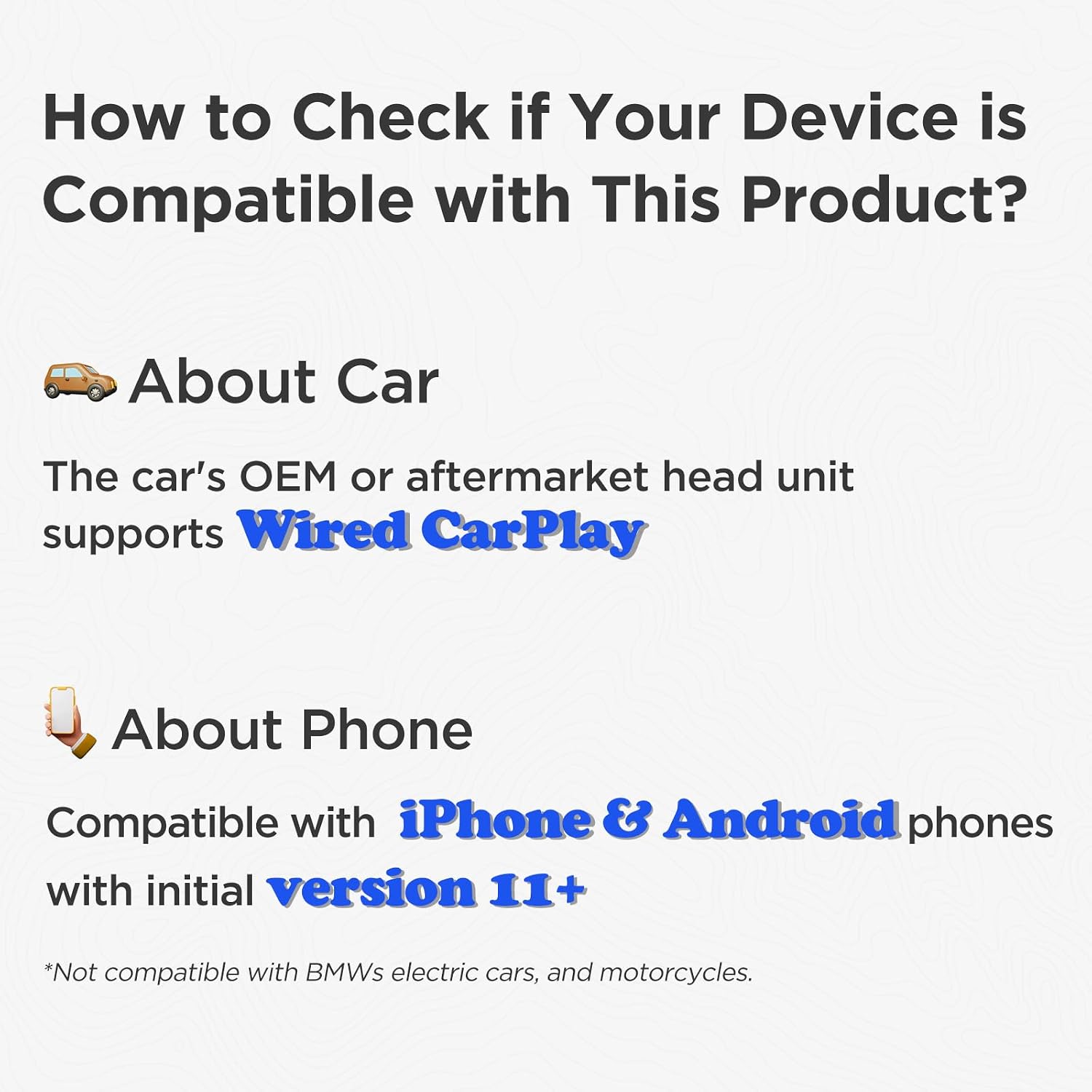
This image illustrates the compatibility requirements: the car must have wired CarPlay, and the phone must be iPhone (iOS 10+) or Android (Android 11+). It also notes incompatibility with BMW and Tesla.
סעטאַפּ אינסטרוקציעס
Follow these steps to set up your MSXTTLY V-Stream adapter:
1. Initial Connection to Your Vehicle
- זייט זיכער אז אייער אויטאָ'ס מאָטאָר לויפֿט.
- Locate an available USB port in your car.
- Connect the MSXTTLY V-Stream adapter to the USB port. You can use the built-in USB port, the USB-A to USB-C cable, or the USB-A extension cable as needed for your car's configuration.
- Wait for the V-Stream main screen to appear on your car's display.

This image demonstrates the three available connection methods: direct plug-in, using a USB-A to USB-C cable, or using a USB-A extension cable to connect the adapter to your car's USB port.
2. Connecting to Wireless CarPlay (for iPhone users)
- On your iPhone, activate both בלועטאָאָטה און ווי-פי.
- On your car's screen, wait for the V-Stream main interface to appear, then tap on the CarPlay icon.
- On your iPhone, go to Bluetooth settings and pair with "V-Stream-XXXX" (where XXXX is a unique identifier).
- Confirm the pairing request on your iPhone by tapping "Pair" and then "Allow" and "Use CarPlay".
- The connection should complete within 5 to 15 seconds, and your car's screen will switch to Apple CarPlay.

This image provides a visual guide for connecting your iPhone to wireless CarPlay via the V-Stream adapter, showing the steps from activating Bluetooth/Wi-Fi to pairing and launching CarPlay.
3. Connecting to Wireless Android Auto (for Android users)
- On your Android phone, activate both בלועטאָאָטה און ווי-פי.
- On your car's screen, wait for the V-Stream main interface to appear, then tap on the Android Auto icon.
- On your Android phone, go to Bluetooth settings and pair with "V-Stream-XXXX".
- Confirm the pairing request on your Android phone.
- The connection should complete within 5 to 15 seconds, and your car's screen will switch to Android Auto.

This image provides a visual guide for connecting your Android phone to wireless Android Auto via the V-Stream adapter, showing the steps from activating Bluetooth/Wi-Fi to pairing and launching Android Auto.
4. אויטאָמאַטישע ווידערפֿאַרבינדונג
After the initial setup, the adapter will automatically reconnect to your phone within 15 seconds when you start your car, provided Bluetooth and Wi-Fi are enabled on your phone.
אַפּערייטינג ינסטראַקשאַנז
Wireless CarPlay and Android Auto Usage
Once connected, you can use your car's display to access navigation, music, calls, and other compatible applications wirelessly through CarPlay or Android Auto. The adapter utilizes 5GHz Wi-Fi and Bluetooth 5.3 for fast, stable connections with minimal latency.

This image displays the user interface for both Wireless Android Auto and Wireless CarPlay on a car's infotainment screen, highlighting the range of applications available.
This video demonstrates the connection steps for both wireless CarPlay and Android Auto, showing the seamless transition from wired to wireless functionality.
Video Streaming (V-Stream)
The V-Stream feature allows you to enjoy popular streaming applications like Netflix, YouTube, and Prime Video on your car's display. באַמערקונג: Video apps require a Wi-Fi connection or a mobile hotspot from your phone. They do not function simultaneously with CarPlay/Android Auto.
- After connecting the V-Stream adapter to your car's USB port and seeing the main V-Stream screen, navigate to your car's system settings.
- Go to "Network & Internet" and connect to a Wi-Fi network or your phone's mobile hotspot. Ensure the Wi-Fi provides internet access.
- A safety reminder will appear. Confirm that video streaming is for passengers only and that the driver will adhere to local traffic laws.
- Open your desired video application (e.g., Netflix, YouTube) and log in with your valid account credentials to start streaming.

This image illustrates the process of enabling video streaming: connecting to Wi-Fi, acknowledging safety warnings, and launching a video app like YouTube or Netflix.

This image highlights the core features of the MSXTTLY V-Stream adapter, including its 5G chip, Bluetooth 5.3, 5.8 GHz Wi-Fi, and compatibility with popular video streaming applications.
קאַנעקטיוויטי פֿעיִקייטן
- בלועטאָאָטה 5.3: Provides a fast and stable initial connection for CarPlay and Android Auto.
- 5GHz Wi-Fi: Ensures high-speed data transfer for seamless wireless projection and video streaming, reducing latency.
- Copper USB Connector: The gold-plated copper USB connector enhances conductivity, accelerates data transmission, and helps reduce overheating.

This image details the internal design improvements of the adapter, such as the gold-plated USB for enhanced conductivity and oxidation resistance, and a vented shell for reduced heat generation and improved stability.
וישאַלט
To ensure the longevity and optimal performance of your MSXTTLY V-Stream adapter, follow these maintenance guidelines:
- רייניקונג: Use a soft, dry cloth to wipe the adapter. Avoid using liquid cleaners or solvents, as they may damage the device.
- סטאָרידזש: When not in use for extended periods, disconnect the adapter from the USB port and store it in a cool, dry place away from direct sunlight and extreme temperatures.
- האַנדלינג: באַהאַנדלט דעם אַדאַפּטער מיט פֿאָרזיכט. פֿאַרמײַדט עס צו לאָזן פֿאַלן אָדער אויסשטעלן עס צו שטאַרקע קלאַפּן.
- Firmware דערהייַנטיקונגען: קאָנטראָלירט פּעריִאָדיש דעם פאַבריקאַנט'ס website or app (if available) for firmware updates to ensure the best performance and compatibility.
טראָובלעשאָאָטינג
If you encounter issues with your MSXTTLY V-Stream adapter, refer to the following common solutions:
קשר ישוז
- אַדאַפּטער נישט דערקענט:
- Ensure the adapter is fully inserted into the car's USB port.
- Try a different USB port in your vehicle, if available.
- Verify your car supports wired CarPlay.
- ריסטאַרט דיין אויטאָ ס אינפאָטאַינמענט סיסטעם.
- וויירלעס קאַרפּליי/אַנדרויד אויטאָ פֿאַרבינדט זיך נישט:
- מאַכן זיכער אַז בלועטאָאָטה און Wi-Fi זענען ענייבאַלד אויף דיין סמאַרטפאָנע.
- Forget the "V-Stream-XXXX" Bluetooth device on your phone and re-pair it.
- ריסטאַרט ביידע דיין טעלעפאָן און די מאַשין ס אינפאָטאַינמענט סיסטעם.
- Check if your phone's operating system (iOS 10+ or Android 11+) is compatible.
- אומגעריכטע פֿאַרבינדונג/פֿאַרשפּעטיקונג:
- זיכער מאַכן אַז עס זענען נישטאָ קיין אַנדערע דעוויסעס וואָס שטערן דעם Wi-Fi אָדער בלועטוט סיגנאַל.
- Try switching your mobile hotspot's Wi-Fi frequency if using it for video streaming (e.g., between 2.4GHz and 5GHz).
- Ensure the adapter is not overheating. The carbon fiber casing is designed to help with heat dissipation.
This video demonstrates how to check and switch your mobile hotspot's Wi-Fi band, which can help resolve video glitches or intermittent connection issues.
Video Streaming Issues
- Video Apps Not Working:
- Confirm the adapter is connected to a stable Wi-Fi network or mobile hotspot with internet access.
- Ensure you are logged into a valid account for the streaming service (Netflix, YouTube, Prime Video).
- Remember that video apps do not work simultaneously with CarPlay/Android Auto. Switch to the V-Stream interface for video.
אַלגעמיינע ישוז
- דיווייס אָוווערכיטינג: While the adapter is designed for heat dissipation, prolonged use in extreme conditions might cause it to warm up. If it feels excessively hot, disconnect it and allow it to cool down.
- קיין אַודיאָ: Check your car's audio input settings and ensure the volume is turned up on both your phone and the car's system.
ספּעסאַפאַקיישאַנז
| שטריך | דעטאַל |
|---|---|
| סאָרט | MSXTTLY |
| מאָדעל נומער | 2025 |
| קאַמפּאַטאַבאַל דעוויסעס | Smartphones, Cars with wired CarPlay |
| ספּעציפיש ניצט | Car audio and video |
| קאַנעקטער טיפּ | וסב |
| קאָליר | טשאַד שווארצע |
| נומער דימענשאַנז (L X W X H) | 50 x 20 x 10 מילימעטער (1.97 x 0.79 x 0.39 אינטשעס) |
| נומער פון פּאָרץ | 1 |
| מאַכט פּלוג טיפּ | Type A – 2 pin (North America) |
| לאַנד פון אָריגין | כינע |

This image illustrates the compact dimensions of the MSXTTLY V-Stream adapter, shown next to a smartphone for size comparison, with measurements of 2.75 inches in length and 1.06 inches in width.
וואָראַנטי און שטיצן
MSXTTLY is committed to providing high-quality products and excellent customer service.
- וואָראַנטי: Your MSXTTLY V-Stream adapter comes with a 365-day guarantee.
- טעכניש הילף: Lifetime technical assistance is available for your product.
- קונה שטיצן: Professional 24/7 fast support is available to assist you with any questions or issues.
- קאָנטאַקט: For support, please refer to the contact information provided on the product packaging or the official MSXTTLY webפּלאַץ.

This image outlines the comprehensive support offered by MSXTTLY, including a 365-day guarantee, lifetime technical assistance, and 24/7 fast customer support.