
הקדמה
This manual provides essential instructions for the installation, operation, maintenance, and troubleshooting of your ZOTAC Gaming GeForce RTX 5080 Solid Core graphics card. Designed for high-performance gaming, this card features the NVIDIA Blackwell architecture, DLSS 4, and advanced IceStorm 3.0 cooling. Please read this manual carefully before installation and use to ensure optimal performance and longevity of your product.
סעטאַפּ און ינסטאַלירונג
Proper installation is crucial for the functionality and stability of your graphics card. Follow these steps carefully:
- צוגרייטן אייער סיסטעם: Power off your computer and unplug all power cables from the wall outlet. Open your computer case.
- געפינען PCIe סלאָט: אידענטיפיצירט א פאראן PCI Express x16 סלאט אויף אייער מאדערבאארד. נעמט אראפ אלע דעקלעך פאר עקספאנענץ סלאטס וואס שטערן די אינסטאלאציע.
- אינסטאַלירן די גראַפיקס קאַרטל: Carefully align the graphics card with the PCIe x16 slot. Press down firmly and evenly until the card is fully seated in the slot. Ensure the retention clip on the PCIe slot locks into place.
- באַוואָרענען די קאָרט: ניצט שרויפן צו באַפֿעסטיקן די גראַפיקס קאַרטל צו דער פּיסי קעסטל'ס יקספּאַנשאַן סלאָט קלאַמער.
- פאַרבינדן מאַכט קאַבלעס: Connect the necessary PCIe power cables from your power supply unit (PSU) to the graphics card's power connectors. This model requires sufficient power input for stable operation. Ensure all connectors are securely attached.
- אינסטאַלירן GPU שטיצע שטאַנד: Utilize the bundled GPU support stand to prevent sag and provide additional stability for the graphics card. Adjust its height to properly support the card.
- פֿאַרמאַכן דעם קעסטל און פֿאַרבינדן פּעריפֿעראַלע אַפּאַראַטן: Close your computer case, reconnect all power cables, and connect your display cables (HDMI or DisplayPort) to the graphics card's output ports.
- מאַכט אײַן און אינסטאַלירן דרייווערס: Power on your computer. Once the operating system loads, download and install the latest NVIDIA drivers for your GeForce RTX 5080 from the official NVIDIA webפּלאַץ.

פראָנט view of the ZOTAC Gaming GeForce RTX 5080 Solid Core graphics card, showcasing its triple-fan IceStorm 3.0 Advanced Cooling system.

זייַט view of the graphics card, illustrating the power connectors and the robust design.
אַפּערייטינג ינסטראַקשאַנז
Once installed and drivers are updated, your graphics card is ready for use. Here are some operational guidelines:
- דרייווער דערהייַנטיקונגען: Regularly check for and install the latest NVIDIA GeForce drivers to ensure optimal performance, compatibility, and access to new features.
- ווייַז קאַנעקשאַנז: The card supports up to four displays simultaneously via 3 x DisplayPort 2.1b and 1 x HDMI 2.1b outputs. Connect your monitors to these ports.
- מולטי-דיספּליי סעטאַפּ: Configure your display settings within your operating system or through the NVIDIA Control Panel for extended desktop, duplicate displays, or surround gaming.
- ZOTAC FireStorm Utility: Download and install the ZOTAC FireStorm utility from the ZOTAC website. This software allows you to monitor GPU performance, adjust fan speeds (Active Fan Control), and customize the Spectra RGB lighting.
- גיימינג און אַפּליקאַציעס: Ensure your games and applications are configured to utilize the ZOTAC Gaming GeForce RTX 5080 for the best performance.
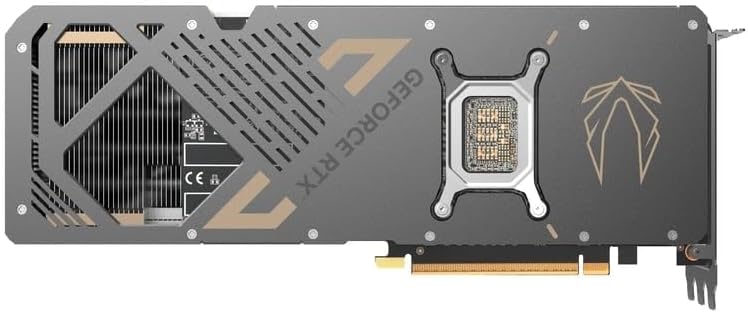
צוריק view of the graphics card, showing the metal backplate and structural reinforcement.
וישאַלט
Regular maintenance helps ensure optimal performance and extends the lifespan of your graphics card:
- באַזייַטיקונג פון שטויב: Periodically clean the fans and heatsink of the graphics card using compressed air. Ensure the PC is powered off and unplugged before cleaning. Hold the fan blades gently to prevent them from spinning rapidly during cleaning.
- לופט לויפן: Maintain good airflow within your PC case. Ensure case fans are properly oriented and there are no obstructions to air intake or exhaust.
- טעמפּעראַטור מאָניטאָרינג: Use monitoring software (e.g., ZOTAC FireStorm) to keep an eye on GPU temperatures during heavy loads. Excessive temperatures can indicate poor airflow or dust buildup.
- פאָכער קאָנטראָל: The IceStorm 3.0 cooling system features Freeze Fan Stop (fans stop at low temperatures for silent operation) and Active Fan Control (individual fan speed adjustment). Ensure these features are operating correctly or adjust them as needed via the FireStorm utility.
טראָובלעשאָאָטינג
אויב איר טרעפט פּראָבלעמען מיט אייער גראַפיקס קאַרטל, באַטראַכט די פאלגענדע טראָובלעשווטינג טריט:
- קיין אַרויסווייַז רעזולטאַט:
- זיכער מאַכן אַז די דיספּליי קייבלס זענען זיכער פארבונדן צו ביידע די גראַפיקס קאַרטל און די מאָניטאָר.
- באַשטעטיקן אַז די מאָניטאָר אינפוט מקור איז ריכטיק איינגעשטעלט.
- Check that the graphics card is fully seated in the PCIe slot and all power connectors are firmly attached.
- פּרובירט מיט אַן אַנדערן דיספּליי קאַבל אָדער מאָניטאָר אויב מעגלעך.
- שאָפער ישוז:
- Perform a clean installation of the latest NVIDIA drivers. Use Display Driver Uninstaller (DDU) in Safe Mode to remove old drivers before installing new ones.
- זיכער מאַכן אַז אייער אָפּערייטינג סיסטעם איז אַרויף צו דאַטע.
- איבערהיצונג/פארלוסט פון פאָרשטעלונג:
- Check GPU temperatures using monitoring software.
- Clean dust from the graphics card heatsink and fans.
- זיכער מאַכן אַז לופטפלוס איז גענוג אין דיין פּיסי קעסטל.
- Verify that case fans are functioning correctly.
- סיסטעם אינסטאביליטעט/קראכן:
- זיכער מאַכן אַז אייער מאַכט צושטעלן אַפּאַראַט (PSU) טרעפט די רעקאָמענדירטע וואַטtage for the graphics card and your system.
- Check for any loose connections inside the PC.
- אויב איר אָווערקלאָקט, גייט צוריק צו די פעליקייט סעטטינגס צו קאָנטראָלירן די סטאַביליטעט.
ספּעסאַפאַקיישאַנז
Key technical specifications for the ZOTAC Gaming GeForce RTX 5080 Solid Core graphics card:
| שטריך | דעטאַל |
|---|---|
| גראַפיקס קאָופּראַסעסער | NVIDIA GeForce RTX 5080 |
| סאָרט | ZOTAC |
| גראַפיקס ראַם גרייס | 16 גיגאבייט GDDR7 |
| וידאו רעזולטאַט צובינד | 3 x DisplayPort 2.1b, 1 x HDMI 2.1b |
| graphics קאָרט צובינד | PCI-Express x16 (PCIe 5.0) |
| זכּרון זייגער ספּיד | 30 גבפּס |
| גפּו סעריע | NVIDIA RTX 50 Series |
| מאַקסימום האַכלאָטע | 7680x4320 (8K Ready) |
| דימענשאַנז (L X W) | 11.95"ל x 2.19"ברייט |
| מאָדעל נומער | ZT-B50800D2-10P |
| פּונקט וואָג | 1480 גראַמז |
| קאָאָלינג סיסטעם | IceStorm 3.0 Advanced Cooling (3 x 90mm BladeLink Fans, Steam Chamber, Composite Heatpipes, Pass-Thru Airflow) |
| פֿעיִקייטן | DLSS 4, Freeze Fan Stop, Active Fan Control, Spectra RGB Lighting, Metal Backplate, Reinforced Frame Structure, Bundled GPU Support Stand |
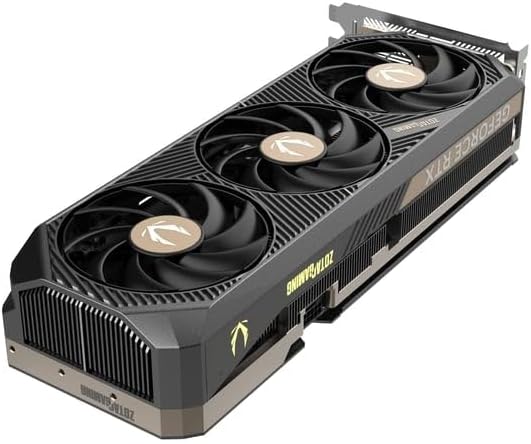
אַנגגאַלד view of the graphics card, highlighting the fan design and side profile.
וואָראַנטי אינפֿאָרמאַציע
ZOTAC offers an extended warranty for its products. Your ZOTAC Gaming GeForce RTX 5080 Solid Core graphics card may be eligible for a 5 יאָר עקסטענדעד וואָראַנטי. Registration is required to activate this extended warranty. Please visit the official ZOTAC website for detailed terms, conditions, and the registration process.

Image indicating the availability of a 5-year extended warranty from ZOTAC. Registration is required.
שטיצן און קאָנטאַקט
For further assistance, technical support, or warranty claims, please contact ZOTAC directly:
- פאַבריקאַנט: ZOTAC Technology Limited
- אַדרעס: 19/F, SHATIN GALLERIA, 18-24 Shan Mei St, Fo Tan, Hong Kong
- Webפּלאַץ: Visit the official ZOTAC website for support resources, driver downloads, FAQs, and contact information.