
הקדמה
This manual provides detailed instructions for the setup, operation, maintenance, and troubleshooting of your Axtel One BT Stereo Wireless Headset. This headset is designed for professional use, offering reliable Bluetooth connectivity, noise-cancelling microphones, and high-definition speakers for clear communication and audio playback.
פּעקל אינהאַלט
באַשטעטיקן אַז אַלע זאכן זענען פאַראַן אין דיין פּעקל:
- Axtel One BT Stereo Wireless Headset
- וסב-א דאָנגלע
- טשאַרדזשינג סטאַנציע
- וסב-C טשאַרדזשינג קאַבלע
- באַניצער מאַנואַל (דעם דאָקומענט)

Image: Axtel One BT Stereo Wireless Headset placed on its charging base, showing the headset and base as a complete unit.
פּראָדוקט איבערview
Familiarize yourself with the components of your Axtel One BT Stereo Wireless Headset.

בילד: זייט view of the Axtel One BT Stereo Wireless Headset with the microphone boom extended, highlighting the earcups and headband.
כעדסעט קאָמפּאָנענטן:
- אַדזשאַסטאַבאַל כעדבאַנד: פֿאַר אַ באַקוועמען פּאַסיק.
- אויער קישן: Vegan leather and memory foam for comfort.
- מיקראָפאָן בום: Flexible arm with dual noise-cancelling microphones.
- קאָנטראָל קנעפּלעך: Located on the earcup for call management (answer/reject/mute) and volume.
- וסב- C פּאָרט: For direct charging of the headset.
- Busy Light Indicator: Signals availability during calls.
Charging Station & USB-A Dongle:

Image: The Axtel One BT Charging Station, a black stand designed to hold and charge the headset.
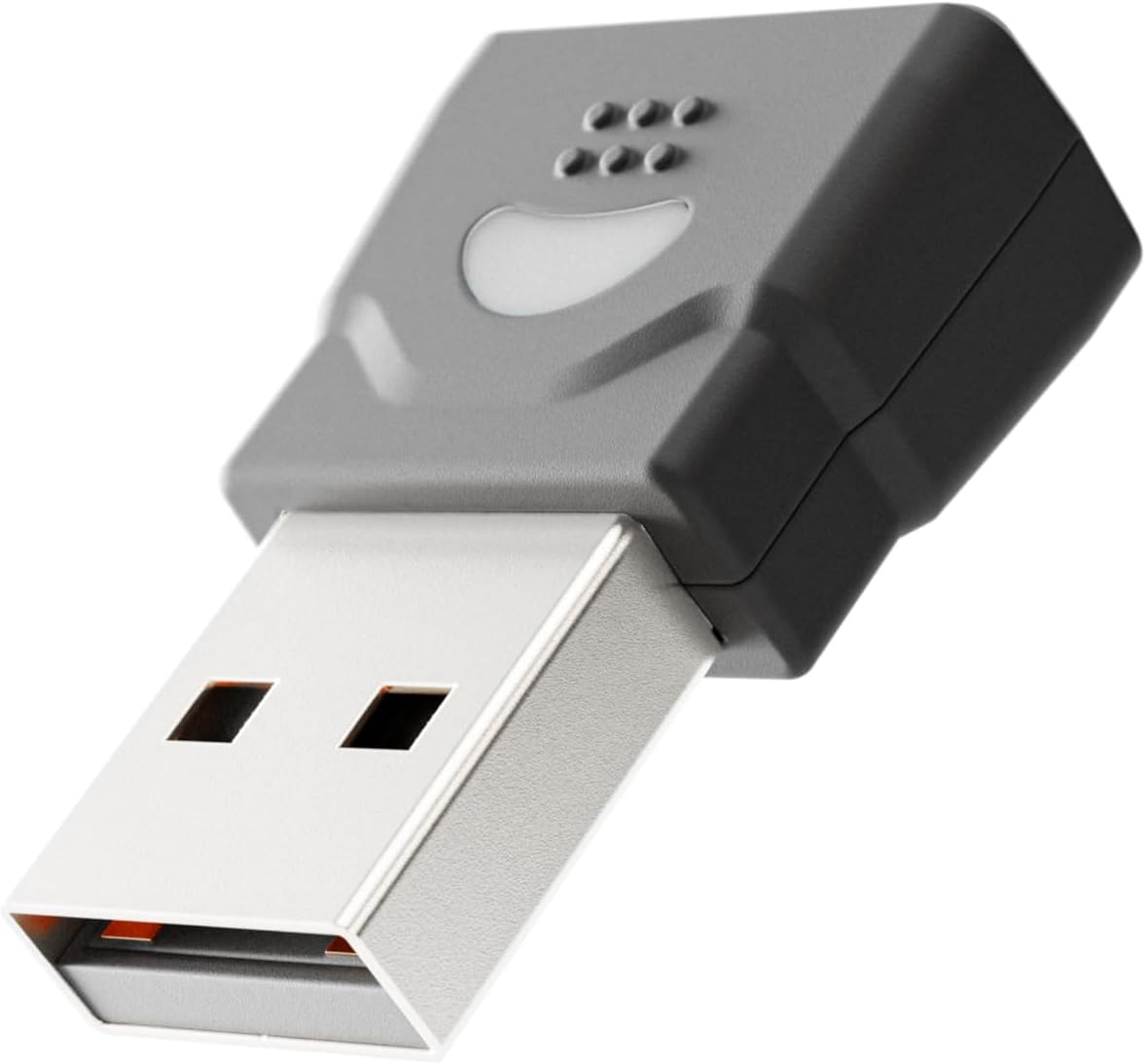
Image: The compact USB-A dongle, used for connecting the headset to a computer without built-in Bluetooth.
- טשאַרדזשינג סטאַנציע: Provides a convenient dock for charging and storing the headset.
- USB-A Dongle: Enables wireless connection to computers without Bluetooth or for enhanced stability.
סעטאַפּ
1. טשאַרדזשינג די העאַדסעט
Before initial use, fully charge your headset. A full charge takes approximately 2 hours and provides up to 40 hours of talk or music time. A 20-minute fast charge can provide several hours of use.
- ניצן די טשאַרדזשינג סטאַנציע: Connect the USB-C charging cable to the charging station and then to a power source (e.g., computer USB port or wall adapter). Place the headset onto the charging station. The headset's indicator light will show charging status.
- דירעקטע USB-C טשאַרדזשינג: Connect the USB-C charging cable directly to the USB-C port on the headset and then to a power source.
2. Connecting to a Computer via USB-A Dongle (Plug & Play)
For seamless connection to your computer, use the included USB-A dongle.
- Insert the USB-A dongle into an available USB-A port on your computer.
- The dongle's indicator light will blink, then turn solid when connected to the headset.
- Power on your headset. It will automatically pair with the dongle.
- Your computer should recognize the headset as an audio device. You may need to select "Axtel One BT" as your default audio input/output device in your system settings.
3. Connecting via Bluetooth (Mobile Devices / Computers with Bluetooth)
To connect to a mobile device or a computer with built-in Bluetooth:
- פאַרזיכערן די כעדסעט איז Powered אַוועק.
- Press and hold the Power button on the headset until the indicator light flashes blue and red, indicating pairing mode.
- אויף אייער דעווייס (סמאַרטפאָן, טאַבלעט, קאָמפּיוטער), גייט צו בלועטוט סעטטינגס און אַקטיווירט בלועטוט.
- Select "Axtel One BT" from the list of available devices.
- Once paired, the headset's indicator light will turn solid blue.
אַפּערייטינג ינסטראַקשאַנז
מאַכט אויף / אַוועק
- מאַכט אויף: דריקן און האַלטן די מאַכט קנעפּל פֿאַר 2 סעקונדעס.
- מאַכט אַוועק: דריקן און האַלטן די מאַכט קנעפּל פֿאַר 3 סעקונדעס.
רוף קאָנטראָלס
The headset features integrated controls for managing calls.
- ענטפֿערן / סוף רופן: דריק דעם רוף קנעפּל איין מאל.
- אָפּוואַרפן רופן: דריקן און האַלטן די רופן קנעפּל פֿאַר 2 סעקונדעס.
- שטום / ונמוט מיקראָפאָן: Press the Mute button (usually located on the microphone boom or earcup) once during a call.
אַודיאָ קאָנטראָלס
- באַנד אַרויף: דריק דעם באַנד אַרויף קנעפּל.
- באַנד אַראָפּ: דריק דעם באַנד אַראָפּ קנעפּל.
Microsoft Teams and UC Platform Compatibility
The Axtel One BT Stereo Headset is optimized for Microsoft Teams and compatible with other Unified Communications (UC) platforms such as Zoom, Skype, and Webex. For optimal performance, ensure the headset is selected as the default audio device within the application settings.
פארנומען ליכט אינדיקאַטאָר
The integrated busy light indicator automatically illuminates when you are on a call, signaling to others that you are occupied and minimizing interruptions.
וישאַלט
רייניקונג
- Wipe the headset and charging station with a soft, dry, anti-static cloth.
- דו זאלסט נישט נוצן האַרב קעמיקאַלז, רייניקונג סאָלוואַנץ אָדער שטאַרק דיטערדזשאַנץ.
באַטערי קער
- To prolong battery life, avoid fully discharging the headset frequently.
- האַלט די כעדסעט אין אַ קיל, טרוקן אָרט ווען נישט אין באַנוץ פֿאַר לענגערע פּעריאָדן.
Earcup Maintenance
The vegan leather and memory foam ear cushions are designed for comfort and can be swapped for hygiene and durability. Refer to the manufacturer's website or support for instructions on replacing ear cushions.
טראָובלעשאָאָטינג
| פּראָבלעם | מעגלעך סיבה | לייזונג |
|---|---|---|
| קיין קלאַנג פֿון כעדסעט | Headset not powered on; Not paired; Incorrect audio device selected; Volume too low. | Ensure headset is powered on. Re-pair the headset. Check computer/device audio settings and select "Axtel One BT". Increase headset and device volume. |
| מיקראָפאָן טוט נישט אַרבעטן | מיקראָפאָן שטיל; אומרעכט אַרייַנשרייַב מיטל אויסגעקליבן; מיקראָפאָן בום נישט ריכטיק פּאַזיציאָנירט. | Unmute the microphone. Check computer/device audio settings and select "Axtel One BT" as input. Ensure microphone boom is close to your mouth. |
| קענען ניט פאַרבינדן דורך בלועטאָאָטה | Headset not in pairing mode; Device Bluetooth off; Out of range; Interference. | Put headset in pairing mode (flashing blue/red). Ensure device Bluetooth is on. Move headset closer to device. Turn off other Bluetooth devices temporarily. |
| טשאַרדזשינג ישוז | Cable or charging station not connected properly; Faulty cable/port; Headset not seated correctly on station. | Check all cable connections. Try a different USB port or power adapter. Ensure headset is firmly seated on the charging station. |
| נעבעך אַודיאָ קוואַליטעט | Weak signal; Interference; Low battery. | Move closer to the connected device. Avoid sources of strong electromagnetic interference. Charge the headset fully. |
ספּעסאַפאַקיישאַנז
| מאָדעל נאָמען | ONE BT Stereo with charging base |
| מאָדעל נומער | AXH-ONEBTD |
| קאַנעקטיוויטי טעכנאָלאָגיע | ווירעלעסס (בלועטאָאָטה) |
| אויער פּלייסמאַנט | איבער אויער |
| פאָרם פאַקטאָר | אויף אויער |
| קאָליר | שוואַרץ |
| רעדנער דרייווער גרייס | 40 mm HD Speakers |
| מיקראָפאָן | Dual Noise-Cancelling Microphones (ENC) |
| באַטערי קאַפּאַסיטאַנס | 500 מאַה |
| רעדן צייט | אַרויף צו 40 שעה |
| מוזיק צייט | אַרויף צו 40 שעה |
| סטאַנדביי צייט | אַרויף צו 8.5 טעג |
| טשאַרדזשינג צייט | Up to 2 hours (via USB-C) |
| Acoustic Protection Technology | Yes, < 118 dB(A) |
| דיגיטאַל סיגנאַל פּראַסעסינג (DSP) | יא |
| אָטאַמאַטיק געווינס קאָנטראָל (AGC) | יא |
| פארנומען ליכט אינדיקאַטאָר | יא |
| קישן מאַטעריאַל | Memory foam with vegan leather finish |
| פּלאַטפאָרמע קאַמפּאַטאַבילאַטי | Compatible with major communication platforms (MS Teams, Zoom, Skype, Webעקס) |
| וסב-א דאָנגלע | אַרייַנגערעכנט אין פּעקל |
| פאַבריקאַנט | אַקסטל |
וואָראַנטי אינפֿאָרמאַציע
The Axtel One BT Stereo Wireless Headset comes with a 1-יאָר לימיטעד מאַנופאַקטורער וואָראַנטי. This warranty covers defects in materials and workmanship under normal use. Please retain your proof of purchase for warranty claims. For full terms and conditions, please refer to the official Axtel webפּלאַץ אָדער קאָנטאַקט קונה שטיצן.
שטיצן
If you encounter any issues not covered in the troubleshooting section or require further assistance, please contact Axtel customer support. You can find contact information on the official Axtel webפּלאַץ.
אָנליין רעסורסן: For the latest drivers, firmware updates, and FAQs, visit the Axtel support page.