
1. הקדמה
This manual provides instructions for the installation, operation, and maintenance of the JONSBO ZA-120W PC Case Fan. The ZA-120W is a 120mm computer case fan featuring Addressable RGB (ARGB) lighting with a 4-sided infinity mirror effect, a 28mm thick frame, and PWM (Pulse Width Modulation) control for silent and efficient cooling. It is designed to enhance both the thermal performance and aesthetic appeal of your computer system.
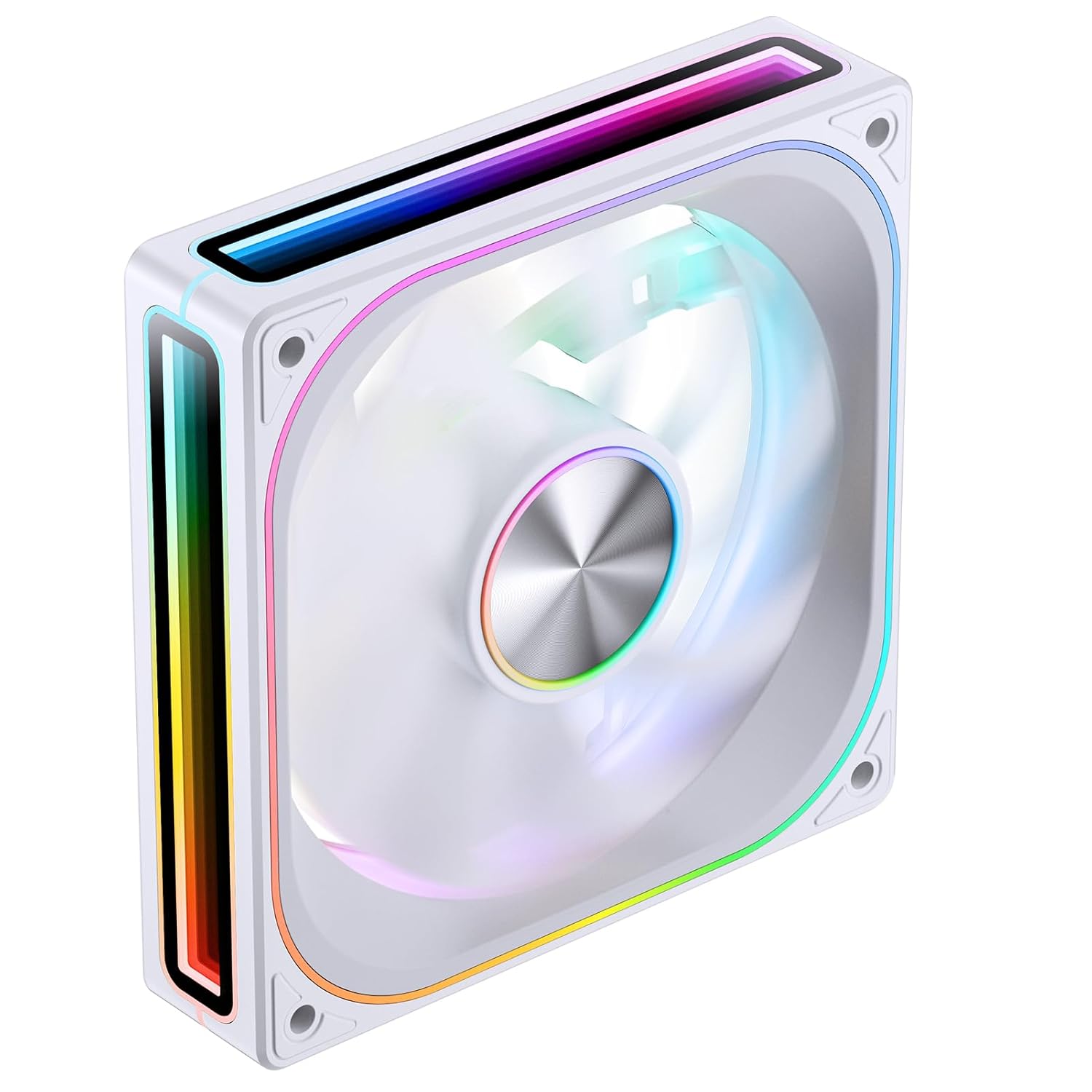
בילד 1.1: פראָנט-געווינקלט view of the JONSBO ZA-120W PC Case Fan, showcasing its white frame and vibrant ARGB infinity mirror lighting.
2. זיכערקייַט אינפֿאָרמאַציע
- Ensure your computer system is powered off and disconnected from the main power supply before installation or maintenance.
- Handle the fan and its components with care to avoid damage.
- Do not attempt to modify the fan or its wiring, as this may void the warranty and pose a safety risk.
- האַלט דעם ווענטילאַטאָר אַוועק פון פליסיקייטן און איבערגעטריבענער נעץ.
- Ensure proper ventilation around the fan to prevent overheating.
- This product is intended for use within a computer chassis. Do not use it for purposes other than its intended design.
3. פּעקל אינהאַלט
באַשטעטיקן אַז אַלע זאכן זענען פאַראַן אין פּעקל:
- JONSBO ZA-120W PC Case Fan (1 unit)
- מאָנטירונג שרויפן (4 איינהייטן)
- באַניצער מאַנואַל (דעם דאָקומענט)
4. ספּעסאַפאַקיישאַנז
| שטריך | באַשרייַבונג |
|---|---|
| מאָדעל נומער | ZA120 W |
| דימענשאַנז | 120 מ״מ x 120 מ״מ x 28 מ״מ (אומגעפער 5.8 x 5 x 1.18 אינטשעס) |
| Rotational Speed (Regular Fan Blade) | 700-2400 רפּם |
| Air Volume CFM (Regular Fan Blade) | 21.46-62.40 קפם |
| Noise Level (Regular Fan Blade) | 21.3-37.3 dB(A) |
| מאַכט קאַנעקטער טיפּ | 4-Pin PWM (Fan), 3-Pin ARGB (Lighting) |
| Voltage | 12 וואלטס (דק) |
| וואָסtage | 120 וואטס (נאטיץ: דאס ווארטtage seems unusually high for a single fan and might refer to a system component or be a typo in the source data. Please refer to product packaging for precise power consumption.) |
| קאָאָלינג אופֿן | געצווונגען לופט |
| ספּעציעלע פֿעיִקייטן | 4-Sides Infinity Mirror, Aluminum CD Pattern Nameplate, Simplified Wiring |
5. סעטאַפּ און ייַנמאָנטירונג
Follow these steps to install your JONSBO ZA-120W PC Case Fan:
5.1 גשמיות ינסטאַלירונג
- צוגרייטן אייער קאמפיוטער: Power off your computer and unplug it from the wall outlet. Open your computer case to access the fan mounting locations.
- אידענטיפיצירן מאָנטירונג אָרט: Determine where you want to install the fan (e.g., front, rear, top, bottom of the case, or on a radiator). Ensure the fan's airflow direction (indicated by arrows on the fan frame) matches your desired cooling configuration.
- Mount the Fan: Position the fan against the mounting holes. Use the provided mounting screws to secure the fan to the case or radiator. Tighten screws evenly but do not overtighten.

בילד 5.1: דערציען view of the JONSBO ZA-120W fan, illustrating the fan blades and the four screw holes for mounting.
5.2 וויירינג קאַנעקשאַנז
The JONSBO ZA-120W fan features simplified wiring with integrated male and female heads for daisy-chaining multiple fans (if applicable to your model) and connecting to the motherboard.
- פאַרבינדן PWM קאַבל: Locate a 4-pin fan header on your motherboard (often labeled "CPU_FAN", "SYS_FAN", or "CHA_FAN"). Connect the fan's 4-pin PWM cable to this header. This allows your motherboard to control the fan speed.
- פאַרבינדן ARGB קאַבל: Locate a 3-pin 5V Addressable RGB header on your motherboard (often labeled "ARGB", "D_LED", or "VDG"). Connect the fan's 3-pin ARGB cable to this header. Ensure the connector's orientation matches the header to avoid damage. Do not connect to a 4-pin 12V RGB header, as this will damage the ARGB lighting.

Image 5.2: Illustration of the simplified wiring, demonstrating how the fan connects to the motherboard with a single line for both power and ARGB control.

Image 5.3: Visual representation of connecting the 3-pin 5V ARGB cable to a compatible motherboard header for synchronized lighting effects.
After all connections are made, carefully close your computer case and reconnect the power supply.
6. אַפּערייטינג ינסטרוקטיאָנס
6.1 פען גיכקייט קאנטראל (PWM)
The JONSBO ZA-120W fan utilizes PWM technology, allowing your motherboard to dynamically adjust the fan speed based on system temperature. This ensures optimal cooling performance while minimizing noise levels when full speed is not required.
- Access your motherboard's BIOS/UEFI settings or use compatible motherboard software (e.g., ASUS AI Suite, MSI Dragon Center, Gigabyte SIV, ASRock A-Tuning) to configure fan curves.
- You can set custom fan profiles to balance between cooling performance and acoustic levels according to your preferences.
6.2 ARGB לייטינג קאָנטראָל
The Addressable RGB lighting of the ZA-120W fan can be controlled and synchronized with other ARGB components in your system via your motherboard's ARGB software. This allows for a wide range of customizable lighting effects and colors.
- Install the appropriate ARGB control software provided by your motherboard manufacturer (e.g., ASUS Aura Sync, MSI Mystic Light Sync, Gigabyte RGB Fusion, ASRock Polychrome Sync).
- Within the software, select the connected ARGB device (your JONSBO fan) and choose from various lighting modes, colors, and effects.
- Ensure your motherboard's ARGB header is enabled in the BIOS/UEFI if necessary.
7. וישאַלט
Regular maintenance helps ensure optimal performance and longevity of your fan.
- באַזייַטיקונג פון שטויב: Periodically (e.g., every 3-6 months), power off your computer and disconnect it from power. Use compressed air or a soft brush to gently remove dust accumulation from the fan blades and frame. Hold the fan blades to prevent them from spinning rapidly during cleaning, which could damage the bearings.
- דורכקוק: קאָנטראָלירט די קאַבלען פֿאַר יעדע סימן פֿון טראָגן אָדער שאָדן. מאַכט זיכער אַז אַלע פֿאַרבינדונגען בלייבן זיכער.
- Do not use liquid cleaners or abrasive materials on the fan.
8. טראָובלעשאָאָטינג
If you encounter issues with your JONSBO ZA-120W fan, refer to the following common problems and solutions:
- פען דרייט זיך נישט:
- Ensure the 4-pin PWM cable is securely connected to a functional fan header on the motherboard.
- Check BIOS/UEFI settings to ensure the fan header is enabled and configured correctly (e.g., not set to "disabled" or "manual 0 RPM").
- Test the fan on a different fan header or with a fan controller if available.
- ARGB לייטינג ארבעט נישט:
- Verify the 3-pin ARGB cable is correctly connected to a 5V ARGB header on the motherboard. Ensure the orientation is correct.
- Confirm that you are using the correct motherboard ARGB software and that it recognizes the fan.
- קריטיש וויכטיק: Ensure it is connected to a 3-pin 5V ARGB header, not a 4-pin 12V RGB header. Connecting to a 12V header will damage the ARGB LEDs.
- Check for any physical damage to the ARGB cable or connector.
- Fan is Too Loud:
- Adjust the fan curve settings in your motherboard's BIOS/UEFI or software to reduce fan speed at lower temperatures.
- זיכער מאַכן אַז דער ווענטילאַטאָר איז זיכער מאָנטירט און נישט וויברירט קעגן דעם קעסטל.
- Clean any dust accumulation on the fan blades.
9. וואָראַנטי אינפֿאָרמאַציע
JONSBO products are covered by a manufacturer's warranty against defects in materials and workmanship. The specific terms and duration of the warranty may vary by region and retailer. Please retain your proof of purchase for warranty claims.
For detailed warranty information, please refer to the warranty card included with your product or visit the official JONSBO webפּלאַץ.
10. שטיצן
If you require further assistance or have questions not covered in this manual, please contact JONSBO customer support or your retailer.
- JONSBO Official Webפּלאַץ: www.jonsbo.com (for product information and support resources)
- שטיצע פֿאַר פֿאַרקויפֿער: Contact the store or online vendor where you purchased the product.