
1. הקדמה
This manual provides detailed instructions for the setup, operation, and maintenance of your Transformers GK01 Wireless Mechanical Keyboard. The GK01 is a versatile keyboard featuring tri-mode connectivity (Bluetooth 5.0, 2.4GHz wireless, and USB-C wired), a 101-key layout, RGB backlighting, and hot-swappable switches for a customizable typing experience.

Figure 1.1: Transformers GK01 Wireless Mechanical Keyboard.
2. פּעקל אינהאַלט
ביטע באַשטעטיקן אַז אַלע זאכן וואָס זענען ליסטעד אונטן זענען אַרייַנגערעכנט אין דיין פּעקל:
- Transformers GK01 Wireless Mechanical Keyboard
- וסב-C צו וסב-א קאַבלע
- 2.4GHz ווירעלעס USB דאָנגלע
- 2-אין-1 קייקאַפּ און סוויטש פּולער
- באַניצער מאַנואַל (דעם דאָקומענט)
- Spare Switches (2 pieces)
- קלאַוויאַטור קאָווער
3. סעטאַפּ און קאַנעקשאַן
3.1. Tri-Mode Connection Overview
The GK01 keyboard supports three connection modes: USB-C wired, 2.4GHz wireless, and Bluetooth 5.0. You can connect to up to five devices simultaneously and switch between them seamlessly.

Figure 3.1: Tri-Mode Connection Capabilities.
3.2. USB-C ווייערד קאַנעקשאַן
- געפינט דעם USB-C פּאָרט אויף דער קלאַוויאַטור.
- פֿאַרבינדט איין עק פֿון דעם צוגעשטעלטן USB-C קאַבל צום קלאַוויאַטור.
- פֿאַרבינדט דעם אַנדערן עק פֿונעם USB-C קאַבל צו אַ פֿאַראַן USB-A פּאָרט אויף אײַער קאָמפּיוטער.
- די קלאַוויאַטור וועט ווערן אויטאָמאַטיש דערקענט און גרייט פֿאַר באַנוץ.
3.3. 2.4GHz ווירעלעס פֿאַרבינדונג
- Locate the 2.4GHz wireless USB dongle.
- Plug the dongle into an available USB-A port on your computer.
- On the keyboard, ensure the mode switch (usually on the side or back) is set to 2.4GHz mode.
- די קלאַוויאַטור זאָל זיך אויטאָמאַטיש פֿאַרבינדן. אויב נישט, דריק פן + ר צו אָנהייבן פּערינג.

Figure 3.2: USB-C Port and 2.4GHz Dongle Location.
3.4. בלועטוט 5.0 פֿאַרבינדונג
The keyboard supports connecting to up to three Bluetooth devices (BT1, BT2, BT3).
- On the keyboard, set the mode switch to Bluetooth mode.
- כדי אריינצוגיין אין פארבינדונג מאָדוס פאר א ספעציפישן בלועטוט קאַנאַל, דריק און האַלט Fn + Q (פֿאַר BT1), פן + וו (פֿאַר BT2), אָדער Fn + E (for BT3) for 3-5 seconds until the indicator light flashes rapidly.
- On your device (PC, tablet, smartphone), open Bluetooth settings and search for new devices.
- Select "Transformers GK01" from the list of available devices.
- Once connected, the indicator light on the keyboard will stop flashing.
- צו בייטן צווישן פארבינדענע בלוטוט דעווייסעס, דריק פשוט Fn + Q, פן + וו, אָדער Fn + E.
4. יקערדיק אָפּעראַציע
4.1. Keyboard Layout and Anti-Ghosting
The GK01 features a 101-key layout, providing a full set of keys including a numeric keypad. All keys are equipped with anti-ghosting technology, ensuring that every keystroke is registered accurately, even when multiple keys are pressed simultaneously.
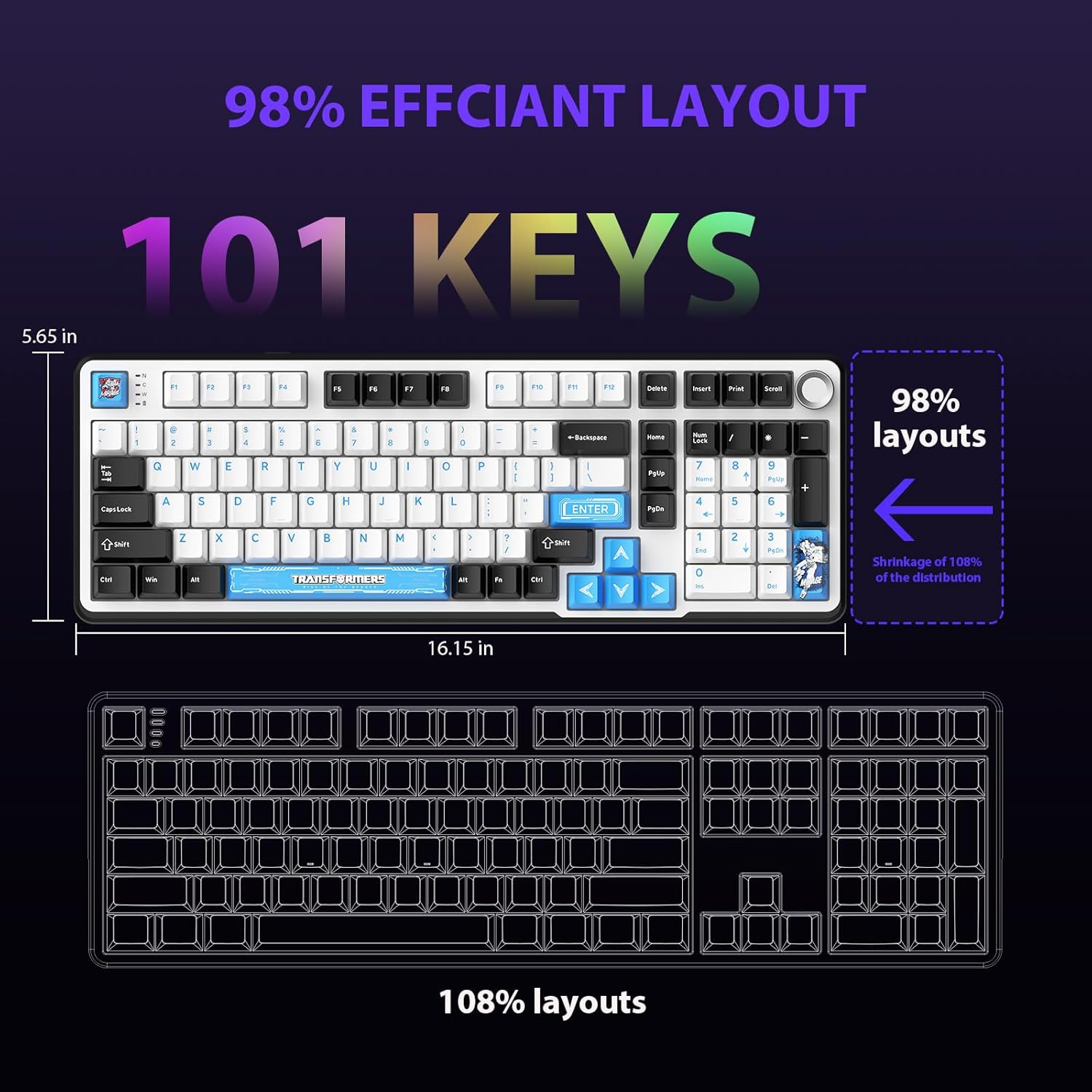
Figure 4.1: 101-Key Layout.
4.2. Multimedia Control Knob
The dedicated knob located on the top right of the keyboard provides convenient multimedia control:
- דרייען זייגערווייז: פאַרגרעסערן באַנד.
- דרייען קעגן זייגער: פאַרמינערן באַנד.
- דרוק אַראָפּ: שטום/אויפֿשטום מאַכן אַודיאָ.
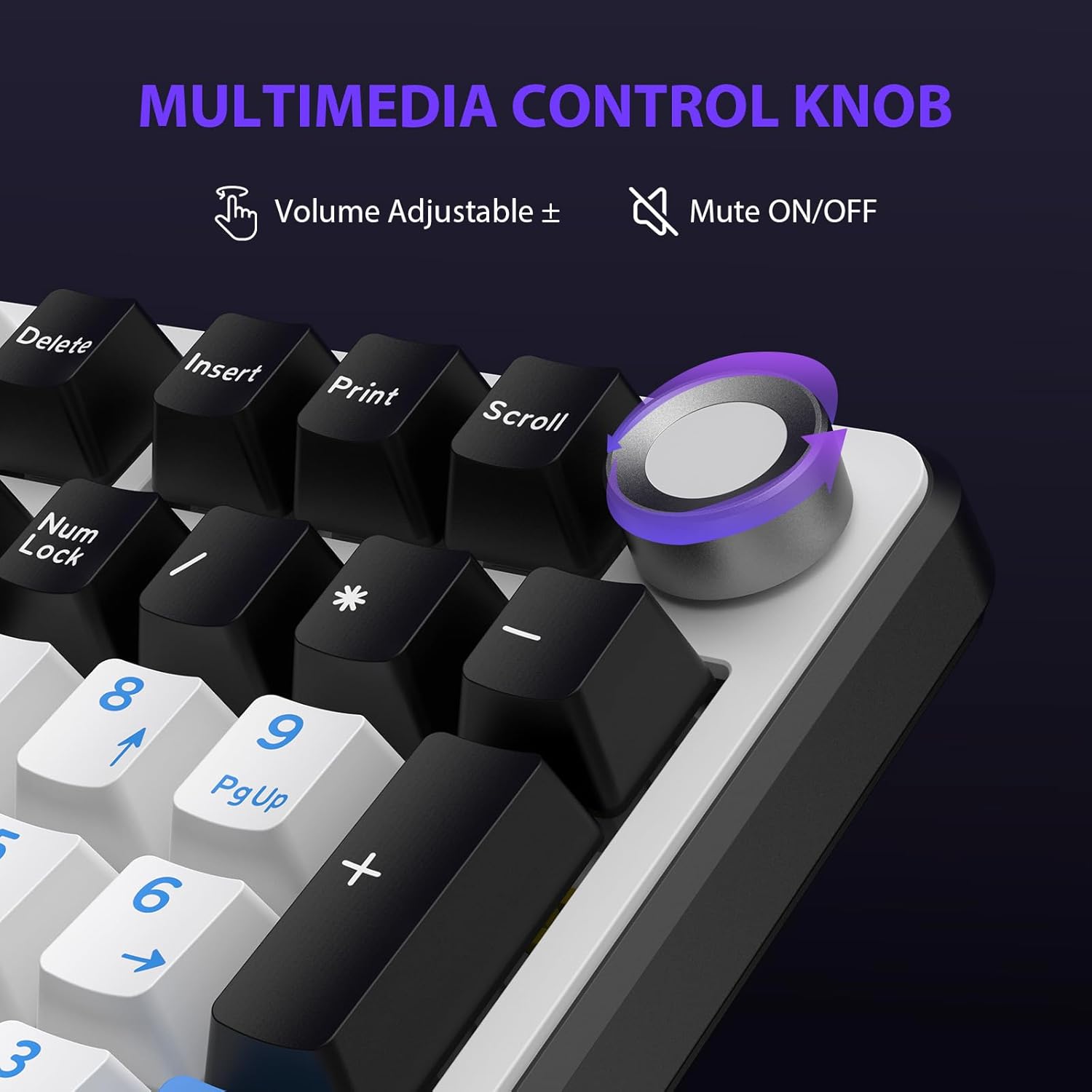
Figure 4.2: Multimedia Control Knob.
4.3. RGB באַקלייט קאָנטראָל
The GK01 keyboard features 16.8 million color RGB backlighting with various effects.
- Fn + [Right Arrow]: Adjust 5 brightness levels.
- Fn + [Left Arrow]: Adjust 5 speed levels for dynamic effects.
- Fn + [אַרייַנלייגן]: Switch between 20 different backlight modes.
- Fn + [אַרייַן]: Switch color order within certain modes.
- Fn + [X]: Turn off light / activate power-saving mode.
- Fn + [backspace]: Switch color order within certain modes.

Figure 4.3: RGB Backlight Controls.
5. אַוואַנסירטע פֿעיִקייטן
5.1. הייס-סוואַפּאַבל סוויטשיז
The GK01 keyboard is equipped with pre-lubricated Cybertron linear switches and supports solder-free hot-swapping. This allows you to easily replace switches with compatible 3-pin or 5-pin mechanical switches without soldering.
צו פארטרעטן א סוויטש:
- Using the provided 2-in-1 keycap and switch puller, gently remove the keycap from the desired switch.
- Insert the switch puller onto the switch, ensuring it grips the top and bottom clips of the switch.
- ציעט דעם סוויטש גלייך ארויף כדי עס ארויסצונעמען פונעם PCB.
- גלייכט אויס די פּינס פון דעם נייעם סוויטש מיט די לעכער אויף דער פּקב. מאַכט זיכער אַז די פּינס זענען גלייך כּדי נישט צו בייגן זיך.
- דריק דעם נייעם סוויטש פעסט אין פלאץ ביז עס קליקט.
- לייג צוריק צו דעם שליסל.

Figure 5.1: Hot-Swappable Switch Replacement.
5.2. פּראָגראַמירבאַרע ווייכווארג
The GK01 supports custom software for advanced customization, including key remapping, macro creation, and detailed RGB lighting effects.
- The software is compatible only with the Windows operating system.
- The keyboard must be connected via USB-C wired mode to use the software.
- For driver download, please visit the official Transformers Keyboard website or refer to the link provided in the product packaging.
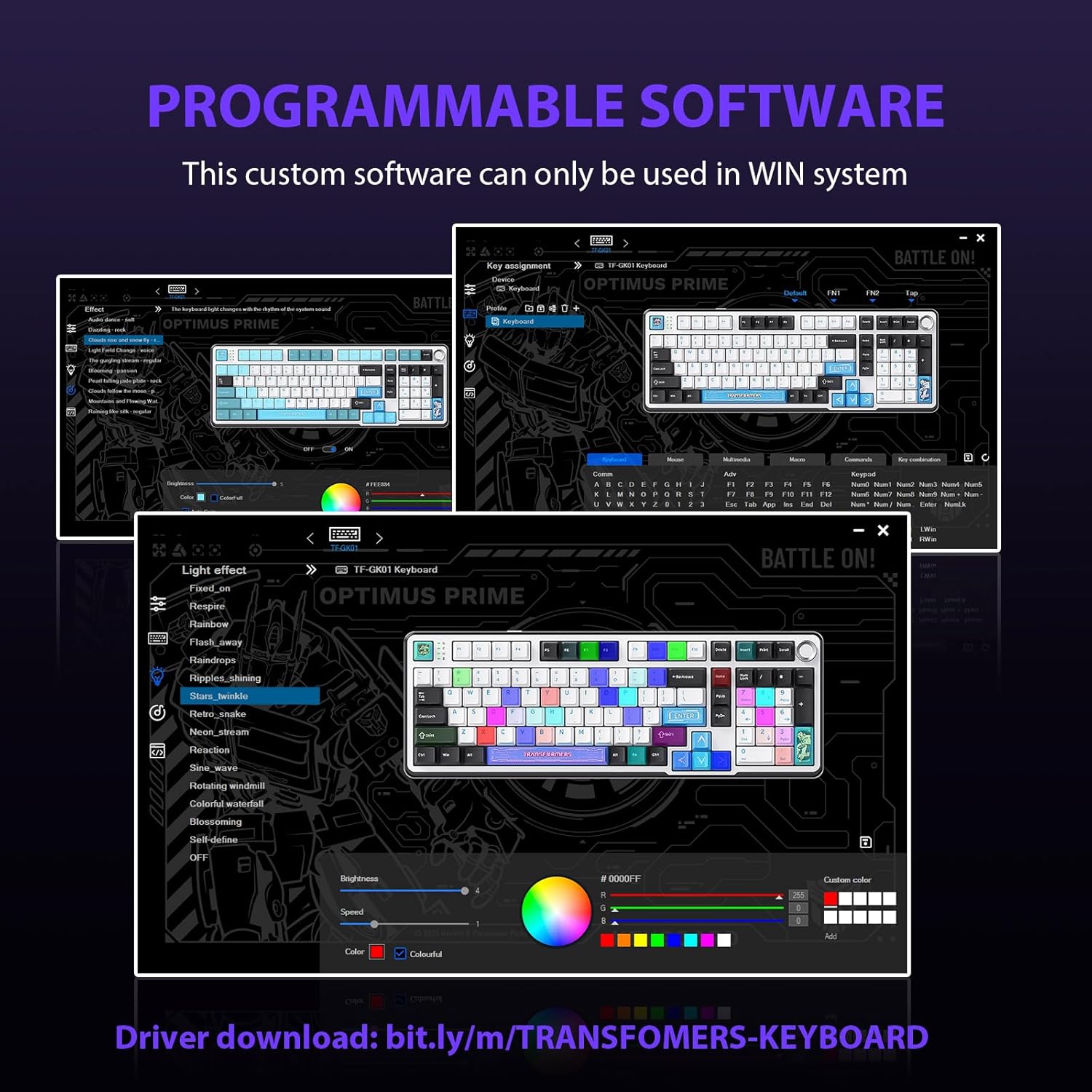
Figure 5.2: Programmable Software Interface.
5.3. Gasket Mounted Structure
The keyboard features a five-layer sound-absorbing and shock-absorbing gasket mounted structure. This design effectively reduces hollow noise and provides a softer, more consistent typing feel by isolating the plate from the case.
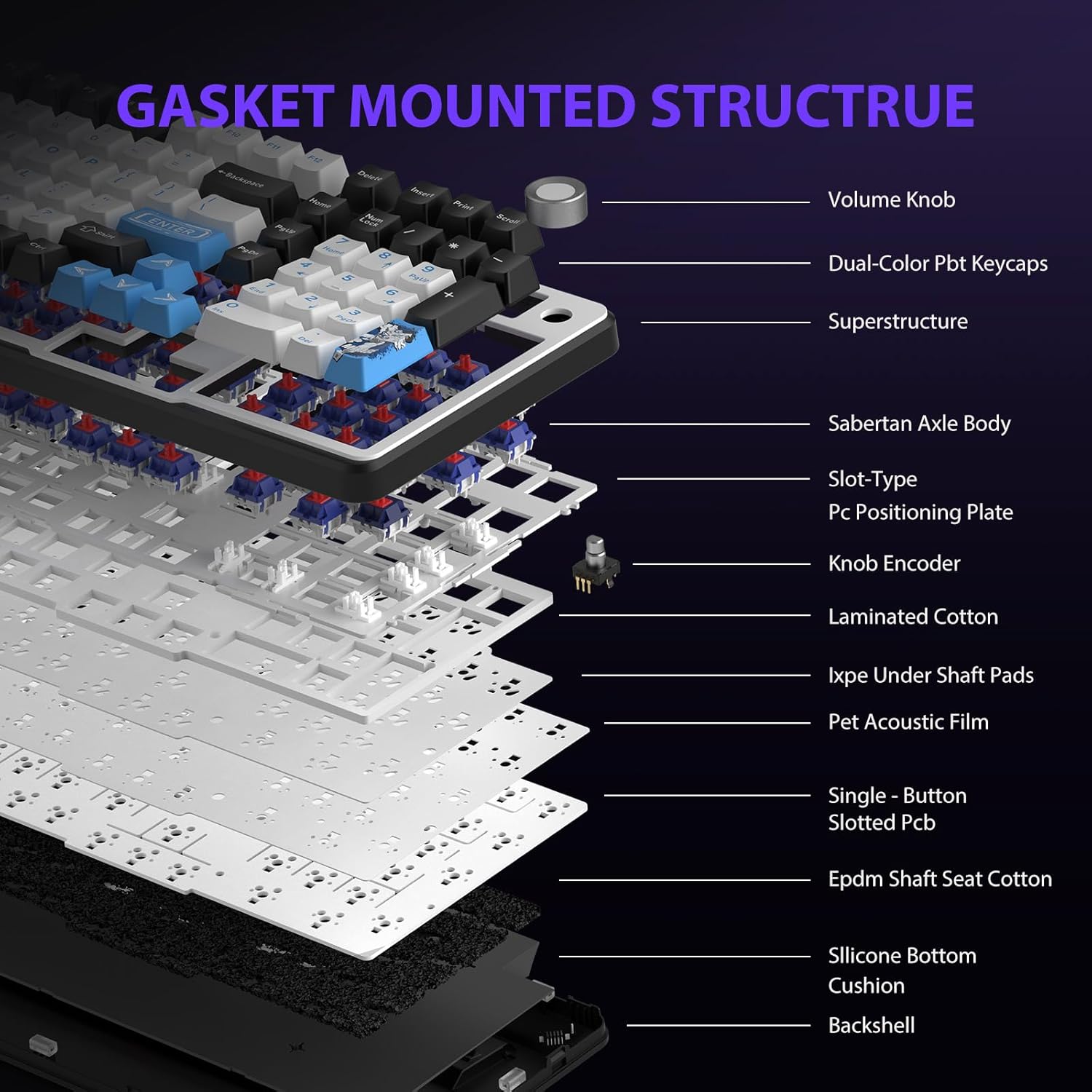
Figure 5.3: Gasket Mounted Structure Components.
6. באַטערי מאַנאַגעמענט
The GK01 keyboard is equipped with a 4000mAh rechargeable battery.
- טשאַרדזשינג: Connect the keyboard to a USB power source using the provided USB-C cable. The indicator light will show charging status.
- באַטאַרייע לעבן: A fully charged battery provides extended usage time. Actual battery life may vary based on usage patterns and RGB lighting intensity.
- מאַכט שפּאָרן: The keyboard will enter a power-saving sleep mode after a period of inactivity to conserve battery. Press any key to wake it up.
7. וישאַלט
7.1. רייניקן די קלאַוויאַטור
- טרענט אפ די קלאַוויאַטור פון אַלע מאַכט קוועלער איידער רייניקונג.
- ניצן אַ ווייך, לינט-פֿרייַ שטאָף אַ ביסל דampאָפּגעווישט מיט וואַסער אָדער אַ מילדער רייניקונג לייזונג צו ווישן די קלאַוויאַטורן און שאַסי.
- פֿאַר שטויב און שמוץ צווישן די קלאַוויאַטורן, ניצט קאָמפּרעסירטע לופט אָדער אַ קליין באַרשט.
- ויסמיידן ניצן האַרב קעמיקאַלז אָדער אַברייסיוו מאַטעריאַלס.
7.2. Keycap and Switch Care
- The PBT keycaps are designed for durability and fade resistance.
- Refer to Section 5.1 for instructions on safely removing and replacing keycaps and switches.
- Ensure the keyboard feet are clean and free of debris for stable placement.

Figure 7.1: Adjustable Keyboard Feet.
8. טראָובלעשאָאָטינג
| פּראָבלעם | מעגלעך סיבה | לייזונג |
|---|---|---|
| די קלאַוויאַטור רעאַגירט נישט אין וויירלעס מאָדע. | Low battery, incorrect mode selected, dongle not connected, Bluetooth not paired. | Charge the keyboard. Ensure the mode switch is set correctly (2.4GHz or BT). Re-insert the 2.4GHz dongle. Re-pair Bluetooth connection. Try wired mode to confirm keyboard functionality. |
| שליסלען רעגיסטרירן זיך נישט אדער טייפן נישט צוויי מאל. | Loose switch, software issue, debris under keycap. | Ensure switches are fully seated. Clean under keycaps. If using programmable software, ensure it's updated or try resetting keyboard settings. |
| RGB backlight not working or stuck. | Backlight turned off, software conflict. | דרוק Fn + X to toggle backlight. Check programmable software settings. |
| קען נישט פאַרבינדן דורך בלוטוט. | קלאַוויאַטור נישט אין פּערינג מאָדע, מיטל בלועטוט אויסגעלאָשן, שטערונג. | Ensure keyboard is in Bluetooth pairing mode (Fn + Q/W/E long press). Ensure device Bluetooth is on and discoverable. Move closer to the device. |
9. ספּעסאַפאַקיישאַנז
| שטריך | דעטאַל |
|---|---|
| מאָדעל נומער | TF-GK01 |
| קאַנעקטיוויטי | בלועטוט 5.0, 2.4GHz ווירעלעס, USB-C מיט ווייערס |
| קלאַוויאַטור טיפּ | מעטשאַניקאַל |
| אויסלייג | 101 Keys (Full-size) |
| סוויטשיז | Pre-lubed Cybertron Linear Switches, Hot-Swappable (3-pin/5-pin compatible) |
| קייקאַפּס | Heat-sublimated PBT |
| באַקלייט | RGB (16.8 Million Colors, 20 modes, music rhythm effects via driver) |
| באַטאַרייע קאַפּאַציטעט | 4000 מאַה |
| פּראָדוקט דימענשאַנז | 16.15 X 5.65 X 1.63 אינטשעס (41.02 X 14.35 X 4.14 סענטימעטער) |
| פּונקט וואָג | 2.24 פונט (1.02 קג) |
| קאַמפּאַטאַבאַל דעוויסעס | לאַפּטאָפּ, פּיסי, סמאַרטפאָון, טאַבלעט |
| ספּעציעלע פֿעיִקייטן | Anti-Ghosting (all keys), Multimedia Control Knob, Programmable Keys (via software), Rechargeable |
10. וואָראַנטי און שטיצן
For information regarding warranty coverage, technical support, or service inquiries, please refer to the warranty card included with your product or visit the official Transformers Keyboard webפּלאַץ.
פאַבריקאַנט: טראַנספאָרמערס