
1. הקדמה
This manual provides essential information for the safe and efficient use of your BOOX Go 7 ePaper Tablet. Please read it thoroughly before operating the device and retain it for future reference.

Figure 1.1: BOOX Go 7 ePaper Tablet
2. זיכערקייַט אינפֿאָרמאַציע
- שטעלט נישט אויס דעם אפאראט צו עקסטרעמע טעמפעראטורן, דירעקטע זונשייַן, אדער הויכע הומידיטי.
- ויסמיידן דראַפּינג אָדער אונטערטעניק די מיטל צו שטאַרק ימפּאַקץ.
- ניצן בלויז די צוגעשטעלט וסב קאַבלע פֿאַר טשאַרדזשינג.
- Keep the device away from water and liquids, despite its water-repellent features.
- Do not attempt to disassemble or repair the device yourself. Contact authorized service personnel.
3. פּעקל אינהאַלט
באַשטעטיקן אַז אַלע זאכן זענען פאַראַן אין פּעקל:
- BOOX Go 7 ePaper Tablet
- וסב קאַבלע
- שנעלע אָנהייב גייד (קען זיין אַנדערש לויט ראַיאָן)

Figure 3.1: BOOX Go 7 Package Contents
4. דיווייס איבערview
4.1 פיזישע קאָמפּאָנענטן
Familiarize yourself with the main components of your BOOX Go 7 tablet:
- E Ink Screen: 7-inch monochrome display with 300 ppi resolution.
- פראָנט ליכט: Adjustable illumination for reading in various lighting conditions.
- בלאַט-דריי קנעפּלעך: Ergonomically designed buttons for easy navigation.
- וסב- C פּאָרט: פֿאַר טשאַרדזשינג און דאַטן אַריבערפירן.
- מאַכט קנעפּל: Located on the top edge.
- געבויט-אין מיקראָפאָן: פֿאַר אַודיאָ אַרייַנשרייַב.
- איינגעבויטע צוויי-רעדנער: פֿאַר אַודיאָ רעזולטאַט.

Figure 4.1: Page-Turn Buttons and Water-Repellent Protection
5. סעטאַפּ
5.1 ערשט טשאַרדזשינג
Before first use, fully charge your BOOX Go 7 tablet. Connect the provided USB-C cable to the device and a compatible power adapter (not included) or a computer's USB port. The charging indicator will show the charging status.
5.2 מאַכט אויף / אַוועק
- צו מאַכט אויף: Press and hold the Power button until the BOOX logo appears.
- צו מאַכט אַוועק: דריק און האלט דעם פּאַוער קנעפּל, און דערנאָך סעלעקטיר "פּאַוער אויס" פֿון די אָפּציעס אויף דעם עקראַן.
- צו שלאפן/אויפוואכן: דריקן בעקיצער די מאַכט קנעפּל.
5.3 נעץ פֿאַרבינדונג (Wi-Fi)
- From the home screen, swipe down from the top to access the Quick Settings panel.
- צאַפּן דעם Wi-Fi בילדל צו אַקטיווירן Wi-Fi.
- Tap and hold the Wi-Fi icon to open Wi-Fi settings.
- אויסקלייבן אייער געוואונטשענע נעץ פון דער ליסטע און אַרייַן די פּאַראָל אויב געבעטן.
- אַמאָל פארבונדן, וועט די Wi-Fi בילדל אָנווייַזן אַ געראָטן פֿאַרבינדונג.
6. אַפּערייטינג ינסטרוקטיאָנס
6.1 יקערדיק נאַוויגאַציע
- טאָוטשסקרעען: Tap, swipe, and pinch to navigate menus, open applications, and interact with content.
- בלאַט-דריי קנעפּלעך: Use the physical buttons on the side to turn pages in documents and books.
6.2 Reading Documents and Books
The BOOX Go 7 supports various document formats. Open your desired file from the library. Use the page-turn buttons or swipe gestures to navigate through pages. Adjust font size, contrast, and frontlight settings for optimal reading comfort.
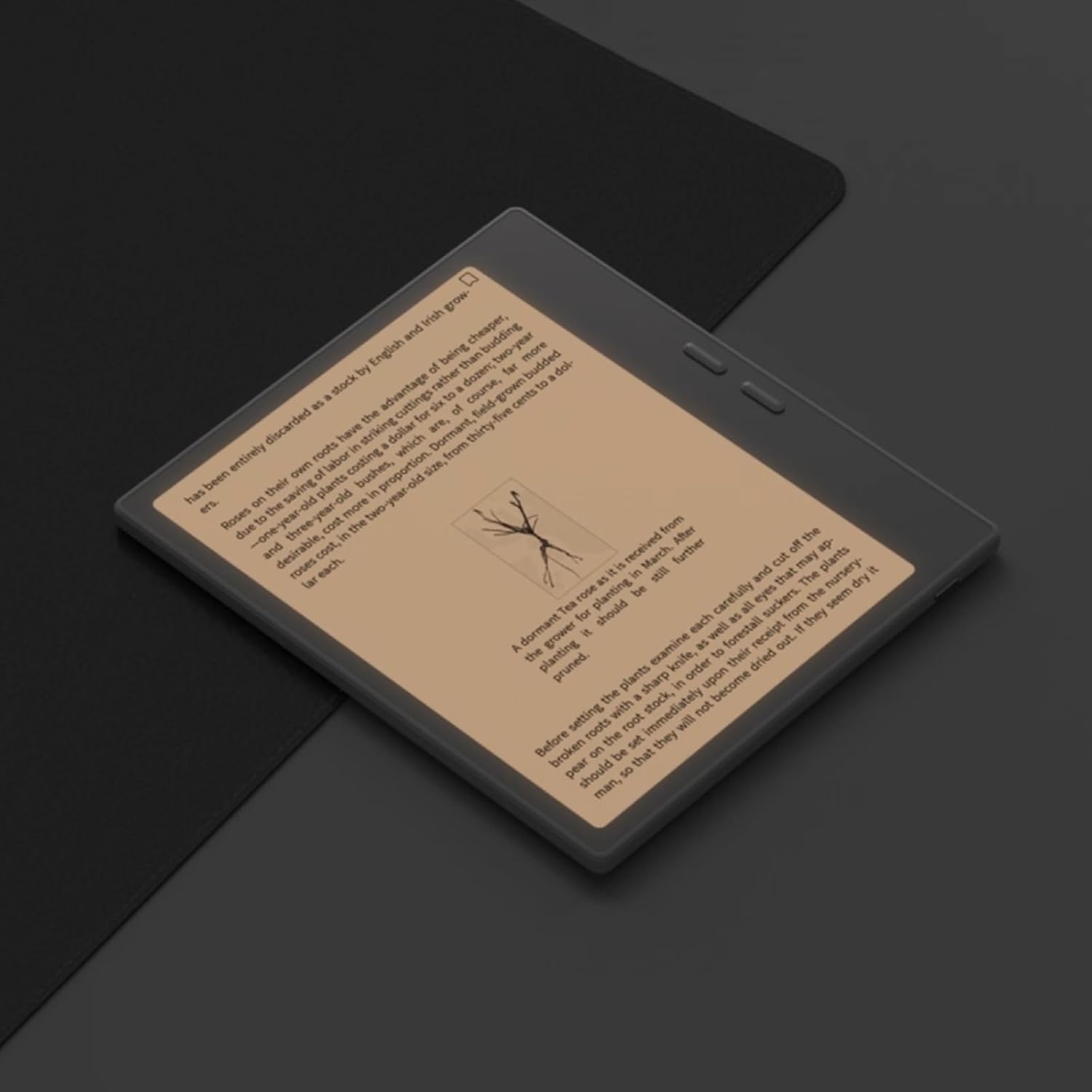
Figure 6.1: Reading with Frontlight
6.3 Using Android Applications
As an Android 13 device, the BOOX Go 7 allows installation of various applications from the Google Play Store. Navigate to the App Store, search for your desired application, and install it. Note that some applications may not be fully optimized for ePaper displays.

Figure 6.2: Various Android Applications on BOOX Go 7
6.4 Note-Taking and Drawing
Utilize the stylus (if included or purchased separately) for note-taking, sketching, and annotating documents. The device offers various templates and tools for creative and organizational tasks.

Figure 6.3: Stylus Use for Note-Taking

Figure 6.4: Handwriting to Text Conversion
7. וישאַלט
7.1 רייניקונג די מיטל
Use a soft, lint-free cloth to gently wipe the screen and body of the device. Do not use harsh chemicals, abrasive cleaners, or excessive moisture.
7.2 ווייכווארג דערהייַנטיקונגען
Regularly check for and install software updates to ensure optimal performance and access to new features. Connect to Wi-Fi and navigate to סעטטינגס> סיסטעם> סיסטעם דערהייַנטיקן צו קאָנטראָלירן פֿאַר פֿאַראַן דערהייַנטיקונגען.
8. טראָובלעשאָאָטינג
- מיטל נישט קער אויף: זיכער מאַכן אַז די דעווייס איז אויפגעלאָדן. פֿאַרבינדט עס צו אַ שטראָם מקור און פּרוּווט ווידער.
- עקראַן רעאַגירט נישט: Perform a soft reset by holding the Power button for 10-15 seconds.
- ווי-פי קשר ישוז: Verify your Wi-Fi password and router settings. Try restarting your router and the device.
- אַפּליקאַציעס קראַשן: Ensure applications are updated to their latest versions. Clear the app's cache or reinstall if issues persist.
9. ספּעסאַפאַקיישאַנז
| סאָרט | BOOX |
| מאָדעל נאָמען | גיין צו 7 |
| סטאָרידזש קאַפּאַסיטי | 64 גיגאבייט |
| פאַרשטעלן גרייס | 7 אינטשעס |
| מאַקסימום דיספּליי רעזאָלוציע | 300 Pixels per inch |
| אָפּערייטינג סיסטעם | אַנדרויד 13 |
| קאָליר | Noir (Black) |
| אינסטאַלירטע ראַם גרייס | 4 גיגאבייט |
| ספּעציעלע פֿעיִקייטן | USB OTG support, Expandable storage, Stylus support |
| מאָדעל יאָר | 2025 |
| באַטערי טיפּ | ליטהיום-יאָן |
| באַטעריע ענערגיע אינהאַלט | 8.8 וואט-שעה |
| פּראַסעסער סאָרט | Qualcomm |
| פּראַסעסער באַשרייַבונג | Qualcomm Snapdragon |
| אַפּאַראַט | קיין אַפּאַראַט |
| סענסאָר טיפּ | גיראָסקאָפּע |
| Item Dimensions (LxWxT) | 15.6L x 0.6W x 13.7T centimeters |
| אַרייַנשרייַב אופֿן | Touchscreen with stylus |
| גראַפיקס קאַרד באַשרייַבונג | ינטעגראַטעד |
| קאַמפּאַטאַבאַל דעוויסעס | סטילוס |
| ווייַז טיפּ | עלעקטראָניש טינט |
| פאַרשטעלן האַכלאָטע | 1280 X 800 בילדצעלן |
| אַספּעקט פאַרהעלטעניש | 16:10 |
| ייַזנוואַרג קאַנעקטיוויטי | וסב |
| ווירעלעסס טעכנאָלאָגיע | Bluetooth, Wi-Fi (802.11ax) |
| גאַנץ וסב פּאָרץ | 1 |

Figure 9.1: BOOX Go 7 Energy Label (EPREL לינק)
10. וואָראַנטי אינפֿאָרמאַציע
The BOOX Go 7 ePaper Tablet comes with a 2-יאָר לימיטעד וואָראַנטי. This warranty covers manufacturing defects under normal use. For specific terms and conditions, please refer to the warranty card included in your package or contact customer support.
די נאָרמאַלע צוריקקער פּאָליטיק ערלויבט צוריקקערן ין 30 טעג פון קויפן פֿאַר אַ צוריקצאָל אָדער פאַרבייַט.
11. שטיצן
For technical assistance, troubleshooting, or warranty claims, please contact BOOX customer service. You can find support resources and submit inquiries through the official BOOX help center.
- Firmware דערהייַנטיקונגען: BOOX commits to at least 3 years of firmware updates for each product.
- וואָלקן סטאָרידזש: 10 GB of free cloud storage is provided for each user.
- ענטפער צייט: Customer inquiries are typically responded to within 24 hours.
פֿאַר מער אינפֿאָרמאַציע, באַזוכן די BOOX Brand Store on Amazon.