
1. הקדמה
This manual provides comprehensive instructions for the WiMiUS K13 4K Google TV Projector. Designed for a superior visual experience, this projector integrates advanced features for both entertainment and professional use. Key functionalities include native 1080p resolution with 4K support, 1500 ANSI lumens brightness, automatic focus and keystone correction, and an integrated Google TV system for seamless access to a wide range of applications.
ביטע ליינט דעם מאַנואַל גרינטלעך איידער איר ניצט דעם מיטל צו ענשור ריכטיק נוצן און צו מאַקסאַמיזירן זיין פאָרשטעלונג און לאַנגלעבעדיקייט.
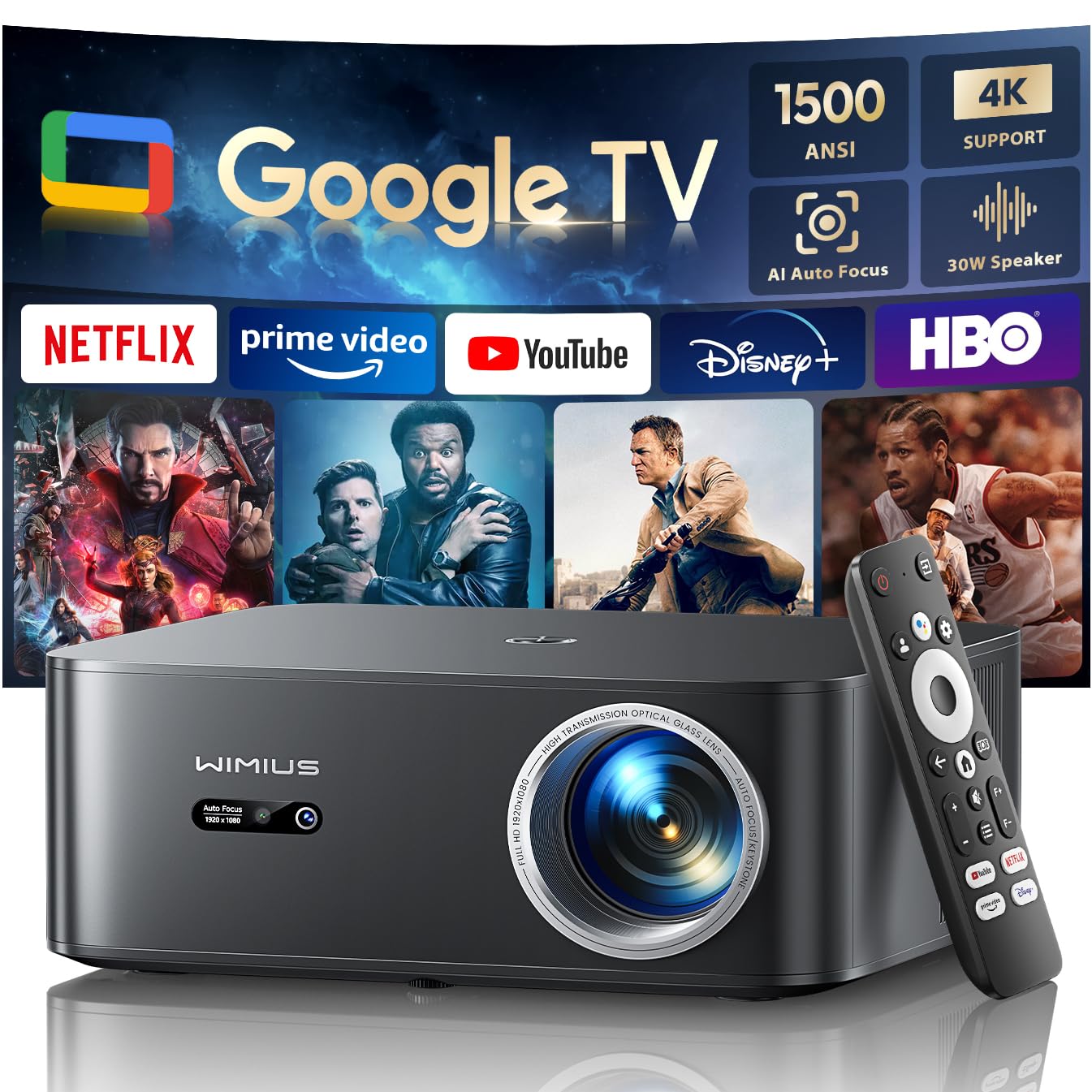
Figure 1: WiMiUS K13 4K Google TV Projector
2. סעטאַפּ גייד
2.1 אויספּאַקן און פּאַקעט אינהאַלט
נעמט פֿאָרזיכטיק אַרויס אַלע קאָמפּאָנענטן פֿון דער פּאַקעט. באַשטעטיקט אַז אַלע זאַכן זענען פֿאַראַן:
- WiMiUS K13 פּראָיעקטאָר
- ווײַטקאָנטראָל (AAA באַטעריעס נישט אַרייַנגערעכנט)
- מאַכט קאַבלע
- HDMI קאַבלע
- באַניצער מאַנואַל
2.2 פּלייסמאַנט
Position the projector on a stable, flat surface. For optimal image quality, ensure the projector lens is perpendicular to the projection surface. Recommended projection distance is 2.5 to 3 meters for a large screen size.
- טאַבלעטאָפּ מאַונטינג: Place the projector on a table or stand.
- סופיט / וואַנט מאַונטינג: The projector features M5 screw holes for compatible ceiling or wall mounts. Ensure the mount is securely installed and can support the projector's weight.
- Tripod Mounting: The K13 projector does not have dedicated tripod mounting holes. Use a tripod equipped with a tray to support the projector.
2.3 מאַכט קאַנעקשאַן
Connect the power cable to the projector's power input port, then plug the other end into a power outlet. The power indicator light will illuminate.
2.4 ערשטע איינשטראָם און גרונטלעכע סעטאַפּ
Press the power button on the projector or remote control to turn on the device. Upon first use, follow the on-screen prompts to:
- אויסקלייַבן דיין בילכער שפּראַך.
- Connect to a Wi-Fi network (2.4G or 5G) for internet access.
- Log in with your Google account to access Google TV features and applications.
2.5 אויטאָמאַטישער פאָקוס און קיסטאָון קערעקשאַן
The WiMiUS K13 projector is equipped with automatic focus and keystone correction. After powering on or moving the projector, it will automatically adjust the image to achieve a clear, rectangular display. Manual adjustments are also available in the settings menu if needed.
3. אַפּערייטינג ינסטרוקטיאָנס
3.1 Remote Control and Google Voice Assistant
Use the provided remote control to navigate the Google TV interface. The remote includes dedicated buttons for popular streaming services like Netflix, Prime Video, YouTube, and Disney+. Utilize the integrated Google Voice Assistant by pressing the microphone button on the remote and speaking commands to search for content, adjust volume, or launch applications.
3.2 Google TV and Application Usage
The projector runs on an officially certified Android 11.0 Google TV system, providing access to over 10,000 applications from the Google Play Store. Navigate through the home screen to find installed apps or download new ones. Ensure a stable internet connection for optimal streaming performance.
3.3 סקרין מירערינג
דער פּראָיעקטאָר שטיצט וויירלעסס סקרין שפּיגלונג פֿון פֿאַרשידענע דעווייסעס:
- AirPlay (iOS devices): Connect your iOS device and the projector to the same Wi-Fi network. Select the AirPlay option on your iOS device and choose the projector from the list of available devices.
- Miracast (Android/Windows devices): Enable Miracast or Screen Mirroring on your Android or Windows device. Select the projector from the detected devices.
3.4 קאַנעקטינג פונדרויסנדיק דעוויסעס
The WiMiUS K13 offers multiple connectivity options:
- HDMI פּאָרץ: Connect gaming consoles, laptops, Blu-ray players, or other HDMI-enabled devices. Select the corresponding HDMI input from the projector's source menu.
- וסב פּאָרץ: אַרײַנשטעלן USB דרייווז צו שפּילן מעדיע files (videos, photos, documents like PPT, Excel, Word).
- 3.5 מם אַודיאָ רעזולטאַט: Connect external headphones or speakers via the audio jack.
3.5 אַודיאָ רעזולטאַט
The projector features integrated 20W speakers for clear audio. For enhanced sound, you can connect external audio systems:
- בלועטאָאָטה 5.2: פארבינדט זיך מיט בלועטוט רעדנערס אדער כעדפאָונז פאר ווייערלעס אודיאָ.
- הדמי קרייַזבויגן: Connect to a soundbar or AV receiver that supports HDMI ARC for simplified audio setup and control.
3.6 פארגרעסער פֿונקציע
Adjust the screen size from 50% to 100% using the digital zoom function in the settings menu. This allows you to resize the image without physically moving the projector.

Figure 2: Outdoor movie experience with the WiMiUS K13 Projector

Figure 3: Outdoor sports viewing with the WiMiUS K13 Projector
4. וישאַלט
4.1 לינז רייניקונג
Gently clean the projector lens with a soft, lint-free cloth or a lens cleaning brush. Avoid using abrasive materials or harsh chemicals, which can damage the lens coating.
4.2 Ventilation Care
Ensure the projector's ventilation openings are clear and unobstructed to prevent overheating. Regularly check for dust accumulation and clean as necessary using a soft brush or compressed air.
4.3 סטאָרידזש
ווען נישט אין באַנוץ פֿאַר לענגערע פּעריאָדן, זאָל מען האַלטן דעם פּראָיעקטאָר אין אַ קיל, טרוקן און שטויב-פֿרייער סביבה. ניצט די אָריגינעלע פּאַקאַדזשינג אָדער אַ פּראַטעקטיוו קעסטל צו פֿאַרמייַדן שאָדן.
5. טראָובלעשאָאָטינג
אויב איר טרעפט פּראָבלעמען מיט אייער WiMiUS K13 פּראָיעקטאָר, זעט די פאלגענדע געוויינטלעכע פּראָבלעמען און לייזונגען:
| פּראָבלעם | מעגלעך סיבה | לייזונג |
|---|---|---|
| קיין בילד געוויזן | Power cable disconnected, incorrect input source, device not powered on. | Check power connection, ensure projector is on, select correct HDMI/USB input. |
| די בילד איז בלערי | Out of focus, lens dirty, projector moved. | Allow auto-focus to adjust, clean the lens, manually adjust focus if needed. |
| בילד איז פארדרייט (טראפעזיום פאָרעם) | פּראָיעקטאָר נישט פּערפּענדיקולאַר צום עקראַן. | Allow auto-keystone correction to adjust, manually adjust keystone in settings. |
| קיין געזונט | Volume too low, incorrect audio output selected, external device audio issue. | Increase volume, check audio output settings (internal, Bluetooth, HDMI ARC), verify external device audio. |
| קען נישט פאַרבינדן צו Wi-Fi/Bluetooth | אומרעכט פּאַראָל, אַרויס פון קייט, נעץ פּראָבלעם. | Verify password, move closer to router/device, restart projector and router/device. |
| ווייַט קאָנטראָל נישט ריספּאַנדינג | Low batteries, obstruction, remote not paired. | טוישט די באַטעריעס, אַראָפּנעמט שטערונגען, און פאַרבינדט די ווײַטקאָנטראָלירטע סיסטעם אויב נייטיק. |
6. ספּעסאַפאַקיישאַנז
Detailed technical specifications for the WiMiUS K13 Projector:
| שטריך | דעטאַל |
|---|---|
| סאָרט | WiMiUS |
| נומער מאָדעל נומער | K13 |
| קאָליר | שוואַרץ |
| פּראָדוקט טיפּ | פּאָרטאַטיוו פּראַדזשעקטער |
| ווייַז האַכלאָטע | 1920 x 1080 (Native Full HD) |
| מאַקסימום ווייַז האַכלאָטע | 4096 x 2160 Pixels (4K Support) |
| ווייַז טיפּ | לקד |
| ברייטנאַס | 1500 אַנסי לומענס |
| קאַנעקטיוויטי טעכנאָלאָגיע | HDMI, USB, 3.5mm Audio, Wi-Fi (6), Bluetooth (5.2) |
| ספּעציעלע פֿעיִקייטן | Digital Keystone Correction, Built-in Speaker, Auto Focus, Built-in Wi-Fi, Google TV |
| קאַמפּאַטאַבאַל דעוויסעס | Tablet, Laptop, Game Console, Speaker, Smartphone, Television |
| רעקאָמענדירטע פּראָדוקט ניצט | Home Cinema, Video Games, Professional, Education |
| פּראָדוקט דימענשאַנז | 28 ל רענטגענ 24.2 וו רענטגענ 10.8 ה סענטימעטער |
| פאָרם פאַקטאָר | פּאָרטאַטיוו |
| מאַונטינג טיפּ | Table Mount (M5 screw holes for ceiling/wall mount) |
7. וואָראַנטי און שטיצן
WiMiUS is committed to providing excellent customer service and support for your K13 projector:
- קונה סערוויס: 24/7 support is available for any inquiries or assistance you may need.
- צוריקצאָל פּאָליטיק: Enjoy a 1-year refund policy from the date of purchase.
- רעפּאַראַטור קאַווערידזש: The projector is covered by a 3-year repair warranty.
- טעכניש שטיצן: Lifetime technical support is provided for your product.
For any questions or support requests regarding your WiMiUS K13 projector, please contact our customer service team via email. We are dedicated to providing a prompt and satisfactory solution.