
הקדמה
This manual provides detailed instructions for the setup, operation, maintenance, and troubleshooting of your 3nStar SC415 Handheld Barcode Scanner. The SC415 is designed for efficient and reliable data collection, capable of reading both 1D and 2D barcodes, including those displayed on mobile device screens. Its autosense feature and included base allow for versatile handheld and hands-free operation.
פּראָדוקט קאַמפּאָונאַנץ
- 3nStar SC415 Handheld Barcode Scanner
- וסב קאַבלע
- Scanner Base for hands-free operation
סעטאַפּ
Follow these steps to set up your 3nStar SC415 barcode scanner:
- פאַרבינדן די וסב קאַבלע: Insert the USB cable into the port at the bottom of the scanner. Connect the other end of the USB cable to an available USB port on your computer or POS system.
- דרייווער ינסטאַלירונג: The scanner is typically plug-and-play. Your operating system should automatically detect and install the necessary drivers. Wait for the installation to complete.
- שטעלן די באַזע: Place the scanner base on a stable, flat surface. The base allows for hands-free scanning using the autosense feature.
- Place Scanner in Base: Gently place the SC415 scanner into the base. Ensure it is seated securely. The scanner will automatically switch to autosense mode when placed in the base.
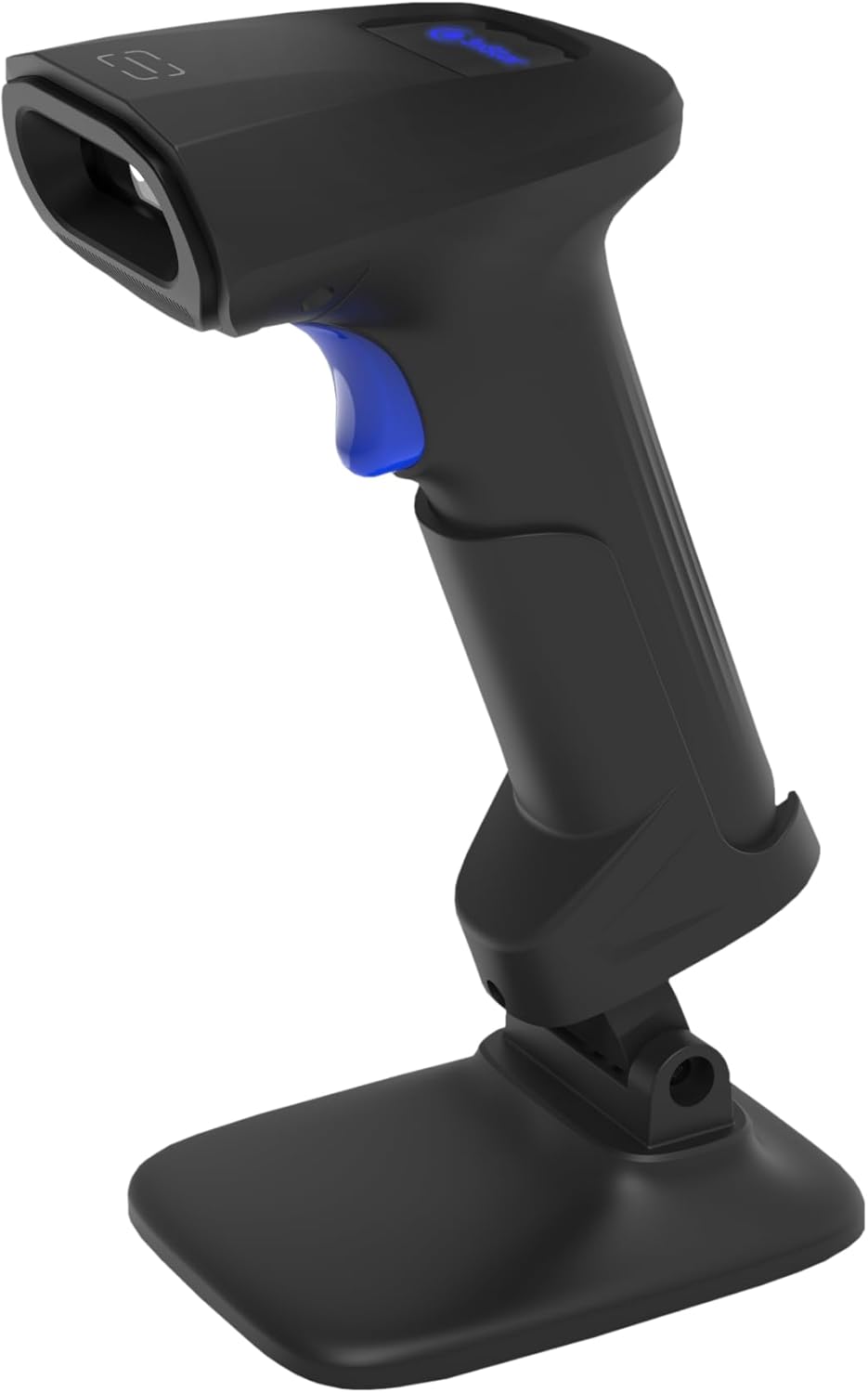
Image: The 3nStar SC415 barcode scanner securely placed in its dedicated base, ready for hands-free operation. The base provides stability and enables the autosense scanning mode.
אַפּערייטינג ינסטראַקשאַנז
The SC415 scanner offers flexible operation modes:
כאַנדכעלד סקאַנינג
- Hold the Scanner: Grip the scanner comfortably in your hand.
- Aim at Barcode: Point the scanning window towards the barcode you wish to read.
- דריק טריגער: Press the trigger button located on the handle. A red aiming beam will appear.
- Scan Confirmation: Once the barcode is successfully read, the scanner will emit an audible beep and/or a visual indicator (e.g., LED flash). The data will be transmitted to your connected device.

Image: The 3nStar SC415 barcode scanner shown in a handheld position, illustrating how to grip the device for manual scanning. The blue trigger button is visible for activation.
Autosense (Hands-Free) Scanning
When the scanner is placed in its base, it automatically enters autosense mode:
- אָרט זאַך: Present the barcode of the item in front of the scanner's window.
- אויטאָמאַטישער סקען: The scanner will automatically detect the barcode and read it without requiring you to press the trigger.
- Scan Confirmation: A successful scan will be indicated by an audible beep and/or visual cue.
Scanning Mobile Phone Screens
The SC415 is capable of reading barcodes directly from mobile device screens. Ensure the screen brightness is adequate and avoid glare for optimal performance.
וישאַלט
געהעריגע אויפהאלטונג גאראנטירט די לאנגעוויטי און אפטימאלע פערפארמאנס פון אייער סקענער:
- רייניקן דעם סקענען פֿענצטער: ניצט אַ ווייכן, לינט-פֿרייע שטאָף, אַ ביסל ווייכערampened with water or a mild, non-abrasive cleaner, to wipe the scanning window. Avoid using harsh chemicals, solvents, or abrasive materials, as these can damage the window.
- רייניקונג פון די Casing: ווישט אויס די אויסערליכע קasinג מיט אַ ווייכן, טרוקענעם שטאָף.
- קאַבלע דורכקוק: קאָנטראָלירט פּעריִאָדיש דעם USB קאַבל פֿאַר יעדע סימן פֿון אָפּנוץ, שניטן אָדער שאָדן. פֿאַרבייטן אויב נייטיק.
- סטאָרידזש: ווען נישט אין באַנוץ, זאָלט איר האַלטן דעם סקאַנער אין אַ ריינער, טרוקענער סביבה, אַוועק פון עקסטרעמע טעמפּעראַטורן און דירעקטער זון.
טראָובלעשאָאָטינג
If you encounter issues with your SC415 scanner, refer to the following common problems and solutions:
| פּראָבלעם | מעגלעך סיבה | לייזונג |
|---|---|---|
| סקאַנער גייט נישט אָן | USB קאַבל נישט פארבונדן אָדער דעפעקטיוו. | Ensure the USB cable is securely connected to both the scanner and the host device. Try a different USB port or cable. |
| סקאַנער לייענט נישט באַרקאָודז | Barcode damaged or poorly printed. Incorrect aiming. Scanner not configured for barcode type. | Ensure the barcode is clear and undamaged. Aim the scanner directly at the center of the barcode. Refer to the programming guide (if available) to ensure the scanner supports the barcode type. |
| No data transmitted after scan | Incorrect interface settings. Host device not ready to receive input. | Verify the scanner is recognized by the host device (e.g., check Device Manager). Ensure the application on your computer is active and ready to receive keyboard input. |
| Autosense mode not working | Scanner not properly seated in base. Autosense feature disabled. | Ensure the scanner is firmly placed in its base. If issues persist, consult the full programming manual for autosense activation settings. |
אויב די טריט לייזן נישט אייער פראבלעם, ביטע קאנטאקטירט קאסטומער סופארט.
ספּעסאַפאַקיישאַנז
Key technical specifications for the 3nStar SC415 Handheld Barcode Scanner:
| שטריך | דעטאַל |
|---|---|
| מאָדעל | SC415 |
| סקאַן קורס | 60 Pages per second |
| קאַנעקטיוויטי טעכנאָלאָגיע | וסב קאַבלע |
| מאַכט מקור | קאָרדעד עלעקטריק |
| קאַמפּאַטאַבאַל דעוויסעס | דעסקטאָפּ, לאַפּטאָפּ, POS סיסטעמען |
| פּונקט וואָג | 4.5 אונסעס |
| פּעקל דימענשאַנז | 8.66 X 5.12 X 4.33 אינטשעס |
| פאַבריקאַנט | 3nStar |
וואָראַנטי אינפֿאָרמאַציע
The 3nStar SC415 Handheld Barcode Scanner is covered by a manufacturer's warranty. For specific details regarding warranty duration and terms, please refer to the warranty card included with your product or visit the official 3nStar webפּלאַץ.
קונה שטיצן
For further assistance, technical support, or inquiries regarding your 3nStar SC415 scanner, please contact 3nStar customer service. You can find contact information on the official 3nStar webוועבזייטל אדער דורך די דאקומענטאציע פון אייער פראדוקט.
באַזוכן די 3nStar Store for more information on 3nStar products.