
1. הקדמה
This manual provides detailed instructions for the installation, operation, and maintenance of your UNITOPSCI 2G+64G Android Car Stereo Radio. Please read this manual thoroughly before installation and use to ensure proper function and safety.
The UNITOPSCI 2G+64G Android Car Stereo Radio is an advanced in-dash multimedia system featuring a 7-inch capacitive touchscreen, Android 13 operating system, 2GB RAM, and 64GB ROM. It integrates wireless CarPlay, Android Auto, GPS navigation, Bluetooth, FM/RDS radio, and supports a backup camera and steering wheel controls.
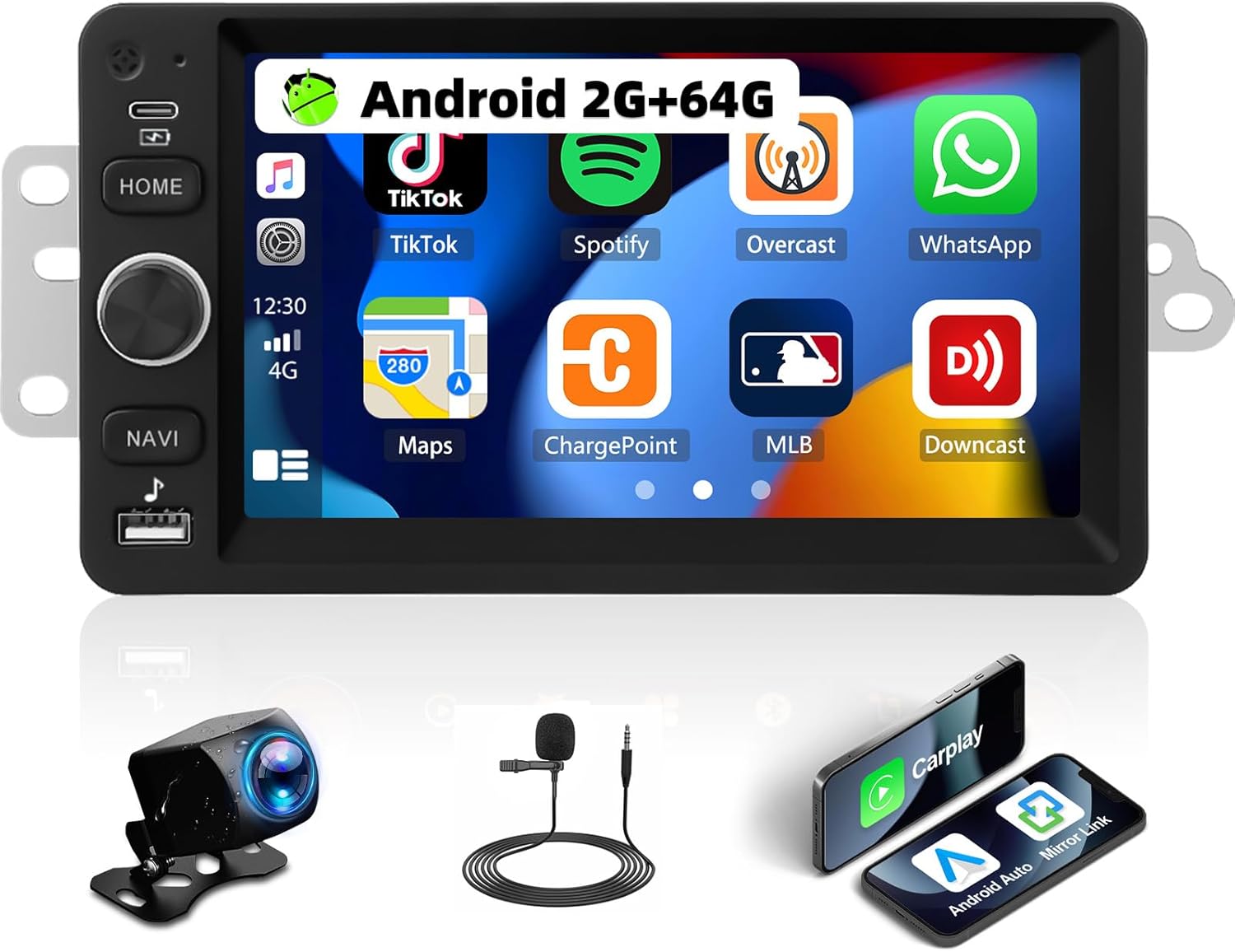
Image 1.1: UNITOPSCI 2G+64G Android Car Stereo Radio and included components.
2. קאָמפּאַטאַביליטי מיט פֿאָרמיטלען
This Android car stereo is designed to fit specific vehicle models. Please verify your vehicle's compatibility before proceeding with installation.
- Chevy Chevrolet: Silverado, SSR, Tahoe (2003-2006)
- GMC: Siera, Yukon (2003-2006)
- האַמער: (2003-2006)
It is recommended to measure the size and shape of your original radio in the car's center console to confirm fitment.

Image 2.1: Visual comparison of a vehicle's dashboard before and after installing the UNITOPSCI car stereo.

Image 2.2: Detailed list of compatible Chevrolet, GMC, Hummer, Isuzu, Oldsmobile, Saturn, Pontiac, Buick, and Cadillac models and their respective years.
Special Note for Bose Audio System Owners:
If your vehicle is factory-equipped with a Bose premium audio system, a high-end wiring harness and a Bose-specific CANBUS decoder are required for proper function of all features, including the audio system and steering wheel controls. Consult with a professional or the manufacturer for accessory recommendations if unsure.
3. סעטאַפּ און ייַנמאָנטירונג
3.1. פּעקל אינהאַלט
באַשטעטיקן אַז אַלע קאָמפּאָנענטן זענען פאַראַן אין דער פּאַקעט:
- Android Car Stereo Unit
- מאַכט קאַבלע (ס)
- רקאַ קאַבלע
- דערציען אַפּאַראַט אַרייַנשרייַב קאַבלע
- אַפּאַראַט
- גפּס אַנטענע
- קאַנבוס באָקס
- יו־עס־בי קאַבל(ס)
- Small Horn (External Microphone)
- אַנטענע אַדאַפּטער
- ראַדיאָ אַנטענע
- באַניצער מאַנואַל

Image 3.1: Illustration of all items included in the product package.
3.2. וויירינג דיאַגראַמע
Refer to the following diagrams for correct wiring connections. Incorrect wiring can damage the unit or vehicle electronics.

Image 3.2: Comprehensive wiring diagram illustrating connections for power, RCA, USB, camera, GPS, and CANBUS.
- מאַכט קאַבלע: Connect to vehicle's power supply (ACC, B+, GND).
- RCA קאַבל: For audio output (FR OUT, FL OUT, RR OUT, RL OUT, SUBWOOFER) and auxiliary input (AUX IN L/R), video output (VIDEO OUT), and camera input (CVBS IN).
- וסב קאַבלע: פֿאַר פֿאַרבינדן USB דעוויסעס.
- Rear Camera Input Cable: Connects the backup camera.
- גפּס אַנטענע: Mount in a location with a clear view פון הימל פֿאַר אָפּטימאַל סיגנאַל אָפּנאַם.
- קאַנבוס קעסטל: Connect for vehicle data communication, especially for steering wheel controls and vehicle information.
- ראַדיאָ אַנטענע: Connect for FM/AM radio reception.
וויכטיק ינסטאַללאַטיאָן הערות:
- זיכער מאַכן אַז אַלע פֿאַרבינדונגען זענען זיכער צו פאַרמייַדן פּראָבלעמען וואָס פּאַסירן אָפֿט.
- If your vehicle does not provide an Ignition (IGN) wire, a manual switch may be required to power the unit.
- For vehicles with complex wiring or premium sound systems, professional installation is recommended.
4. אַפּערייטינג ינסטרוקטיאָנס
4.1. יקערדיק אָפּעראַציע
- מאַכט אויף / אַוועק: Press and hold the power button (usually labeled HOME or a dedicated power icon) to turn the unit on or off. A short press typically mutes or returns to the home screen.
- באַנד קאָנטראָל: Use the physical knob or on-screen controls to adjust the audio volume.
- טאָוטשסקרעען: The 7-inch capacitive touchscreen responds to touch gestures for navigation and control.
4.2. דראָטלאָזע קאַרפּליי און אַנדרויד אויטאָ
Connect your smartphone wirelessly to access navigation, music, calls, and messages through the car stereo interface.
- מאַכן זיכער אַז בלועטאָאָטה און Wi-Fi זענען ענייבאַלד אויף דיין סמאַרטפאָנע.
- On the car stereo, select the CarPlay or Android Auto application.
- Follow the on-screen prompts to pair your device.
- Voice control functions (Siri for CarPlay, Google Assistant for Android Auto) are supported.

Image 4.1: Demonstrates the user interfaces for Wireless CarPlay, Android Auto, and Mirror Link functionality.
4.3. שפּיגל לינק
Mirror your smartphone screen to the car stereo display for video and map viewing.
- Compatible with both Android and iOS devices.
- Access the Mirror Link application on the stereo and follow the pairing instructions.
4.4. WiFi and GPS Navigation
The unit features built-in WiFi and GPS for online and offline navigation.
- WiFi: Connect to a Wi-Fi hotspot to access online functions such as streaming videos (YouTube), online TV, music, and downloading applications.
- גפּס: Preloaded with free offline maps. Connect to Wi-Fi to download updated maps via applications like Here WeGo. Supports online real-time navigation.

Image 4.2: Displays the interfaces for WiFi connectivity, GPS navigation, FM/RDS radio, and the audio equalizer settings.
4.5. בלועטאָאָטה
Enable hands-free calling and audio streaming via Bluetooth.
- Pair your phone with the stereo via Bluetooth settings.
- Supports hands-free calling, Bluetooth audio streaming, and automatic phone book download.
- An external microphone can be added for improved call quality.
4.6. FM/RDS ראַדיאָ
Enjoy radio broadcasts with 18 preset stations.
- Tune to your preferred FM stations.
- RDS (Radio Data System) provides additional information like station name and song title where available.
4.7. EQ Audio Settings
Customize your audio experience with the built-in equalizer.
- Adjust various frequency bands to match your audio preferences.
- Pre-set EQ modes may also be available.
4.8. שפּאַלטן פאַרשטעלן פונקציאָנאַליטעט
Display two applications simultaneously on the screen.
- פֿאַר עקסample, use navigation on one side and music playback on the other.
- Easily switch between applications.

Image 4.3: Illustrates the Bluetooth interface, split-screen mode, various UI themes, and the clarity of the HD touchscreen.
4.9. Backup Camera
The system supports a backup camera for safer parking.
- Automatically switches to the clear reversing image when the vehicle is in reverse.
- The included camera features a 170-degree wide viewing angle, night vision, and is waterproof.

Image 4.4: Shows the clear reversing image from the backup camera and the interface for setting up steering wheel controls.
4.10. שטיר-ראד קאנטראל (SWC)
Configure your vehicle's steering wheel buttons to control the stereo functions.
- Access the SWC settings menu on the stereo.
- Follow the on-screen instructions to map functions (e.g., volume, track skip, mode) to your steering wheel buttons.
4.11. ווידעא רעזולטאַט
Share video content with rear-seat passengers.
- The unit can work with a headrest monitor to display the same video content.
- A USB video output box may be required (not included).

Image 4.5: Depicts the video output feature, allowing rear-seat passengers to view content on separate monitors.
4.12. Multiple UI Themes
Personalize the stereo's appearance with various user interface themes.
- Choose from 26 available UI themes to match your preference.
5. וישאַלט
כדי צו זיכער מאַכן די לאַנגלעבעדיקייט און אָפּטימאַלע פאָרשטעלונג פון דיין מאַשין סטערעאָ, נאָכפאָלגן די וישאַלט גיידליינז:
- רייניקונג: ניצט אַ ווייכע, טרוקענע שטאָף צו רייניקן דעם טאָוטשסקרין און די אויסערלעכע זייט פון דעם אַפּאַראַט. פֿאַרמייַדט אַברייסיוו רייניגער אָדער סאָלווענטן.
- ווייכווארג דערהייַנטיקונגען: Periodically check for and install software updates provided by UNITOPSCI to enhance features and improve stability.
- ינווייראַנמענאַל טנאָים: פֿאַרמײַדט אויסשטעלן דעם אַפּאַראַט צו עקסטרעמע טעמפּעראַטורן, דירעקטע זונשײַן פֿאַר פֿאַרלענגערטע פּעריאָדן, אָדער איבערגעטריבענע פֿײַכטקייט.
- קאַבלע פאַרוואַלטונג: זיכער מאַכן אַז אַלע קייבלס זענען ריכטיק גערוטעד און פֿאַרזיכערט צו פאַרמייַדן שעדיקן פון ווייבריישאַן אָדער כאַפּינג.
6. טראָובלעשאָאָטינג
If you encounter issues with your UNITOPSCI car stereo, refer to the following common problems and solutions:
6.1. קיין מאַכט
- קוק די מאַכט קאַנעקשאַנז: Ensure the power cable is securely connected to the vehicle's power supply (ACC, B+, GND).
- Vehicle Fuse: קאָנטראָלירט די אויטאָ'ס פיוז קעסטל פֿאַר קיין צעבראָכענע פיוזן שייך צו די ראַדיאָ אָדער אַקסעסאָרי מאַכט.
- Ignition Wire: If your vehicle lacks a dedicated IGN wire, verify that any custom wiring for ignition is correctly implemented.
6.2. קיין סאָונד
- רעדנער קאַנעקשאַנז: Verify that all speaker wires are correctly connected to the stereo and the vehicle's speaker harness.
- באַנד מדרגה: Ensure the volume is not muted or set to a very low level.
- Bose System: If your vehicle has a Bose audio system, confirm that the correct wiring harness and CANBUS decoder are installed.
- אַודיאָ מקור: Check if the correct audio source (e.g., Radio, Bluetooth, CarPlay) is selected.
6.3. Steering Wheel Controls Not Working
- CANBUS Connection: Ensure the CANBUS box is correctly connected and configured in the stereo's settings.
- SWC Learning: Re-perform the steering wheel control learning process in the stereo's settings menu.
- פאָרמיטל קאַמפּאַטאַבילאַטי: Confirm that your vehicle's steering wheel control system is compatible with the stereo's CANBUS.
6.4. פּראָבלעמען מיטן GPS סיגנאַל
- אַנטענע אָרט: Ensure the GPS antenna is mounted in a location with an unobstructed view פון הימל.
- אַנטענע קשר: Check that the GPS antenna is securely connected to the stereo.
- Map Data: Verify that offline maps are downloaded and up-to-date, or that a stable internet connection is available for online maps.
6.5. טאָוטשסקרין רעאַגירט נישט
- ריסטאַרט אַפּאַראַט: Try restarting the car stereo.
- ריין פאַרשטעלן: זיכער מאַכן אַז דער עקראַן איז ריין און פריי פון שמוץ אָדער נעץ.
פֿאַר שטענדיקע פּראָבלעמען, ביטע קאָנטאַקטירט קונה שטיצע.
7. ספּעסאַפאַקיישאַנז
| שטריך | דעטאַל |
|---|---|
| מאָדעל | 2G+64G Android Car Stereo |
| אָפּערייטינג סיסטעם | אַנדרויד 13 |
| באַראַן | 2 גיגאבייט |
| ראַם | 64 גיגאבייט |
| ווייַז גרייס | 7 אינטשעס |
| ווייַז האַכלאָטע | 1024*600 |
| קאַנעקטיוויטי טעכנאָלאָגיע | בלועטאָאָטה, ווי-פי |
| ספּעציעלע פֿעיִקייטן | Wireless CarPlay, Android Auto, Mirror Link, Built-in GPS, FM/RDS Radio, EQ Audio, Split Screen, Backup Camera Support, Steering Wheel Control |
| אַודיאָ רעזולטאַט מאָדע | סטערעאָ |
| מאַונטינג טיפּ | דאַשבאָרד בארג |
| פּונקט וואָג | 0.634 אונסעס |
| פּעקל דימענשאַנז | 13.54 X 9.06 X 4.25 אינטשעס |
8. וואָראַנטי אינפֿאָרמאַציע
The UNITOPSCI 2G+64G Android Car Stereo Radio comes with a 1 יאָר וואָראַנטי from the date of purchase. Additionally, a replacement is available within 24 months for eligible issues.
This warranty covers manufacturing defects and malfunctions under normal use. It does not cover damage caused by improper installation, misuse, accidents, unauthorized repairs, or external factors.
ביטע האַלטן דיין דערווייַז פון קויפן פֿאַר וואָראַנטי קליימז.
9. קונה שטיצן
For any questions, technical assistance, or warranty claims, please contact UNITOPSCI customer support:
- בליצפּאָסט: UNITOPSCI@126.com
- ענטפער צייט: Quick responses typically within 16 hours.
- נאָך סאַלעס שטיצן: Lifetime after-sales consultation and technical support are provided.
- קערט: 60-טאָגיקע זאָרגלאָזע צוריקקער פּאָליטיק.