
1. הקדמה
This manual provides detailed instructions for the Amazon Basics Pro Series Triple Mode Ergonomic Mouse. This device offers versatile connectivity options, high precision, and an ergonomic design for comfortable use. Please read this manual thoroughly before operating the mouse to ensure proper functionality and to maximize your user experience.

Image 1.1: The Amazon Basics Pro Series Triple Mode Ergonomic Mouse, showcasinג זײַן גלאַטן דיזײַן.
2. פּעקל אינהאַלט
באַשטעטיקן אַז אַלע זאכן זענען פאַראַן אין פּעקל:
- Amazon Basics Pro Series Triple Mode Ergonomic Mouse
- USB-C Charging Cable (1.8M)
- 2.4G וסב ופנעמער
- באַניצער מאַנואַל (דעם דאָקומענט)
3. פּראָדוקט איבערview
Familiarize yourself with the various components of your ergonomic mouse.

בילד 3.1: פון אויבן אַראָפּ view of the mouse, highlighting its ergonomic shape and controls.
שליסל קאַמפּאָונאַנץ:
- לינקער קליק קנעפל: נאָרמאַלע מויז פונקציע.
- רעכט קליק קנעפל: נאָרמאַלע מויז פונקציע.
- Scroll Wheel (Vertical): פֿאַר ווערטיקאַל סקראָלן און מיטל-קליק פונקציע.
- DPI אַדזשאַסטמענט קנעפּל: גייט דורך די DPI סעטטינגס.
- פֿאָרווערטס קנעפּל: נאַוויגירט פאָרויס אין web בראַוזערז אָדער file עקספּלאָרערס.
- צוריק קנעפּל: נאַוויגירט צוריק אין web בראַוזערז אָדער file עקספּלאָרערס.
- Side Scroll Wheel: Dual-function for volume control and horizontal scrolling.
- מאָדע באַשטימען: Selects between 2.4G, Bluetooth (BT1/BT2), and USB wired modes.
- RGB Backlighting Switch: Toggles dynamic lighting modes or turns off for battery saving.
- USB-C טשאַרדזשינג פּאָרט: פֿאַר איבערלאָדן די אינערלעכע באַטאַרייע.

Image 3.2: Illustration of the mouse's contoured shape and the dual-function side scroll wheel.
4. סעטאַפּ
4.1. אויפלאָדן די מויז
Before first use, fully charge the mouse. A red light indicates low battery and charging in progress.
- Connect the provided USB-C charging cable to the mouse's USB-C port.
- פֿאַרבינדט דעם אַנדערן עק פֿונעם קאַבל צו אַ USB מאַכט מקור (למשל, קאָמפּיוטער USB פּאָרט, USB וואַנט אַדאַפּטער).
- The charging indicator will illuminate. Once fully charged, the indicator may change color or turn off.
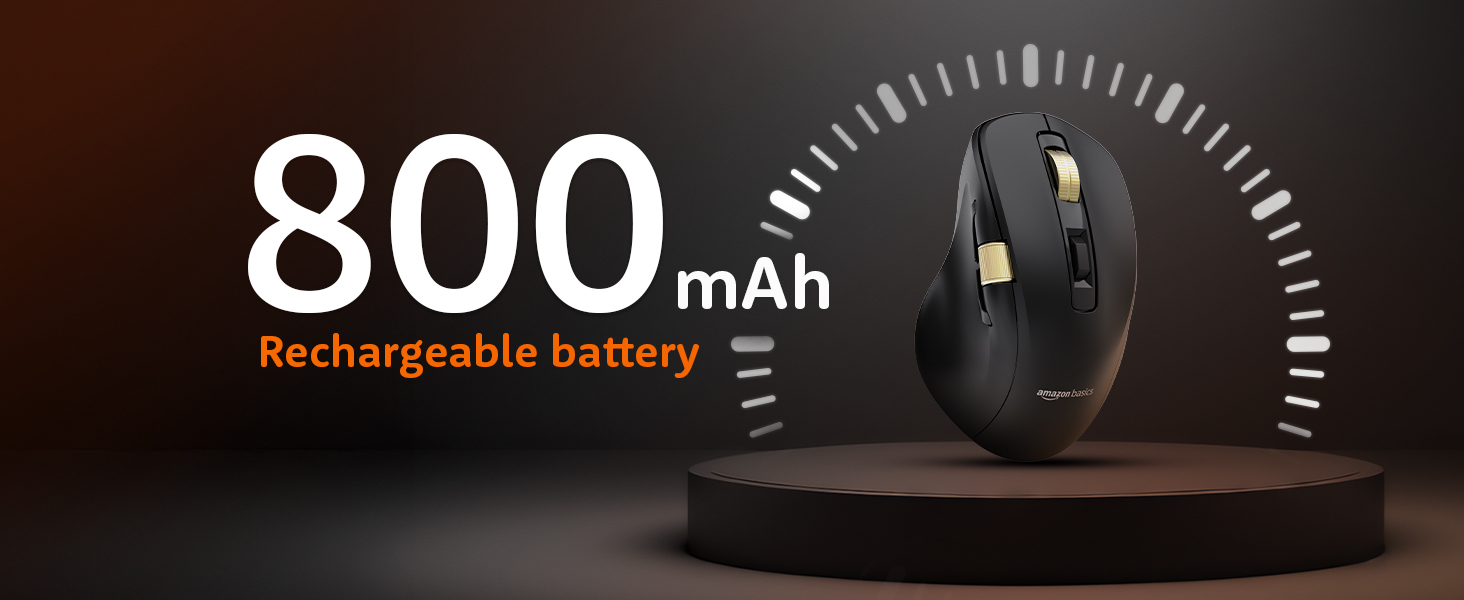
Image 4.1: The mouse features an 800mAh rechargeable battery, charged via USB-C.
4.2. פֿאַרבינדן זיך דורך 2.4G וויירלעס מאָדע
This mode provides a stable and fast wireless connection using the included USB receiver.
- Locate the 2.4G USB receiver, typically stored in a compartment on the underside of the mouse.
- שטעקט אריין דעם 2.4G USB ריסיווער אין א פאראן USB פארט אויף אייער קאמפיוטער.
- Set the mode switch on the underside of the mouse to the '2.4G' position.
- The mouse should automatically connect to your computer. An LED indicator will confirm the active mode.
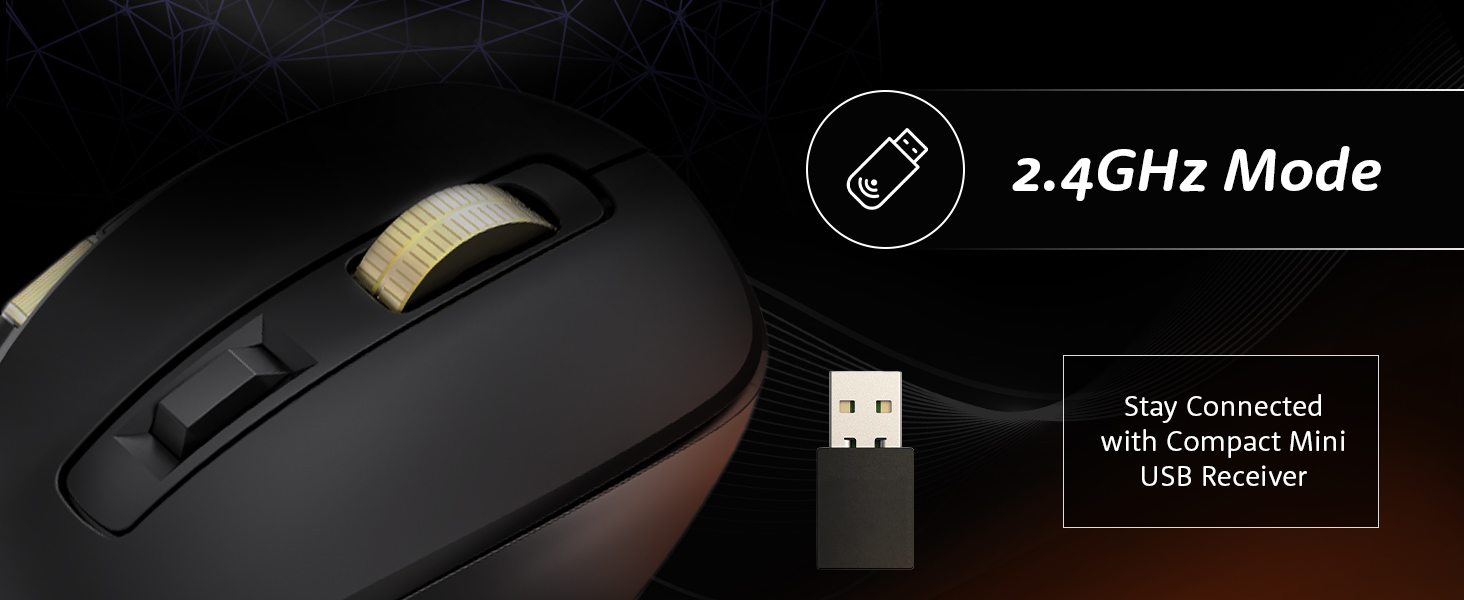
Image 4.2: Connecting the mouse using the 2.4GHz USB receiver.
4.3. פֿאַרבינדן זיך דורך בלועטוט מאָדע
The mouse supports dual Bluetooth connections (BT1 and BT2).
- Set the mode switch on the underside of the mouse to either 'BT1' or 'BT2' position.
- The LED indicator for the selected Bluetooth channel will flash, indicating pairing mode.
- אויף אייער קאָמפּיוטער אָדער מיטל, עפֿנט די בלועטוט סעטטינגס און זוכט פֿאַר נײַע דעוויסעס.
- Select "Amazon Basics Mouse" (or similar name) from the list of available devices to pair.
- אַמאָל פּערד, וועט די LED אינדיקאַטאָר אויפהערן צו בלינקען און בלייבן סאָליד.
- To switch between BT1 and BT2, simply move the mode switch to the desired channel.
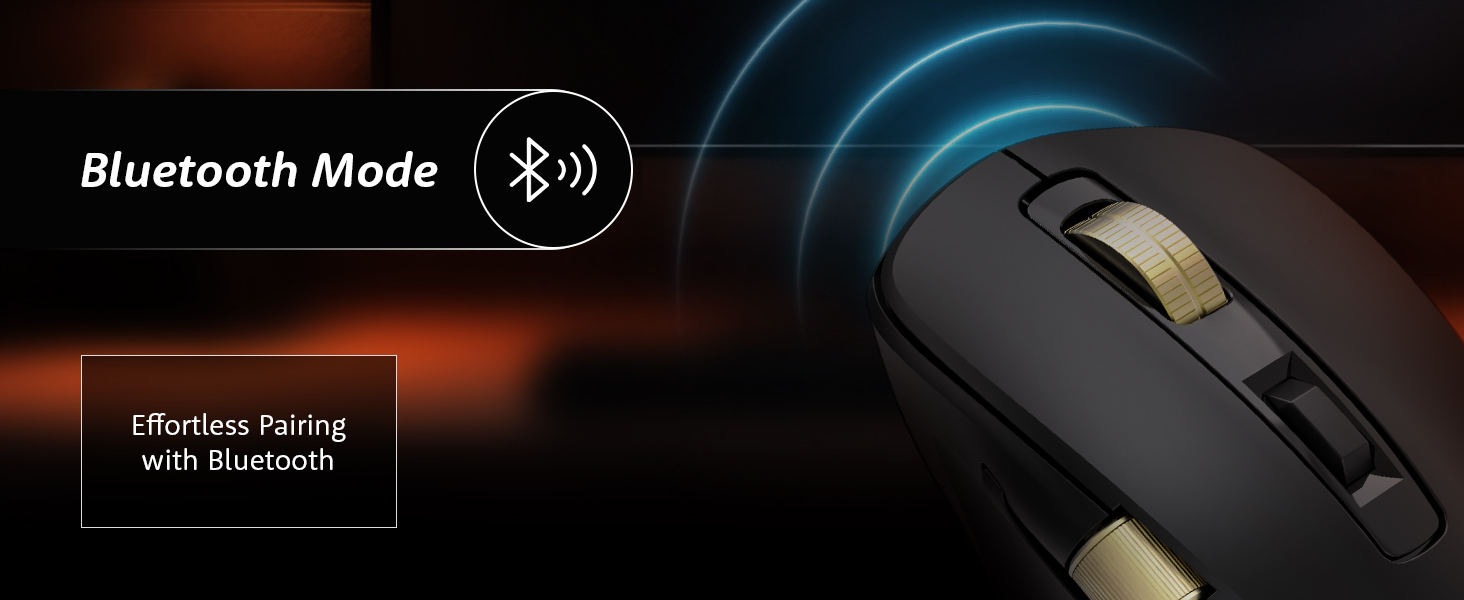
Image 4.3: Effortless pairing with Bluetooth-enabled devices.
4.4. Connecting via USB Wired Mode
For a direct and reliable connection, use the USB wired mode.
- Connect the provided USB-C charging cable to the mouse's USB-C port.
- פאַרבינדן די אנדערע סוף פון די קאַבלע צו אַ וסב פּאָרט אויף דיין קאָמפּיוטער.
- Set the mode switch on the underside of the mouse to the 'USB' or 'Wired' position.
- The mouse will function immediately as a wired device.
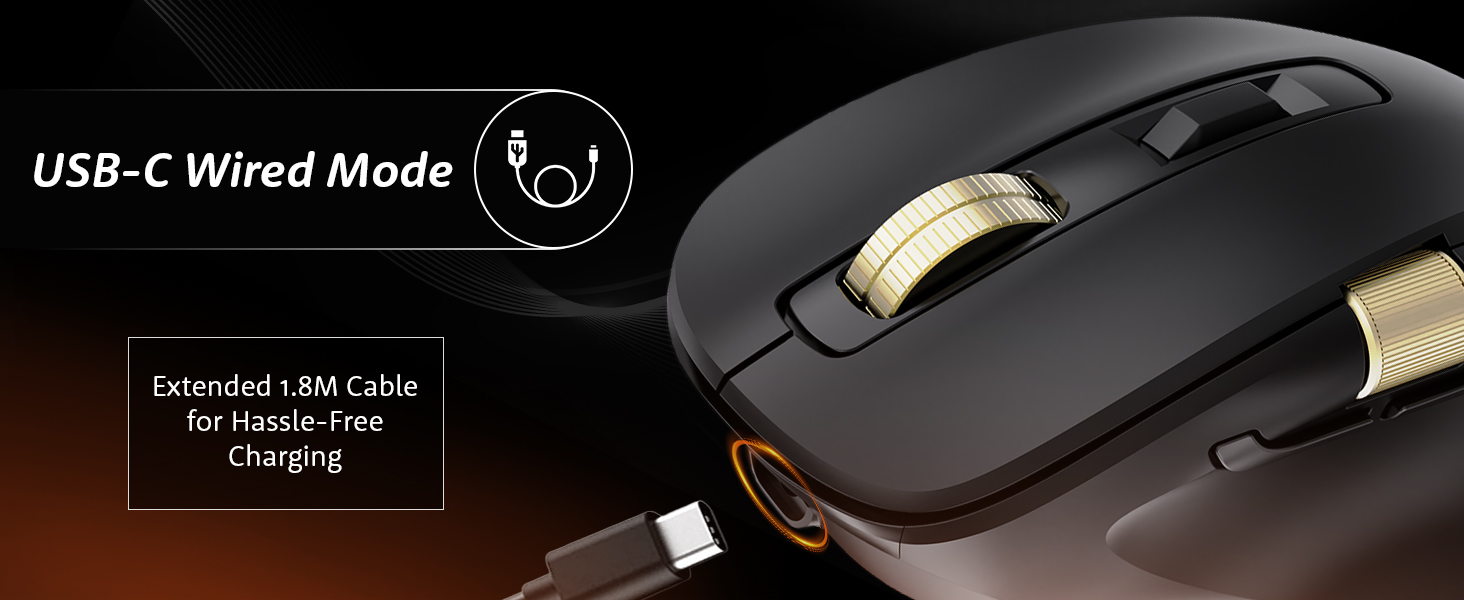
Image 4.4: The mouse connected via its USB-C cable for wired operation and charging.
5. אַפּערייטינג ינסטרוקטיאָנס
5.1. דפּי אַדזשאַסטמאַנט
Adjust the mouse sensitivity (DPI) to suit your preference and task requirements.
- דרוק די דפּי אַדזשאַסטמאַנט קנעפּל (located behind the vertical scroll wheel) to cycle through available DPI settings.
- The mouse supports DPI settings from 800 to 5000. With the companion application, DPI can be adjusted up to 8000.
- Polling rates are 1000Hz in wired/2.4G modes and 125Hz in Bluetooth mode.
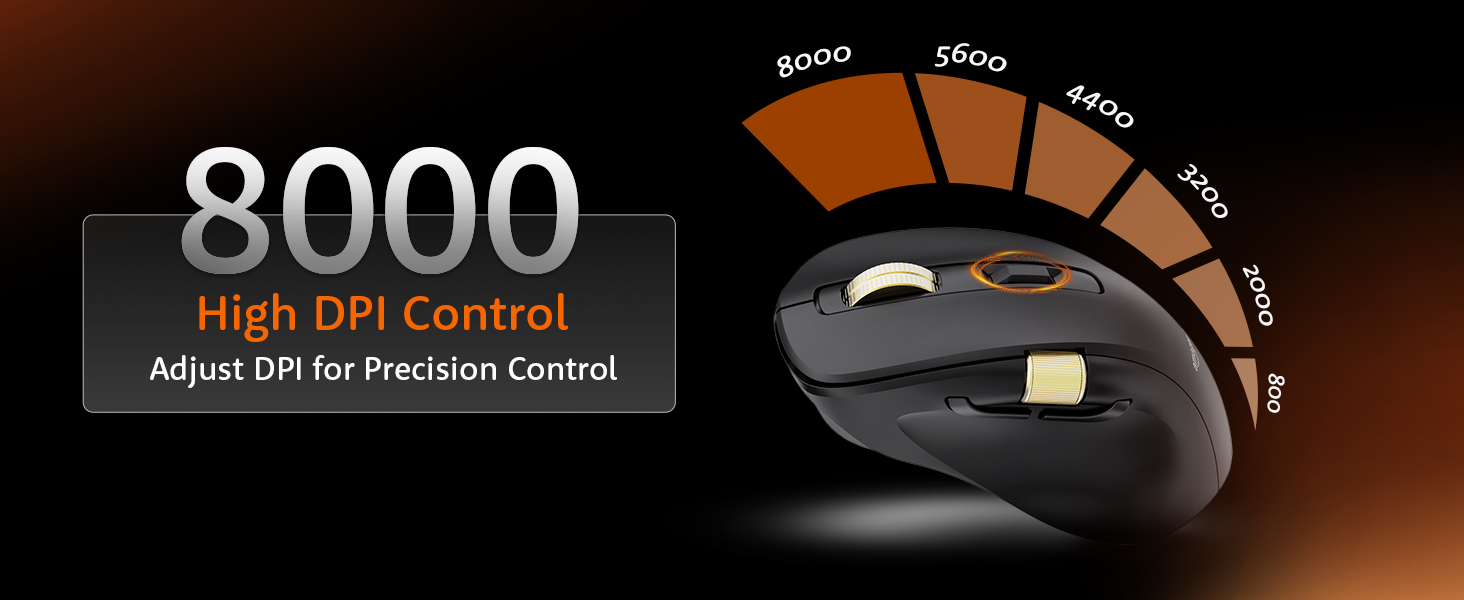
Image 5.1: Adjusting DPI for precision control, with settings up to 8000.
5.2. RGB באַקלייטונג קאָנטראָל
Customize or disable the RGB backlighting.
- ניצן די RGB Backlighting Switch on the underside of the mouse to toggle dynamic lighting.
- You can choose between various lighting modes or turn off the lighting to conserve battery life.
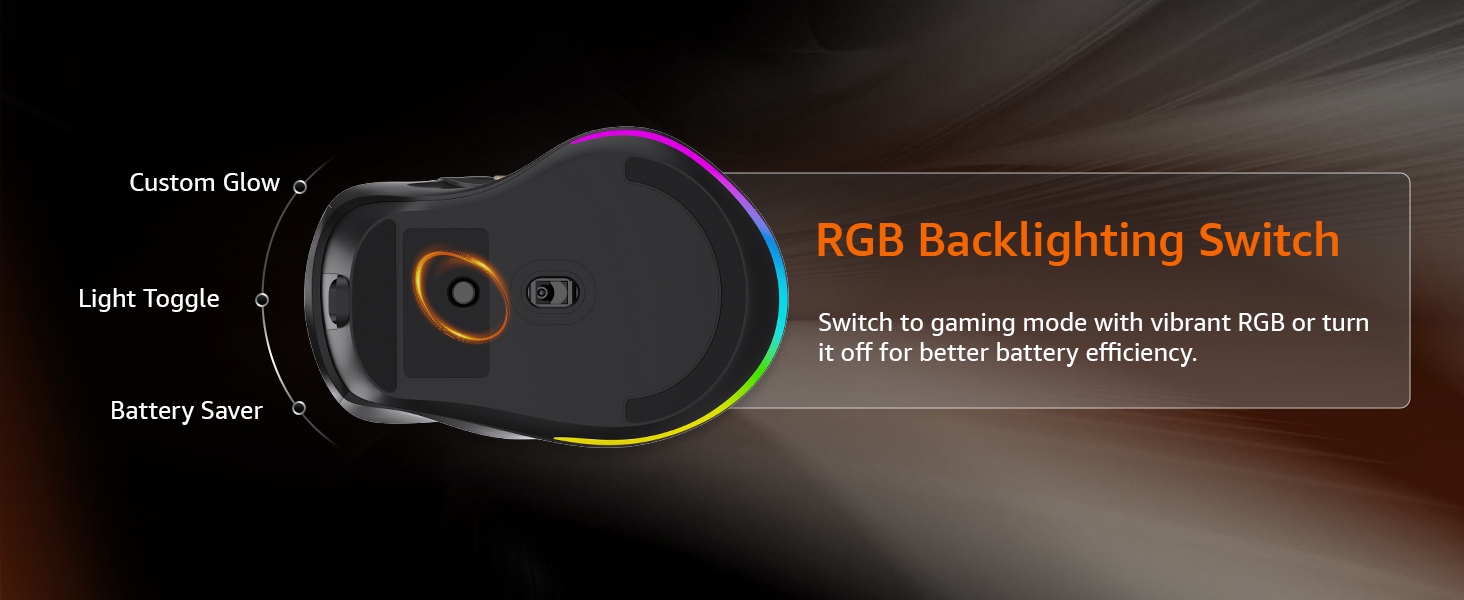
Image 5.2: The RGB backlighting switch allows optimization for performance or battery saving.
5.3. Side Scroll Wheel Functionality
The side scroll wheel offers dual functions for enhanced control.
- באַנד קאָנטראָל: Scroll the wheel to adjust system volume.
- Horizontal Scrolling: In applications like Excel, web browsers, or email clients, the side scroll wheel enables horizontal scrolling.
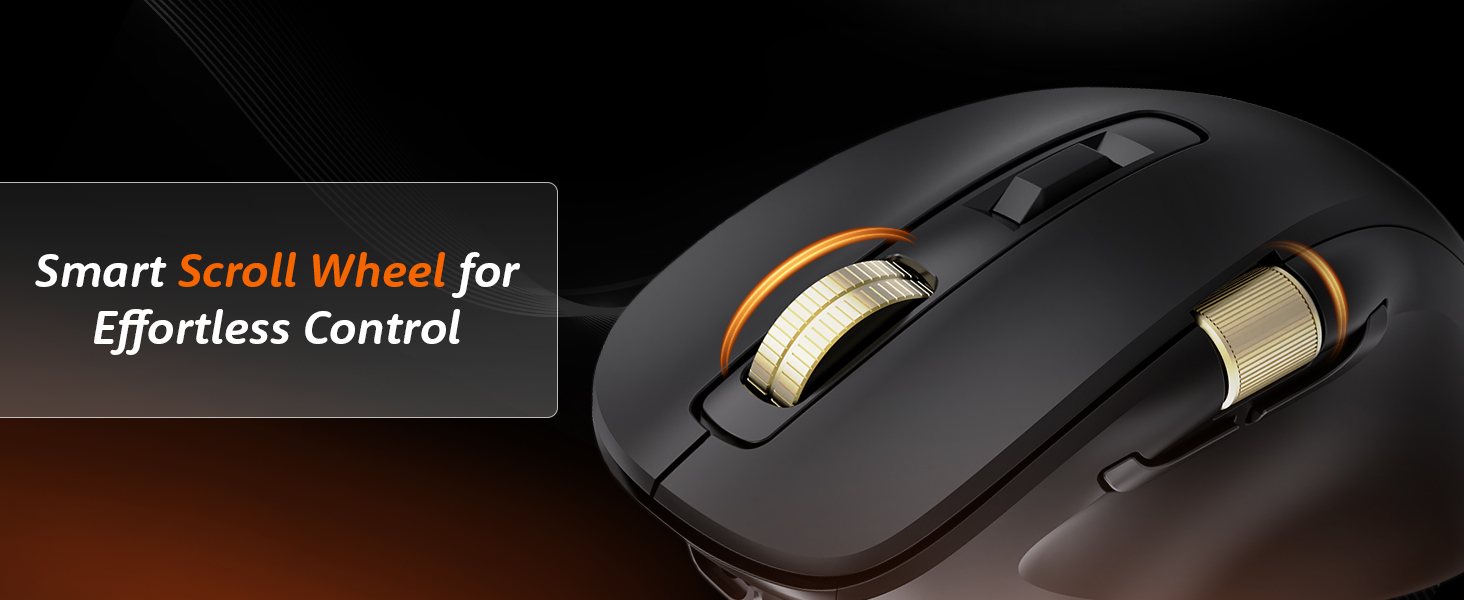
Image 5.3: The smart scroll wheel provides effortless control for various functions.
5.4. Programmable Keys
The mouse features 7 programmable keys, including the forward and backward buttons, which can be customized using the dedicated software (if available).
- די פאָרויס קנעפּל און צוריק קנעפּל (located on the side) provide quick navigation.
- זעט די פאבריקאנט'ס website for software downloads and instructions on customizing key functions.
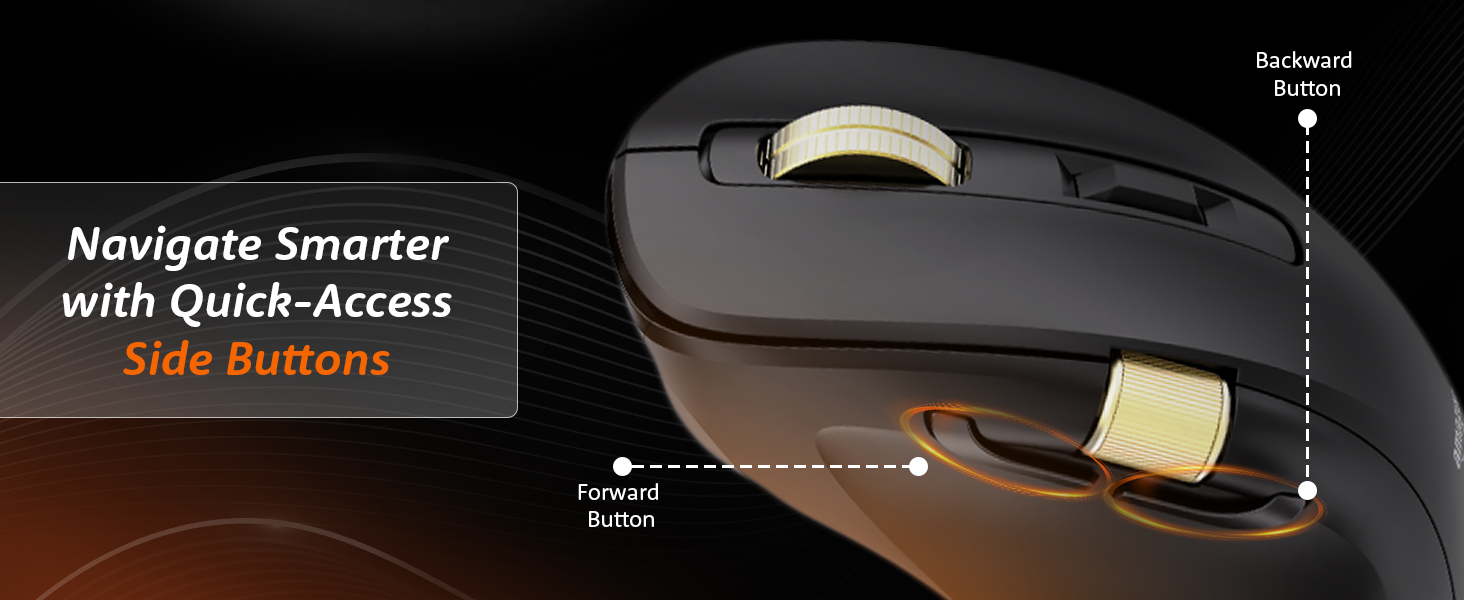
Image 5.4: Quick-access side buttons for smarter navigation.
6. וישאַלט
6.1. רייניקונג
צו האַלטן אָפּטימאַלע פאָרשטעלונג און אויסזען:
- Disconnect the mouse from all power sources and devices before cleaning.
- ניצט אַ ווייכן, טרוקענעם, לינט-פֿרייע שטאָף צו ווישן די ייבערפלאַך פֿון דער מויז.
- פאר עקשנות שמוץ, לייכט דampווישט דעם שטאָף מיט וואַסער אָדער אַ מילדער רייניקונג לייזונג. פֿאַרמייַדט שטרענגע כעמיקאַלן אָדער אַברייסיוו מאַטעריאַלן.
- לאָזט נישט אַרײַן פֿײַכטקייט אין קיין עפענונגען.
6.2. באַטערי קער
The mouse features a built-in rechargeable 800mAh lithium-ion battery.
- פֿאַרמײַדט אָפֿט פֿולשטענדיק אויסצולאָדן די באַטעריע כּדי צו פֿאַרלענגערן איר לעבן.
- Recharge the mouse when the low battery indicator appears.
- האַלט די מויז אין אַ קיל, טרוקן אָרט ווען נישט אין באַנוץ פֿאַר לענגערע פּעריאָדן.
7. טראָובלעשאָאָטינג
If you encounter issues with your mouse, refer to the following common problems and solutions:
| פּראָבלעם | מעגלעך סיבה | לייזונג |
|---|---|---|
| מויז ניט ריספּאַנדינג | נידעריגע באַטעריע, אומרעכטע מאָדע, פֿאַרבינדונג פּראָבלעם | Charge the mouse. Ensure the mode switch is set correctly (2.4G, BT1/BT2, or USB). Re-pair Bluetooth or re-insert 2.4G receiver. |
| פאַרהאַלטונג אָדער ינטערמיטאַנט פֿאַרבינדונג | Interference, distance, low battery | Move closer to the receiver/device. Ensure no strong interference sources (e.g., Wi-Fi routers). Charge the mouse. Try a different USB port. |
| DPI אַדזשאַסטמענט אַרבעט נישט | Button malfunction, software conflict | Ensure the mouse is powered on. Restart your computer. If using custom software, check its settings. |
| RGB לייטינג טוט נישט אַרבעטן | Lighting switch off, low battery | Toggle the RGB Backlighting Switch. Charge the mouse. |
| Side scroll wheel not functioning | Application specific, driver issue | Ensure the application supports horizontal scrolling or volume control via mouse. Restart the application or computer. Check for updated mouse drivers. |
8. ספּעסאַפאַקיישאַנז
Technical details for the Amazon Basics Pro Series Triple Mode Ergonomic Mouse:
| שטריך | דעטאַל |
|---|---|
| סאָרט | אַמאַזאָן באַסיקס |
| מאָדעל | Pro Series Triple Mode Ergonomic Mouse (DPI 8000) |
| קאַנעקטיוויטי | 2.4G Wireless, Bluetooth (BT1/BT2), USB Wired |
| DPI קייט | 800 - 5000 (up to 8000 with app) |
| פּאָללינג קורס | 1000Hz (Wired/2.4G), 125Hz (Bluetooth) |
| פּראָגראַממאַבלע קיז | 7 |
| באַטערי טיפּ | איינגעבויט 800mAh ליטהיום-יאָן |
| טשאַרדזשינג פּאָרט | וסב-C |
| דורכשניטלעך באַטאַרייע לעבן | 35 שעה |
| קאָליר | שוואַרץ |
| דימענשאַנז (LxWxH) | 11.7 X 7.5 X 0.1 סענטימעטער |
| פּונקט וואָג | 107 ג |
| ספּעציעלע פֿעיִקייטן | Ergonomic Design, Portable, Rechargeable, Wireless, RGB Backlit, Side Scroll Wheel |
9. וואָראַנטי און שטיצן
For warranty information and customer support, please refer to the documentation included with your purchase or visit the official Amazon Basics webזייטל. האַלט דיין קויפן באַווייַז פֿאַר וואָראַנטי קליימז.
פאַבריקאַנט: YAS Co Ltd.
אימפארטירער/פאקער: Your Accessories Store, B-36, 3rd Floor, Mayapuri Industrial Area, Phase 1, New Delhi - 110064, India
פֿאַר ווייטערדיקע הילף, ביטע קאָנטאַקטירן אַמאַזאָן קונה סערוויס.