
SEMIER SM-136
SEMIER SM-136 Cassette Player & Digital Converter User Manual
מאָדעל: SM-136
הקדמה
א דאנק פארן קויפןasing the SEMIER SM-136 Cassette Player & Digital Converter. This versatile device allows you to play and record audio cassettes, play music from an SD card, and convert your cherished cassette tapes into digital MP3 files, either directly to an SD card or to your computer using the included software. Please read this manual carefully to ensure proper operation and to maximize your enjoyment of this product.
וואָס איז אין די קעסטל
- Cassette Recorder Converter x 1
- 16 גיגאבייט SD קארטל x 1
- USB Reader x 1
- Software CD-ROM x 1
- באַניצער מאַנואַל x 1
- Type-C Charging and Data Cable x 1

בילד: אַלע זאכן אַרייַנגערעכנט אין די פּראָדוקט פּעקל.
סעטאַפּ
מאַכט די מיטל
The SEMIER SM-136 can be powered by two methods:
- USB-C קאַבלע: Connect the included USB-C cable to the device's USB-C port and the other end to a USB power adapter (not included) or a computer's USB port.
- אַאַ באַטעריז: Open the battery compartment on the back of the device and insert four (4) AA batteries (not included), ensuring correct polarity.
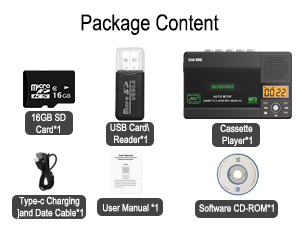
Image: Illustration of inserting AA batteries into the device.
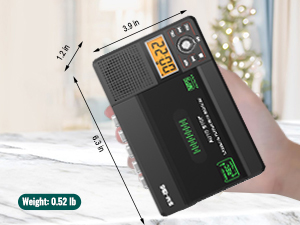
Image: Connecting the USB-C power cable to the device.
Inserting a Cassette Tape
Gently open the cassette compartment door. Insert your cassette tape with the open edge facing upwards and the tape side facing the device. Close the door firmly until it clicks.

Image: Proper insertion of a cassette tape into the player.
ינסערטינג אַ סד קאָרט
Locate the SD card slot on the side of the device. Insert the included 16GB SD card (or another compatible SD card, up to 32GB) into the slot until it clicks into place. Ensure the card is inserted in the correct orientation.

Image: Proper insertion of an SD card into the device's dedicated slot.
אַפּערייטינג ינסטראַקשאַנז
Playing Cassette Tapes
- Ensure a cassette tape is inserted.
- Slide the "TAPE/OFF/Micro SD" switch to the "TAPE" position.
- דרוק די שפּיל קנעפּל (►) צו אָנהייבן פּלייבאַק.
- סטרויערן די באַנד ניצן די VOL קנופּ.
- צו האַלטן פּלייבאַק דריקן די האַלטן קנעפּל (■).
- ניצן די פווד (► ►) און REW (◄◄) buttons for fast-forward and rewind.
Playing Music from SD Card
- Ensure an SD card with MP3 fileס ווערט אריינגעשטעלט.
- Slide the "TAPE/OFF/Micro SD" switch to the "Micro SD" position. The LCD display will show "SD" and the current track time.
- דרוק די שפּיל / פּויזע קנעפּל (►⏺) to start or pause playback.
- ניצן די PREV (◄◄) און NEXT (► ►) buttons to navigate between tracks.
- דרוק די REP קנעפּל צו איבערחזרן דעם איצטיקן ליד אדער אלע לידער.
- דרוק די DEL button to delete the current track.
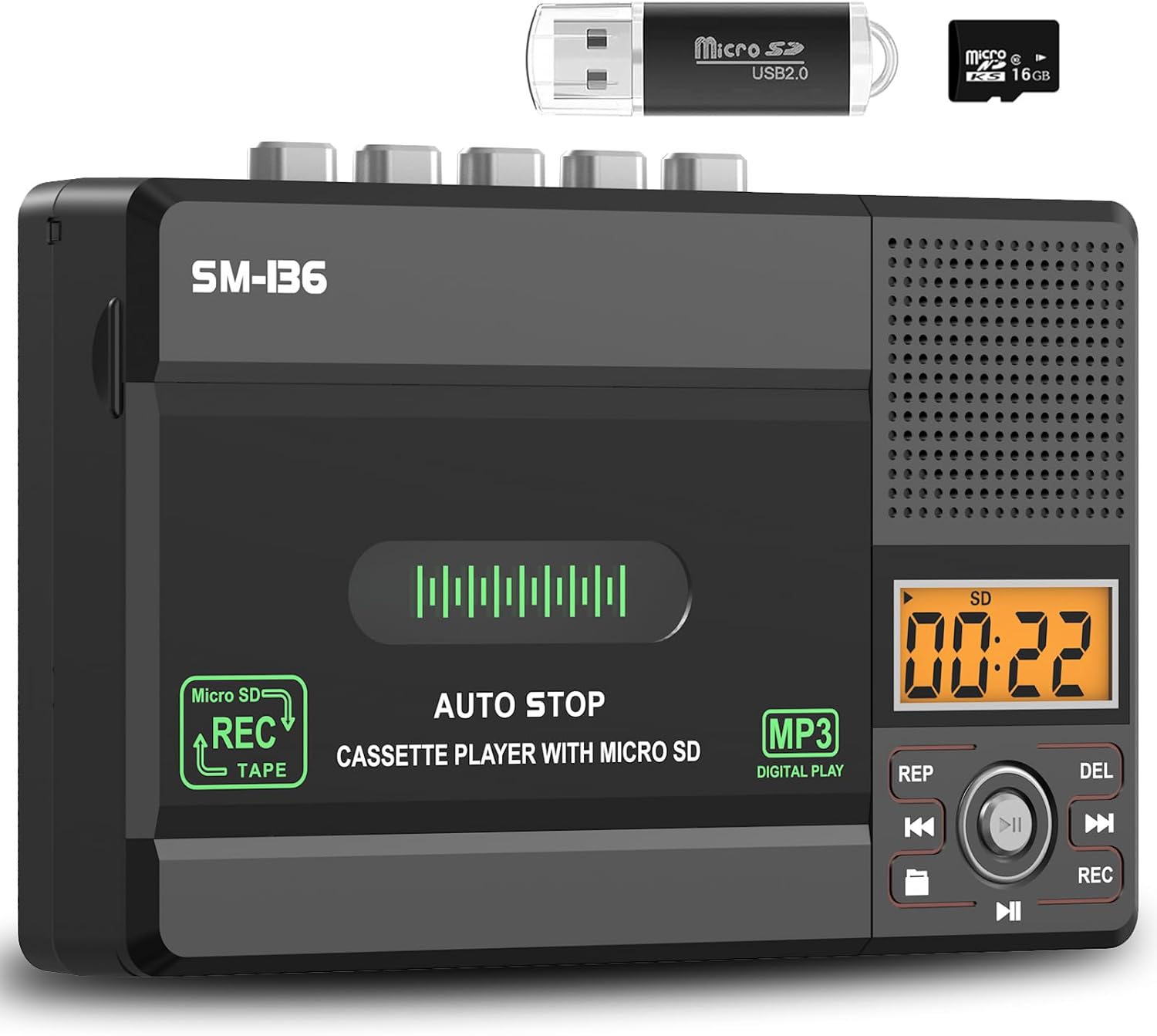
בילד: איבערview of the device's control panel and LCD screen.
Recording to Cassette Tape (from built-in microphone)
- אַרײַנשטעלן אַ ליידיקע אָדער רעקאָרדירבארע קאַסעטע טייפּ.
- Slide the "TAPE/OFF/Micro SD" switch to the "TAPE" position.
- דרוק די REC button (red button) to begin recording from the built-in microphone.
- צו האַלטן רעקאָרדינג, דריקן די האַלטן קנעפּל (■).

Image: Demonstrates recording audio to a cassette tape using the built-in microphone.
Converting Cassette to MP3 (to SD Card)
This method allows direct conversion without a computer.
- אַרײַנשטעלן די קאַסעטע טייפּ וואָס איר ווילט קאָנווערטירן.
- Insert the 16GB SD card (or another compatible SD card) into the SD card slot.
- Slide the "TAPE/OFF/Micro SD" switch to the "TAPE" position.
- דרוק די שפּיל קנעפּל (►) on the cassette player.
- While the tape is playing, press and hold the REC button (red button) on the digital control panel until the LCD display shows "REC". This will start recording the cassette audio directly to the SD card as an MP3 file.
- צו האַלטן רעקאָרדינג, דריקן די REC קנעפּל ווידער, אָדער דריקן די האַלטן קנעפּל (■) on the cassette player.
- The converted MP3 files will be saved on the SD card. You can then play them back on the device by switching to "Micro SD" mode or transfer them to a computer using the included USB reader.

Image: Visual steps for direct cassette to SD card MP3 conversion.
Converting Cassette to MP3 (to Computer via Audacity)
This method requires a computer and the included Audacity software.
- Install Audacity: Insert the included Software CD-ROM into your computer's CD drive and follow the installation instructions for Audacity. Alternatively, you can download the latest version of Audacity from its official webפּלאַץ.
- קאָננעקט דיווייס: Connect the SEMIER SM-136 to your computer using the included USB-C data cable.
- Prepare Audacity: Open Audacity. Ensure the correct input device (usually "USB Audio CODEC" or similar) is selected in Audacity's audio settings.
- אָנהייב רעקאָרדינג: Insert the cassette tape you wish to convert into the player. Press the שפּיל קנעפּל (►) on the cassette player. Then, click the רעקאָרד button in Audacity to begin capturing the audio.
- Monitor and Stop: Monitor the audio levels in Audacity. Once the tape has finished playing, click the האַלטן button in Audacity and the האַלטן קנעפּל (■) on the cassette player.
- Export MP3: In Audacity, you can edit the recorded audio (e.g., trim silence, remove noise). Once satisfied, go to File > Export > Export as MP3 to save your digital audio file.

Image: Illustrates connecting the device to a computer and using Audacity for digital conversion.
וישאַלט
- רייניקונג: ניצט אַ ווייכע, טרוקענע שטאָף צו רייניקן די אויסערלעכע זייט פון דעם אַפּאַראַט. ניצט נישט פליסיקע רייניקונגס-מיטלען אדער שברייענדע מאַטעריאַלן.
- Tape Head Cleaning: רייניקן די טייפּ קעפּ און די ראָולערס פון צייט צו צייט מיט אַ וואַטע שטעכל.ampבאדעקט מיט איזאָפּראָפּיל אַלקאָהאָל צו ענשור אָפּטימאַלע געזונט קוואַליטעט און פאַרמייַדן טייפּ שעדיקן.
- סטאָרידזש: האַלט דעם אַפּאַראַט אין אַ קיל, טרוקן אָרט אַוועק פון דירעקט זונשייַן און עקסטרעמע טעמפּעראַטורן.
- באַטערי באַזייַטיקונג: If the device will not be used for an extended period, remove the AA batteries to prevent leakage.
טראָובלעשאָאָטינג
| פּראָבלעם | מעגלעך סיבה | לייזונג |
|---|---|---|
| די מיטל טוט נישט מאַכט אויף. | No power source; batteries dead or incorrectly inserted; USB-C cable not connected properly. | Check battery polarity and charge; ensure USB-C cable is securely connected to a working power source. |
| No sound during cassette playback. | Volume too low; "TAPE/OFF/Micro SD" switch in wrong position; tape head dirty. | Increase volume; ensure switch is on "TAPE"; clean tape head. |
| Poor sound quality during playback/recording. | Dirty tape heads; worn-out tape; low battery power. | Clean tape heads; try a different tape; replace batteries or use USB-C power. |
| SD card not recognized or "No SD" message. | SD card incorrectly inserted; unsupported SD card format/size; faulty SD card. | Reinsert SD card; ensure it's formatted to FAT32 and is 32GB or less; try a different SD card. |
| Cannot record to SD card. | SD card full; SD card write-protected; incorrect recording procedure. | ויסמעקן files from SD card; check SD card's physical write-protect switch; follow "Converting Cassette to MP3 (to SD Card)" steps carefully. |
| Audacity not detecting device for conversion. | USB-C cable issue; incorrect audio input selected in Audacity; driver issue. | Try a different USB port/cable; ensure "USB Audio CODEC" is selected in Audacity; restart computer and device. |
ספּעסאַפאַקיישאַנז
- מאָדעל: SM-136
- פאַנגקשאַנז: Cassette Player, Cassette Recorder (via Mic), SD Card MP3 Player, Cassette to MP3 Converter (to SD Card / PC)
- מאַכט מקור: DC 5V (USB-C) or 4 x AA Batteries
- רעדנער רעזולטאַט: 2W
- כעדפאָון דזשאַק: סטערעאָ 3.5 מם
- סד קאָרט שטיצן: אַרויף צו 32 גיגאבייט, FAT32 פֿאָרמאַט
- דימענסיעס: 6.3 X 3.9 X 1.2 אינטשעס (16 X 9.9 X 3 סענטימעטער)
- וואָג: 0.52 לבס (0.24 קג)

Image: Detailed dimensions and weight of the product.
וואָראַנטי און שטיצן
SEMIER products are designed for reliability and performance. This product comes with a standard manufacturer's warranty. For detailed warranty information, technical support, or customer service inquiries, please refer to the contact information provided on the product packaging or visit the official SEMIER website. Our dedicated customer support team is available to assist you with any questions or concerns.
איר קענט אויך באַזוכן די יו SEMIER Store on Amazon פֿאַר מער אינפֿאָרמאַציע און שטיצן רעסורסן.
Ask a question about this manual
Ask about setup, troubleshooting, compatibility, parts, safety, or missing instructions. Manuals+ will review the question and use this page’s manual context to help answer it.