
1. הקדמה
The MEETION DirectorD-KB is a wireless ergonomic keyboard designed for comfortable and natural typing. It features a scientific wave key design and a built-in firm wrist rest to support your hands during extended use. This keyboard offers broad compatibility with Windows and macOS devices through a 2.4GHz wireless connection.

Image: The MEETION DirectorD-KB Wireless Ergonomic Keyboard positioned on a wooden desk, showcasing its wave-curved design and integrated wrist rest.
2. פּעקל אינהאַלט
זיכער מאַכן אַז אַלע זאכן זענען פאַראַן אין פּעקל:
- 1 x MEETION DirectorD-KB Wireless Ergonomic Keyboard
- 1 x באַניצער מאַנואַל
- 1 x USB-A 2.4GHz Wireless Receiver
- 1 x USB-C אַדאַפּטער
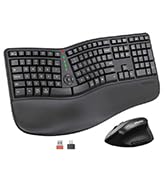
Image: Contents of the MEETION DirectorD-KB package, including the keyboard, user manual, USB-A receiver, and USB-C adapter.
3. סעטאַפּ אינסטרוקציעס
3.1. באַטאַרייע ייַנמאָנטירונג
- געפינט די באַטעריע אָפּטייל אויף דער אונטערשטער זייט פון דער קלאַוויאַטור.
- עפענען די באַטאַרייע אָפּטייל דעקן.
- Insert two AAA batteries (not included) into the compartment, ensuring correct polarity.
- פאַרמאַכן די באַטאַרייע אָפּטייל דעקן סיקיורלי.

Image: The underside of the keyboard showing the battery compartment for two AAA batteries and details on power saving features.
3.2. קאַנעקטינג די ופנעמער
- Locate the USB-A 2.4GHz wireless receiver, typically found in the slot inside the keyboard's battery compartment or in the accessory pouch.
- For devices with a USB-A port: Plug the USB-A receiver directly into an available USB-A port on your computer.
- For devices with a USB-C port: Attach the provided USB-C adapter to the USB-A receiver, then plug the combined unit into an available USB-C port on your computer.
- The keyboard is plug-and-play and should connect automatically.
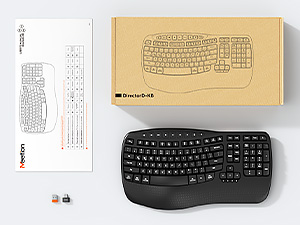
Image: Step-by-step guide on connecting the USB-A receiver with the USB-C adapter to a computer's USB-C port.
3.3. פּאַוערינג אויף
After installing batteries and connecting the receiver, slide the power switch on the keyboard to the 'ON' position. The keyboard is now ready for use.
4. אַפּערייטינג ינסטרוקטיאָנס
4.1. Ergonomic Design and Wrist Rest
The keyboard features a wave-shaped key layout and a firm, integrated wrist rest. This design guides your hands and wrists into a natural, relaxed typing position, reducing strain during long typing sessions.

Image: A user's hands resting comfortably on the integrated wrist rest while typing on the ergonomic keyboard.
4.2. Adjustable Tilt
Utilize the adjustable tilt legs on the underside of the keyboard to find your preferred typing angle. Different angles can further enhance comfort and reduce wrist fatigue.

בילד: זייט פּראָfiles of the keyboard demonstrating three different adjustable tilt angles for personalized comfort.
4.3. Dual System Layout (Windows/macOS)
The keyboard supports both Windows and macOS layouts. To switch between operating systems:
- דרוק FN + ק פֿאַר Windows אויסלייג.
- דרוק FN + וו פֿאַר macOS אויסלייג.
4.4. מולטימעדיאַ שליסלען
The keyboard includes dedicated and combined multimedia keys for quick access to functions like volume control, media playback, and more.
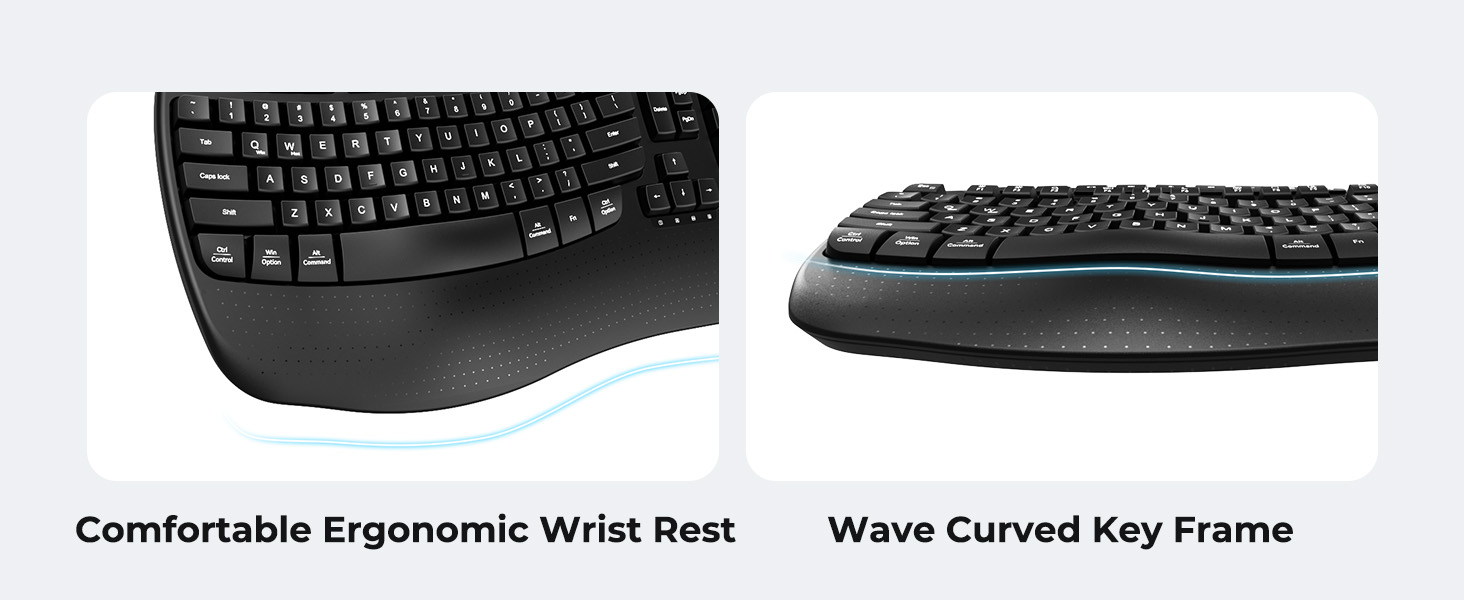
Image: A visual representation of the independent and combined multimedia keys available on the keyboard.
4.5. Intelligent Power Saving
The keyboard features an auto-sleep mode to conserve battery life. After 20 minutes of inactivity, it will enter hibernation. To wake it up, simply press any key.

Image: Close-up of the keyboard's indicator lights, showing status for Num Lock, Caps Lock, FN Lock, and low battery warning.
5. וישאַלט
כדי צו זיכער מאַכן די לאַנגלעבעניש און אָפּטימאַלע פאָרשטעלונג פון דיין קלאַוויאַטור, נאָכפאָלגן די וישאַלט גיידליינז:
- רייניקונג: Use a soft, dry cloth to wipe the surface of the keyboard. For deeper cleaning, a slightly damp cloth with mild soap can be used, ensuring no liquid enters the keycaps or internal components.
- ויסמיידן ליקווידס: Do not expose the keyboard to excessive moisture or spill liquids on it.
- סטאָרידזש: האַלט די קלאַוויאַטור אין אַ קיל, טרוקן אָרט אַוועק פון דירעקט זונשייַן און עקסטרעמע טעמפּעראַטורן.
- באַטערי פאַרבייַט: Replace batteries promptly when the low battery indicator appears to maintain consistent performance.
6. טראָובלעשאָאָטינג
If you encounter issues with your MEETION DirectorD-KB keyboard, refer to the following common solutions:
- קלאַוויאַטור רעאַגירט נישט:
- Check if the keyboard is powered on.
- Ensure the batteries are correctly installed and not depleted. Replace if necessary.
- Verify that the USB receiver is securely plugged into your computer's USB port (or via the USB-C adapter).
- פרובירט אריינצושטעקן דעם ריסיווער אין אן אנדער USB פארט.
- ריסטאַרט דיין קאָמפּיוטער.
- פאַרהאַלטונג אָדער ינטערמיטאַנט פֿאַרבינדונג:
- Ensure the keyboard is within the effective range of the receiver (typically up to 10 meters).
- Minimize interference from other wireless devices by moving them further away.
- פֿאַרמײַדט צו שטעלן דעם ופֿנעמער לעבן גרויסע מעטאַלענע אָביעקטן.
- Keys not functioning correctly:
- Check for any physical obstructions under the keycaps.
- Ensure the correct operating system layout (Windows/macOS) is selected using FN+Q or FN+W.
7. ספּעסאַפאַקיישאַנז
| שטריך | דעטאַל |
|---|---|
| סאָרט | MEETION |
| מאָדעל נומער | DirectorD-KB |
| קאַנעקטיוויטי טעכנאָלאָגיע | 2.4G Wireless (USB-A, USB-C Adapter) |
| קאַמפּאַטאַבאַל דעוויסעס | Laptop, PC (Windows XP/7/8/10/11 & macOS X 10.6 or later) |
| קלאַוויאַטור אויסלייג | QWERTY |
| נומער פון קיז | 113 |
| ספּעציעלע פֿעיִקייטן | Ergonomic, Hotkeys and Media Keys, Integrated Stand, Wave Keys, Wrist Rest |
| פּראָדוקט דימענשאַנז (L x W x H) | 17.39" x 9.43" x 1.81" |
| מאַטעריאַל | פּלאַסטיק |
| מאַכט מקור | Battery Powered (2 x AAA, not included) |
8. אפיציעלע פּראָדוקט ווידעאָ
ווידעא: אן אפיציעלע פראדוקט ווידעא ווייזונגasing the features and ergonomic design of the MEETION DirectorD-KB Wave Ergonomic Wireless Keyboard. (Duration: 0:39)
9. וואָראַנטי און שטיצן
This MEETION DirectorD-KB Wireless Ergonomic Keyboard comes with a 1-year manufacturer's warranty.
For further assistance, troubleshooting, or warranty claims, please visit the official MEETION store or contact customer support.
Official MEETION Store: MEETION קראָם אויף עמעזאָן