
1. הקדמה
The FLYINGVOICE FTA5111 is an Analog Telephone Adapter (ATA) designed to bridge traditional analog communication devices with modern Voice over IP (VoIP) networks. It features one FXS port for connecting an analog phone and one FXO port for integrating with the Public Switched Telephone Network (PSTN). This device ensures high-quality voice communication, offers stand-alone survivability (SAS) for emergency situations, and supports advanced SIP V2 protocol for broad compatibility.
שליסל פֿעיִקייטן אַרייַננעמען:
- Seamless Analog to VoIP Conversion with 1 FXS port and 1 SIP line.
- PSTN Connectivity with 1 FXO port for failover and traditional line access.
- Stand-Alone Survivability (SAS) for uninterrupted communication during network failures.
- Advanced SIP V2 Protocol for enhanced compatibility with VoIP service providers and PBX systems.
- Effortless Installation & Easy Integration with auto-provisioning and remote management.
2. פּעקל אינהאַלט
באַשטעטיקט אַז אַלע זאכן וואָס זענען ליסטעד אונטן זענען אַרייַנגערעכנט אין אייער פּעקל. אויב עפּעס פעלנדיק אָדער צעבראָכן, ביטע קאָנטאַקט אייער פאַרקויפער.
- FLYINGVOICE FTA5111 Analog Telephone Adapter
- מאַכט אַדאַפּטער
- RJ11 קאַבל (x2)
- רדזש 45 עטהערנעט קאַבלע
- שנעל ינסטאַללאַטיאָן גייד

Image: Contents of the FTA5111 product package.
3. פיזישע איבערview
The FTA5111 features a compact design with clearly labeled ports and LED indicators for easy setup and monitoring.
3.1 פראָנט פּאַנעל ינדיקאַטאָרס

Image: Front panel of the FTA5111 with LED status indicators.
- FXO: Indicates status of the FXO port connection.
- FXS: Indicates status of the FXS port connection.
- וואַן: Indicates status of the Wide Area Network connection.
- לאַן1/לאַן2: Indicate status of the Local Area Network connections.
- PWR: ינדיקייץ מאַכט סטאַטוס.
3.2 הינטערשטע פּאַנעל פּאָרטן

Image: Rear panel of the FTA5111 detailing the FXO, FXS, WAN, LAN, Reset, and Power ports.
- FXO Port: Connects to the Public Switched Telephone Network (PSTN) line. Compatible with analog phones, fax machines, and POS machines.
- FXS Port: Connects to an analog telephone or fax machine.
- וואַן פּאָרט: Connects to your internet router or modem for VoIP service.
- LAN1/LAN2 פּאָרטן: Connect to local network devices such as computers, printers, or IPTV.
- RST קנעפּל: Reset button (use a paperclip to press and hold for factory reset).
- DC(12V/1A) Port: מאַכט אַרייַנגאַנג פֿאַר די מיטל.
4. סעטאַפּ גייד
Follow these steps to set up your FLYINGVOICE FTA5111 Analog Telephone Adapter.
- פאַרבינדן מאַכט: Plug the provided power adapter into the DC(12V/1A) port on the rear of the FTA5111 and then into a power outlet. The PWR LED on the front panel should illuminate.
- Connect to Network (WAN): Use an RJ45 Ethernet cable to connect the WAN port of the FTA5111 to your internet router or modem. The WAN LED should illuminate and may blink to indicate activity.
- Connect Analog Phone (FXS): Connect your analog telephone or fax machine to the FXS port using an RJ11 cable. The FXS LED should illuminate.
- Connect to PSTN (FXO - Optional): If you wish to integrate with a traditional telephone line, connect your PSTN line to the FXO port using an RJ11 cable. The FXO LED should illuminate.
- Connect Local Devices (LAN - Optional): Use RJ45 Ethernet cables to connect computers, printers, or other network devices to the LAN1 and LAN2 ports. The corresponding LAN LEDs should illuminate.
- קאַנפיגיעריישאַן: אַקסעס די מיטל web-באזירט פאַרוואַלטונג צובינד דורך אַ web browser by entering the device's IP address (refer to the Quick Installation Guide for default IP or how to find it). Log in with the default credentials to configure VoIP accounts, network settings, and other advanced features.
5. אַפּערייטינג ינסטרוקטיאָנס
5.1 גרונטלעכע רוף פונקציעס
- מאַכן אַ רוף: Pick up the analog phone connected to the FXS port. You should hear a dial tone. Dial the desired number and wait for the connection.
- באַקומען אַ רוף: When the analog phone rings, pick up the handset to answer the call.
- ענדיקן אַ רוף: הענגען אויף די כאַנדסעט.
5.2 Three-Way Audio Conference
The FTA5111 supports basic three-way audio conferencing. Consult your VoIP service provider or the device's web interface settings for specific dialing sequences or feature codes to initiate a conference call.

Image: Visual representation of a three-way audio conference facilitated by the FTA5111.
5.3 Fax Over IP (T.38 and T.30)
The FTA5111 supports T.38 and T.30 fax protocols, allowing you to send and receive faxes over your VoIP network using a traditional fax machine connected to the FXS port. Ensure your VoIP service provider supports T.38 for optimal fax transmission.

Image: FTA5111 enabling fax over IP functionality.
5.4 Stand-Alone Survivability (SAS)
In the event of a VoIP network failure, the FTA5111's SAS feature allows it to function as an independent voice switch. It can assign up to 50 extension numbers, ensuring internal calls, emergency dialing, and key business communications remain operational. This feature is crucial for maintaining communication continuity.
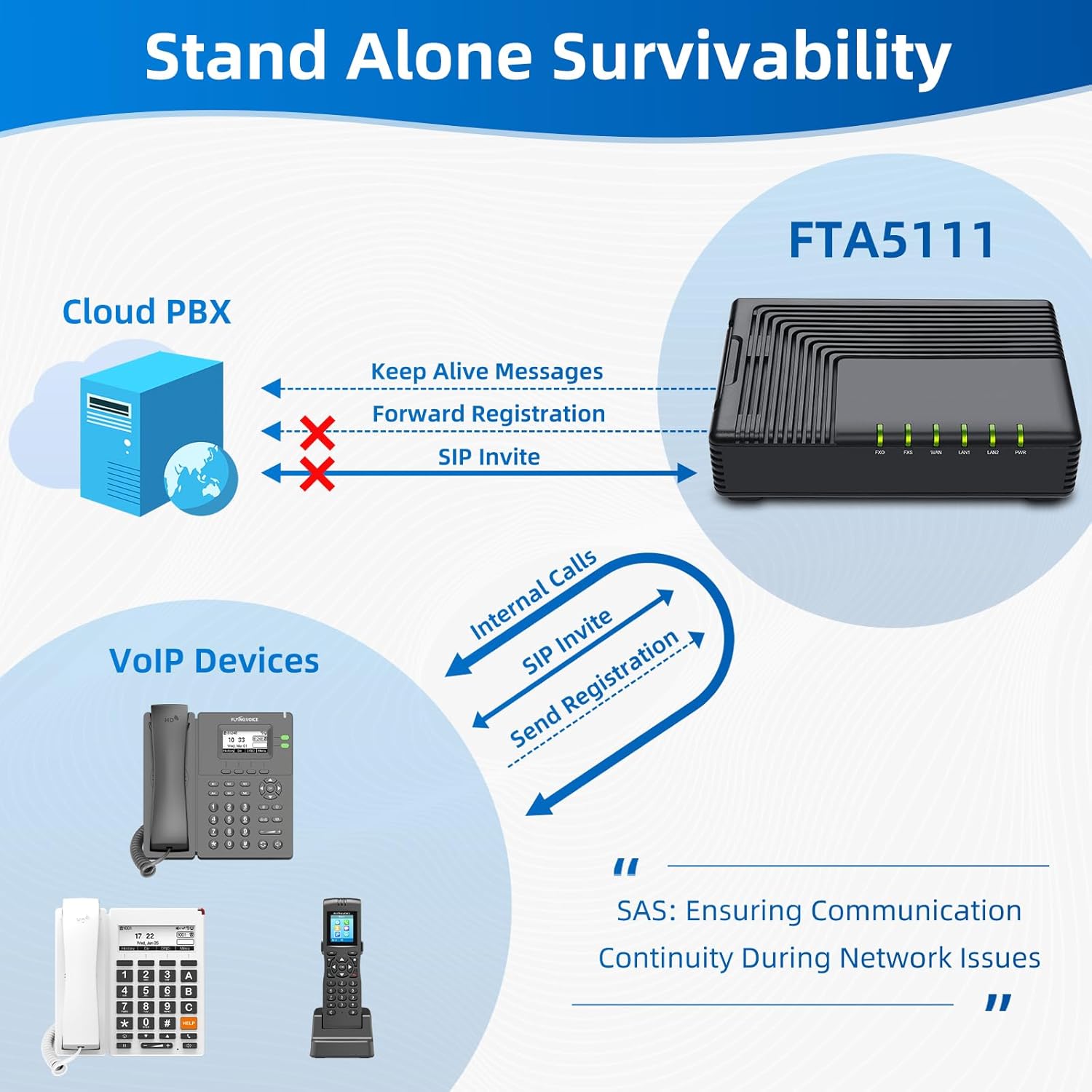
Image: How the FTA5111 provides Stand-Alone Survivability.
6. וישאַלט
To ensure optimal performance and longevity of your FTA5111, consider the following maintenance guidelines:
- האַלטן ריין: Regularly wipe the device with a soft, dry cloth to remove dust. Avoid using liquid cleaners.
- ווענטילאַטיאָן: Ensure the device is placed in a well-ventilated area to prevent overheating. Do not block ventilation slots.
- Firmware דערהייַנטיקונגען: Periodically check the FLYINGVOICE website for firmware updates. Keeping the firmware updated can improve performance, add new features, and enhance security. Firmware updates can typically be performed via the device's web פאַרוואַלטונג צובינד.
- מאַכט ציקל: If the device is experiencing minor issues, a simple power cycle (unplugging and replugging the power adapter) can often resolve them.
7. טראָובלעשאָאָטינג
This section addresses common issues you might encounter with your FTA5111.
7.1 קיין רופן טאָן
- טשעק מאַכט: Ensure the power adapter is securely connected and the PWR LED is illuminated.
- Check FXS Connection: Verify that the analog phone is correctly plugged into the FXS port and the FXS LED is on.
- נעץ קאַנעקטיוויטי: Ensure the WAN port is connected to your router/modem and the WAN LED is active. Check your internet connection.
- VoIP Registration: קלאָץ אין צו די web interface to confirm that your VoIP account is registered successfully.
7.2 קען נישט מאַכן/באַקומען רופן
- VoIP Account Status: Verify that your VoIP account is active and registered in the device's web צובינד.
- Network Firewall: Ensure your network firewall is not blocking VoIP traffic (SIP ports, RTP ports).
- PSTN Line (if applicable): If using the FXO port, ensure the PSTN line is active and connected properly.
- Dialing Plan: Check the dialing plan configuration in the web interface to ensure correct number routing.
7.3 Poor Call Quality (Echo, Jitter)
- Internet Bandwidth: Ensure you have sufficient internet bandwidth for VoIP calls.
- נעץ קאַנדזשעסטשאַן: Reduce other network activities that might consume bandwidth.
- QoS Settings: Configure Quality of Service (QoS) settings on your router and the FTA5111 (if available) to prioritize voice traffic.
- Codec Settings: Experiment with different audio codecs in the device's web interface if supported by your VoIP provider.
7.4 Device Not Accessible via Web צובינד
- IP אַדרעס: Confirm you are using the correct IP address for the device. You might need to check your router's DHCP client list.
- נעץ קאַנעקשאַן: Ensure your computer is connected to the same local network as the FTA5111 (via LAN port or the same router).
- פירעוואַלל: Temporarily disable your computer's firewall to rule it out as a cause.
- באַשטעטיק: If all else fails, perform a factory reset by pressing and holding the RST button for 5-10 seconds. Note that this will erase all configurations.
8. ספּעסאַפאַקיישאַנז
| שטריך | דעטאַל |
|---|---|
| סאָרט | פליענדיק קול |
| מאָדעל נומער | FTA5111 |
| פּעקל דימענשאַנז | 7.87 X 5.91 X 2.36 אינטשעס |
| קאָליר | שוואַרץ |
| מאַטעריאַל | פּלאַסטיק |
| מאַכט מקור | אַק אַדאַפּטער |
| טיפּ פון טעלעפאָן | Corded (for connected analog phones) |
| קאַמפּאַטאַבאַל דעוויסעס | Analog phone, Fax, IP TV, PSTN |
| קאָנפֿערענץ רוף מעגלעכקייט | Basic (3-way) |
| מולטיליין אפעראציע | איין-ליניע אָפּעראַציע |
| רופער אידענטיפיקאציע | No (device does not provide, depends on connected phone/service) |
9. וואָראַנטי אינפֿאָרמאַציע
FLYINGVOICE products are typically covered by a manufacturer's warranty. Please refer to the warranty card included with your product or visit the official FLYINGVOICE webזייטל פֿאַר דעטאַלירטע וואָראַנטי טערמינען און באדינגונגען.
Extended protection plans may also be available for purchase. For more information on additional protection, please refer to the options provided by your retailer, such as the 3-יאָר שוץ פּלאַן or 4-יאָר שוץ פּלאַן offered on Amazon.
10. שטיצן
For further assistance, technical support, or to access additional resources, please visit the official FLYINGVOICE webוועבזייטל אדער זייער בראַנד קראָם:
- FLYINGVOICE Brand Store: https://www.amazon.com/stores/FLYINGVOICE/page/F0B2FDB3-38D4-49B5-87D3-1B0FE9D39EF0
You may also consult the Quick Installation Guide included in your package for initial setup instructions.