
1. פּראָדוקט איבערview
The NEWQ USB4 M.2 NVMe SSD Enclosure (Model MS04 Pro) provides high-speed external storage for various devices. It is designed for efficient data transfer and reliable performance, especially in demanding environments like Mac mini setups.
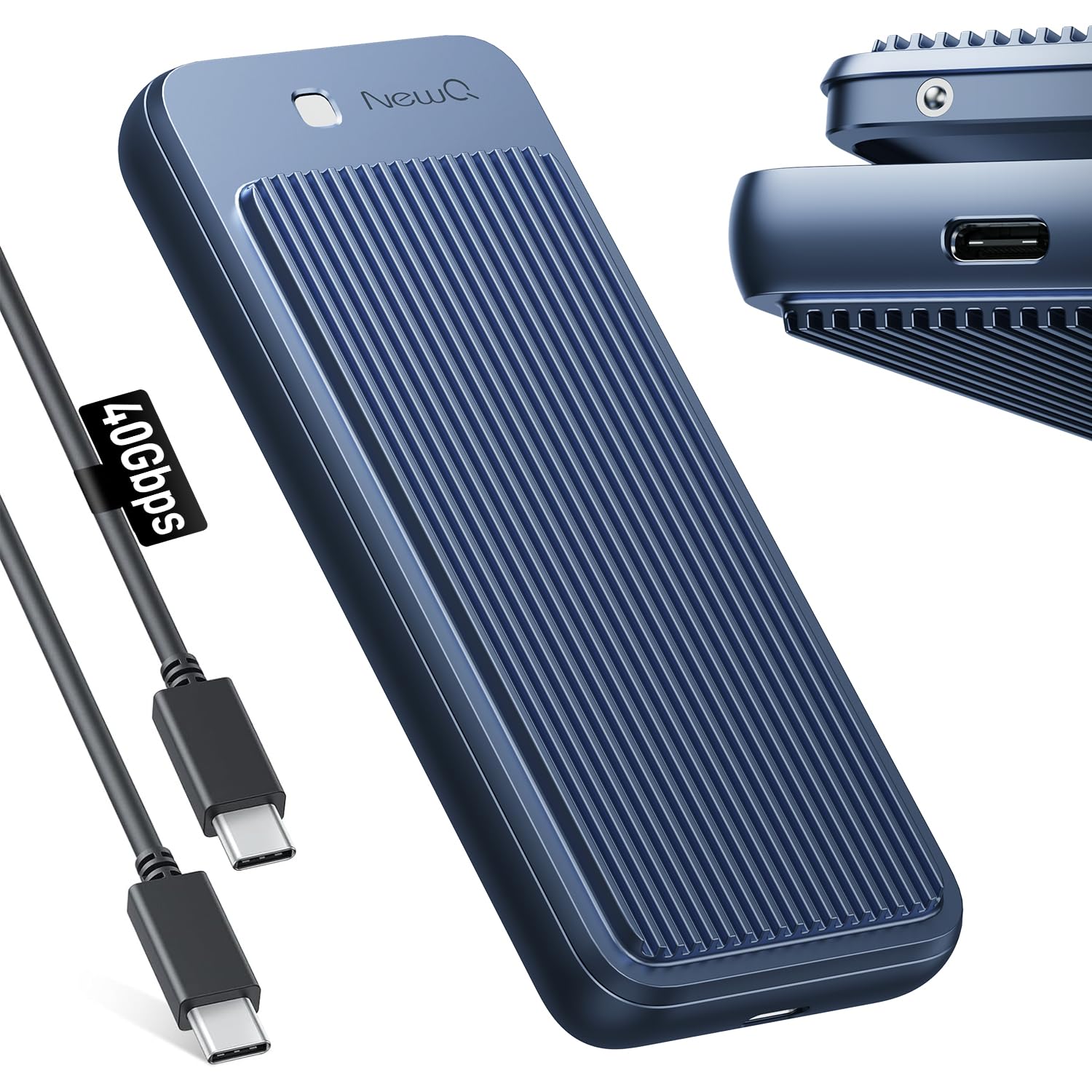
Image: The NEWQ USB4 M.2 NVMe SSD Enclosure, showcasinג זײַן גלאַטן דיזײַן און קאָמפּאַקטן פֿאָרעם פֿאַקטאָר.
שליסל פֿעיִקייטן:
- 40Gbps דאַטן אַריבערפירן: Achieves speeds up to 3000MB/s for large file טראַנספערס.
- Tool-Free Design: Allows for quick and easy SSD installation and removal.
- Dual-Sided Cooling: Aircraft-grade aluminum casing with raised cooling fins for efficient heat dissipation.
- ברייט קאַמפּאַטאַבילאַטי: Supports Thunderbolt 4/3 and USB4/3.2, compatible with various M.2 NVMe SSD sizes (2230/2242/2260/2280).
- Always-On Ready: Engineered for continuous 24/7 operation, ideal for Mac mini setups.
2. פּעקל אינהאַלט
באַשטעטיקן אַז אַלע זאכן זענען פאַראַן אין דיין פּעקל:

Image: The product packaging list, showing the enclosure, cable, and user guide.
- SSD Enclosure x1
- באַניצער גייד קס 1
- פּאַקקאַגינג באָקס קס 1
- 40Gbps USB C Cable x1
3. סעטאַפּ און ייַנמאָנטירונג
SSD Compatibility Checklist:
Ensure your M.2 NVMe SSD meets the following criteria for optimal performance:

Image: Visual guide for compatible M.2 NVMe SSD types and sizes.
- Supports M.2 NVMe SSD sizes: 2230, 2242, 2260, 2280.
- For maximum 40Gbps speed, use an M-Key (PCIe Gen4x4 M.2 NVMe) ססד.
- M&B Key NVMe/PCIe SSDs are compatible but may not reach 40Gbps.
- M&B Key NGFF/SATA and B Key NGFF/SATA SSDs are ניט קאַמפּאַטאַבאַל.
Tool-Free Installation Steps:
The enclosure features a spring-loaded, tool-free design for easy SSD installation.

Image: Step-by-step visual guide for installing an M.2 NVMe SSD into the enclosure.
- שריט 1: Press horizontally on the top part of the enclosure to release the cover.
- שריט 2: Open the enclosure cover upwards.
- שריט 3: Gently insert your M.2 NVMe SSD into the slot.
- שריט 4: If a thermal pad is provided, apply it over the SSD to aid in heat dissipation.
- שריט 5: Close the enclosure cover until it clicks securely into place.

Image: An M.2 NVMe SSD correctly installed within the NEWQ enclosure.
4. אַפּערייטינג ינסטרוקטיאָנס
פֿאַרבינדן דעם ענקלאָוזשער:
Connect the NEWQ USB4 M.2 NVMe SSD Enclosure to your device using the provided 40Gbps USB-C cable. The enclosure is plug-and-play, requiring no additional drivers for Windows, macOS, or Linux operating systems.

Image: The enclosure connected to a laptop, demonstrating its wide compatibility with various devices and operating systems.
It is compatible with Thunderbolt 3/4 and USB4/3.2 devices, including MacBook Pro/Max M1/M2/M3/M4, Dell XPS, Mac mini, iPad Pro, and other Windows Chromebook Laptops.
דאַטן אַריבערפירן ספּידז:
The enclosure supports blazing-fast transfers up to 40Gbps (3000MB/s) when paired with a compatible PCIe Gen4x4 M-Key SSD and a device with a Thunderbolt 4/USB4 port.

Image: A visual representation of the 40Gbps transfer speed, showing 3GB transferred in 1 second.
Optimizing Write Speed (Windows):
If you experience high read speeds but slow write speeds (e.g., 3000MB/s read, 500MB/s write), you can optimize the write performance by adjusting Windows settings:

Image: Three-step guide to optimize write speed in Windows settings.
- שריט 1: Right-click on the drive in File Explorer and select "Properties".
- שריט 2: Go to the "Hardware" tab, select the drive, and click "Properties".
- שריט 3: In the new window, go to the "Policies" tab and select "Better performance" and "Enable write caching on the device".
Mac Dual-System Stability:
This enclosure is ideal for Mac users, allowing seamless installation of a secondary OS like Windows directly on your SSD for dual-booting. It is rigorously tested for 40Gbps SSD enclosure stability.

Image: A Mac mini setup utilizing the external SSD enclosure for expanded storage and dual-system functionality.
5. Maintenance and Cooling
The NEWQ USB4 M.2 NVMe SSD Enclosure features an advanced dual-sided cooling system to ensure stable performance even under heavy use.

Image: Close-up of the dual-sided raised aluminum heatsink design for reliable cooling.
- Aircraft-Grade Aluminum Casing: Provides robust protection and aids in heat dissipation.
- Raised Cooling Fins: Maximizes airflow and surface area for efficient heat transfer.
- Fanless Passive Cooling: Designed for silent operation and increased durability by avoiding moving parts that attract dust or generate noise.
This design ensures the main control chip remains stable even at elevated temperatures, rigorously tested for reliability.

Image: Results of a 7-day, 24-hour non-stop read/write stability test, showing consistent performance.
6. טראָובלעשאָאָטינג
Why can't the speed reach 3000MB/S?
Several factors can affect the actual data transfer speed, preventing it from reaching the maximum 3000MB/s:

Image: Diagram explaining common reasons for not reaching maximum transfer speeds.
- Older Thunderbolt 3 Laptops: Some older Thunderbolt 3 laptops may have speed limitations.
- NVM Firmware/System Limitations:
- If your NVM Firmware is not updated, your laptop may not be fully compatible with USB4 and could downgrade to USB3.2 10Gbps speeds.
- System or CPU limitations can also restrict speeds to between 1000MB/s and 2500MB/s.
For detailed information on checking Thunderbolt/USB Host Information, please refer to the following resources:
If you identify an NVM or firmware limitation, contact your laptop brand for potential updates.
אַלגעמיינע עצות פֿאַר פּראָבלעם־לייזונג:
- Ensure the SSD is correctly installed and seated firmly in the enclosure.
- Verify that the USB-C cable is securely connected to both the enclosure and your device.
- Test the enclosure with a different USB-C port or device to rule out port-specific issues.
- זיכער מאַכן אַז אייער אָפּערייטינג סיסטעם איז אַרויף צו דאַטע.
7. ספּעסאַפאַקיישאַנז
| באַשרייַבונג | דעטאַל |
|---|---|
| סאָרט | NEWQ |
| מאָדעל נומער | MS04 Pro |
| ייַזנוואַרג צובינד | PCIE x 4, Thunderbolt 3, Thunderbolt 4, USB Type C |
| דאַטאַ אַריבערפירן קורס | 3000 Megabits Per Second (40Gbps) |
| קאַמפּאַטאַבאַל דעוויסעס | MacBook, Mac Mini M1/M2/M3/M4 Pro, Windows Chromebook Laptops |
| ייַזנוואַרג פּלאַטפאָרמע | PC, Mac, Linux/Windows/MacOS/Android |
| מאַטעריאַל | אַלומינום |
| קאָליר | בלוי |
| פּונקט וואָג | 0.47 קילאָגראַמס |
8. וואָראַנטי און שטיצן
וואָראַנטי אינפֿאָרמאַציע:
The NEWQ USB4 M.2 NVMe SSD Enclosure comes with a 2 יאָר וואָראַנטי.
נאָך סאַלעס שטיצן:
Should you encounter any quality issues with your product, NEWQ is committed to providing a replacement to ensure your satisfaction. Our goal is to ensure you have a positive experience.
Please contact our customer support for assistance with any product-related concerns or warranty claims.
9. פּראָדוקט ווידעאָ
ווידעא: אפיציעלער פראדוקט איז פארבייview of the NEWQ USB4 40GBPS M.2 NVMe SSD Enclosure, demonstrating its features and ease of use.