
הקדמה
This manual provides detailed instructions for the setup, operation, maintenance, and troubleshooting of your BoxWave SlimKeys Bluetooth Keyboard with Trackpad. Please read this manual thoroughly before using the product to ensure optimal performance and longevity.
פּראָדוקט איבערview
The BoxWave SlimKeys Bluetooth Keyboard with Trackpad is a portable, slim keyboard designed for seamless connectivity with various devices. It features responsive chiclet-style keys and a full-functioning trackpad, enhancing productivity on the go.

בילד: פון אויבן אַראָפּ view of the BoxWave SlimKeys Bluetooth Keyboard with Trackpad, showing the full QWERTY layout and integrated trackpad.

בילד: ווינקלדיק view of the BoxWave SlimKeys Bluetooth Keyboard with Trackpad, highlighting its slim profile.
סעטאַפּ
1. אויפלאָדן די קלאַוויאַטור
Before initial use, fully charge the keyboard. Connect the included charging cable to the keyboard's charging port and to a USB power source. The charging indicator light will illuminate during charging and turn off when fully charged.

Image: The BoxWave SlimKeys keyboard connected to a charging cable, illustrating the charging process.
2. פּאָווערינג אויף / אויסגעלאשן
Locate the ON/OFF switch on the side of the keyboard. Slide the switch to the 'ON' position to power on the keyboard. Slide it to 'OFF' when not in use to conserve battery power.
3. בלועטאָאָטה פּערינג
- זייט זיכער אז די קלאַוויאַטור איז אויפגעלאָדן און אנגעצונדן.
- דרוק די פאַרבינדן button on the keyboard. The Bluetooth indicator light will begin to flash, indicating it is in pairing mode.
- On your device (e.g., HP Spectre X360, Android tablet, iOS device), go to the Bluetooth settings.
- זוכן פֿאַר available devices. You should see "BoxWave SlimKeys Keyboard" or a similar name appear in the list.
- Select the keyboard from the list to initiate pairing. Follow any on-screen prompts, such as entering a pairing code, if required.
- Once successfully paired, the Bluetooth indicator light on the keyboard will stop flashing and remain solid or turn off, depending on the model.

Image: A hand using the integrated trackpad on the SlimKeys keyboard, demonstrating navigation capabilities.
4. Multi-Platform Compatibility
The SlimKeys keyboard is compatible with Android, Windows, and iOS devices. It automatically adapts to the operating system for optimal functionality.
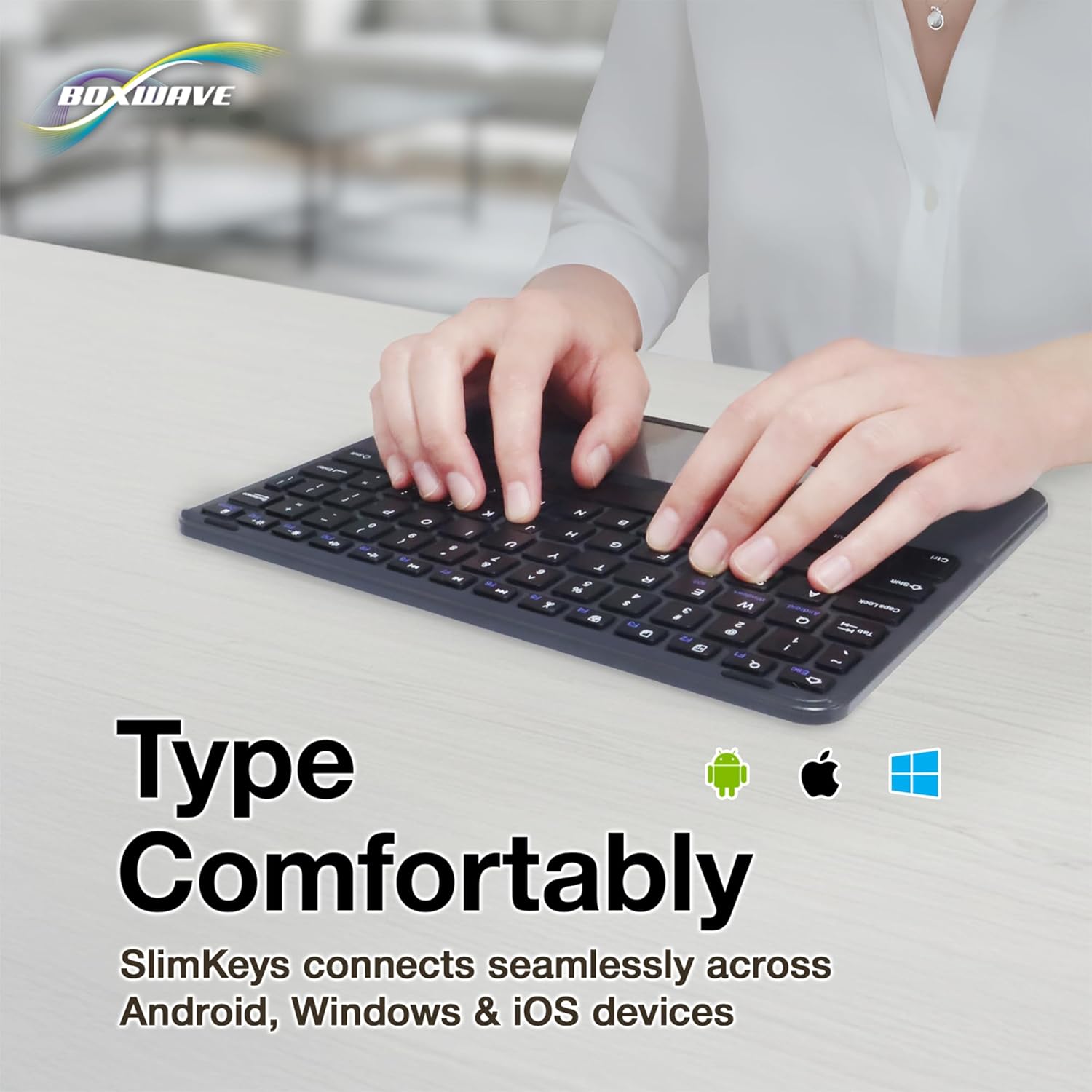
Image: Hands typing on the SlimKeys keyboard, with icons representing Android, Apple (iOS), and Windows operating systems, indicating multi-platform compatibility.
אַפּערייטינג ינסטראַקשאַנז
1. Basic Keyboard Usage
The keyboard functions like a standard QWERTY keyboard. Simply type as you would on any other keyboard. The chiclet-style keys provide a comfortable and responsive typing experience.
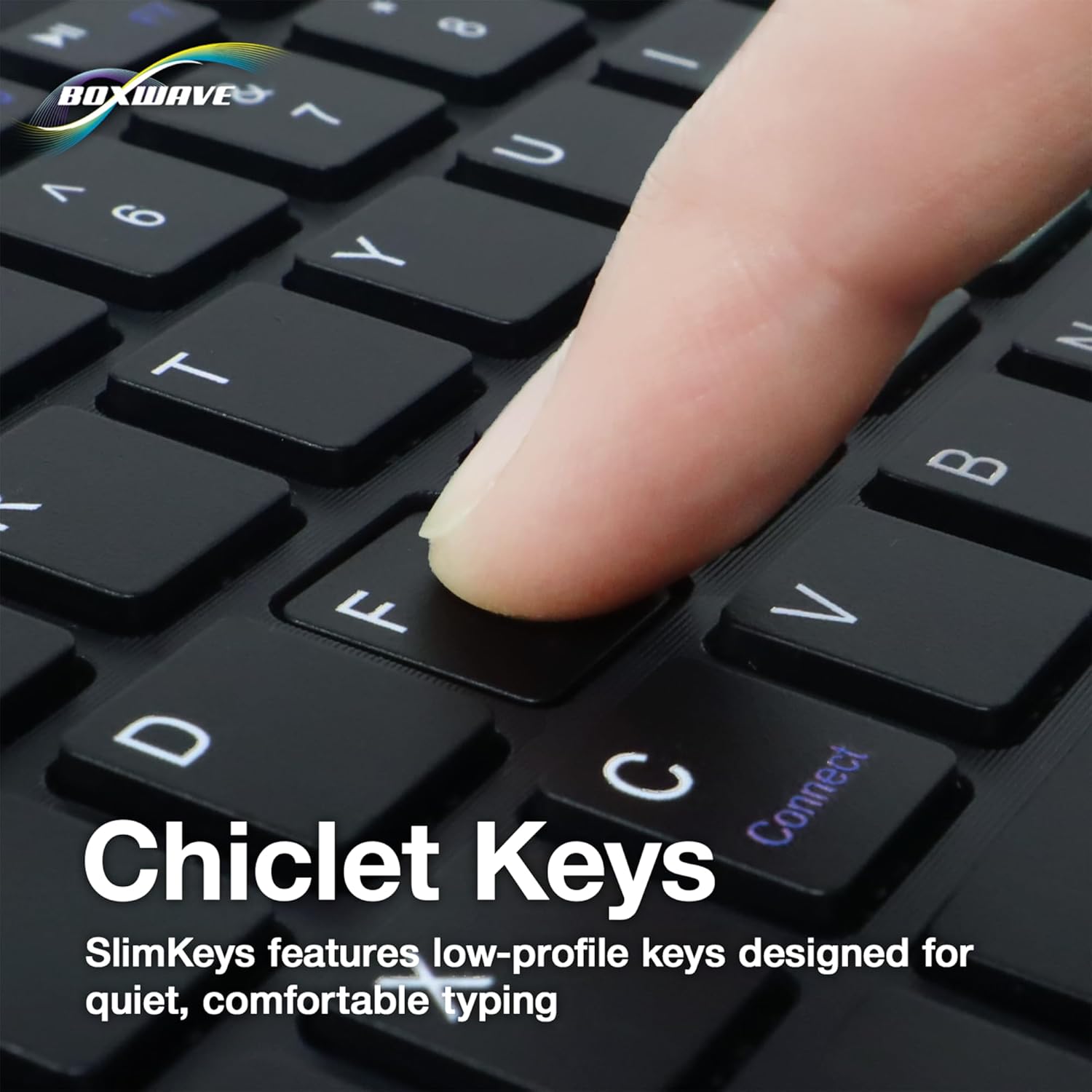
בילד: א נאָענטע בילד view of a finger pressing a key on the SlimKeys keyboard, highlighting the chiclet key design.
2. Trackpad Functionality
The integrated trackpad allows for precise cursor control, similar to a laptop trackpad. Use single-finger gestures for basic navigation and clicking. Multi-touch gestures may be supported depending on your device's operating system.
3. Specialized Function Keys
The keyboard includes a row of specialized function keys (F1-F12) that provide quick access to common commands. These functions may vary slightly depending on the connected device's operating system.
- Esc / Home: Returns to the home screen or acts as Escape.
- F1 / Search: Opens search function.
- F2 / Select All: Selects all content.
- F3 / Copy: Copies selected content.
- F4 / Paste: Pastes copied content.
- F5 / Cut: Cuts selected content.
- F6 / Skip Back: Skips to the previous track/media.
- F7 / Play/Pause: שפּילט אָדער פּויזירט מעדיע.
- F8 / Skip Forward: Skips to the next track/media.
- F9 / Volume Down: דיקריסאַז אַודיאָ באַנד.
- F10 / Volume Up: ינקריסאַז אַודיאָ באַנד.
- F11 / Brightness Down: דיקריסאַז פאַרשטעלן ברייטנאַס.
- F12 / Brightness Up: ינקריסאַז פאַרשטעלן ברייטנאַס.
- Delete / Lock: Deletes characters or locks the device.

Image: A detailed diagram illustrating the specialized function keys and their corresponding actions on the SlimKeys keyboard.
וישאַלט
1. רייניקונג
צו רייניקן די קלאַוויאַטור, ווישט אָפּ די ייבערפלאַך מיט אַ ווייכן, דamp cloth. Avoid using harsh chemicals or abrasive materials, as these can damage the finish. Ensure no liquid enters the keyboard's internal components.
2. באַטערי קער
The keyboard features a long-lasting battery. To maximize battery life:
- Turn off the keyboard using the ON/OFF switch when not in use.
- לאָדט אויף די באַטאַרייע ווען דער נידעריקע באַטאַרייע אינדיקאַטאָר דערשיינט.
- ויסמיידן יקספּאָוזינג די קלאַוויאַטור צו עקסטרעם טעמפּעראַטורעס.
The keyboard offers up to 30 days of active use and up to 6 months of standby time when powered off.
טראָובלעשאָאָטינג
- קלאַוויאַטור פֿאַרבינדט זיך נישט:
- זייט זיכער אַז די קלאַוויאַטור איז אנגעצונדן און גאָר אויפגעלאָדן.
- מאַכן זיכער אַז בלועטאָאָטה איז ענייבאַלד אויף דיין מיטל.
- Try re-pairing the keyboard by following the Bluetooth Pairing steps in the Setup section.
- זיכער מאַכן אַז די קלאַוויאַטור איז אין דער עפעקטיווער בלוטוט ראַנגע (געווענליך 10 מעטער אדער 33 פֿיס).
- קנעפּלעך רעאַגירן נישט:
- Check if the keyboard is connected via Bluetooth.
- ריסטאַרט ביידע די קלאַוויאַטור און דיין מיטל.
- זייט זיכער אז די קלאַוויאַטור באַטעריע איז נישט קריטיש נידעריק.
- טרעקפּאַד אַרבעט נישט:
- באַשטעטיקן אַז די קלאַוויאַטור איז ריכטיק פֿאַרבונדן.
- Check your device's settings for any trackpad or mouse-related configurations.
- Clean the trackpad surface to remove any debris.
- אומגעריכטע פֿאַרבינדונג:
- ריקט זיך נענטער צו אייער דעווייס צו רעדוצירן אריינמישונג.
- Ensure no other strong wireless signals are interfering with the Bluetooth connection.
- דיסקאַנעקט און ריקאַנעקט די בלועטאָאָטה פֿאַרבינדונג.
ספּעסאַפאַקיישאַנז
| שטריך | דעטאַל |
|---|---|
| סאָרט | BoxWave |
| מאָדעל | SlimKeys Bluetooth Keyboard with Trackpad |
| קאָליר | דזשעט שווארצע |
| מאַטעריאַל | פּאָליקאַרבאָנאַטע |
| פּונקט וואָג | 10.9 אונסעס |
| בלועטאָאָטה ווערסיע | 3.0 |
| דימענשאַנז (ב x ד x ה) | 9.5 רענטגענ 7.0 רענטגענ 0.2 אינטשעס (23.2 סענטימעטער רענטגענ 17.8 סענטימעטער רענטגענ 0.5 סענטימעטער) |
| באַטעריע לעבן (אַקטיוו נוצן) | אַרויף צו 30 טעג |
| באַטאַרייע לעבן (סטאַנדביי) | אַרויף צו 6 חדשים |
| ASIN | B0DZ7MNDRF |
| ערשטער דאַטע בנימצא | 3טן דעצעמבער 2021 |

Image: A diagram illustrating the width, depth, and height of the SlimKeys keyboard.
וואָראַנטי און שטיצן
Specific warranty information and detailed support contacts are not provided within this manual. For warranty details, technical support, or further assistance, please refer to the official BoxWave webזייטל אדער קאנטאקט זייער קאסטומער סערוויס גלייך.