
1. הקדמה
This manual provides essential information for the setup, operation, and maintenance of your Bmax B4 Turbo N150 Mini PC. Please read this manual thoroughly before using the device to ensure proper functionality and safety.

Image 1.1: The Bmax B4 Turbo N150 Mini PC. This image displays the compact design of the mini PC, showcasing its small form factor and sleek appearance.
2. זיכערקייַט אינפֿאָרמאַציע
- זיכער מאַכן אַז די דעווייס איז געשטעלט אויף אַ סטאַביל, פלאַך ייבערפלאַך צו פאַרמייַדן אַקסאַדענטאַל פאלן.
- שטעלט נישט אויס דעם אפאראט צו וואסער, פייכטקייט, אדער עקסטרעמע טעמפעראטורן.
- Use only the provided power adapter. Using an incorrect adapter may damage the device and void the warranty.
- ויסמיידן בלאַקינג ווענטאַליישאַן אָופּאַנינגז צו פאַרמייַדן אָוווערכיטינג.
- פרובירט נישט צו עפענען אדער פאררעכטן דעם אפאראט אליין. ווענדט זיך צו קוואַליפֿיצירטע סערוויס פּערסאָנעל פֿאַר יעדע פאררעכטונג.
3. פּעקל אינהאַלט
באַשטעטיקן אַז אַלע זאכן זענען פאַראַן אין פּעקל:
- Bmax B4 Turbo N150 Mini PC
- Power Adapter (DC12V/2A)
- מאָונטינג קלאַמער
- באַניצער מאַנואַל (דעם דאָקומענט)
4. פּראָדוקט איבערview
4.1. פּאָרטן און קאַנעקטאָרס

בילד 4.1: איבערview of Bmax B4 Turbo N150 Mini PC ports. This image illustrates the various input and output ports available on the mini PC, including USB, HDMI, Type-C, and Ethernet connections.
The Bmax B4 Turbo N150 Mini PC features a comprehensive set of ports for connectivity:
- פראָנט פּאַנעל:
- 2 רענטגענ וסב 3.0 פּאָרץ
- 1 רענטגענ 3.5 מם אַודיאָ דזשאַק
- מאַכט קנעפּל
- ריר פּאַנעל:
- 1 x DC12V/2A Power Input
- 2 רענטגענ וסב 2.0 פּאָרץ
- 1 x HDMI 2.1 Port (supports 4K@60Hz)
- 1 x Type-C Port (full features, 10Gbps)
- 1 x RJ45 Gigabit Ethernet Port
- קלאָר קמאָס קנעפּל
4.2. שליסל פֿעיִקייטן
- פּראַסעסער: Intel 13th Gen Twin Lake N150 (4 Cores, 4 Threads, 0.8GHz base, up to 3.6GHz burst frequency).
- זכּרון: 16 גיגאבייט DDR4 3200MHz ראַם.
- סטאָרידזש: 1TB SSD.
- גראַפיקס: Integrated Intel UHD Graphics (up to 1 GHz).
- אַפּערייטינג סיסטעם: Pre-installed Windows 11, supports Linux and Ubuntu.
- ווירעלעסס קאַנעקטיוויטי: Wi-Fi 5 (802.11a/b/g/n/ac) and Bluetooth 5.0.
- קאָאָלינג סיסטעם: Built-in silent fan for efficient heat dissipation.

Image 4.2: Intel N150 Processor specifications. This graphic details the technical specifications of the Intel N150 CPU, including core count, thread count, cache, TDP, and clock speeds.
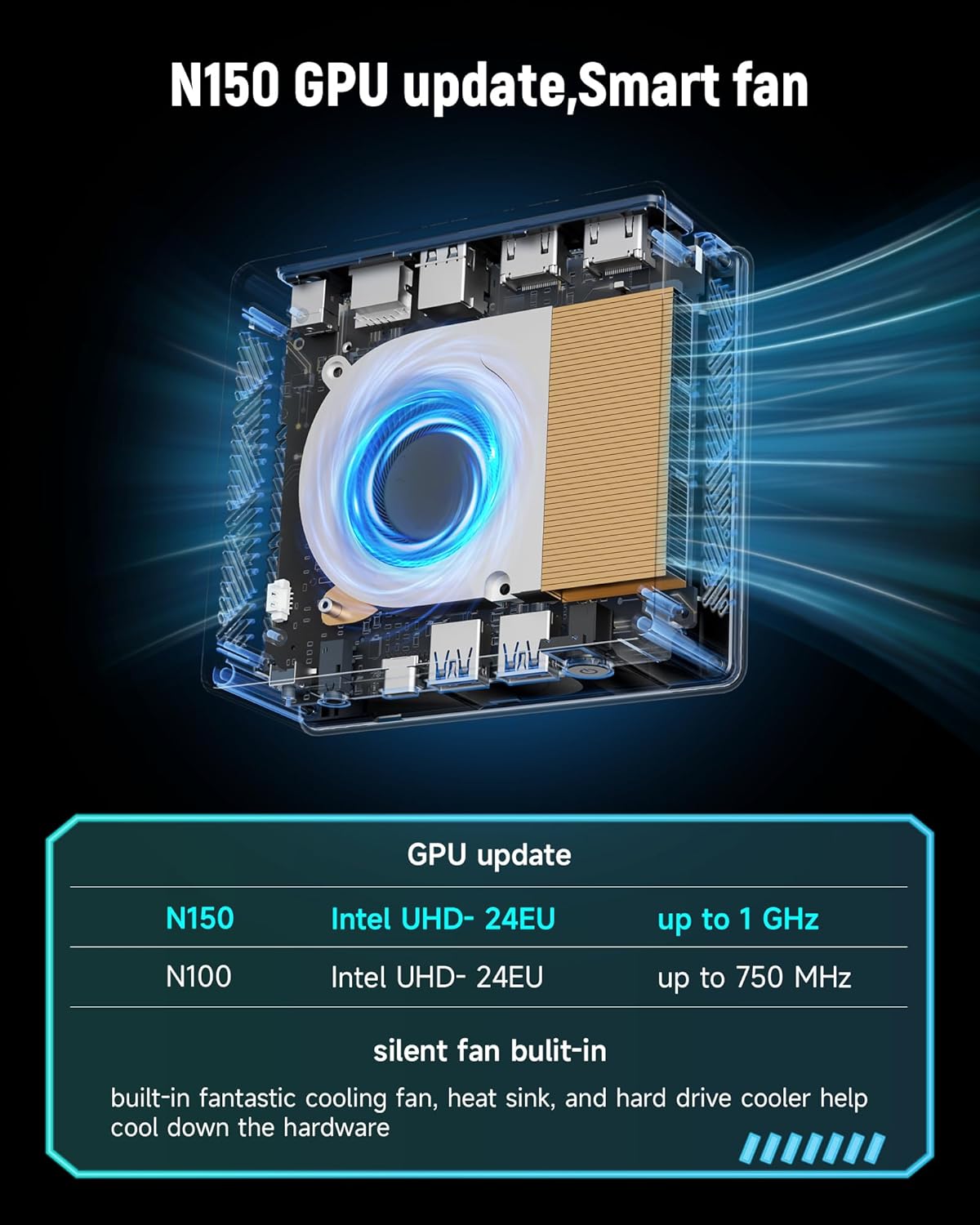
בילד 4.3: אינעווייניק view of the cooling system. This image highlights the internal fan and heatsink design, demonstrating the cooling solution implemented in the mini PC.
5. סעטאַפּ
5.1. קאַנעקטינג צו אַ ווייַז
- Connect one end of an HDMI cable to the HDMI 2.1 port on the rear of the Mini PC.
- Connect the other end of the HDMI cable to an HDMI input port on your monitor or TV.
5.2. קאַנעקטינג פּעריפעראַלס
- Connect your USB keyboard and mouse to the available USB ports on the Mini PC.
- For audio output, connect speakers or headphones to the 3.5mm audio jack on the front panel.
5.3. מאַכט קאַנעקשאַן
- Plug the power adapter into the DC12V/2A input port on the rear of the Mini PC.
- פאַרבינדן די מאַכט אַדאַפּטער צו אַ וואַנט ווענטיל.
6. אַפּערייטינג ינסטרוקטיאָנס
6.1. פּאָווערינג אויף / אויסגעלאשן
- צו מאַכט אויף: דריק דעם מאַכט קנעפּל וואָס געפינט זיך אויפן פראָנט פּאַנעל. די מאַכט אינדיקאַטאָר ליכט וועט זיך אָנצינדן.
- צו מאַכט אַוועק: From the Windows 11 operating system, click the Start button, then Power, and select "Shut down." Alternatively, you can press and hold the power button for approximately 5 seconds to force a shutdown (not recommended for regular use).
6.2. נעץ קאַנעקטיוויטי
6.2.1. Wired Connection (Ethernet)
- Connect an Ethernet cable from your router or modem to the RJ45 port on the rear of the Mini PC.
- The system should automatically detect and connect to the wired network.
6.2.2. Wireless Connection (Wi-Fi)
- Once Windows 11 has loaded, click the Wi-Fi icon in the taskbar.
- אויסקלייבן אייער געוואונטשענע Wi-Fi נעץ פון דער ליסטע און אַרייַן די פּאַראָל אויב געבעטן.

Image 6.1: High-speed network connection capabilities. This image visually represents the mini PC's support for high-speed Wi-Fi 5, Bluetooth 5.0, and Gigabit LAN, indicating robust connectivity options.
6.3. בלועטאָאָטה קאַנעקטיוויטי
To connect Bluetooth devices (e.g., headphones, keyboard, mouse):
- מאַכן זיכער אַז דיין בלועטאָאָטה מיטל איז אין פּערינג מאָדע.
- On Windows 11, go to סעטטינגס > בלועטוט און דעווייסעס.
- Turn on Bluetooth and click "Add device."
- Select your device from the list and follow the on-screen prompts to complete pairing.
6.4. Dual Display Setup
The Mini PC supports dual displays via the HDMI 2.1 port and the full-featured Type-C port. To set up dual monitors:
- פֿאַרבינדט אייער הויפּט מאָניטאָר צום HDMI פּאָרט.
- Connect your secondary monitor to the Type-C port (using a compatible Type-C to HDMI/DisplayPort adapter if necessary).
- Once both monitors are connected, right-click on the desktop, select "Display settings," and configure your display preferences (e.g., extend, duplicate).
7. וישאַלט
- רייניקונג: Use a soft, dry cloth to clean the exterior of the Mini PC. Do not use liquid cleaners or aerosols.
- ווענטילאַטיאָן: Ensure that the ventilation openings are clear of dust and obstructions to maintain optimal cooling performance.
- ווייכווארג דערהייַנטיקונגען: Regularly update your operating system and drivers to ensure system stability and security.
8. טראָובלעשאָאָטינג
8.1. קיין מאַכט
- Check if the power adapter is securely connected to both the Mini PC and the wall outlet.
- זיכער מאַכן אַז די וואַנט אַוטלעט אַרבעט ריכטיק דורך עס צו פּרובירן מיט אַן אַנדער מיטל.
8.2. קיין ווייַז
- Verify that the HDMI cable is securely connected to both the Mini PC and the monitor.
- Ensure the monitor is powered on and set to the correct input source (e.g., HDMI 1).
- Try connecting the Mini PC to a different monitor or TV to rule out a monitor issue.
8.3. נעץ קאָנעקטיוויטי פּראָבלעמען
- ווייערד: קאָנטראָלירט די עטערנעט קאַבל פֿאַרבינדונג. ריסטאַרט אייער ראַוטער/מאָדעם.
- ווירעלעסס: Ensure Wi-Fi is enabled in Windows settings. Verify the Wi-Fi password. Restart your router.
8.4. System Unresponsive
- If the system becomes unresponsive, press and hold the power button for 5-10 seconds to force a shutdown. Then, power it back on.
- If issues persist, consider using the "Clear CMOS Button" on the rear panel (consult section 4.1 for location) to reset BIOS settings to default. This may require a small, pointed object to press.
9. ספּעסאַפאַקיישאַנז
| שטריך | באַשרייַבונג |
|---|---|
| סאָרט | Bmax |
| מאָדעל | B4 Turbo N150 |
| פּראַסעסער | Intel 13th Gen Twin Lake N150 (4 Cores, 4 Threads) |
| פּראַסעסער באַסע אָפטקייַט | 0.8 גהז |
| Processor Burst Frequency | אַרויף צו 3.6 GHz |
| באַראַן | 16GB DDR4 3200MHz |
| סטאָרידזש | 1TB SSD |
| גראַפיקס | Intel UHD Graphics (up to 1 GHz) |
| אָפּערייטינג סיסטעם | Windows 11 (pre-installed), supports Linux, Ubuntu |
| ווי-פי | Wi-Fi 5 (802.11a/b/g/n/ac) |
| בלועטאָאָטה | בלועטאָאָטה 5.0 |
| עטהערנעט | 1 רדזש 45 גיגאַביט לאַן |
| וסב פּאָרץ | 2 רענטגענ וסב 3.0, 2 רענטגענ וסב 2.0 |
| ווידעא רעזולטאַט | 1 x HDMI 2.1 (4K@60Hz), 1 x Type-C (full features) |
| אַודיאָ פּאָרט | 1 רענטגענ 3.5 מם אַודיאָ דזשאַק |
| מאַכט אַרייַנשרייַב | DC12V/2A |
| דימענסיעס (L X W X H) | 4.92 X 4.41 X 1.73 אינטשעס |
10. וואָראַנטי און שטיצן
For warranty information and technical support, please refer to the warranty card included with your product or visit the official Bmax webזייטל. האַלט אייער קויף קוויטל ווי אַ באַווייַז פון קויפן פֿאַר וואָראַנטי קליימז.