
הקדמה
The BMAX Mini PC B9Power is a compact yet powerful desktop computer designed for a wide range of applications, from daily office tasks and multimedia consumption to demanding creative work and gaming. Featuring an Intel Core i9-12900HK processor, ample memory, and fast storage, it delivers desktop-level performance in a small form factor. This manual provides essential information for setting up, operating, maintaining, and troubleshooting your BMAX Mini PC.

Figure 1: BMAX Mini PC B9Power, showcasing its compact design and sleek black finish.
פּראָדוקט איבערview
The BMAX Mini PC B9Power is engineered for high performance and efficiency. Key components and features include:
- פּראַסעסער: Intel Core i9-12900HK (14 Cores, 20 Threads, up to 5.0 GHz Turbo Frequency)
- גראַפיקס: אינטעגרירטע אינטעל איריס קסע גראַפיקס
- זכּרון: 32GB DDR4 3200MHz SODIMM RAM (expandable up to 64GB)
- סטאָרידזש: 1TB NVMe SSD (with dual M.2 slots for expansion)
- אַפּערייטינג סיסטעם: Pre-installed Windows 11 Pro
- קאַנעקטיוויטי: WiFi 6, Bluetooth 5.2, Gigabit Ethernet
- פּאָרץ: HDMI 2.1, DisplayPort 1.4a, Type-C (full-featured), USB 3.2 x2, USB 2.0 x2, 3.5mm Audio Jack
- קאָאָלינג סיסטעם: Advanced dual copper heat pipe with smart fan

פיגור 2: קאָמפּרעהענסיוו איבערview of the BMAX Mini PC B9Power's core features, including CPU, GPU, memory, storage, cooling, and connectivity options.

פיגורע 3: דערציען view of the BMAX Mini PC B9Power, highlighting the various input/output ports for connectivity.
סעטאַפּ
- Unpack the Mini PC: Carefully remove the BMAX Mini PC and all accessories from the packaging. Verify that all components listed in the packing list are present.
- פאַרבינדן צו מאַכט: Connect the power adapter to the DC-in port on the Mini PC, then plug the power cord into a wall outlet.
- פאַרבינדן צו ווייַז: Use an HDMI, DisplayPort, or Type-C cable to connect the Mini PC to your monitor or TV. The B9Power supports up to three displays simultaneously.
- פאַרבינדן פּעריפעראַלס: Plug in your USB keyboard, mouse, and any other desired peripherals (e.g., external hard drives, USB speakers) into the available USB ports.
- נעץ קאַנעקשאַן: For a wired connection, connect an Ethernet cable from your router or modem to the Gigabit Ethernet port on the Mini PC. For wireless, the device supports WiFi 6.
- מאַכט אויף: Press the power button located on the front of the Mini PC. The system will boot up and guide you through the initial Windows 11 Pro setup.

Figure 4: The BMAX Mini PC B9Power connected to dual monitors, demonstrating its multi-display capability.
אַפּערייטינג
יקערדיק אָפּעראַציע
- מאַכט אויף / אַוועק: Press the power button to turn on the PC. To shut down, click the Start button in Windows, then select Power > Shut down.
- ריסטאַרט: פֿון די אָנהייב מעניו, אויסקלײַבן מאַכט > ריסטאַרט.
- שלאָפן מאָדע: פֿון די אָנהייב מעניו, אויסקלײַבן מאַכט > שלאָף.
ווייַז קאָנפיגוראַטיאָן
The BMAX Mini PC B9Power supports triple display output at 4K@60Hz, allowing for an immersive multi-tasking experience.
- Connect up to three monitors using the HDMI 2.1, DisplayPort 1.4a, and full-featured Type-C ports.
- In Windows, right-click on the desktop and select "Display settings" to configure display resolution, orientation, and multiple display modes (Extend, Duplicate, Show only on 1/2/3).

Figure 5: Illustration of the BMAX Mini PC B9Power's capability to support three 4K@60Hz displays simultaneously.
סטאָרידזש יקספּאַנשאַן
The Mini PC comes with a 1TB NVMe SSD pre-installed in one of the M.2 slots. You can expand storage by adding another M.2 NVMe or M.2 NVMe/SATA combo SSD.
- Refer to the detailed instructions for opening the chassis and installing additional storage, typically found in the full user manual or online support resources.
- Ensure the PC is powered off and unplugged before performing any hardware installations.
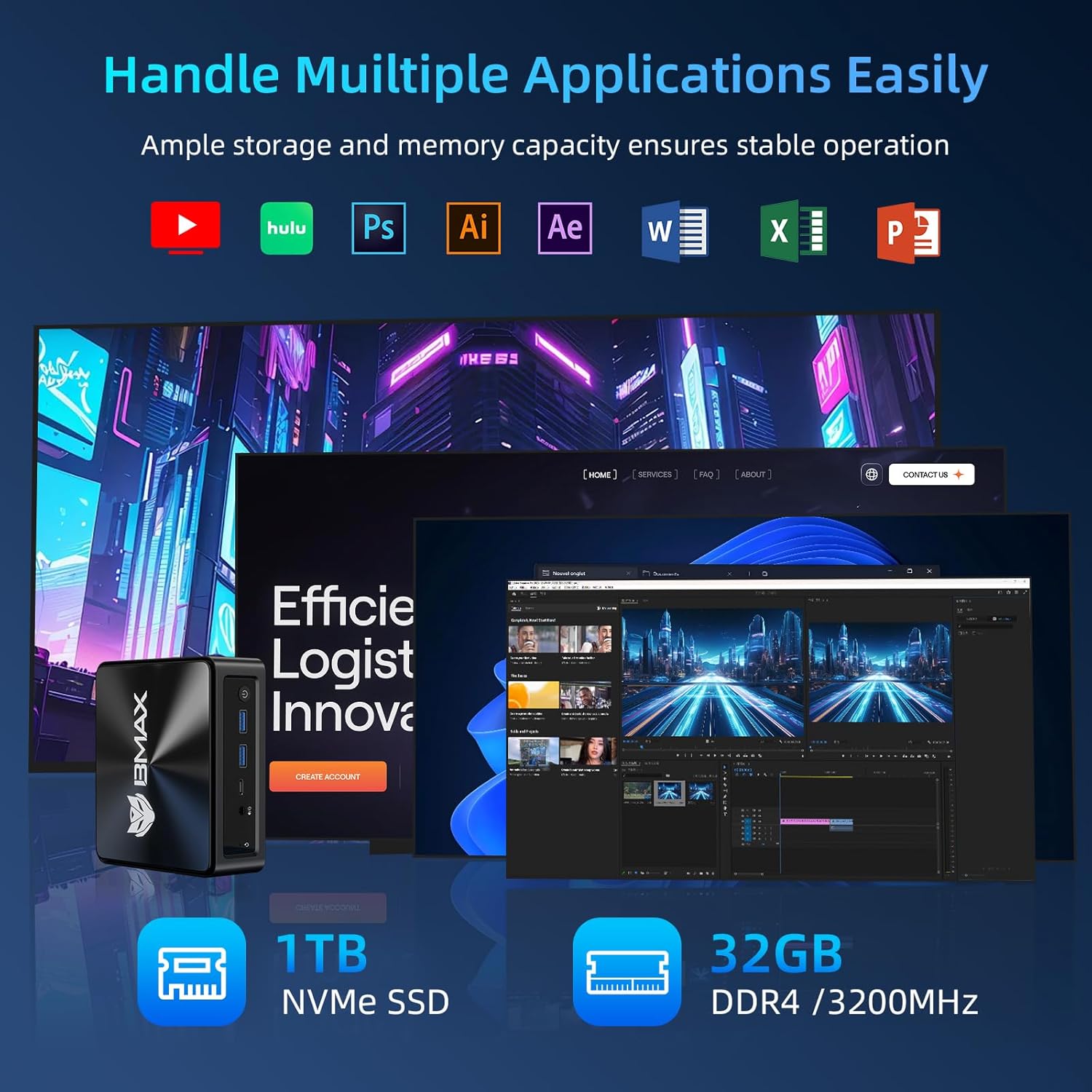
Figure 6: The BMAX Mini PC B9Power efficiently running multiple demanding applications, highlighting its 1TB NVMe SSD and 32GB DDR4 RAM.
וישאַלט
Regular maintenance helps ensure the longevity and optimal performance of your BMAX Mini PC.
- האַלטן עס ריין: Regularly clean the exterior of the Mini PC with a soft, dry cloth. Use compressed air to gently clear dust from the ventilation grilles to prevent overheating.
- ווייכווארג דערהייַנטיקונגען: Keep your Windows operating system and drivers updated to the latest versions. This ensures security, stability, and performance improvements.
- ויסמיידן אַבסטראַקשאַנז: Ensure that the ventilation openings are not blocked to allow for proper airflow and cooling.
- זיכער שאַטדאַון: Always shut down the Mini PC properly through the operating system rather than simply unplugging it, to prevent data corruption.

Figure 7: Diagram illustrating the efficient cooling system of the BMAX Mini PC B9Power, featuring dual copper heat pipes and a smart fan for optimal heat dissipation.
טראָובלעשאָאָטינג
This section addresses common issues you might encounter with your BMAX Mini PC.
| פּראָבלעם | מעגלעך סיבה | לייזונג |
|---|---|---|
| קיין מאַכט | Power cable loose; power adapter faulty; power outlet issue | Check power cable connections; try a different power outlet; contact support if adapter is suspected faulty |
| ניט קיין אַרויסווייַזן | Monitor off/incorrect input; display cable loose/faulty; driver issue | Ensure monitor is on and set to correct input; check display cable connections; try a different cable/port; update graphics drivers |
| פּאַמעלעך פאָרשטעלונג | Too many applications running; insufficient RAM; overheating; fragmented drive | Close unnecessary applications; check task manager for resource usage; ensure proper ventilation; run disk cleanup/defragmentation |
| Wi-Fi/Bluetooth issues | Drivers outdated; signal interference; hardware issue | Update wireless drivers; move closer to router; check for interference from other devices; restart PC and router |
If the problem persists after trying these solutions, please contact BMAX customer support for further assistance.
ספּעסאַפאַקיישאַנז
Detailed technical specifications for the BMAX Mini PC B9Power.
| שטריך | דעטאַל |
|---|---|
| סאָרט | BMAX |
| מאָדעל | B9Power-32GB |
| פּראַסעסער | Intel Core i9-12900HK (14 Cores, 20 Threads, 2.9 GHz base, up to 5.0 GHz Turbo) |
| גראַפיקס | אינטעל איריס קסע גראַפיקס (אינטעגרירט) |
| זכּרון (RAM) | 32GB DDR4 3200MHz SODIMM (Max 64GB) |
| סטאָרידזש | 1TB NVMe SSD (Dual M.2 slots: 1x M.2_2280_PCI-e x4 NVMe, 1x M.2_2280_SATA(AHCI)&PCI-e x4 NVMe combo) |
| אָפּערייטינג סיסטעם | ווינדאָוס 11 פּראָ (פאַר-אינסטאַלירט) |
| ווירעלעסס קאַנעקטיוויטי | WiFi 6 (802.11a/b/g/n/ac/ax), Bluetooth 5.2 |
| ווייערד קאַנעקטיוויטי | גיגאַביט עטהערנעט |
| ווידעא רעזולטאַט | 1x HDMI 2.1, 1x DisplayPort 1.4a, 1x Type-C (full-featured); Supports Triple 4K@60Hz Display |
| וסב פּאָרץ | 2 קס וסב 3.2, 2 קס וסב 2.0 |
| אַודיאָ | 3.5 מם אַודיאָ דזשאַק |
| דימענסיעס (L X W X H) | 126 מם רענטגענ 112 מם רענטגענ 52 מם |
| וואָג | בעערעך. 0.4 קג |
וואָראַנטי און שטיצן
BMAX offers comprehensive support for your Mini PC.
- וואָראַנטי: The BMAX Mini PC B9Power typically comes with a 1-year quality service warranty. Please refer to your purchase documentation for specific warranty terms and conditions.
- קונה שטיצן: BMAX provides 24/7 professional customer service. For technical assistance, troubleshooting, or warranty claims, please visit the official BMAX webזייטל אדער קאנטאקט זייער שטיצע מאַנשאַפֿט גלייך.
- Price Protection: BMAX offers price protection within 30 days of purchase. If the product price changes within this period, you may be eligible for a refund of the difference.
For the most up-to-date support information and resources, please visit the official BMAX webפּלאַץ: BMAX Official Store