
1. הקדמה
This manual provides essential information for setting up, operating, and maintaining your new CyberpowerPC Gamer Xtreme VR Gaming PC. This system is equipped with an Intel Core Ultra 5 225F processor, NVIDIA GeForce RTX 5060 graphics, 64GB DDR5 memory, and a 2TB PCIe 4.0 NVMe SSD, running Windows 11 Home. Please read this manual thoroughly before using your computer to ensure proper functionality and longevity.
2. זיכערקייַט אינפֿאָרמאַציע
- מאַכט צושטעלן: Use only the power cord provided with the system. Ensure the power outlet is properly grounded.
- ווענטילאַטיאָן: Do not block any ventilation openings on the computer case. Maintain adequate space around the PC for airflow to prevent overheating.
- פליסיק און מויסטשער: Keep the computer away from liquids and excessive moisture. Do not operate the PC with wet hands.
- סטאַטיק עלעקטרע: Discharge static electricity from your body before touching internal components by touching a grounded metal object.
- סערוויס: Do not attempt to service the computer yourself unless specifically instructed. Refer all servicing to qualified service personnel.
- אָרט: Place the computer on a stable, flat surface. Avoid placing it near heat sources or in direct sunlight.
3. פּעקל אינהאַלט
באַשטעטיקט אַז אַלע זאכן וואָס זענען אויסגערעכנט אונטן זענען אַרייַנגערעכנט אין אייער פּעקל:
- CyberpowerPC Gamer Xtreme VR Gaming PC
- USB RGB גיימינג קלאַוויאַטור
- וסב גיימינג מאַוס
- מאַכט שנור
- Documentation (Quick Start Guide, Driver Discs if applicable)
4. סעטאַפּ
4.1 אויספּאַקן און ערשטע דורכקוק
Carefully remove the computer from its packaging. Inspect the exterior for any signs of damage. Open the side panel (if applicable, usually tempered glass) and remove any internal foam packaging designed to secure components during shipping. Ensure all cables inside are securely connected.

בילד: אינערלעך view of the PC showing RGB fans, motherboard, and graphics card. Remove internal foam before operation.
4.2 קאַנעקטינג פּעריפעראַלס
Connect your monitor, keyboard, mouse, and other peripherals to the appropriate ports on the back and front of the PC.
- מאָניטאָר: Connect your monitor to the graphics card's HDMI or DisplayPort outputs. The graphics card (NVIDIA GeForce RTX 5060) has 1x HDMI and 3x DisplayPort outputs. Ensure you connect to the dedicated graphics card ports, not the motherboard's integrated graphics ports (if present).
- קלאַוויאַטור און מויז: Connect the USB gaming keyboard and mouse to any available USB ports.
- מאַכט: Connect the power cord to the power supply unit (PSU) at the rear of the PC, then plug it into a grounded electrical outlet.
- נעץ: For a wired connection, connect an Ethernet cable to the RJ45 LAN port. For wireless, ensure the Wi-Fi antennas (if included) are attached.
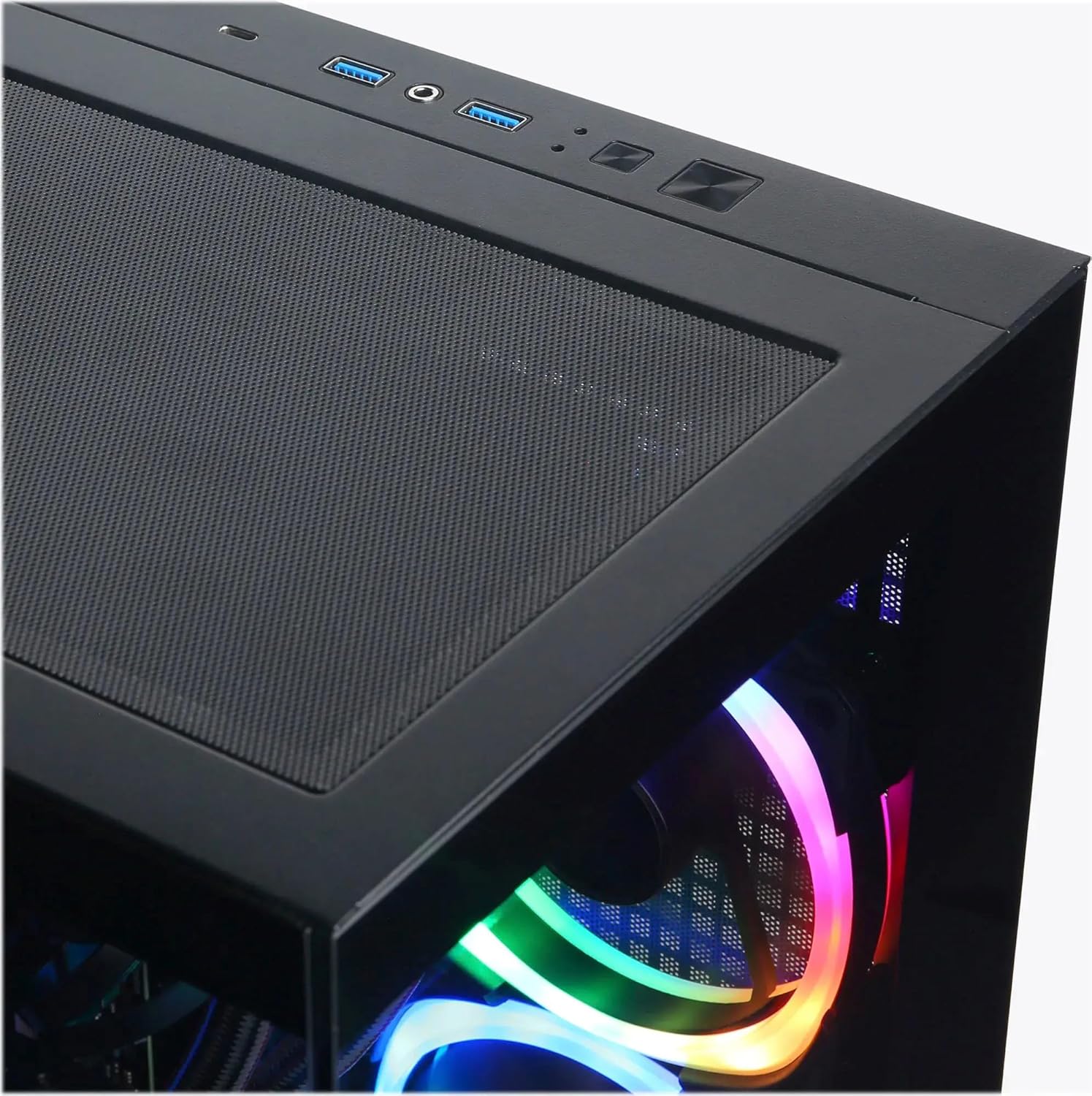
Image: Top I/O panel with USB ports, audio jacks, and power button.
4.3 Initial Boot-Up and Windows Setup
Press the power button located on the top of the case. The system will boot into Windows 11 Home. Follow the on-screen instructions to complete the initial Windows setup, including language, region, network connection, and user account creation.
5. אָפּערייטינג
5.1 מאַכט אויף / אַוועק
- מאַכט אויף: Press the power button on the top of the PC.
- מאַכט אַוועק: Click the Start button in Windows, then select Power > Shut down. Avoid directly holding the power button to shut down, as this can lead to data loss or system instability.
- ריסטאַרט: דריקט דעם סטאַרט קנעפּל אין ווינדאָוס, און דערנאָך סעלעקטירט מאַכט > ריסטאַרט.
5.2 Understanding I/O Ports
Your PC is equipped with various ports for connectivity:
- USB 3.1 טיפּ-C: 1 (Front) - For high-speed data transfer and compatible devices.
- USB 3.1 טיפּ-א: 5 (2 Front, 3 Rear) - For general USB devices like keyboards, mice, and external drives.
- וסב 2.0: 2 (Rear) - For older USB devices or peripherals that do not require high-speed data.
- RJ45 לאַן: 1 (Rear) - For wired Ethernet network connection.
- אַודיאָ פּאָרץ: 3 (Rear - Speaker / Microphone / Line In), 1 (Front - Headphone/Microphone Combo) - For audio input/output.
- הדמי 2.1: 1 (Graphics Card) - For connecting to displays.
- DisplayPort 2.1: 3 (Graphics Card) - For connecting to displays.
5.3 RGB לייטינג קאָנטראָל
Your system features custom RGB lighting. Control software for the RGB lighting may be pre-installed or available for download from the CyberpowerPC website. Refer to the software's instructions for customizing lighting effects and colors.
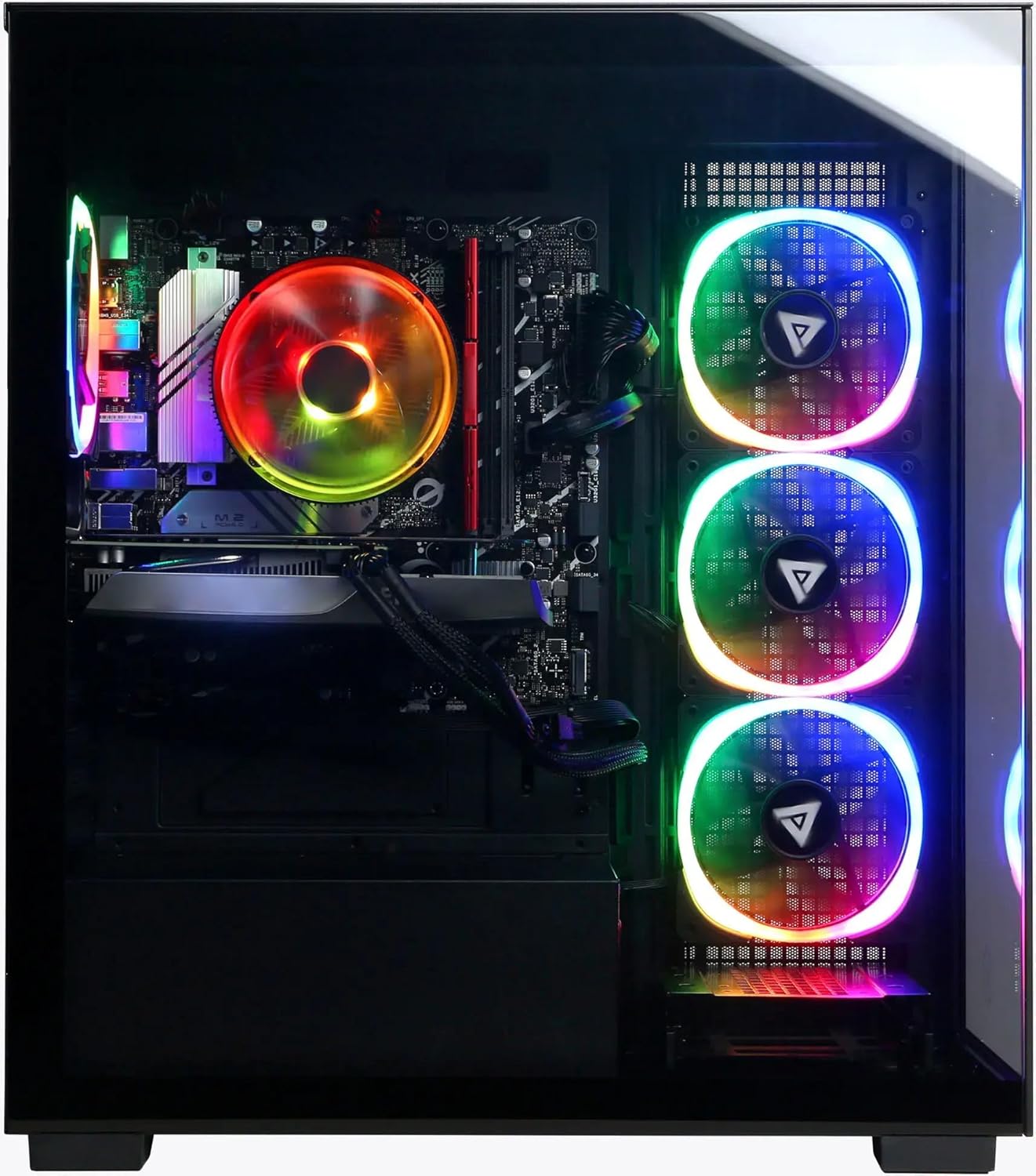
בילד: פראָנט און זייט view of the PC showcasinג זיין קאַסטאַמייזאַבאַל RGB לייטינג.
6. וישאַלט
6.1 רייניקונג
- עקסטעריע: ניצן אַ ווייך, דamp cloth to clean the exterior of the case. Avoid harsh chemicals.
- שטויב: Periodically clean dust from the ventilation grilles and internal components using compressed air. Ensure the PC is powered off and unplugged before cleaning.
6.2 ווייכווארג דערהייַנטיקונגען
Regularly update your operating system (Windows Update), graphics drivers (NVIDIA website), and other software to ensure optimal performance and security.
6.3 ווענטאַליישאַן
Ensure the PC has unobstructed airflow. Do not place the computer in an enclosed space or directly against a wall. Proper ventilation is crucial for preventing overheating and maintaining component lifespan.
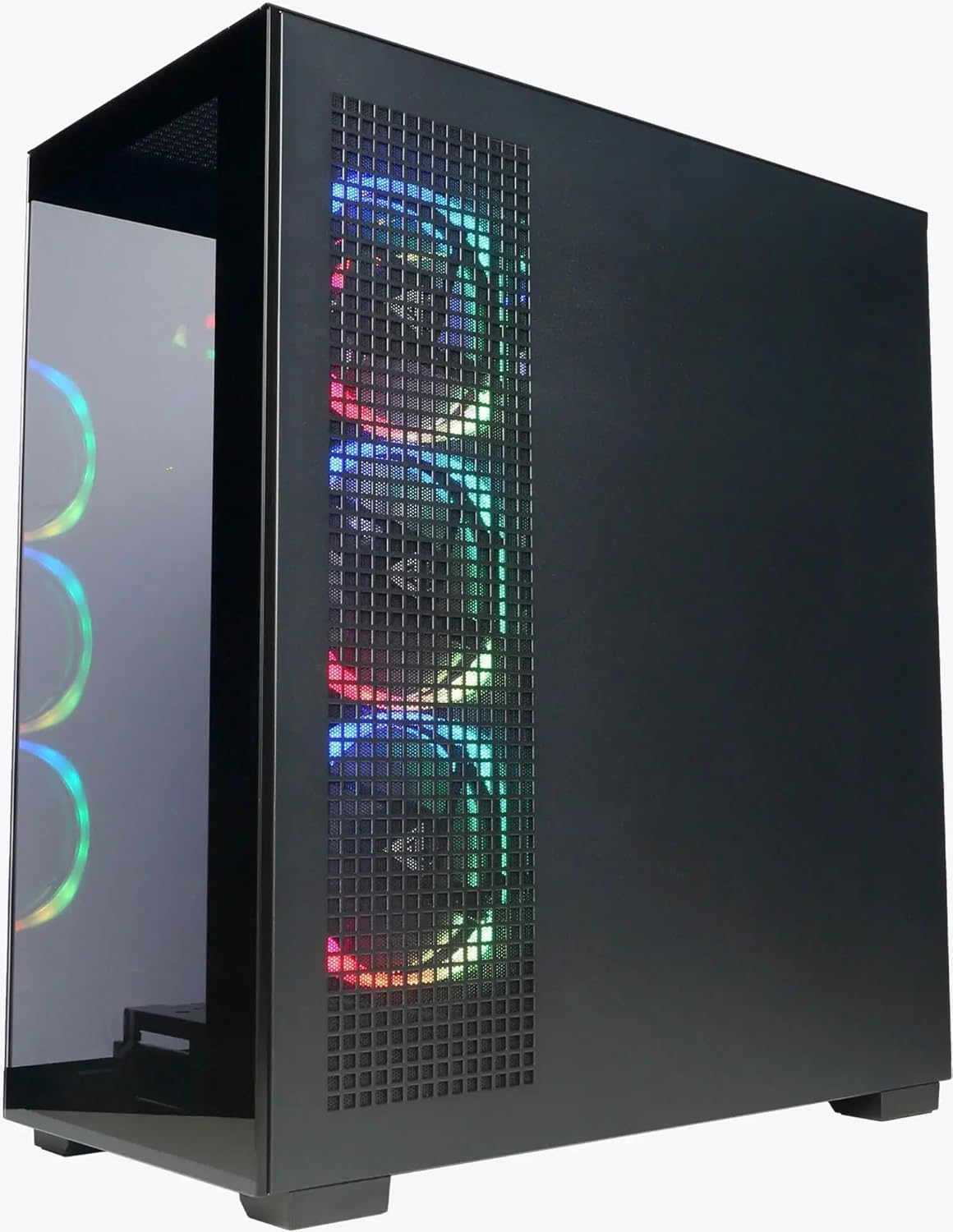
בילד: זייט view of the PC highlighting the mesh ventilation panel for airflow.
7. טראָובלעשאָאָטינג
If you encounter issues with your CyberpowerPC, consider the following basic troubleshooting steps:
- קיין מאַכט:
- Ensure the power cord is securely connected to both the PC and the wall outlet.
- Verify the power switch on the PSU (at the back of the PC) is in the 'On' position.
- פּרוּווט אַ אַנדערש מאַכט ווענטיל.
- קיין ווייַז:
- Confirm the monitor is powered on and connected to the graphics card's output (HDMI or DisplayPort), not the motherboard's video output.
- פרובירט אן אנדערן ווידעא קאבל אדער מאָניטאָר אויב פאַראַן.
- Ensure the monitor input source is correctly selected.
- קיין אינטערנעט פֿאַרבינדונג:
- For wired connections, check if the Ethernet cable is properly connected and your router/modem is working.
- For Wi-Fi, ensure Wi-Fi is enabled in Windows and you are connected to the correct network with the correct password.
- Check device drivers for network adapters in Device Manager.
- סיסטעם פארלאנגזאמונג/איינפרירן:
- ריסטאַרט די קאָמפּיוטער.
- Check for background applications consuming excessive resources (Task Manager).
- זייט זיכער אז ווינדאָוס און דרייווערס זענען אַרויף צו דאַטע.
- לויפט א ווירוס/מאַלווער סקען.
If these steps do not resolve the issue, please contact CyberpowerPC customer support.
8. ספּעסאַפאַקיישאַנז
| קאָמפּאָנענט | דעטאַל |
|---|---|
| פּראַסעסער | Intel Core Ultra 5 225F (3.3GHz base, Max 4.9GHz) |
| מאָטהערבאָאַרד | Intel B860 טשיפּסעט |
| זכּרון | 64GB DDR5 באַראַן |
| סטאָרידזש | 2TB PCIe 4.0 NVMe SSD |
| גראַפיקס קאַרד | NVIDIA GeForce RTX 5060 8GB GDDR5 |
| אָפּערייטינג סיסטעם | Windows 11 היים |
| קאַנעקטיוויטי | Wi-Fi 6, Bluetooth 5.3, 10/100/1000 Gigabit Ethernet LAN |
| I/O פּאָרץ (פראָנט) | 1x USB 3.1 Type-C, 2x USB 3.1 Type-A, 1x Headphone/Microphone Combo |
| I/O פּאָרץ (דערציען) | 3x USB 3.1 Type-A, 2x USB 2.0, 1x RJ45 LAN, 3x Audio Ports (Speaker/Mic/Line In) |
| ווידעא אַוטפּוץ | 1x HDMI 2.1, 3x DisplayPort 2.1 (from Graphics Card) |
| קפּו קאָאָלינג | Air Cool |
| מאַכט צושטעלן | 600W 80 פּלוס גאָלד |
| דימענשאַנז (H X W X D) | 19.9" x 8.6" x 17.7" (50.5 ס״מ x 21.8 ס״מ x 44.9 ס״מ) |
| וואָג | 35 פונט (15.88 קג) |
9. וואָראַנטי און שטיצן
9.1 פּראָדוקט וואָראַנטי
Your CyberpowerPC Gamer Xtreme VR Gaming PC comes with a standard manufacturer's warranty. The specific terms and duration of the warranty are typically outlined in the documentation included with your product or available on the official CyberpowerPC webזייטל. ביטע באַהאַלטן אייער קויפן באַווייַז פֿאַר וואָראַנטי קליימז.
9.2 טעכניש שטיצן
For technical assistance, troubleshooting beyond this manual, or warranty inquiries, please contact CyberpowerPC customer support:
- Webפּלאַץ: Visit the official CyberpowerPC website for support resources, FAQs, driver downloads, and contact information.
- טעלעפאָן/אימעיל: Refer to the contact details provided on the CyberpowerPC support page.
Additional protection plans may be available for purchase, offering extended coverage. Refer to your purchase details for information on any such plans.