
CHESONA iPad Pro 11 (M4) 2024 Keyboard Case
CHESONA Rugged Keyboard Case for iPad Pro 11 (M4) 2024 User Manual
Model: iPad Pro 11 (M4) 2024 Keyboard Case

Image: The CHESONA Rugged Keyboard Case for iPad Pro 11 (M4) 2024, shown with an iPad inserted, highlighting its keyboard, trackpad, and adjustable stand features.
1. קאַמפּאַטאַבילאַטי
This keyboard case is specifically designed for the iPad Pro 11-inch (M4) 2024. To ensure proper fit, verify your iPad's model numbers. Compatible model numbers include A2836, A2837 און A3006. This case is ניט קאַמפּאַטאַבאַל with the iPad Air 11-inch (M2) 2024 or any other iPad models.

Image: A visual guide illustrating the compatible iPad Pro 11 (M4) 2024 model and its corresponding model numbers (A2836, A2837, A3006), alongside an incompatible iPad Air 11 (M2) 2024 model.
2. וואָס איז אין דער קעסטל
ווען איר עפנט אייער פעקל, ביטע זיכער מאכן אז אלע פאלגנדע זאכן זענען דא:
- 1 x CHESONA Rugged Case for iPad Pro 11 (M4) (Tablet NOT included)
- 1 רענטגענ ווירעלעסס קיבאָרד
- 1 x USB Charging Cable (No Charger)
- 1 x באַניצער מאַנואַל

בילד: אן איבערקאפ view displaying the CHESONA keyboard, magnetic case, USB charging cable, user manual, and product packaging box.
3. סעטאַפּ גייד
Follow these steps to set up your CHESONA Rugged Keyboard Case:
3.1. Step 1: Adjust the Kickstand
Bend the integrated kickstand to achieve your desired viewing angle. The stand is designed to be adjustable from 15° to 180° for optimal comfort.
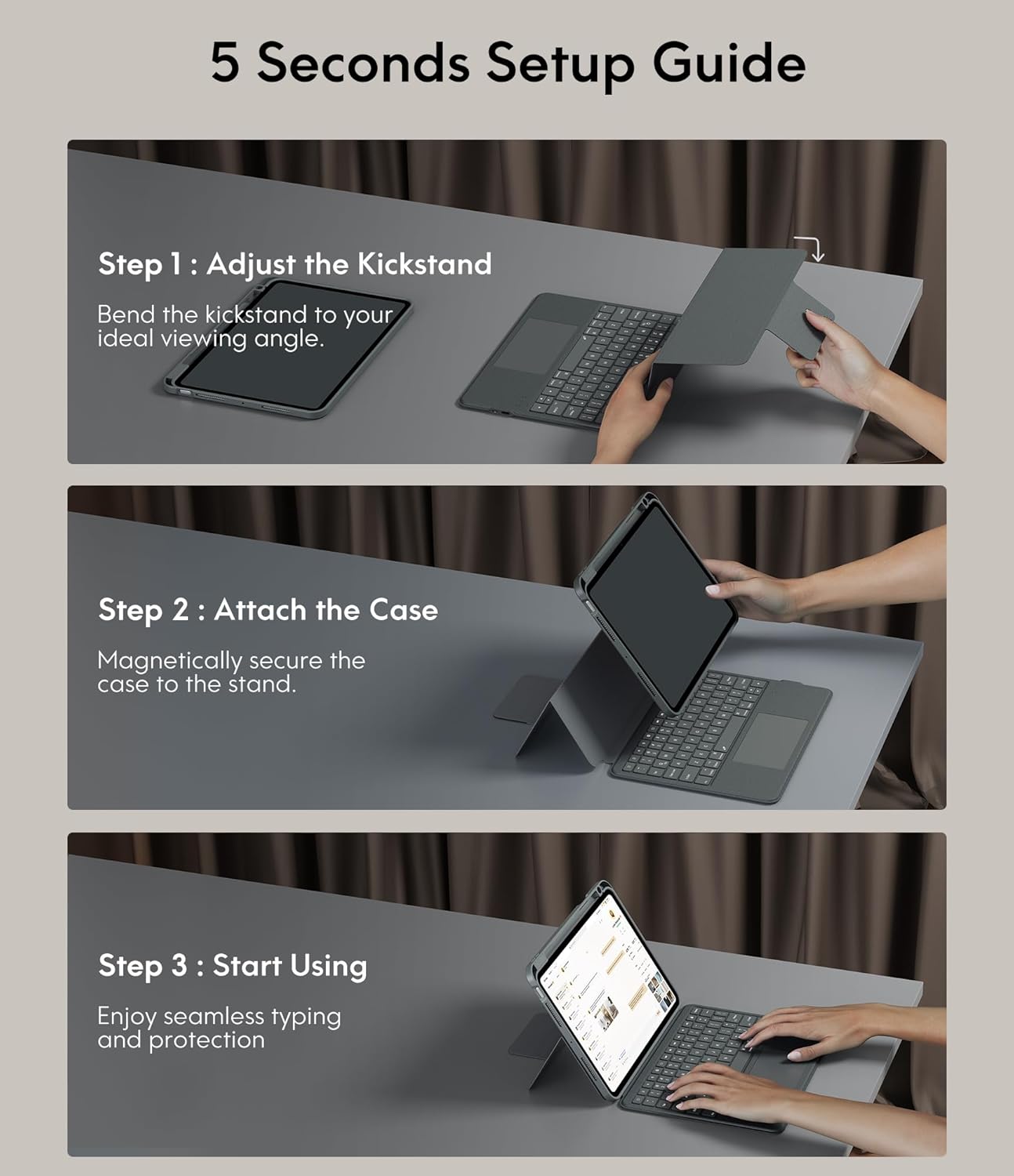
Image: A three-step visual guide showing how to adjust the kickstand, attach the iPad to the magnetic case, and begin using the keyboard.
3.2. Step 2: Attach the Case
Securely place your iPad into the protective case. The case features strong magnets that will hold the iPad firmly in place on the stand.
3.3. Step 3: Start Using
Once the iPad is securely attached and the kickstand is adjusted, you can begin using your keyboard case for typing and protection.
3.4. בלועטאָאָטה פּערינג
- זייט זיכער אַז די קלאַוויאַטור איז אויפגעלאָדן.
- קער אויף די קלאַוויאַטור ניצן די מאַכט באַשטימען.
- אויף אייער אייפּאַד, גייט צו סעטטינגס> בלועטאָאָטה און אַקטיווירן בלועטוט.
- Select the keyboard from the list of available devices (it may appear as 'CHESONA Keyboard' or similar).
- Confirm the pairing code if prompted. The keyboard will now be connected.
4. אַפּערייטינג ינסטרוקטיאָנס
4.1. Magnetic Detachable Keyboard
The keyboard is magnetically attached to the case, allowing for easy detachment. This feature enables you to switch between a laptop-like setup and a standalone tablet experience. Simply pull the keyboard away from the case when not needed, or reattach it when typing is required.

Image: A hand detaching the magnetic keyboard from the iPad case, illustrating the strong magnetic connection.
4.2. Adjustable Stand and Viewאין מאָדעס
The case offers a wide range of adjustable angles (15°-180°) and supports multiple placement modes for various activities:
- טייפּינג מאָדע: Use with the keyboard for productivity.
- צייכענונג מאָדע: Lay the iPad flat or at a low angle for creative tasks.
- לייענען מאָדע: Detach the keyboard and hold the iPad comfortably.
- Viewמאָדע: Adjust the stand for watching videos or video calls.

Image: A visual representation of five different usage modes: Video Call, Draw, To Read, Writing Documents, and Watch Movies, demonstrating the case's versatility.
4.3. קלאַוויאַטור באַקלייט קאָנטראָל
The keyboard features 7-color backlighting and 3 levels of brightness, enhancing visibility in various lighting conditions.
- צו טוישן די קאָליר פון דער הינטערגרונט: דריק Shift + Return.
- צו סטרויערן די העלקייט: דריק שיפט + שיפט (or dedicated brightness keys if available).

Image: The keyboard illuminated with various backlight colors, demonstrating the 7-color options and the keys used to adjust brightness and color.
4.4. Trackpad Functionality
The integrated multi-touch trackpad provides precise navigation and supports various gestures for enhanced productivity:
- שלעפּן: Tap and hold an item, then drag to move it.
- לאַקכענען: Use two fingers to scroll up/down or left/right.
- פארגרעסער אין/אויס: Pinch with two fingers to zoom.
- App Publication (App Switcher): Swipe up with three fingers to reveal open applications.
- Swipe between full screen apps: Swipe left or right with three fingers to switch between full-screen applications.

Image: A close-up of the trackpad with illustrations of common multi-touch gestures like drag, swipe, zoom in/out, app publication, and switching between full-screen apps.
4.5. פונקציע קנעפּלעך און קורץ-וועגן
The keyboard includes a dedicated row of function keys for quick access to common iPad features:
- היים: צוריקקומען צו די היים פאַרשטעלן.
- זוכן: אַקטיווירן iPad זוכן.
- ברייטנאַס קאָנטראָל: סטרויערן די ברייטנאַס פון די פאַרשטעלן.
- מעדיע קאָנטראָלס: שפּילן/פּויזע, פֿריִערדיקער ליד, נעקסטער ליד.
- באַנד קאָנטראָל: שטום, באַנד אַראָפּ, באַנד אַרויף.
- שלאָס פאַרשטעלן: Lock your iPad.

בילד: א דעטאַלירטע view of the keyboard's top row, highlighting the function keys for media control, volume, brightness, and other shortcuts.
5. שוץ פֿעיִקייטן
The CHESONA Rugged Keyboard Case provides comprehensive protection for your iPad Pro 11 (M4) 2024:
- Hard-Shell Design: The premium hard-shell design protects all sides of your tablet.
- 360° שוץ: The included compatible camera case ensures 360° protection against accidental drops, scratches, and dust.
- Pen Slot: A dedicated pen slot securely holds your Apple Pencil, preventing loss and allowing for convenient charging.
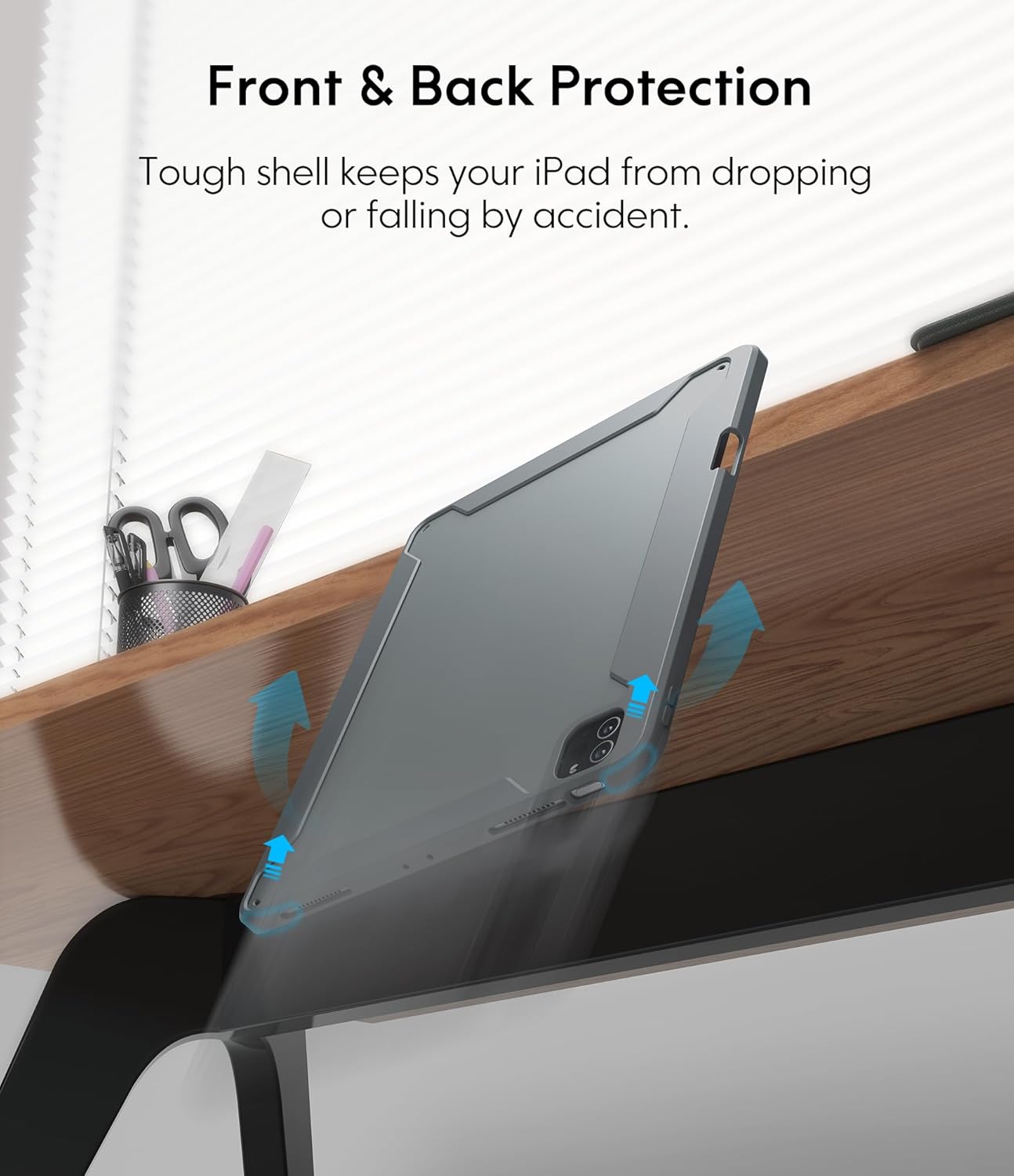
Image: An illustration showing the iPad case protecting the device from a fall, emphasizing its tough shell and front and back protection.
6. באַטעריע און מאַכט פאַרוואַלטונג
The keyboard features a built-in rechargeable battery designed for extended use:
- באַטאַרייע לעבן: A full charge provides over 50 hours of working time.
- טשאַרדזשינג צייט: Approximately 2-3 hours for a full charge using the provided USB charging cable.
- שלאָפן מאָדע: If the keyboard is inactive for 10 minutes, it will enter sleep mode and disconnect from your iPad to conserve power. Press any key to wake it up and automatically reconnect.
7. וישאַלט
כדי צו זיכער מאַכן די לאַנגלעבעדיקייט און אָפּטימאַלע פאָרשטעלונג פון דיין קלאַוויאַטור קעסטל, נאָכפאָלגן די וישאַלט גיידליינז:
- רייניקונג: ניצן אַ ווייך, דamp cloth to wipe the exterior of the case and keyboard. Avoid harsh chemicals or abrasive materials.
- סטאָרידזש: When not in use for extended periods, store the keyboard case in a cool, dry place.
- ויסמיידן ליקווידס: האַלט די קלאַוויאַטור אַוועק פון פליסיקייטן צו פאַרמייַדן שעדיקן צו עלעקטראָנישע קאָמפּאָנענטן.
8. טראָובלעשאָאָטינג
If you encounter any issues, refer to the following troubleshooting tips:
- קלאַוויאַטור פֿאַרבינדט זיך נישט:
- זייט זיכער אז די קלאַוויאַטור איז אויפגעלאָדן און אנגעצונדן.
- באַשטעטיקן אַז בלועטוט איז ענייבאַלד אויף דיין אייפּאַד.
- פארגעסט דעם דעווייס אין אייער אייפּאַד'ס בלועטוט סעטטינגס און פרובירט צו ווידער-פארן.
- ריסטאַרט ביידע דיין iPad און די קלאַוויאַטור.
- טרעקפּאַד רעאַגירט נישט:
- Ensure the keyboard is connected via Bluetooth.
- Check if the trackpad is enabled in your iPad's settings (Settings > Accessibility > Touch > AssistiveTouch).
- Clean the trackpad surface for any debris.
- באַקלייט ניט ארבעטן:
- זייט זיכער אז די קלאַוויאַטור האט גענוג באַטאַרייע אָפּצאָל.
- Press the backlight adjustment keys (Shift + Shift or dedicated keys) to cycle through brightness levels.
- קנעפּלעך רעאַגירן נישט:
- קאָנטראָליר די בלועטוט פֿאַרבינדונג.
- Ensure the keyboard is not in sleep mode.
- ריטשאַרדזש די קלאַוויאַטור.
9. פּראָדוקט ספּעסאַפאַקיישאַנז
| פּראָדוקט דימענשאַנז | 10.04 X 7.68 X 0.83 אינטשעס |
| פּונקט וואָג | 1.72 פונט |
| סאָרט | CHESONA |
| קאַמפּאַטאַבאַל דעוויסעס | iPad Pro 11 (M4) 2024 |
| קאַנעקטיוויטי טעכנאָלאָגיע | ווירעלעסס (בלועטאָאָטה) |
| קלאַוויאַטור באַשרייַבונג | מולטי פונקטיאָנאַל |
| ספּעציעלע שטריך | באַקלייט, טראַקפּעד |
| קאָליר | גרוי |
| מאַכט מקור | באַטאַרייע פּאַוערד |
| באַטעריז | 1 P76 battery (included) |
10. וואָראַנטי און שטיצן
CHESONA products are designed for durability and performance. For information regarding warranty coverage, product support, or to report any issues, please refer to the contact information provided with your purchase or visit the official CHESONA webזייטל. ביטע באַהאַלטן אייער קויפן באַווייַז פֿאַר וואָראַנטי קליימז.
Ask a question about this manual
Ask about setup, troubleshooting, compatibility, parts, safety, or missing instructions. Manuals+ will review the question and use this page’s manual context to help answer it.