
1. הקדמה
This manual provides detailed instructions for the FIDECO H708C43 Powered 7-Port USB 3.2 Gen2 Hub. This device is designed to expand your computer's connectivity with high-speed data transfer and charging capabilities. Please read this manual thoroughly before use to ensure proper operation and to maximize the product's lifespan.

Image 1.1: The FIDECO H708C43 7-Port USB Hub, showcasing its sleek design, power adapter, and connecting cables.
2. פּראָדוקט איבערview
2.1 שליסל פֿעיִקייטן
- 7 High-Speed Ports: Equipped with 4 USB-A ports and 3 USB-C ports to accommodate various devices.
- USB 3.2 Gen 2 Standard: Supports data transfer speeds up to 10Gbps, significantly enhancing productivity and connectivity.
- BC1.2 Charging Support: One USB-A port and one USB-C port support BC1.2 charging, allowing simultaneous data transfer and device charging.
- אַלומינום צומיש קאַנסטראַקשאַן: Durable and ergonomic design for efficient heat dissipation, ensuring stable performance.
- צאַפּן און שפּיל: Driver-free installation for immediate use across compatible operating systems.
- ברייט קאַמפּאַטאַבילאַטי: Works seamlessly with Windows, Mac OS, and Linux operating systems.
- געבויט-אין שוץ: Features short-circuit, overcurrent, overvoltage, and overheat protection to safeguard connected devices and data.
2.2 פּעקל אינהאַלט
- FIDECO H708C43 USB Hub
- יו-עס-בי-סי צו יו-עס-בי-סי קאבל מיט יו-עס-בי-איי אדאפטער
- 5V/3A מאַכט אַדאַפּטער
- באַניצער מאַנואַל
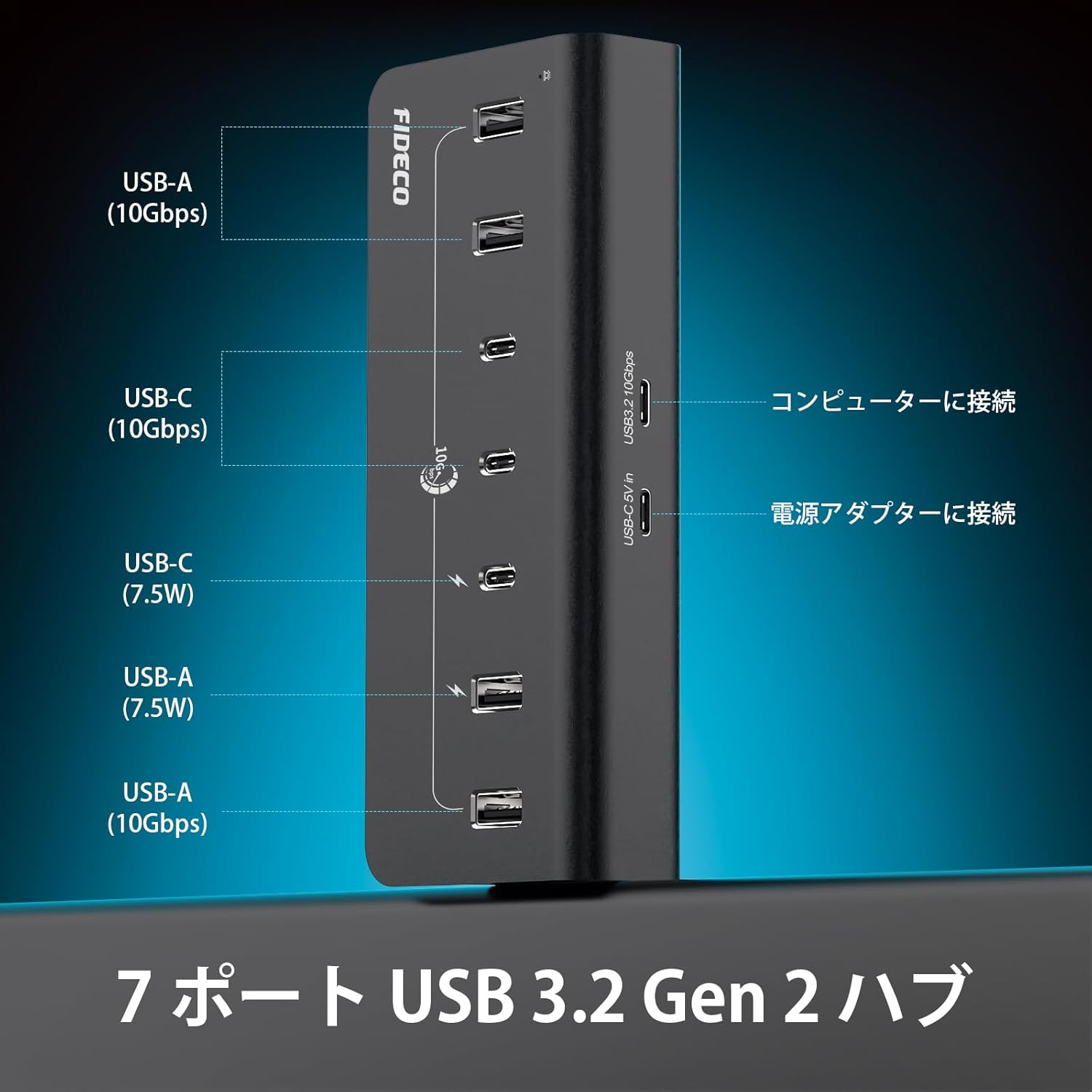
Image 2.1: A diagram illustrating the port layout of the FIDECO USB hub, detailing 4 USB-A (10Gbps), 3 USB-C (10Gbps), and the power input. It also shows connections to a computer and power adapter.
3. סעטאַפּ אינסטרוקציעס
- פאַרבינדן די מאַכט אַדאַפּטער: Plug the provided 5V/3A power adapter into the DC 5V IN port on the FIDECO USB Hub. Then, plug the power adapter into a wall outlet. This ensures stable power delivery to all connected devices.
- פאַרבינדן צו דיין קאָמפּיוטער: Use the included USB-C to USB-C cable to connect the hub to a USB-C port on your computer. If your computer only has USB-A ports, use the provided USB-A adapter with the USB-C cable.
- באַשטעטיקן קשר: The hub is plug-and-play, so no drivers are required. Your computer should automatically recognize the hub.
- פאַרבינדן פּעריפעראַלס: You can now connect your USB-A and USB-C devices (e.g., external hard drives, USB drives, keyboards, mice, webcams, smartphones, tablets) to the available ports on the hub.

Image 3.1: A user operating a computer setup with the FIDECO USB hub integrated, demonstrating its use in a professional or creative workflow.
4. אַפּערייטינג ינסטרוקטיאָנס
4.1 דאַטאַ אַריבערפירן
- Connect your USB 3.2 Gen 2 compatible devices to any of the 7 ports for optimal 10Gbps data transfer speeds.
- The hub is backward compatible with USB 3.0, USB 2.0, and USB 1.1 devices, though speeds will be limited by the connected device's standard.

Image 4.1: The FIDECO USB hub connected to a laptop, demonstrating high-speed 10Gbps data transfer with external SSDs.
4.2 דיווייס טשאַרדזשינג
- The hub supports BC1.2 charging on one USB-A port and one USB-C port. These ports can deliver up to 7.5W (5V/1.5A) for faster charging of compatible devices.
- Other ports provide standard USB charging capabilities.
- You can simultaneously transfer data and charge devices through the hub, reducing desktop clutter.

Image 4.2: The FIDECO USB hub connected to a laptop, showing two devices (a smartphone and another device) being charged via BC1.2 compatible USB-A and USB-C ports.

Image 4.3: The FIDECO USB hub connected to a laptop, illustrating simultaneous data transfer and device charging for a smartphone and a smartwatch.
5. וישאַלט
- Keep the hub clean by wiping it with a soft, dry cloth. Avoid using liquid cleaners or solvents.
- Ensure the hub is placed on a stable surface. The non-slip rubber pads on the bottom help maintain stability.
- Avoid exposing the hub to extreme temperatures, humidity, or direct sunlight.
- Do not attempt to disassemble or repair the hub yourself. This may void the warranty and cause damage.
6. טראָובלעשאָאָטינג
6.1 דעווייס נישט דערקענט
- Ensure the hub is properly connected to your computer and the power adapter is plugged in.
- Try connecting the device directly to your computer to confirm it is functioning correctly.
- פּרוביר מיט אַן אַנדער USB קאַבל.
- ריסטאַרט דיין קאָמפּיוטער.
6.2 Slow Data Transfer Speeds
- Verify that both your computer's USB port and the connected device support USB 3.2 Gen 2 (10Gbps).
- Ensure you are using a high-quality USB 3.2 Gen 2 compatible cable.
- Avoid connecting too many high-bandwidth devices simultaneously, as this can share the available bandwidth.
6.3 טשאַרדזשינג ישוז
- Confirm that the power adapter is securely connected and receiving power.
- Ensure the device you are charging is compatible with BC1.2 charging for optimal speed.
- Some devices may require more power than the hub can provide. Check your device's power requirements.
7. ספּעסאַפאַקיישאַנז
| מאָדעל נומער | ה 708 ק 43 |
| גאַנץ וסב פּאָרץ | 7 |
| וסב-א פּאָרץ | 4 (USB 3.2 Gen 2, 10Gbps) |
| וסב-C פּאָרץ | 3 (USB 3.2 Gen 2, 10Gbps) |
| טשאַרדזשינג שטיצן | 1x USB-A, 1x USB-C with BC1.2 (7.5W) |
| דאַטאַ טראַנספער ספּיד | אַרויף צו 10Gbps |
| מאַכט אַרייַנשרייַב | 5V/3A Power Adapter (included) |
| קאַמפּאַטאַבאַל אַס | Windows, Mac OS, Linux |
| מאַטעריאַל | אַלומינום צומיש |
| דימענשאַנז | 17.3 X 9.6 X 6.6 סענטימעטער |
| וואָג | 0.42 קג |
| נאָך פֿעיִקייטן | Surge protection, Plug and Play, Non-slip design, Powered |

Image 7.1: The FIDECO USB hub placed on a tablet, showcasing its broad compatibility with various operating systems (Windows, Mac OS, Linux) and devices like mice, USB drives, webcams, hard drives, PCs, tablets, and phones.
8. וואָראַנטי אינפֿאָרמאַציע
Specific warranty details are not provided in the available product information. Please refer to the product packaging or contact FIDECO customer support for warranty terms and conditions.
9. שטיצן
For technical support or any other inquiries, please contact FIDECO customer service at:
בליצפּאָסט: support@fideco.cn

בילד 9.1: אן אינערליכע view of the FIDECO USB hub, highlighting its built-in protection features such as short-circuit, overcurrent, overvoltage, און איבערהיצונג שוץ.