
הקדמה
This manual provides essential instructions for setting up, operating, maintaining, and troubleshooting your Maxtang Mini PC T0 Series, model MTN-T08845HS. Please read this manual thoroughly before using the device to ensure proper functionality and longevity.
The Maxtang T0-8845HS is a compact mini PC featuring the AMD Ryzen 7 8845HS processor, designed for various computing tasks including business and multimedia applications. It supports high-speed DDR5 memory and NVMe SSD storage, along with extensive connectivity options.
וואָס איז אַרייַנגערעכנט
Upon unboxing, verify that all the following items are present:
- 1x Maxtang Mini PC (MTN-T08845HS)
- 1x HDMI קאַבלע
- 1x מאַכט אַדאַפּטער
- 1 קס מאַכט שנור
- 1x וועסאַ מאָונט
- 4x מאַונטינג סקרוז
- 1x פּראָדוקט מאַנואַל (דאָס דאָקומענט)
סעטאַפּ אינסטרוקציעס
1. קאַנעקטינג פּעריפעראַלס
Connect your monitor, keyboard, and mouse to the appropriate ports on the mini PC. Refer to the port diagram below for identification.
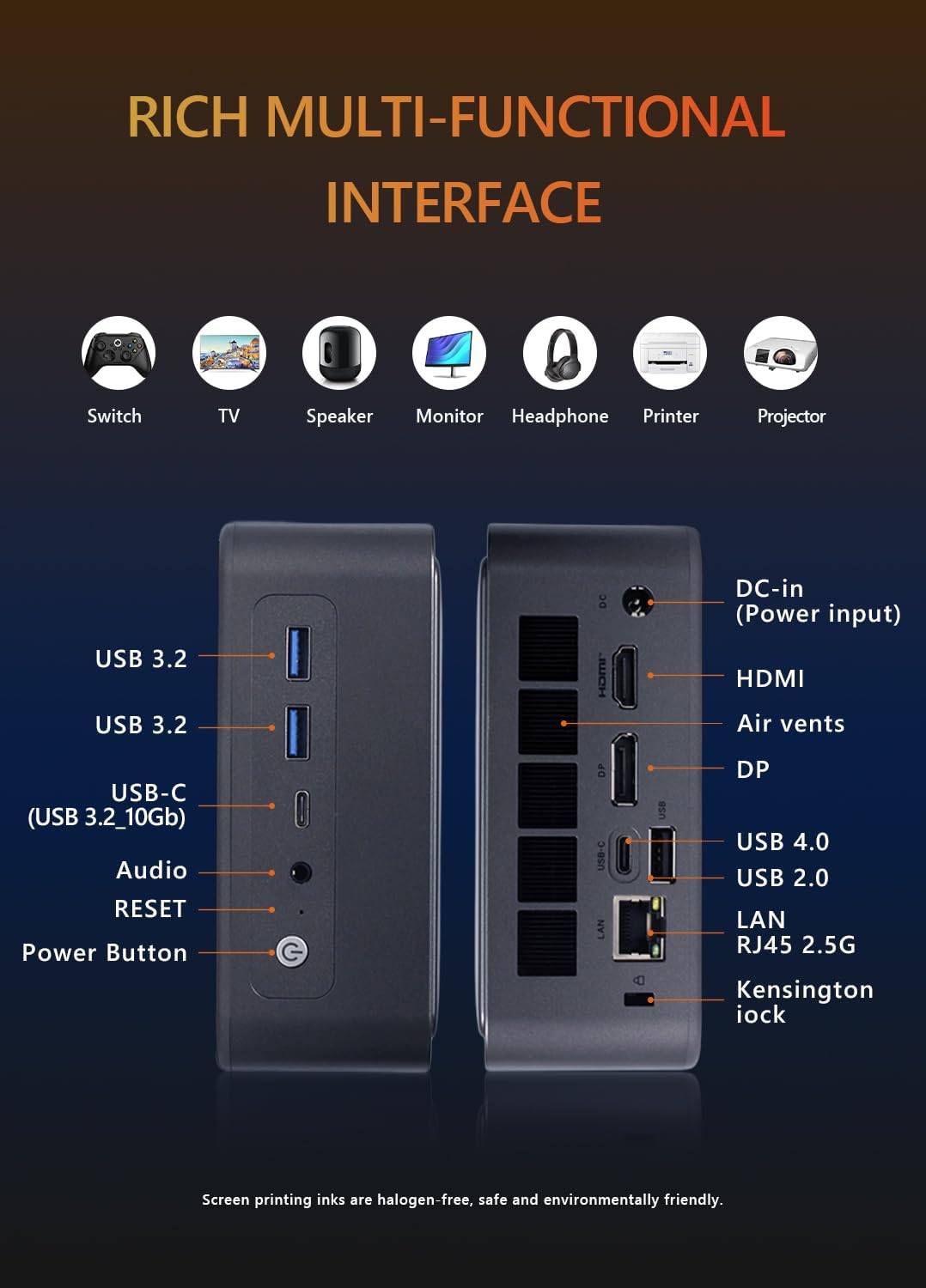
בילד: פראָנט און דערציען view of the Maxtang Mini PC T0 Series, illustrating all available ports including USB, HDMI, DisplayPort, USB-C, LAN, and audio jack.
- ווייַז: Connect your monitor using the HDMI, DisplayPort (DP), or USB4 (USB-C) ports. The system supports up to three displays simultaneously.
- USB דעוויסעס: Connect your keyboard, mouse, and other USB devices to the available USB 3.2, USB 2.0, or USB-C ports.
- נעץ: For a wired connection, connect an Ethernet cable to the 2.5GbE LAN port.
- אַודיאָ: Use the 2-in-1 CTIA audio jack for headphones or speakers.
2. מאַכט קאַנעקשאַן
Connect the power adapter to the DC-in port on the mini PC, then plug the power cord into an electrical outlet.
3. פּאַוערינג אויף
Press the power button located on the front of the device. The system will boot up, and the operating system (Windows 11 Pro) will load.
4. VESA Mount Installation (Optional)
The included VESA mount allows you to attach the mini PC to the back of a compatible monitor or to a wall mount. Use the provided mounting screws to secure the VESA bracket to your desired location, then slide the mini PC onto the bracket.
אַפּערייטינג ינסטראַקשאַנז
1. Initial Operating System Setup
Upon first boot, follow the on-screen instructions to complete the Windows 11 Pro setup, including language selection, network configuration, and user account creation.
2. Multi-Monitor Configuration
The Maxtang Mini PC supports up to three independent displays. Connect your monitors to the HDMI, DisplayPort, and USB4 ports. Once connected, Windows will automatically detect the displays. You can configure display settings (e.g., extend, duplicate) via the Display Settings in Windows.
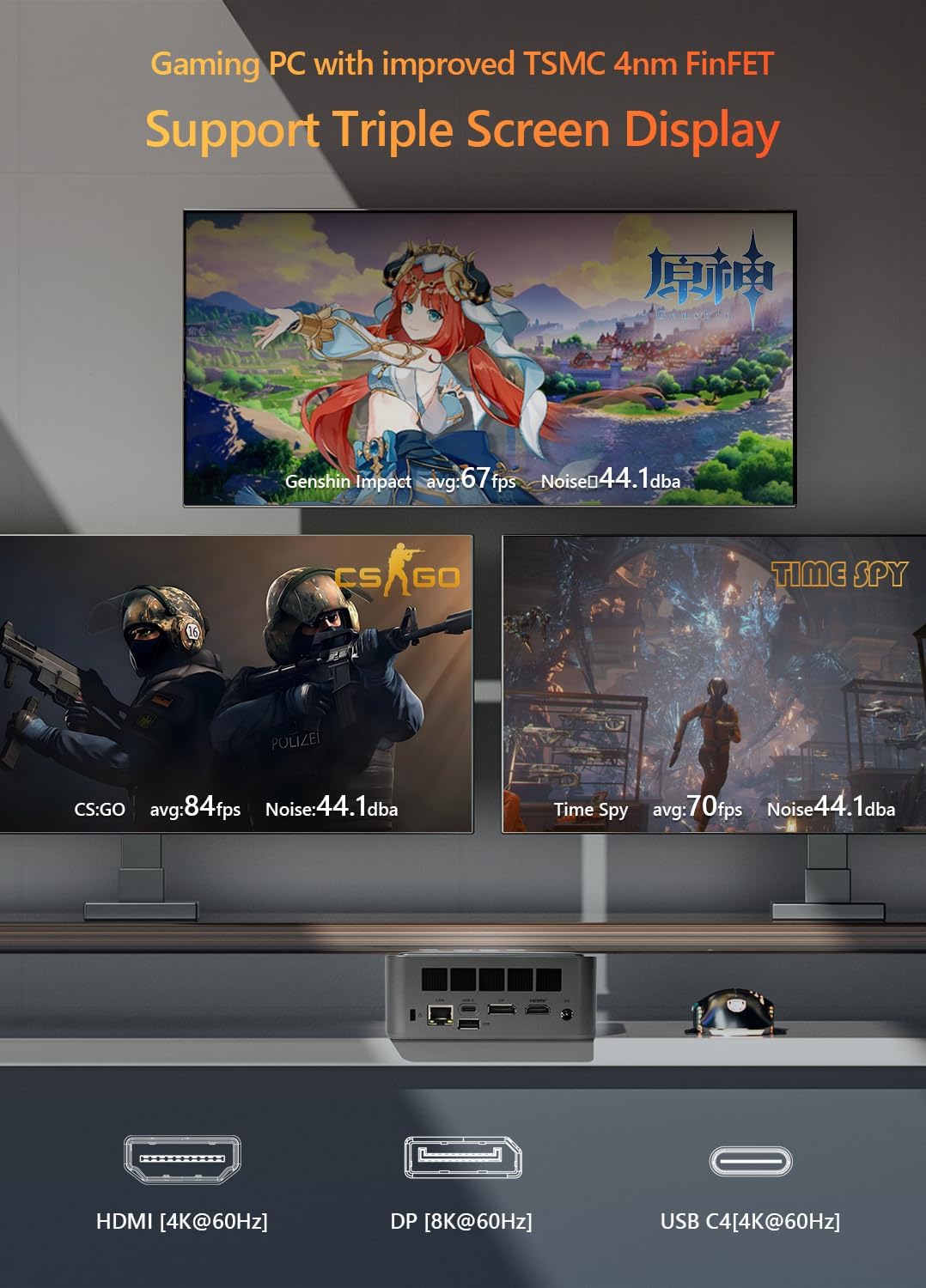
בילד: The Maxtang Mini PC T0 Series connected to three monitors, demonstrating its triple screen display capability via HDMI, DisplayPort, and USB-C (USB4).
3. נעץ קאַנעקטיוויטי
- ווייערד לאַן: Connect an Ethernet cable to the 2.5GbE LAN port for a high-speed wired network connection.
- ווי-פי: The mini PC supports Wi-Fi 6. To connect to a wireless network, go to Windows Settings > Network & Internet > Wi-Fi, select your network, and enter the password.
- בלועטאָאָטה: The device includes Bluetooth 5.2. To pair Bluetooth devices, go to Windows Settings > Bluetooth & devices > Add device.

בילד: Illustration of the Maxtang Mini PC T0 Series connected to a network via 2.5GbE LAN, highlighting Wi-Fi 6 and Bluetooth 5.2 capabilities.
וישאַלט
1. רייניקונג
Regularly clean the exterior of the mini PC with a soft, dry cloth. Use compressed air to clear dust from the air vents to ensure proper airflow and prevent overheating. Do not use liquid cleaners directly on the device.
2. ווייכווארג דערהייַנטיקונגען
Keep your Windows 11 Pro operating system and device drivers updated to ensure optimal performance and security. You can check for updates via Windows Update in Settings.
3. האַרדווער אַפּגרעידס
The Maxtang Mini PC T0 Series supports upgrades for RAM and storage.
- באַראַן: The device supports up to 96GB of dual-channel SO-DIMM DDR5 memory. Ensure compatible memory modules are used for upgrades.
- סטאָרידזש: The mini PC features two M.2 2280 NVMe slots, supporting PCIe Gen4 x4 SSDs.
וואָרענען: Opening the device for upgrades may void your warranty if not performed correctly. Consult professional assistance if you are unsure.
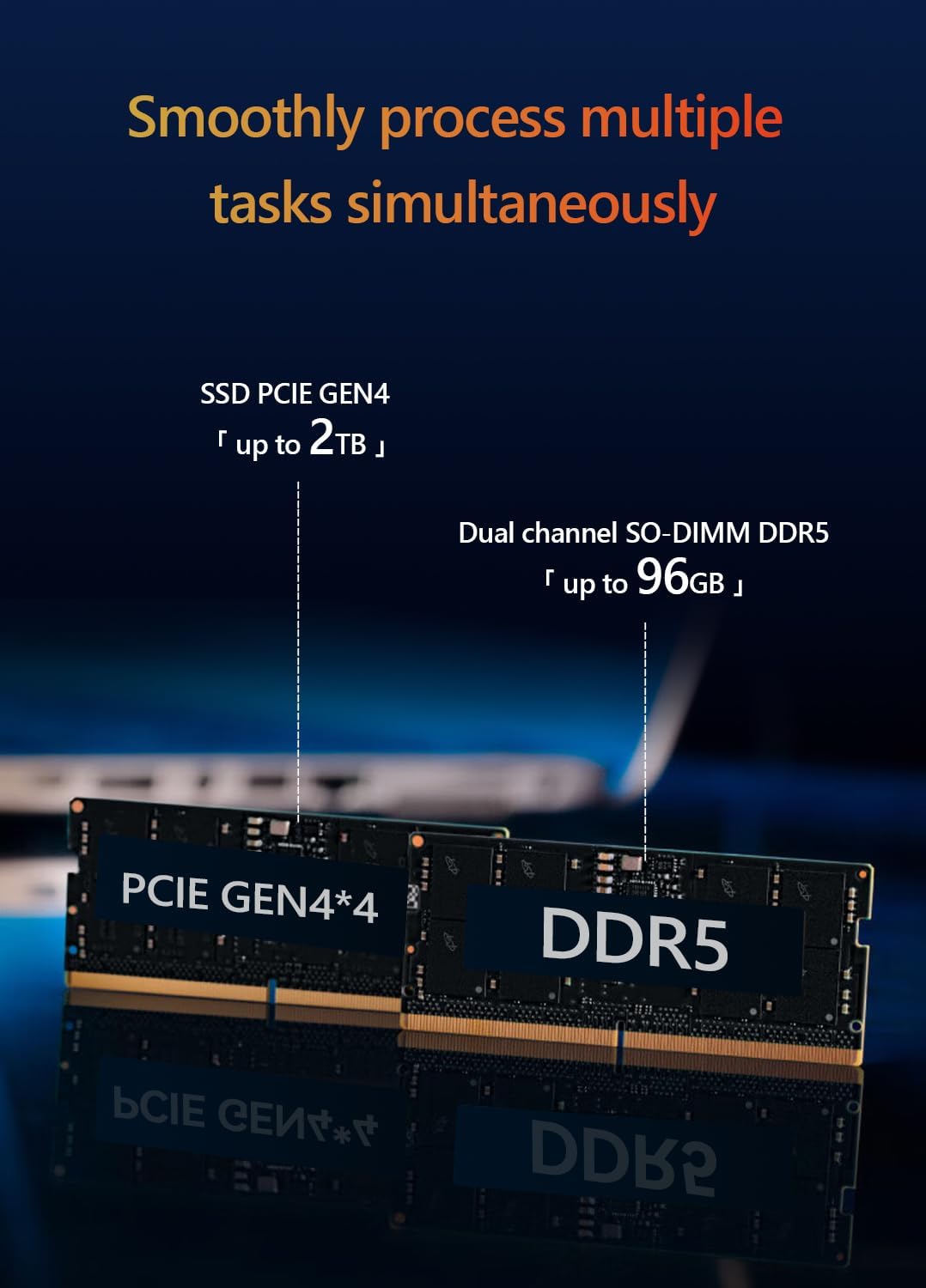
בילד: אינערלעכער view of the Maxtang Mini PC T0 Series, showing the dual-channel DDR5 SO-DIMM slots and M.2 2280 NVMe SSD slots, indicating upgrade potential.
טראָובלעשאָאָטינג
If you encounter issues with your Maxtang Mini PC, refer to the following common solutions:
- קיין מאַכט:
- Ensure the power adapter is securely connected to both the mini PC and a working electrical outlet.
- Verify the power cord is properly connected to the power adapter.
- פּרוּווט אַ אַנדערש מאַכט ווענטיל.
- קיין ווייַז:
- Check that the monitor is powered on and the correct input source is selected.
- Ensure the HDMI, DisplayPort, or USB4 cable is securely connected to both the mini PC and the monitor.
- Try connecting to a different display port or using a different cable.
- No Network Connection (Wired):
- Verify the Ethernet cable is securely connected to the LAN port on the mini PC and your router/modem.
- Check your router/modem for proper operation.
- Restart the mini PC and your network equipment.
- No Wi-Fi/Bluetooth:
- Ensure Wi-Fi and Bluetooth are enabled in Windows Settings.
- Check for updated wireless drivers.
- Restart the mini PC.
- סיסטעם רעאַגירט נישט:
- Press and hold the power button for 5-10 seconds to force a shutdown, then restart the PC.
- געפינען די באַשטעטיק pinhole button (refer to the port diagram) and use a paperclip to press it if the system is completely unresponsive. This will restart the device.
ספּעסאַפאַקיישאַנז
| מאָדעל | MTN-T08845HS |
| פּראַסעסער | AMD Ryzen™ 7 8845HS (8 Cores/16 Threads, up to 5.1GHz, 16MB L3 Cache) |
| גראַפיקס | AMD Radeon™ 780M (Integrated) |
| זכּרון (RAM) | DDR5 SO-DIMM (5600MHz, up to 96GB, 16GB installed) |
| סטאָרידזש | M.2 2280 NVMe SSD (PCIe Gen4 x4, 512GB installed, 2 slots available) |
| אָפּערייטינג סיסטעם | Windows 11 Pro (64-ביסל) |
| ווידעא רעזולטאַט | 1x HDMI [4K@60Hz], 1x DisplayPort [8K@60Hz], 1x USB4 [4K@60Hz] (Triple Display Support) |
| וסב פּאָרץ | 2x USB 3.2, 1x USB 2.0, 1x USB-C (USB 3.2 10Gb), 1x USB-C (USB4 40Gbps) |
| נעץ | 1x 2.5GbE RJ45 LAN, Wi-Fi 6, Bluetooth 5.2 |
| אַודיאָ | 1x 2-in-1 CTIA Audio Jack |
| זיכערהייַט | קענסינגטאָן לאַק שפּעלטל |
| דימענשאַנז | 127 mm x 135 mm x 55 mm (Approximate) |
| קאָליר | שאָל ווייס |

בילד: דעטאַילעד view of the AMD Ryzen 7 8845HS processor, highlighting its specifications like 8 cores/16 threads and 5.1 GHz boost clock.

בילד: Visual representation of the AMD Radeon 780M integrated graphics, showing its performance metrics and display output capabilities.
וואָראַנטי און שטיצן
וואָראַנטי אינפֿאָרמאַציע
The Maxtang Mini PC T0 Series comes with a 12-חודש פּראָדוקט גאַראַנטיע from the date of purchase. This warranty covers manufacturing defects and ensures the product meets its specified performance. Please retain your proof of purchase for warranty claims.
קונה שטיצן
For technical assistance, troubleshooting beyond this manual, or warranty inquiries, please contact Maxtang customer service. Refer to the official Maxtang website or your purchase documentation for current contact details.