
1. הקדמה
This manual provides detailed instructions for the setup, operation, maintenance, and troubleshooting of your ACASIS DS-0202 14-in-1 USB C Docking Station. Please read this manual thoroughly before using the product to ensure optimal performance and longevity.

Image 1.1: The ACASIS DS-0202 14-in-1 USB C Docking Station, showcasing its compact design and multiple connectivity options including USB-C, USB-A, HDMI, DisplayPort, Ethernet, and card readers.
2. שליסל פֿעיִקייטן
- 14-אין-1 קאָנעקטיוויטי: Expands a single USB-C/Thunderbolt 3/4 port into 14 ports, including 2 HDMI, 1 DisplayPort, 3 USB-C 3.1 (10Gbps), 2 USB-A 3.1 (10Gbps), 1 USB 2.0, SD/TF card reader, 1Gbps Ethernet, 3.5mm audio, and 100W Power Delivery.
- טריפל דיספּליי שטיצע: Supports single 4K@60Hz display and triple 4K@30Hz displays (under DP1.4). Windows systems support both MST (Multi-Stream Transport) and SST (Single-Stream Transport) for mirror and extend modes. macOS systems do not support MST.
- הויך-גיכקייַט דאַטן אַריבערפירן: Features 3 USB-C 3.1 and 2 USB-A 3.1 ports, all offering 10Gbps data transfer speeds for rapid file טראַנספערס.
- 100W מאַכט עקספּרעס: Provides up to 100W Power Delivery through the dedicated USB-C port to charge compatible laptops, tablets, and phones.
- Gigabit עטהערנעט: Integrated 1000Mbps Ethernet port ensures stable and fast wired network connectivity.
- אַודיאָ קאַנעקטיוויטי: Includes a 3.5mm audio and microphone port for headset connection.
- SD/TF קאַרטל לייענער: Built-in SD and TF card slots for convenient data access.
3. פּאָרט אויסלייג
Familiarize yourself with the various ports on the ACASIS DS-0202 docking station:

בילד 3.1: דעטאַלירט view of the docking station's ports, including RJ45 (Ethernet), DisplayPort, HDMI 1, HDMI 2, USB 2.0, USB-A 3.1, PD 3.0 (Max 100W), 3.5mm Audio, and three USB-C 3.1, two USB-A 3.1, SD/TF 3.0 ports.
- פראָנט/זייט פּאָרטן:
- 3 x USB-C 3.1 (10Gbps)
- 2 x יו-עס-בי-איי 3.1 (10 גיגאביט-ביטס)
- 1 x SD Card Reader (SD 3.0)
- 1 x TF Card Reader (TF 3.0)
- דערציען פּאָרץ:
- 1 x RJ45 Gigabit Ethernet (1000Mbps)
- 1 x DisplayPort (4K@60Hz)
- 2 x HDMI 2.0 (4K@60Hz)
- 1 x USB 2.0 (480Mbps)
- 1 x יו-עס-בי-איי 3.1 (10 גיגאביט-ביטס)
- 1 x USB-C PD 3.0 (Max 100W input)
- 1 x 3.5mm Audio & Mic In
4. סעטאַפּ אינסטרוקציעס
Before connecting the docking station, ensure your laptop's USB-C port supports Power Delivery, DisplayPort Alt Mode, and Data Transfer. Refer to your laptop's specifications or manufacturer for details.

Image 4.1: USB-C port compatibility check. Ensure your laptop's USB-C port supports Thunderbolt 3/4 or USB-C with Power Delivery, DisplayPort Alt Mode, and Data Transfer for full functionality.
- פאַרבינדן מאַכט אַדאַפּטער (אַפּשאַנאַל אָבער רעקאָמענדירט): If you wish to charge your laptop via the docking station, connect your laptop's USB-C power adapter (up to 100W) to the "PD 100W" USB-C port on the docking station.
- פאַרבינדן צו לאַפּטאָפּ: Connect the integrated USB-C cable from the docking station to a compatible USB-C/Thunderbolt 3/4 port on your laptop.
- פֿאַרבינדן עקסטערנע דיספּלייז:
- For single or dual monitors: Connect your monitors using HDMI cables to the HDMI 1 and HDMI 2 ports, or a DisplayPort cable to the DP port.
- For triple monitors: Connect your monitors to the HDMI 1, HDMI 2, and DP ports.
Note: Ensure your display cables are securely connected.
- פאַרבינדן פּעריפעראַלס: Connect your USB devices (keyboard, mouse, external drives, etc.) to the available USB-A and USB-C data ports.
- Connect Ethernet (Optional): For a wired network connection, connect an Ethernet cable from your router/modem to the RJ45 port on the docking station.
- פֿאַרבינדן אַודיאָ דעוויסעס (אָפּציאָנאַל): שטעקט אריין אייערע כעדפאָונז אדער רעדנער אין די 3.5 מם אַודיאָ דזשעק.
The docking station is plug-and-play and should be automatically recognized by your operating system. You may need to configure display settings manually.
5. אַפּערייטינג ינסטרוקטיאָנס
5.1 Display Configuration (Windows)
Windows operating systems support both Mirror Mode (SST) and Extend Mode (MST) for multiple displays. You can configure these settings via your display settings.

Image 5.1: Triple display setup examples for Windows, illustrating Mirror Mode (A-BBB) and Extend Mode (A-BCD, A-BC, A-BD) with various monitor arrangements and resolutions.
- Mirror Mode (SST): All connected displays show the same content as your laptop screen.
- Extend Mode (MST): Each connected display can show different content, extending your desktop across multiple screens.
- רעזאלוציע: Supports up to 4K@60Hz for a single display and 4K@30Hz for triple displays (under DP1.4).
To adjust display settings in Windows:
- רעכט-קליק אויף אייער דעסקטאַפּ און סעלעקטירן "דיספּליי סעטטינגס".
- Identify and arrange your displays.
- Select the desired display mode (Extend these displays, Duplicate these displays).
- Adjust resolution and orientation as needed.
5.2 Display Configuration (macOS)
macOS systems do not support Multi-Stream Transport (MST). Therefore, when multiple external monitors are connected, they will either mirror each other or extend the laptop display, but cannot extend independently to three unique displays.

Image 5.2: Triple display setup examples for macOS, illustrating Mirror Mode (A-AAA) where all displays show the same content, and Extend Mode (A-BBB) where external displays mirror each other while extending the laptop screen.
- שפּיגל מאָדע: All connected displays show the same content as your MacBook screen.
- פאַרברייטערן מאָדע: The external displays will mirror each other, extending your desktop from the MacBook screen. You cannot have three independent extended displays.
- רעזאלוציע: Supports up to 4K@30Hz for triple displays.
To adjust display settings in macOS:
- Go to "System Settings" (or "System Preferences" on older macOS versions).
- אויסקלייבן "דיספּלייז".
- Arrange your displays and select the desired mode (Mirror Displays or Use as separate display).
5.3 דאַטאַ אַריבערפירן
The docking station features 3 USB-C 3.1 and 2 USB-A 3.1 ports, all capable of 10Gbps data transfer. Connect your high-speed storage devices to these ports for optimal performance.

Image 5.3: The docking station's 10Gbps USB-C and USB-A ports enable ultra-fast data transfer for large files and high-bandwidth peripherals.
5.4 מאַכט עקספּרעס
The dedicated USB-C PD port supports up to 100W power input. Connect your laptop's power adapter to this port to charge your laptop while using the docking station.

Image 5.4: The 100W Power Delivery port allows for fast charging of your laptop while connected to the docking station, with an example showing 100W input and 85W output to the laptop.
5.5 גיגאבייט עטהערנעט
The RJ45 port provides a stable and fast 1000Mbps (1 Gigabit) Ethernet connection. This is ideal for reliable internet access and large file טראַנספערס איבער אַ לאָקאַלע נעץ.

Image 5.5: The Gigabit Ethernet port provides a fast and stable wired network connection, supporting speeds up to 1000Mbps.
5.6 SD/TF Card Readers
Insert your SD or TF (Micro SD) cards into the respective slots for quick access to photos and other data. Both slots can be used simultaneously.
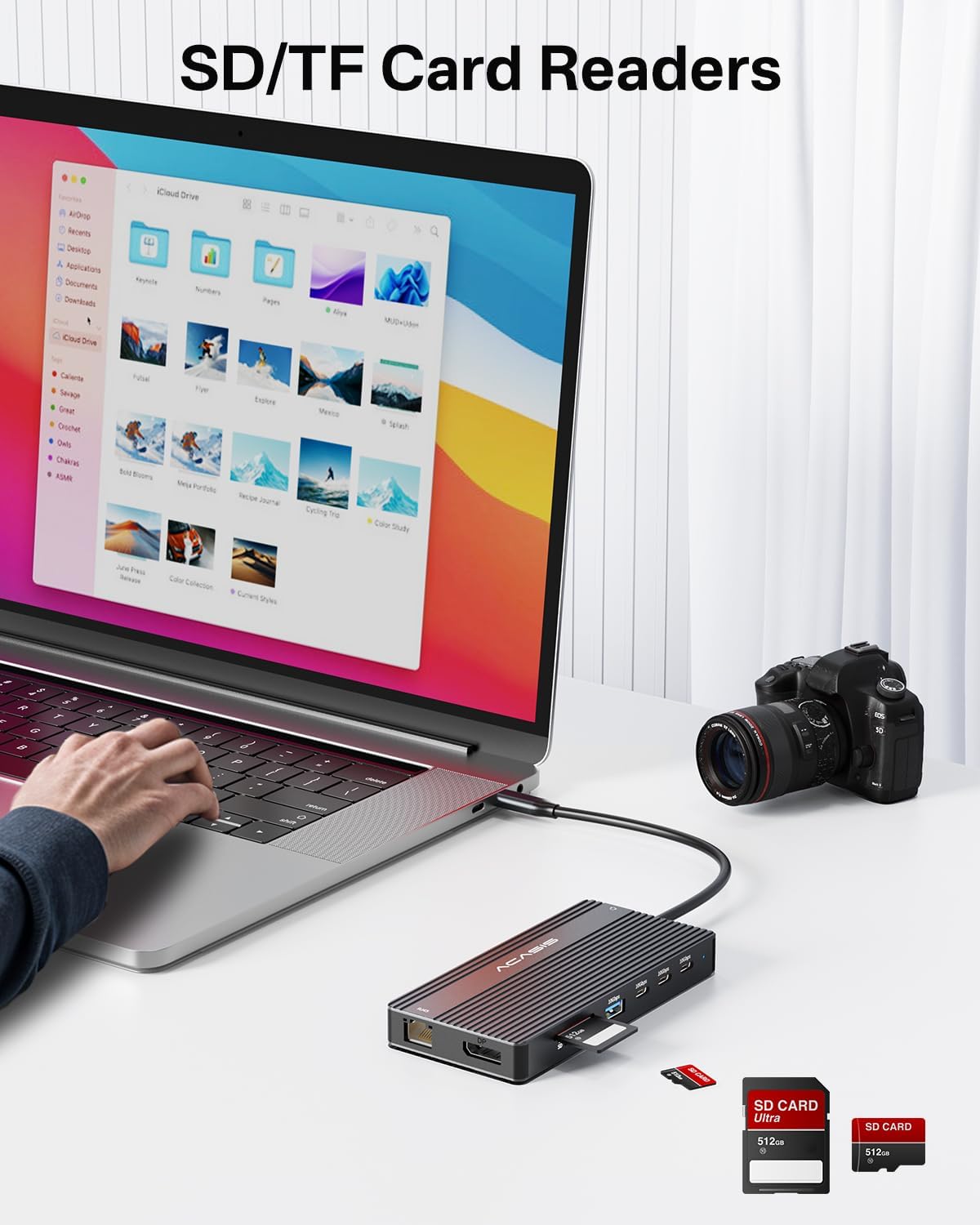
Image 5.6: The integrated SD and TF card readers allow for convenient and fast access to memory card data, useful for photographers and content creators.
6. וישאַלט
- רייניקונג: ניצט אַ ווייכע, טרוקענע שטאָף צו רייניקן די ייבערפלאַך פון דער דאָקינג סטאַנציע. פֿאַרמייַדט פליסיקע רייניקונגס־מיטלען אָדער אַברייסיוו מאַטעריאַלן.
- סטאָרידזש: האַלט די דאָקינג סטאַנציע אין אַ קיל, טרוקן אָרט אַוועק פון דירעקט זונשייַן און עקסטרעמע טעמפּעראַטורן.
- האַנדלינג: Avoid dropping or subjecting the device to strong impacts. Do not bend the integrated USB-C cable excessively.
- ווענטילאַטיאָן: Ensure the docking station has adequate ventilation to prevent overheating, especially during prolonged use with multiple connected devices.
7. טראָובלעשאָאָטינג
| פּראָבלעם | מעגלעך סיבה | לייזונג |
|---|---|---|
| No display output / Flickering screen |
|
|
| לאַפּטאָפּ לאָדט זיך נישט אויף |
|
|
| USB devices not recognized / Slow data transfer |
|
|
| עטהערנעט פֿאַרבינדונג נישט סטאַביל אָדער אַרבעט נישט |
|
|
8. ספּעסאַפאַקיישאַנז
| שטריך | דעטאַל |
|---|---|
| מאָדעל נומער | דס-קסנומקס |
| סאָרט | ACASIS |
| קאַנעקטיוויטי | USB-C (Host connection) |
| ווידעא רעזולטאַט | 2 x HDMI 2.0 (4K@60Hz), 1 x DisplayPort (4K@60Hz) |
| USB דאַטן פּאָרץ | 3 x USB-C 3.1 (10Gbps), 2 x USB-A 3.1 (10Gbps), 1 x USB 2.0 (480Mbps) |
| עטהערנעט | 1 x RJ45 Gigabit Ethernet (1000Mbps) |
| קאָרט רידער | SD 3.0, TF 3.0 (simultaneous use) |
| אַודיאָ | 1 x 3.5mm Audio & Mic In |
| מאַכט עקספּרעס | USB-C PD 3.0, up to 100W input |
| קאַמפּאַטאַבאַל דעוויסעס | Laptops with full-featured USB-C/Thunderbolt 3/4 ports (Dell, HP, Lenovo, ThinkPad, Surface, MacBook, etc.) |
| אַפּערייטינג סיסטעמס | Windows, macOS, Linux, iPadOS |
| פּראָדוקט דימענשאַנז | 1 X 1 X 1 אינטשעס (בעערעך) |
| פּונקט וואָג | 5 אונסעס (אומגעפער) |
| קאָליר | שוואַרץ |
9. וואָראַנטי אינפֿאָרמאַציע
ACASIS products typically come with a standard manufacturer's warranty. For specific warranty terms and conditions, please refer to the warranty card included with your product or visit the official ACASIS webזייטל. האַלט אייער קויף קוויטל ווי אַ באַווייַז פון קויפן פֿאַר וואָראַנטי קליימז.
Protection plans are also available for purchase separately:
- 3-יאָר שוץ פּלאַן
- 4-יאָר שוץ פּלאַן
- קאָמפּלעט פּראָטעקט (מאָנטלעך פּלאַן)
די פלענער פאָרשלאָגן פארברייטערטע קאַווערידזש ווייטער פון די נאָרמאַלע פאַבריקאַנט'ס וואָראַנטי.
10. קונה שטיצן
If you encounter any issues or have questions regarding your ACASIS DS-0202 14-in-1 USB C Docking Station, please contact ACASIS customer support through the following channels:
- באַאַמטער Webפּלאַץ: באַזוכן די ACASIS Store on Amazon פֿאַר פּראָדוקט אינפֿאָרמאַציע און שטיצע רעסורסן.
- E- בריוו שטיצן: Refer to your product packaging or the ACASIS webזייטל פֿאַר די מערסט אַקטועל שטיצע בליצפּאָסט אַדרעס.
- אָנליין קאָנטאַקט פאָרעם: Many manufacturers provide a contact form on their webפּלאַץ פֿאַר טעכניש הילף.
When contacting support, please have your product model number (DS-0202) and purchase details ready.