
הקדמה
This manual provides detailed instructions for the JZK Voice Remote Control, designed as a replacement or secondary remote for NVIDIA Shield TV Pro models from 2015, 2017, and 2019. This remote features voice search capabilities and an ergonomic design for comfortable use. Please read this manual thoroughly before operating your device.
פּעקל אינהאַלט
באַשטעטיקן אַז אַלע זאכן זענען פאַראַן אין דיין פּעקל:
- 1 x JZK Voice Remote Control
- 1 x באַניצער גייד (דאָס דאָקומענט)
Note: 2x AAA batteries are required and are not included in the package.

Image: Contents of the JZK remote control package, including the remote and a small user guide.
סעטאַפּ
1. באַטאַרייע ייַנמאָנטירונג
- געפֿינען די באַטאַרייע אָפּטייל אויף די צוריק פון די ווייַט קאָנטראָל.
- רוקט דעם באַטעריע דעקל אַראָפּ צו עס עפענען.
- אַרײַנשטעלן צוויי (2) AAA באַטעריעס, און זיכער מאַכן אַז די ריכטיקע פּאָלאַריטעט (+ און -) איז אָנגעוויזן אין דעם אָפּטייל.
- רוק די באַטאַרייע דעקן צוריק אין פּלאַץ ביז עס קליקס סיקיורלי.

Image: The remote control with its battery cover removed, illustrating where to insert two AAA batteries.
2. פּערינג די רימאָוט קאָנטראָל
The remote control uses an infrared connection. For initial setup or re-pairing, follow these steps:
- Ensure your NVIDIA Shield TV is powered on and within 1 foot (approx. 30 cm) of the remote control.
- On your NVIDIA Shield TV, navigate to Settings > Device Preferences > Remotes & Accessories.
- דריקן און האַלטן די צוריק קנעפּל און די היים button simultaneously on the JZK remote control until the remote's indicator light begins to flash.
- The NVIDIA Shield TV should detect the new remote. Select it from the list of available devices to complete the pairing process.
- Once paired, the remote's light will stop flashing, and you can begin using it.
If pairing fails, ensure the batteries are correctly installed and charged, and try the process again. You may also need to restart your NVIDIA Shield TV.
אַפּערייטינג ינסטראַקשאַנז
מאַכט זיך באַקאַנט מיט די קנעפּלעך און זייערע פונקציעס:

Image: Detailed button layout of the JZK remote control with labels for each function.
| ניין. | קנעפּל | פֿונקציע |
|---|---|---|
| 1 | געבויט-אין מיקראָפאָן | Used for Voice Search commands. |
| 2 | מאַכט | Turns the NVIDIA Shield TV on or off. |
| 3 | סעטטינגס | Accesses the NVIDIA Shield TV settings menu. (Customizable in Settings > Devices & Accessories > Customize Settings button) |
| 4 | נאַוויגאַציע רינג | Navigates menus: Up, Down, Right, Left. |
| 5 | Select (OK) | Confirms selections or opens items. |
| 6 | צוריק | קערט צו די פריערדיקע פאַרשטעלן אָדער מעניו. |
| 7 | היים | קערט צוריק צום הויפּט היים עקראַן. |
| 8 | שנעל-פאָרווערד | Skips forward in media playback. |
| 9 | שפּיל / פּויזע | שפּילט אָדער פּויזירט מעדיע ווידערשפּיל. |
| 10 | ריוויינד צוריק | Skips backward in media playback. |
| 11 | קול זוך | Activates voice command input. Press and hold, then speak your command. |
| 12 | פאַרגרעסערן באַנד | ינקריסאַז די באַנד. |
| 13 | פאַרמינערן די באַנד | דיקריסאַז די באַנד. |
| 14 | עפֿן נעטפליקס | Directly launches the Netflix application. |
Using Voice Search
The voice search feature allows for quick navigation and content discovery. To use it:
- דריקן און האַלטן די קול זוך קנעפּל (11).
- Speak your command clearly into the built-in microphone (1). For example, say "Open YouTube," "Find action movies," or "Adjust volume."
- מעלדונג די קול זוך button when you are finished speaking.
וישאַלט
רייניקונג פון די ווייַטקאָנטראָל
צו רייניקן די ווײַטקאָנטראָל, ניצט אַ ווייכע, טרוקענע שטאָף. פֿאַר שווערע שמוץ, אַ ביסל ווייכער מאַכןampen the cloth with water or a mild, non-abrasive cleaner. Avoid using harsh chemicals or solvents, as these can damage the remote's surface or internal components.
באַטערי פאַרבייַט
When the remote's performance degrades or it becomes unresponsive, it's time to replace the batteries. Follow the battery installation steps outlined in the סעטאַפּ section. Always replace both AAA batteries at the same time with new ones.
טראָובלעשאָאָטינג
If you encounter issues with your JZK Voice Remote Control, refer to the following common problems and solutions:
| פּראָבלעם | מעגלעך סיבה | לייזונג |
|---|---|---|
| ווײַטקאָנטראָל רעאַגירט נישט. | Low or dead batteries. Incorrect battery installation. Remote not paired. Obstruction between remote and Shield TV. | Replace batteries. Check battery polarity. Re-pair the remote (see Setup section). Ensure clear line of sight to Shield TV. |
| Voice Search not working. | Microphone blocked. Remote not properly paired for voice functions. Software glitch. | Ensure microphone is clear. Re-pair the remote. Restart NVIDIA Shield TV. |
| Buttons are sticky or not registering presses. | שמוץ אדער דעבריס אונטער קנעפּלעך. | Clean the remote (see Maintenance section). |
| Remote disconnects frequently. | Interference. Low batteries. | Ensure no strong interference sources nearby. Replace batteries. Re-pair the remote. |
ספּעסאַפאַקיישאַנז
| שטריך | דעטאַל |
|---|---|
| סאָרט | JZK |
| מאָדעל קאַמפּאַטאַבילאַטי | NVIDIA Shield TV Pro (2015, 2017, 2019 models), NVIDIA Shield TV Cube (2019) |
| קשר טיפּ | ינפרערעד (IR) |
| מאַכט מקור | 2 x AAA אַלקאַליין באַטעריעס (נישט אַרייַנגערעכנט) |
| ספּעציעלע פֿעיִקייטן | Voice Search, Ergonomic Design, Dedicated Netflix Button |
| מאַטעריאַל | דוראַבאַל אַבס |
| קאָליר | שוואַרץ / ווייַס |
| דימענסיעס (L X W X H) | אומגעפער 16.8 x 6 x 2.6 ס״מ (6.6 x 2.4 x 1.0 אינטשעס) |
| וואָג | אומגעפער 60 גראַם (2.1 אונסעס) |

Image: Dimensions of the JZK remote control, indicating its length, width, and thickness.
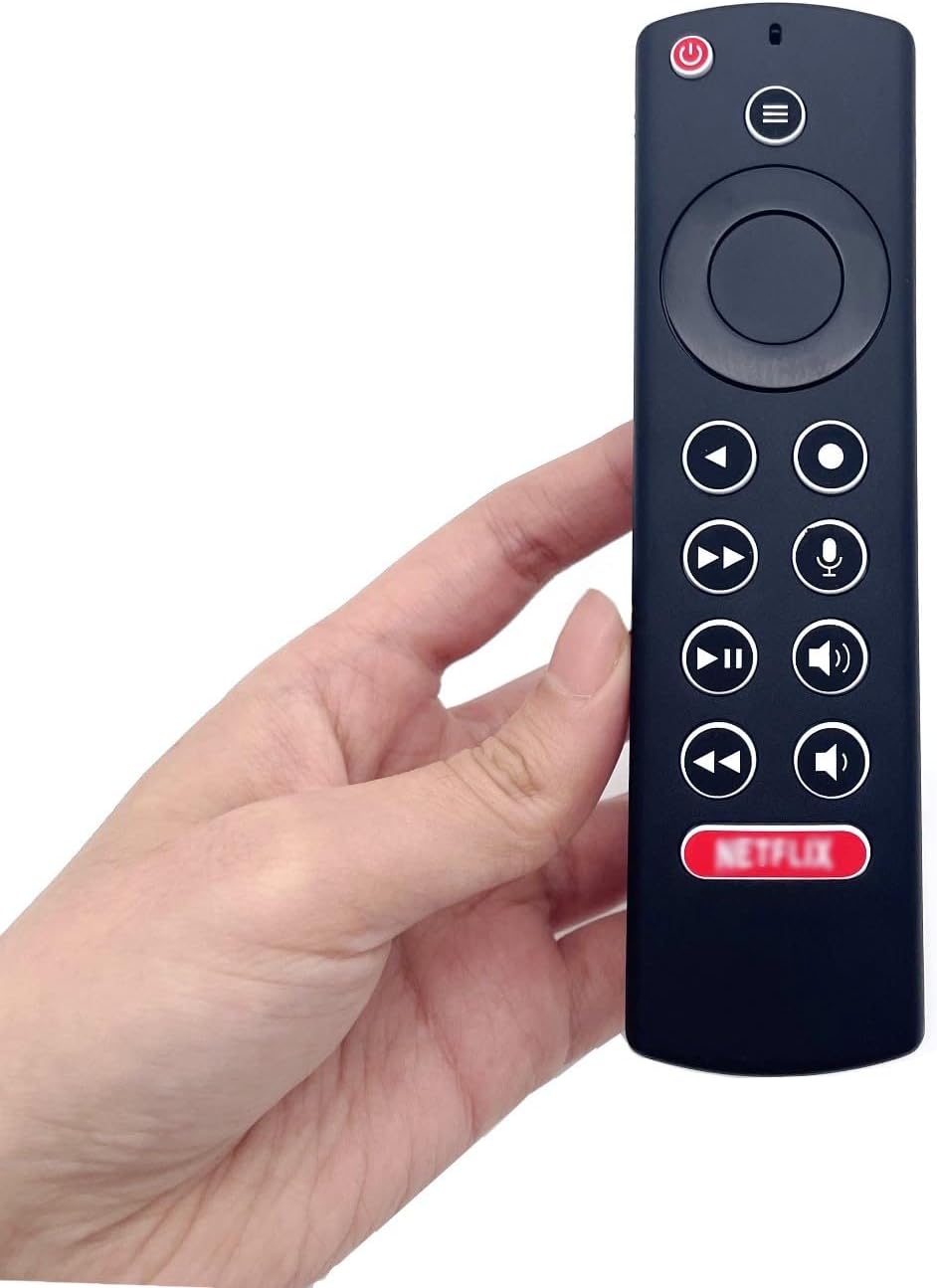
Image: The JZK remote control held in a hand, highlighting its comfortable and ergonomic design.
וואָראַנטי אינפֿאָרמאַציע
Specific warranty details for this JZK product are not provided in the product description. Please refer to the retailer's return policy or contact JZK customer support for information regarding warranty coverage and terms.
שטיצן
For further assistance, troubleshooting, or inquiries about your JZK Voice Remote Control, please contact the retailer where you purchased the product or refer to the official JZK website for customer support options.