
1. הקדמה
Thank you for choosing the MEETION BTM011 Ergonomic Wireless Bluetooth Vertical Mouse. This device is designed to provide a comfortable and efficient computing experience by promoting a natural hand position, reducing wrist strain. It offers versatile connectivity options for multiple devices and adjustable precision to suit various tasks.

The ergonomic design of the MEETION vertical mouse helps maintain a natural hand and wrist posture, reducing discomfort compared to traditional mice.
2. פּעקל אינהאַלט
- MEETION BTM011 Ergonomic Wireless Bluetooth Vertical Mouse
- USB 2.4G Receiver (stored in the mouse battery compartment)
- וסב- א צו וסב- C אַדאַפּטער
- באַניצער מאַנואַל
3. פּראָדוקט איבערview
Familiarize yourself with the various components and buttons of your MEETION BTM011 mouse.

דעטאַילעד view of the mouse components, including the Mode Switching Button, Power Switch (ON/OFF), Low Battery Indicator, Charging Indicator, DPI Speed Switch Button, 2.4G Connection Indicator, Bluetooth 1 Connection Indicator, and Bluetooth 2 Connection Indicator.
- לינקס קנעפּל: נאָרמאַלע לינקס-קליק פונקציע.
- רעכט קנעפּל: נאָרמאַלע רעכט-קליק פונקציע.
- סקראָל ראָד: For scrolling up and down.
- פֿאָרווערטס קנעפּל: נאַוויגירט פאָרויס אין web בראַוזערז אָדער file עקספּלאָרערס.
- צוריק קנעפּל: נאַוויגירט צוריק אין web בראַוזערז אָדער file עקספּלאָרערס.
- DPI סוויטש קנעפּל: אַדזשאַסטירט קורסאָר סענסיטיוויטי.
- מאָדע סוויטשינג קנעפּל: Switches between 2.4G, Bluetooth 1, and Bluetooth 2 modes.
- מאַכט באַשטימען (אויף / אַוועק): טורנס די מויז אויף אָדער אַוועק.
- באַטערי אָפּטייל: Located at the bottom, for 1x AA battery and USB receiver storage.
4. סעטאַפּ אינסטרוקציעס
4.1 באַטאַרייע ייַנמאָנטירונג
The mouse requires one AA battery (not included).
- געפינט דעם דעקל פונעם באַטעריע־אָפּטייל אויף דער אונטערשטער טייל פונעם מויז.
- רוק די דעקל עפענען.
- אַרײַנשטעלן איין AA באַטעריע, און זיכער מאַכן אַז די פּאָלאַריטעט איז ריכטיק (+/-).
- פאַרמאַכן די באַטאַרייע אָפּטייל דעקן סיקיורלי.

Insert one AA battery into the compartment. The USB receiver is also stored here.
4.2 מאַכט אויף / אַוועק
Slide the power switch located on the bottom of the mouse to the "ON" position to turn it on. Slide to "OFF" to conserve battery when not in use.
4.3 קאָנעקטיוויטי מאָדעס
The MEETION BTM011 mouse supports three connection modes: 2.4GHz wireless (via USB receiver) and two independent Bluetooth 5.3 channels (BT1 and BT2). You can connect to up to three devices simultaneously and switch between them.

The mouse supports 2.4G wireless and two Bluetooth 5.3 connections for seamless switching between devices.
4.4 2.4GHz USB Connection
- נעמט ארויס דעם USB ריסיווער פון די באַטעריע אָפּטייל פון דער מויז.
- Insert the USB receiver into an available USB-A port on your computer. If your computer only has USB-C ports, use the provided USB-A to USB-C adapter.
- קער אויף די מויז ניצן די מאַכט באַשטימען.
- Press the Mode Switching Button until the 2.4G Connection Indicator (green light) lights up. The mouse should now be connected.
4.5 בלועטוט פֿאַרבינדונג (BT1 / BT2)
- קער אויף די מויז ניצן די מאַכט באַשטימען.
- Press the Mode Switching Button to select either Bluetooth 1 (BT1) or Bluetooth 2 (BT2). The corresponding blue indicator light will blink, indicating pairing mode.
- אויף אייער דעווייס (קאמפיוטער, לעפטאפ, טאבלעט, סמארטפאן), גייט צו בלועטוט סעטינגס.
- זוכן פֿאַר new devices. You should find "Meetion_MS_BT1" or "Meetion_MS_BT2".
- Select the device to pair. Once paired, the blue indicator light will stop blinking and remain solid for a few seconds.

Visual guide for connecting the mouse via 2.4G USB receiver and Bluetooth modes.
5. אַפּערייטינג ינסטרוקטיאָנס
5.1 דפּי אַדזשאַסטמאַנט
The mouse features 4 adjustable DPI levels: 1200, 1600, 2400, and 3200. Press the DPI Switch Button (located behind the scroll wheel) to cycle through these settings. Each press changes the cursor speed, allowing you to select the precision suitable for your task.
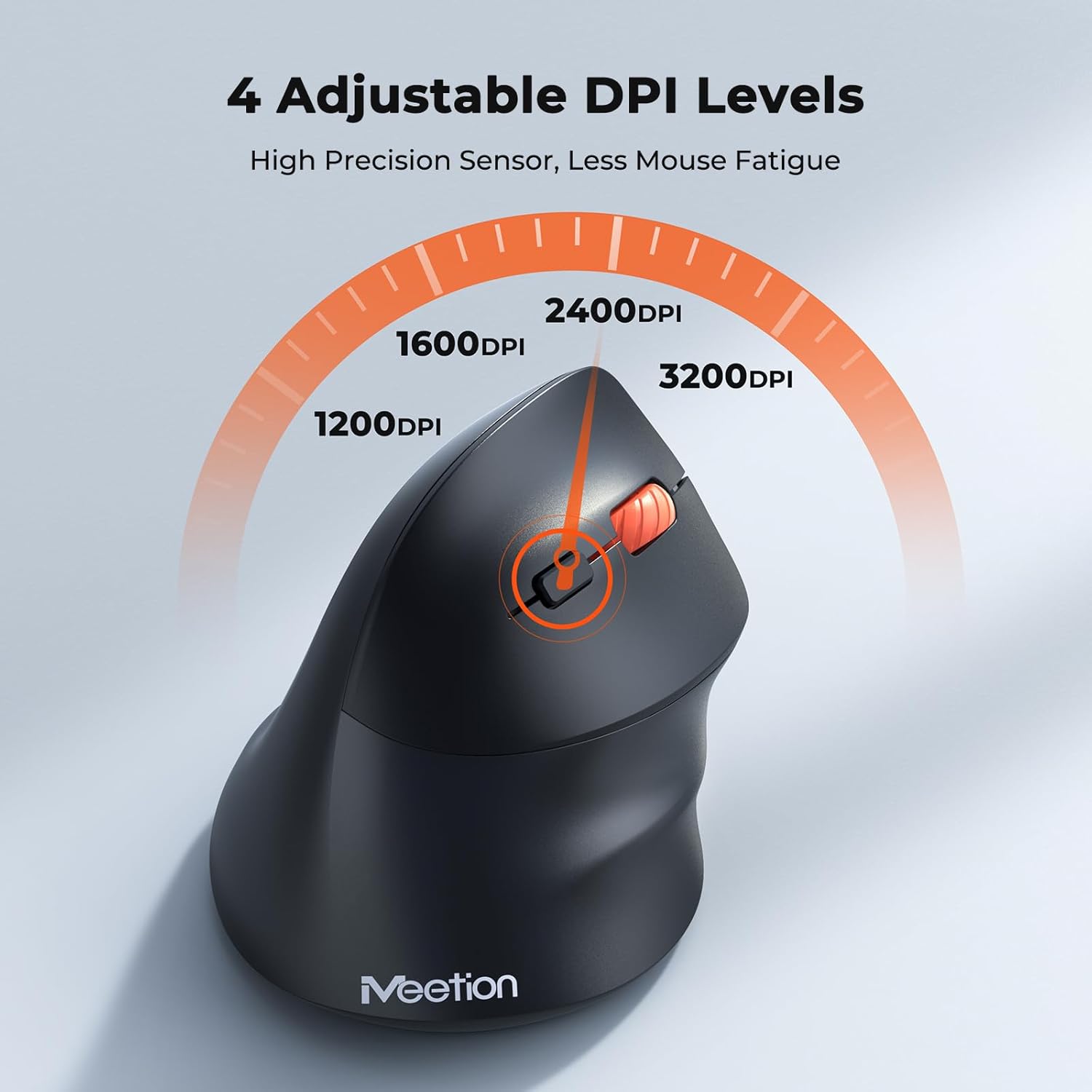
Adjust the DPI to match your preference for cursor speed and precision.
5.2 סוויטשינג צווישן קייפל דעווייסעס
To switch between connected devices, simply press the Mode Switching Button located on the bottom of the mouse. The corresponding indicator light (green for 2.4G, blue for BT1/BT2) will illuminate to show the active connection.
5.3 Forward/Back Buttons
Use the Forward and Back buttons, conveniently located on the side of the mouse, for quick navigation in web בראַוזערס, file עקספּלאָרערס, און אַנדערע אַפּליקאַציעס וואָס שטיצן די פונקציעס.
6. מאַכט מאַנאַגעמענט
6.1 Auto-Sleep Mode
To conserve battery life, the mouse will automatically enter sleep mode after 20 minutes of inactivity. This intelligent feature helps extend the battery's operational time.
6.2 Waking the Mouse
To wake the mouse from sleep mode, simply press any button. It will instantly reconnect to the last active device.
6.3 באַטאַרייע לעבן
With typical usage, a single AA battery can power the mouse for up to 3 months. Actual battery life may vary based on usage patterns and battery quality.
7. וישאַלט
To ensure optimal performance and longevity of your mouse, follow these maintenance guidelines:
- רייניקונג: ניצט אַ ווייכע, טרוקענע שטאָף צו ווישן די ייבערפלאַך פון דער מויז. פֿאַר שווערע שמוץ, אַ ביסל טרוקןamp מען קען ניצן אַ שטאָף, אָבער זאָרגט זיך אַז קיין נעץ זאָל נישט אַרײַנגיין אין דעם אַפּאַראַט. פֿאַרמײַדט שטרענגע כעמיקאַלן אָדער אַברייסיוו רייניקונגסמיטלען.
- באַטערי פאַרבייַט: Replace the AA battery when the low battery indicator lights up or when mouse performance degrades. Always dispose of used batteries responsibly.
- סטאָרידזש: When not in use for extended periods, turn off the mouse and store it in a dry, cool place.
8. טראָובלעשאָאָטינג
If you encounter issues with your MEETION BTM011 mouse, refer to the following solutions:
| פּראָבלעם | לייזונג |
|---|---|
| מויז ניט ריספּאַנדינג |
|
| קורסאָר באַוועגונג איז נישט סטאַביל אָדער פּאַמעלעך |
|
| קענען ניט פאַרבינדן דורך בלועטאָאָטה |
|
| Forward/Back buttons not working |
|
9. ספּעסאַפאַקיישאַנז
| שטריך | דעטאַל |
|---|---|
| מאָדעל | BTM011 |
| קאַנעקטיוויטי | 2.4GHz Wireless, Bluetooth 5.3 (BT1, BT2) |
| דפּי לעוועלס | 1200 / 1600 / 2400 / 3200 |
| קנעפּלעך | 7 (Left, Right, Scroll Wheel, Forward, Back, DPI Switch, Mode Switch) |
| מאַכט מקור | 1x AA באַטעריע (נישט אַרייַנגערעכנט) |
| אַוטאָ שלאָף | נאָך 20 מינוט פון ינאַקטיוויטי |
| קאַמפּאַטאַבילאַטי | Windows, Mac OS, Linux, Android, iOS (for iPad/iPhone) |
| מאַטעריאַל | פּלאַסטיק |
| דימענסיעס (בעערעך) | 4.4 X 3.29 X 2.74 אינטשעס (11.18 X 8.36 X 6.96 סענטימעטער) |
10. וואָראַנטי און שטיצן
10.1 וואָראַנטי אינפֿאָרמאַציע
MEETION products are designed and manufactured to the highest quality standards. This product is covered by a limited warranty against defects in materials and workmanship. Please retain your proof of purchase for warranty claims. Specific warranty terms may vary by region; refer to your local retailer or the official MEETION webפּלאַץ פֿאַר פרטים.
10.2 קונה שטיצן
For technical assistance, troubleshooting, or general inquiries, please contact MEETION customer support:
- בליצפּאָסט: service@meetion.com
- Webפּלאַץ: Visit the official MEETION webוועבזייטל פֿאַר אָפֿט געשטעלטע פֿראַגעס און נאָך רעסורסן.