
באַמבו לאַב פּ1ס
באַמבו לאַב P1S 3D דרוקער באַניצער מאַנואַל
מאָדעל: P1S
1. הקדמה
Welcome to the user manual for your new Bambu Lab P1S 3D Printer. The P1S is a high-performance 3D printer designed for reliability and ease of use, featuring a fully enclosed body that enhances printing performance for advanced filaments. It is engineered for high-temperature printing and offers rapid print speeds without compromising quality.
This manual provides essential information for setting up, operating, maintaining, and troubleshooting your P1S printer to ensure optimal performance and longevity.

פיגורע 1: פראָנט view of the Bambu Lab P1S 3D Printer.
2. סעטאַפּ
2.1 אויספּאַקן און פּלאַצירונג
Carefully remove the printer from its packaging. Ensure all protective materials and shipping restraints are removed. Place the printer on a stable, level surface with adequate space around it for ventilation and operation. The printer dimensions are approximately 38.9 x 45.8 x 38.9 cm.
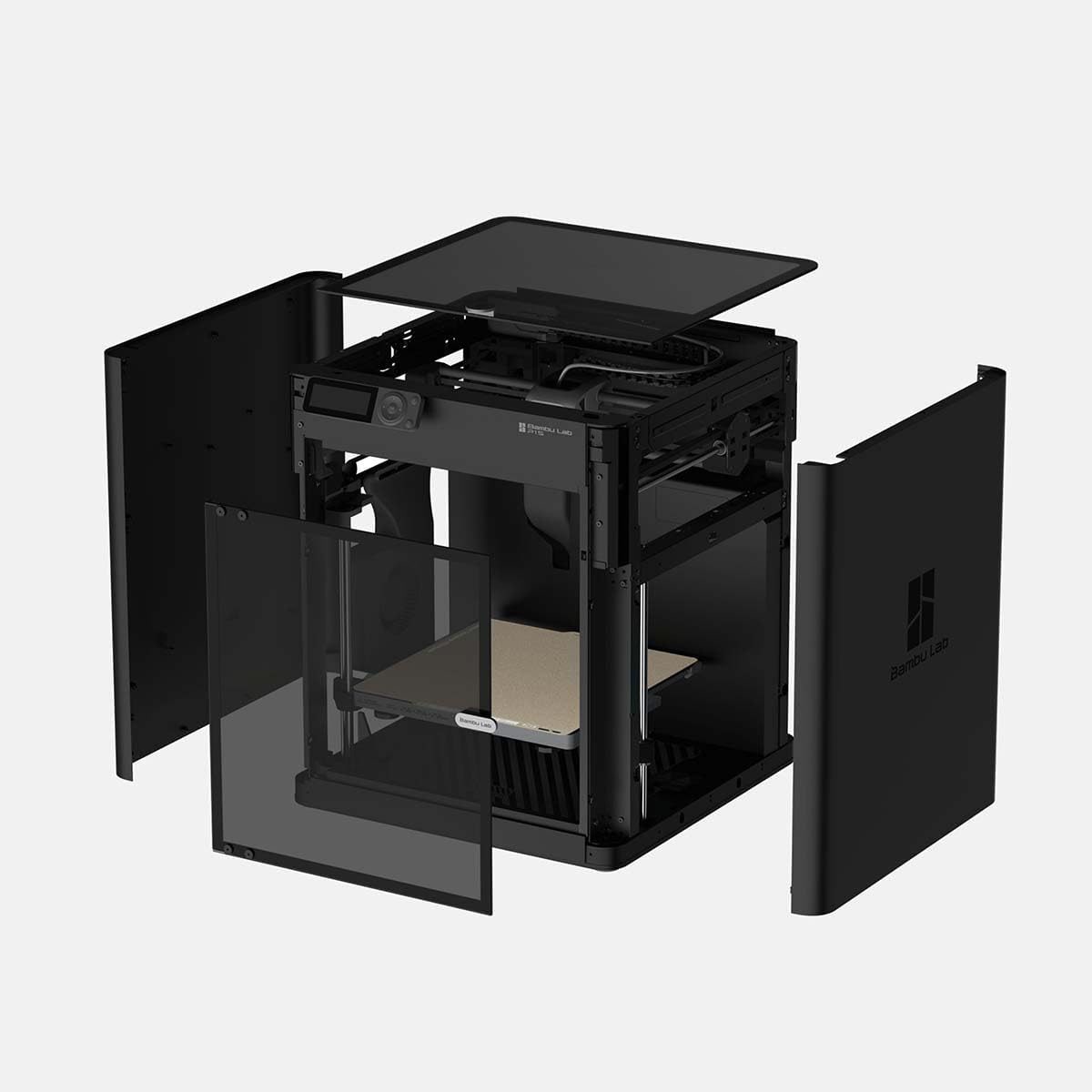
פיגורע 2: עקספּלאָדעד view showing the internal components and enclosure of the P1S.
2.2 מאַכט קאַנעקשאַן
Connect the power cable to the printer and then to a suitable electrical outlet. The Bambu Lab P1S supports a wide voltage range (Bivolt: 100-240 VCA, 50/60 Hz), making it adaptable to various regions.
2.3 ערשט קאַלאַבריישאַן
The P1S is designed for immediate use. Upon first power-on, the printer will automatically perform essential calibrations, including automatic bed leveling and vibration compensation. Allow the printer to complete these processes before proceeding.
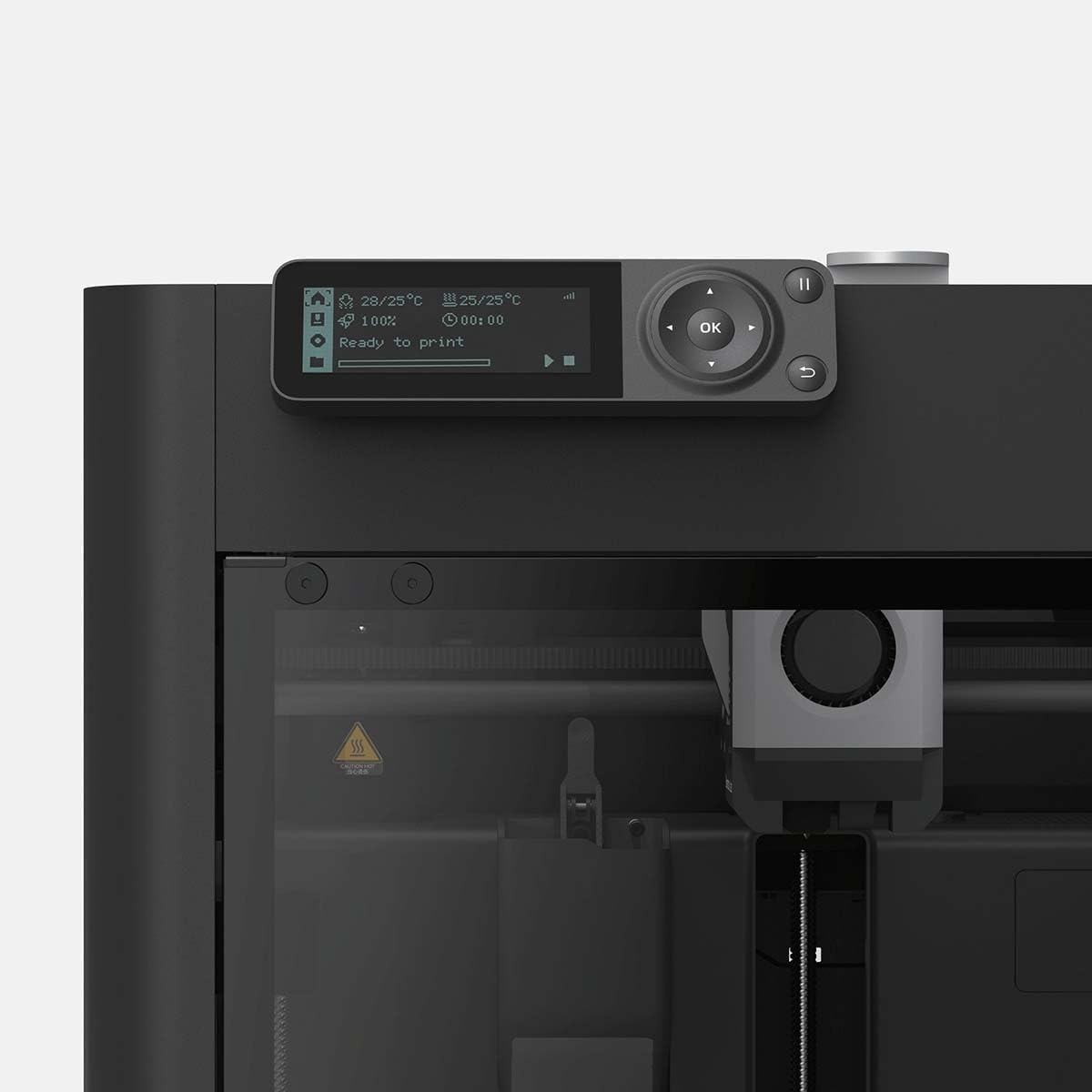
Figure 3: Close-up of the P1S control panel displaying operational status.
2.4 פאָדעם לאָודינג
Load your chosen filament (e.g., PLA, PETG, TPU, ABS, ASA) into the designated filament holder and feed it into the extruder according to the on-screen instructions. The printer supports 1.75 mm diameter filament.
3. אַפּערייטינג ינסטרוקטיאָנס
3.1 Basic Printing Process
- Prepare your 3D model: Use compatible slicing software (e.g., Bambu Studio) on your computer (Windows, macOS, Linux) or mobile device (Android, iOS) to prepare your 3D model for printing.
- Send to printer: Transfer the sliced G-code file to the P1S via Wi-Fi or other supported methods.
- Start printing: אויסקלייַבן די file on the printer's interface and initiate the print. The printer will automatically heat the hotend (up to 300 ℃) and the build plate (up to 100 ℃).
- מאָניטאָרירן פּראָגרעס: Monitor the print progress via the printer's display or connected software.
3.2 Multi-color Printing (Optional)
For multi-color printing capabilities, the Bambu Lab P1S can be optionally paired with the AMS (Automatic Material System). This allows for printing with up to 16 colors when stacking four AMS units, significantly expanding creative possibilities.
3.3 Speed and Quality
The P1S boasts an impressive maximum extruder speed of 500 mm/s and acceleration of 20 m/s². Its advanced control algorithms, including vibration compensation and pressure advance, ensure high-quality prints even at these rapid speeds.
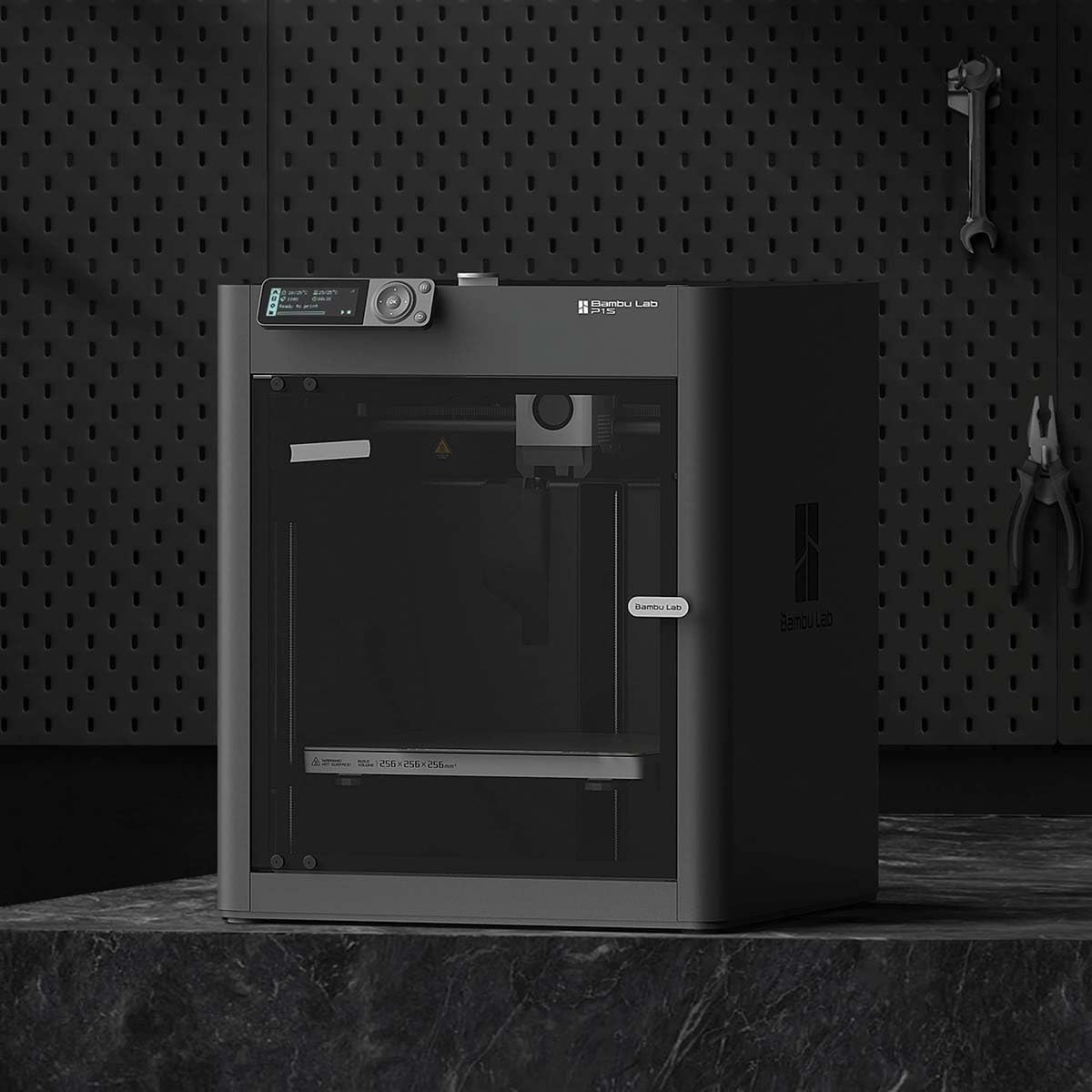
Figure 4: The Bambu Lab P1S 3D Printer ready for operation in a typical workspace.
4. וישאַלט
4.1 Build Plate Cleaning
Regularly clean the textured PEI build plate with isopropyl alcohol to ensure optimal adhesion and print quality. Avoid abrasive cleaners that could damage the surface.
4.2 Nozzle and Hotend Care
Periodically inspect the stainless steel nozzle for wear or clogs. Refer to the Bambu Lab support resources for detailed instructions on hotend and nozzle replacement or cleaning procedures.
4.3 General Upkeep
Keep the printer's interior and exterior clean from dust and filament debris. Ensure all moving parts are free from obstructions. Do not attempt to lubricate components unless specifically instructed by Bambu Lab documentation.
5. טראָובלעשאָאָטינג
5.1 געוויינטלעכע דרוק פראבלעמען
- שלעכטע ערשטע שיכט אדכעזשאַן:
Ensure the build plate is clean and free of oils. Re-run bed leveling calibration. Adjust Z-offset if necessary.
- Filament Clogging:
Check for tangled filament on the spool. Verify hotend temperature is appropriate for the filament type. Perform a cold pull or hotend cleaning if a clog is suspected.
- שיכט פארשיבונג:
Inspect belts for proper tension. Ensure the printer is on a stable surface. Reduce print speed if printing very fast or with complex geometries.
- Print Quality Issues (e.g., stringing, blobs):
Adjust retraction settings in your slicing software. Ensure filament is dry. Calibrate flow rate for your specific filament.
For more detailed troubleshooting guides and solutions, please visit the official Bambu Lab support webפּלאַץ.
6. ספּעסאַפאַקיישאַנז
| שטריך | דעטאַל |
|---|---|
| Build Volume (L×P×A) | 256 X 256 X 256 מם |
| נעזל מאַטעריאַל | Stainless Steel (0.4 mm included) |
| Hotend Type | אַלע-מעטאַל |
| Max Hotend Temperature | 300 ℃ |
| פאָדעם דיאַמעטער | 1.75 מם |
| Supported Filaments | PLA, PETG, TPU, PVA, PET, ABS, ASA |
| Build Plate Surface | Bambu Textured PEI Plate (included) |
| מאַקסימום בויען טעלער טעמפּעראַטור | 100 ℃ |
| Max Extruder Speed | 500 מם/ס |
| Max Extruder Acceleration | 20 עם / ס² |
| Physical Dimensions (P1S) | 389 X 389 X 458 מם³ |
| נעץ וואָג | 12.95 קג |
| עלעקטריקאַל רעקווירעמענץ | 100-240 VCA, 50/60 Hz (1000 W @ 220 V, 350 W @ 110 V) |
| אַפּערייטינג סיסטעם קאַמפּאַטאַבילאַטי | Windows, macOS, Linux, Android, iOS |
| מאַטעריאַל | פּלאַסטיק און גלאָז |
7. וואָראַנטי און שטיצן
For warranty information, technical support, and service inquiries, please refer to the official Bambu Lab webזייטל אדער קאנטאקט זייער קאסטומער סערוויס גלייך. האלט אייער קויף קוויטל אלס באווייז פון קויפן פאר גאראנטיע קליימס.
אָנליין רעסורסן: Visit the Bambu Lab official website for FAQs, firmware updates, and community forums.
Ask a question about this manual
Ask about setup, troubleshooting, compatibility, parts, safety, or missing instructions. Manuals+ will review the question and use this page’s manual context to help answer it.