
1. פּראָדוקט איבערview
The MOBAPAD N1 HD is a versatile wireless controller designed for an enhanced gaming experience across multiple platforms. It features advanced technologies such as Hall Effect Joysticks for precise control, ALPS Dual-Axis Motors for immersive HD vibration, and six-axis motion control. This controller is compatible with Nintendo Switch, PC, iOS, and Android devices, offering seamless connectivity and responsive performance.

בילד: פראָנט view of the MOBAPAD N1 HD Wireless Controller, showcasinג זײַן ערגאָנאָמישן פּלאַן און קנעפּל אויסלייג.
2. שליסל פֿעיִקייטן
- מולטי-פּלאַטפאָרם קאַמפּאַטאַבילאַטי: Fully compatible with Nintendo Switch, PC, iOS, and Android devices, ensuring broad usability.
- האַל עפֿעקט דזשויסטיקס: Provides smooth, precise, and durable control with minimal wear, ideal for accurate gaming.
- ALPS Dual-Axis Motors with HD Vibration: Delivers realistic and immersive haptic feedback for enhanced gameplay.
- זעקס-אַקס באַוועגונג קאָנטראָל: Built-in gyroscope enables enhanced motion control for compatible games.
- NFC for Amiibo Scanning: Supports NFC technology for scanning Amiibo figures on Nintendo Switch.

Image: The controller illustrating its immersive motion control capabilities with swirling lines around it.

Image: The controller positioned in front of a collection of Amiibo figures, highlighting its NFC scanning function.

Image: The controller shown alongside icons for Switch, Android/iOS, and PC, demonstrating its multi-device compatibility.
3. סעטאַפּ און קאַנעקשאַן
Follow these steps to connect your MOBAPAD N1 HD controller to your desired device.
3.1. זיך פֿאַרבינדן צו נינטענדאָ סוויטש
- סעלעקטירן פֿון די היים מעניו קאָנטראָללער, דעמאלט טוישן גריפּ / סדר.
- While the screen is displaying "Press L + R on the controller", press and hold the היים קנעפּל on the MOBAPAD N1 HD controller for 3-5 seconds until the player LEDs begin to flash.
- Once connected, the player LED(s) corresponding to the controller number will remain lit.
3.2. Connecting to PC (Windows)
- Connect the controller to your PC using a USB-C cable. The controller will be recognized as a wired controller.
- For wireless connection, ensure your PC has Bluetooth enabled. Go to Bluetooth & other devices settings.
- סעלעקטירט "צולייגן בלועטוט אדער אנדערע דעווייס" און אויסקלויבט "בלועטוט".
- דריקן און האַלטן די היים קנעפּל on the controller until the LEDs flash rapidly, indicating pairing mode.
- Select "MOBAPAD N1 HD" from the list of available devices.
3.3. Connecting to iOS/Android Devices
- געבן בלועטאָאָטה אויף דיין יאָס אָדער אַנדרויד מיטל.
- גיי צו בלועטוט סעטטינגס און זוכט פֿאַר נייע דעוויסעס.
- דריקן און האַלטן די היים קנעפּל on the controller until the LEDs flash rapidly.
- Select "MOBAPAD N1 HD" from the list of available devices to pair.
4. אפערירן דעם קאנטראלער
Familiarize yourself with the controller's layout and functions for optimal gameplay.
4.1. קנעפּל אויסלייג
- לינקער אנאלאג שטעקן: For movement and camera control. Features Hall Effect technology.
- רעכטער אנאלאג שטעקן: For camera control and aiming. Features Hall Effect technology.
- ד-פּאַד: Directional input for menu navigation and specific game actions.
- A/B/X/Y קנעפּלעך: נאָרמאַלע אַקציע קנעפּלעך.
- לינקס/רעכטס קנעפּלעך: אַקסל קנעפּלעך.
- ZL/ZR קנעפּלעך: טריגער קנעפּלעך.
- מינוס (-) קנעפּל: Typically for opening in-game menus or specific functions.
- פּלוס (+) קנעפּל: Typically for opening in-game menus or specific functions.
- היים קנעפּל: Returns to the system's home screen. Also used for pairing and NFC scanning.
- כאַפּן קנעפּל: Takes screenshots or video clips (Nintendo Switch).
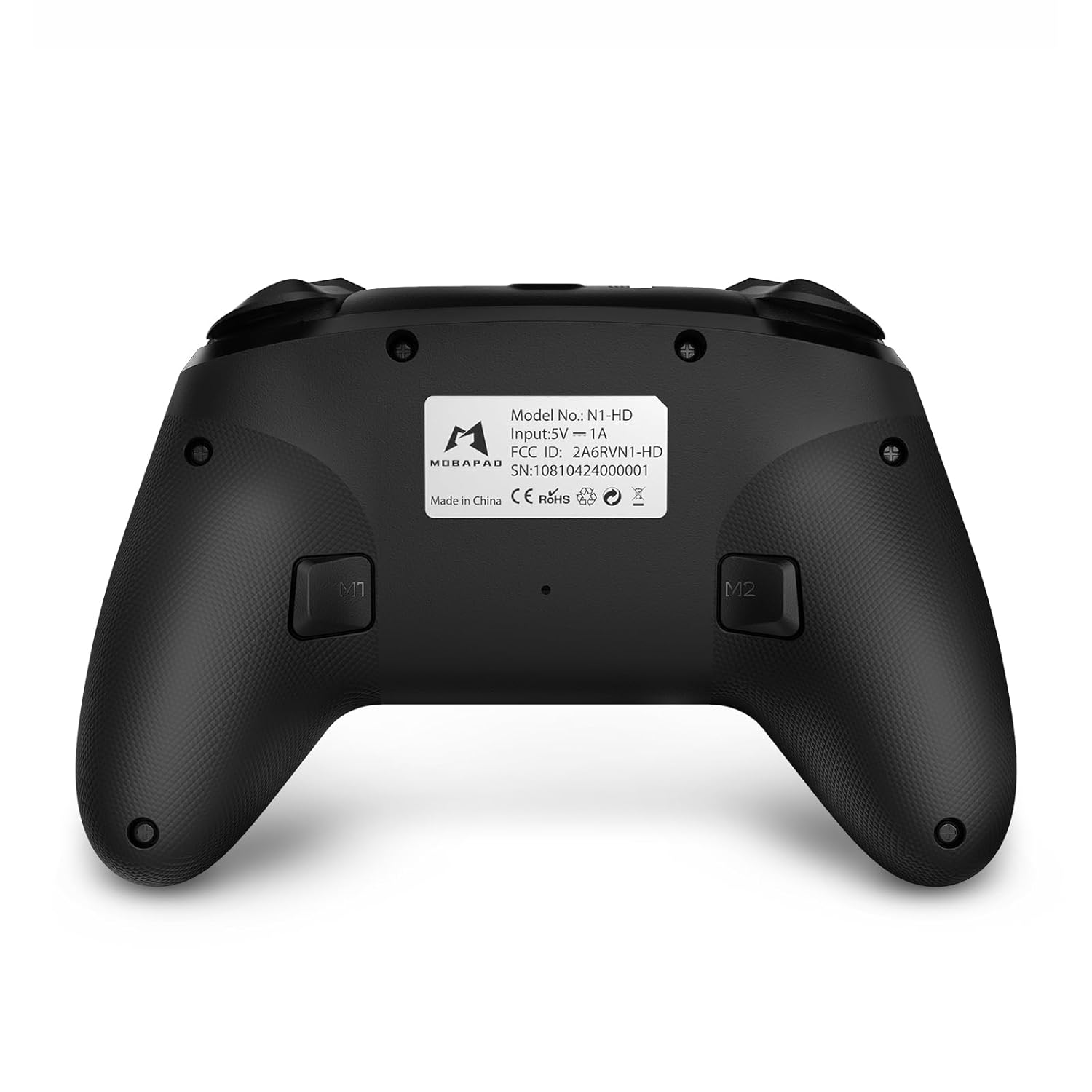
- M1/M2 קנעפּלעך: Programmable back buttons for custom macros or remapping.
בילד: דעטאַלירטע פראָנט view of the MOBAPAD N1 HD controller, showing all buttons and joysticks.

בילד: צוריק view of the MOBAPAD N1 HD controller, highlighting the M1 and M2 programmable buttons and product label.
4.2. NFC Functionality (Amiibo Scanning)
To use the NFC function for Amiibo scanning on Nintendo Switch:
- Ensure your controller is connected to the Nintendo Switch.
- In a compatible game, when prompted to scan an Amiibo, place the Amiibo figure directly over the היים קנעפּל area on the controller.
- Hold the Amiibo in place until the game registers the scan.
5. וישאַלט און קער
Proper maintenance ensures the longevity and optimal performance of your controller.
- רייניקונג: ניצט אַ ווייכע, טרוקענע שטאָף צו ווישן דעם קאָנטראָללער. פֿאַר שווערע שמוץ, אַ ביסל ווייכער מאַכןampשווענק דעם שטאָף מיט וואַסער. פֿאַרמייַדט שטרענגע כעמיקאַלן אָדער אַברייסיוו מאַטעריאַלן.
- סטאָרידזש: האַלט דעם קאָנטראָללער אין אַ קיל, טרוקן אָרט אַוועק פון דירעקט זונשייַן און עקסטרעמע טעמפּעראַטורן.
- באַטערי זאָרגן: The controller contains a Lithium Ion battery. Avoid fully discharging the battery frequently. If storing for extended periods, charge the battery to about 50% to prolong its lifespan. Do not expose the battery to fire or extreme heat.
- האַנדלינג: פֿאַרמײַדט צו לאָזן דעם קאָנטראָללער פאַלן אָדער אים אויסשטעלן צו שטאַרקע קלאַפּן, ווײַל דאָס קען שעדיקן אינעווייניקסטע קאָמפּאָנענטן.
6. טראָובלעשאָאָטינג
If you encounter issues with your MOBAPAD N1 HD controller, refer to the following common solutions.
| פּראָבלעם | מעגלעך סיבה | לייזונג |
|---|---|---|
| Controller does not connect. | נידעריגע באַטעריע, אַרויס פון ראַנגע, אומרעכט פּערינג מאָדע, שטערונג. | Charge the controller fully. Ensure it is within range of the device. Re-enter pairing mode (hold Home button). Move closer to the device or away from other wireless devices. |
| קנעפּלעך אדער דזשויסטיקס רעאַגירן נישט. | Software glitch, physical obstruction, damage. | Restart the controller and the connected device. Check for any debris around the buttons/joysticks. If issues persist, contact customer support. |
| Vibration is weak or absent. | Vibration setting off, game does not support vibration, motor issue. | Check in-game settings and system settings to ensure vibration is enabled. Verify if the game supports vibration feedback. |
| NFC scanning fails. | Incorrect placement, game not prompting scan, controller not connected. | Ensure the Amiibo is placed directly over the Home button area. Confirm the game is prompting for an Amiibo scan. Verify controller is properly connected to the Switch. |
7. ספּעסאַפאַקיישאַנז
| שטריך | דעטאַל |
|---|---|
| מאָדעל נומער | Mobapad N1 HD Black |
| דימענסיעס (L X W X H) | 5.91 X 2.36 X 3.94 אינטשעס |
| וואָג | 7.05 אונסעס |
| באַטערי טיפּ | 1 ליטהיום יאָן באַטאַרייע (אַרייַנגערעכנט) |
| קאַנעקטיוויטי | Wireless (Bluetooth), USB-C (wired) |
| קאַמפּאַטאַבילאַטי | Nintendo Switch, PC, iOS, Android |
| ספּעציעלע פֿעיִקייטן | Hall Effect Joysticks, ALPS Dual-Axis Motors, HD Vibration, Six-Axis Gyroscope, NFC |
8. וואָראַנטי און שטיצן
For warranty information or technical support, please contact MOBAPAD customer service. Refer to the official MOBAPAD webוועבזייטל אדער אייער קויפן דאקומענטאציע פאר ספעציפישע גאראנטיע באדינגונגען און קאנטאקט דעטאלן.
You can visit the official MOBAPAD store on Amazon for more information: MOBAPAD Store


