
SEQURE HT140
SEQURE HT140 2-אין-1 פּאָרטאַטיוו הייסע פּינצעט סאָלדערינג אייַזן קיט באַניצער מאַנואַל
Model: HT140 | Brand: SEQURE
1. הקדמה און איבערview
The SEQURE HT140 is an innovative 2-in-1 portable soldering tool designed for precision soldering projects, SMD work, and micro soldering. It functions as both a soldering iron with single-sided heating and hot tweezers with double-sided heating, offering versatility and portability without the need for separate bulky stations. Featuring rapid heating, smart temperature control, and multiple power input options, the HT140 is an efficient tool for various electronic repair tasks.

Image: The SEQURE HT140 unit, showcasing its compact design and dual functionality as both a soldering iron and hot tweezers.

Image: A graphic illustrating key features of the SEQURE HT140, including 2-second melting tin, TurboSets Mode, single-sided heating, compact size, auto sleep, wide input voltage, upgradable firmware, multi-language menu, smart temperature control, OLED display, ceramic heater, and left/right hand switch.
2. זיכערקייַט אינפֿאָרמאַציע
ביטע ליינט אלע זיכערהייט ווארענונגען און אינסטרוקציעס קערפול איידער איר ניצט דעם פראדוקט. נישט נאכפאלגן די ווארענונגען און אינסטרוקציעס קען רעזולטירן אין עלעקטרישע שאק, פייער, און/אדער ערנסטע שאדן.
- Always wear appropriate personal protective equipment, such as safety glasses, when operating the soldering iron.
- Ensure adequate ventilation in your workspace to avoid inhaling fumes from soldering.
- Do not touch the soldering tips or heated parts of the device while it is powered on or cooling down, as they reach very high temperatures.
- האַלטן די מיטל אַוועק פון ברענעוודיק מאַטעריאַלס.
- Ensure the power supply used is compatible with the device's voltagE און וואַטtage requirements (5V-28V, up to 140W). This kit does נישט include a power adapter.
- Unplug the device from the power source when not in use or before performing any maintenance.
- Do not operate the device if it is damaged or malfunctioning.
3. פּעקל אינהאַלט
באַשטעטיקט אַז אַלע זאכן וואָס זענען אויסגערעכנט אונטן זענען אַרייַנגערעכנט אין אייער פּעקל:
- HT140 Host x 1
- Hot Tweezers Desoldering Tip x 2
- HT Station x 1
- סטאָרידזש באַג X 1
- 1.5m PD 240W Silicone Wire x 1
- Installation Accessories x 1 (includes small screwdriver and screws)

Image: A visual representation of the SEQURE HT140 package contents, including the HT140 host, desoldering tips, PD 240W silicone wire, installation accessories, storage bag, and HT station.
4. סעטאַפּ
Follow these steps to set up your SEQURE HT140:
- אַנפּאַק: קערפאַלי באַזייַטיקן אַלע קאַמפּאָונאַנץ פון די פּאַקקאַגינג.
- דורכקוקן: Check all parts for any signs of damage. If any part is damaged, do not proceed with setup and contact customer support.
- פֿאַרבינדונג עצות: Insert the desoldering tips into the HT140 host. Ensure they are securely seated.
- Place on Station: Position the HT140 host on the provided HT Station when not in active use. The station includes a sponge for tip cleaning.
- מאַכט קשר: Connect the 1.5m PD 240W Silicone Wire to the HT140 host. Connect the other end to a compatible power supply (not included). The HT140 supports PD3.1/3.0/2.0, QC3.0/2.0 via Type-C, and DC (28V Max) via DC5525. Ensure your power supply can deliver sufficient wattage (up to 140W) for optimal performance.
- ערשט מאַכט אויף: Once connected to a power source, the device will power on and display information on the OLED screen.
5. אַפּערייטינג ינסטרוקטיאָנס
5.1 טעמפּעראַטור אַדזשאַסטמאַנט
The HT140 features an HD OLED display for clear temperature readings. The temperature can be adjusted from 122°F to 932°F (50°C-500°C). Use the control buttons on the device to increase or decrease the temperature. The intelligent temperature control algorithm ensures stable and accurate temperatures for precise soldering.

Image: The OLED display showing temperature adjustment from 50°C to 500°C, and details on the three adjustable preset temperatures.
5.2 פּריסעט טעמפּעראַטורעס
The HT140 supports 3 groups of default heating temperatures, allowing for quick switching between commonly used settings:
- SetTemp 1: 280°C (Adjustable)
- SetTemp 2: 320°C (Adjustable)
- SetTemp 3: 380°C (Adjustable)
Refer to the device's menu for instructions on how to select and customize these preset temperatures.
5.3 TurboSet Mode
Activate the one-key TurboSet mode for a rapid boost in heating, accelerating your soldering projects and saving time, especially when working with larger solder joints or components requiring higher heat.
5.4 Single-sided vs. Double-sided Heating (2-in-1 Functionality)
The HT140 offers versatile heating modes:
- Soldering Iron (Single-sided heating): Use one tip for traditional soldering tasks.
- Hot Tweezers (Double-sided heating): Use both tips simultaneously for desoldering SMD components or working with fine pitch components.

Image: A comparison showing the HT140 used as a single-sided soldering iron and as double-sided hot tweezers for different applications.
5.5 Auto Sleep & Standby
To conserve energy and reduce tip wear, the HT140 features smart sleep and standby modes:
- אָטאַמאַטיק שלאָפן: The device enters sleep mode after 60 seconds of inactivity. The adjustable sleep time ranges from 5 to 360 seconds.
- Adjustable Sleep Temperature: Set the sleep temperature between 50°C and 500°C.
- אַוטאָ סטאַנדביי: The device will enter standby mode by default 5 minutes after entering sleep mode (adjustable).

Image: A graphic detailing the adjustable sleep time, adjustable sleep temperature, and auto standby features of the HT140.
5.6 Power Input & Compatibility
The HT140 offers dual power input options for broad compatibility:
- טיפּ C: Supports PD3.1/3.0/2.0, QC3.0/2.0.
- DC5525: Supports DC power up to 28V Max.
דער וואָלtage range is extended to 5V-28V, with a maximum power output of 140W. This allows for compatibility with various power sources such as 3S-6S LiPo batteries, PD chargers, power adapters, and power banks.

Image: An illustration showing the HT140 connected to various power adapters and power banks, demonstrating its wide compatibility with different power sources.
5.7 Firmware אַפּגרייד
The HT140 supports firmware upgrades, allowing you to keep your device updated with the latest features and improvements. Visit the official SEQURE website for information on available firmware updates and instructions on how to perform the upgrade.
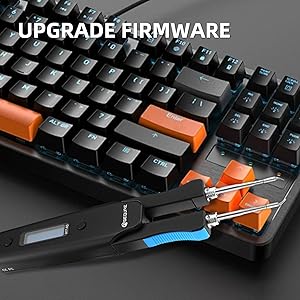
Image: The HT140 connected to a computer keyboard, indicating its capability for firmware upgrades.
6. וישאַלט
Proper maintenance ensures the longevity and optimal performance of your SEQURE HT140:
- טיפּ רייניקונג: Regularly clean the soldering tips using the wet sponge on the HT Station or brass wool. This helps prevent oxidation and ensures efficient heat transfer.
- טיפּ טינינג: After cleaning and before storing, always tin the tips with a small amount of solder. This protects the tip from oxidation.
- סטאָרידזש: Store the HT140 in its storage bag in a dry, dust-free environment when not in use.
- דיווייס רייניקונג: Wipe the body of the device with a soft, dry cloth. Do not use abrasive cleaners or solvents.
- טעמפּעראַטור קאַלאַבריישאַן: The device supports temperature calibration and compensation to maintain accuracy over time. Refer to the device's menu or official documentation for calibration procedures.
7. טראָובלעשאָאָטינג
If you encounter issues with your SEQURE HT140, refer to the following common troubleshooting steps:
| פּראָבלעם | מעגלעך סיבה | לייזונג |
|---|---|---|
| די מיטל טוט נישט מאַכט אויף. | No power supply connected, incompatible power supply, or faulty cable. | Ensure a compatible power supply (5V-28V, up to 140W) is connected. Check the Type-C or DC5525 cable for damage. |
| Tips are not heating up. | Tips not properly inserted, device in sleep/standby mode, or insufficient power. | Re-insert tips firmly. Wake the device from sleep/standby by pressing a button or moving it. Ensure power supply provides adequate wattage. |
| Temperature is unstable or inaccurate. | Tips are dirty/oxidized, or calibration is needed. | Clean and re-tin the soldering tips. Perform temperature calibration as per the user manual or official documentation. |
| Difficulty grasping components with tweezers. | Tip shape not suitable for component, or improper technique. | Ensure the correct tip shape is used for the component. Practice proper tweezer handling and component alignment. |
| Device enters sleep mode too quickly. | Sleep time setting is too short. | Adjust the auto sleep time setting in the device's menu (5-360 seconds). |
If the problem persists after trying these solutions, please contact SEQURE customer support for further assistance.
8. ספּעסאַפאַקיישאַנז
| שטריך | באַשרייַבונג |
|---|---|
| סאָרט | SEQURE |
| מאָדעל נומער | HT140 |
| ספּעציפיש ניצט | SMD Work, Electronic Repair Kit, Precision Soldering Project, Residential Use |
| מאַכט מקור | קאָרדעד עלעקטריק |
| וואָסtage | 140 וואטס (מאקס) |
| Voltage | 5-28 Volts (DC) |
| טעמפּעראַטור ראַנגע | 122°F to 932°F (50°C-500°C) |
| ספּעציעלע פֿעיִקייטן | 2-in-1 (Soldering Iron & Hot Tweezers), Strong compatibility, Portable & Lightweight, Auto Sleep, Temperature Calibration, OLED Display, Upgradable Firmware |
| אַרייַנגערעכנט קאַמפּאָונאַנץ | HT140 Host, Hot Tweezers Desoldering Tip x 2, HT Station, Storage Bag, 1.5m PD 240W Silicone Wire, Installation Accessories |
| שעפּן מאַטעריאַל | מעטאַל |
| סטייל | טוועעזער |
| נומער לענג | 6.3 אינטשעס |
| פּונקט וואָג | 1.76 אונסעס (אומגעפער 0.11 פונט) |
| קאָפּ סטייל | בלייַער |
| בורנער טיפּ | סעראַמיק |
| קאָליר | שוואַרץ |
| מאַטעריאַל | פּלאַסטיק, מעטאַל |
| לאַנד פון אָריגין | כינע |
9. וואָראַנטי און שטיצן
For warranty information, technical support, or service inquiries regarding your SEQURE HT140, please contact SEQURE customer service directly. Keep your purchase receipt as proof of purchase for any warranty claims.
You can typically find contact information on the official SEQURE webוועבזייטל אדער דורך דעם פארקויפער וואו איר האט געקויפט דעם פראדוקט.
Ask a question about this manual
Ask about setup, troubleshooting, compatibility, parts, safety, or missing instructions. Manuals+ will review the question and use this page’s manual context to help answer it.