
1. הקדמה
Thank you for choosing the FMOUSE Dual Mode Wireless Mouse M101. This mouse offers versatile connectivity options, a comfortable ergonomic design, and quiet operation, making it ideal for various computing environments. This manual provides detailed instructions for setup, operation, and maintenance to ensure optimal performance.
2. שליסל פֿעיִקייטן
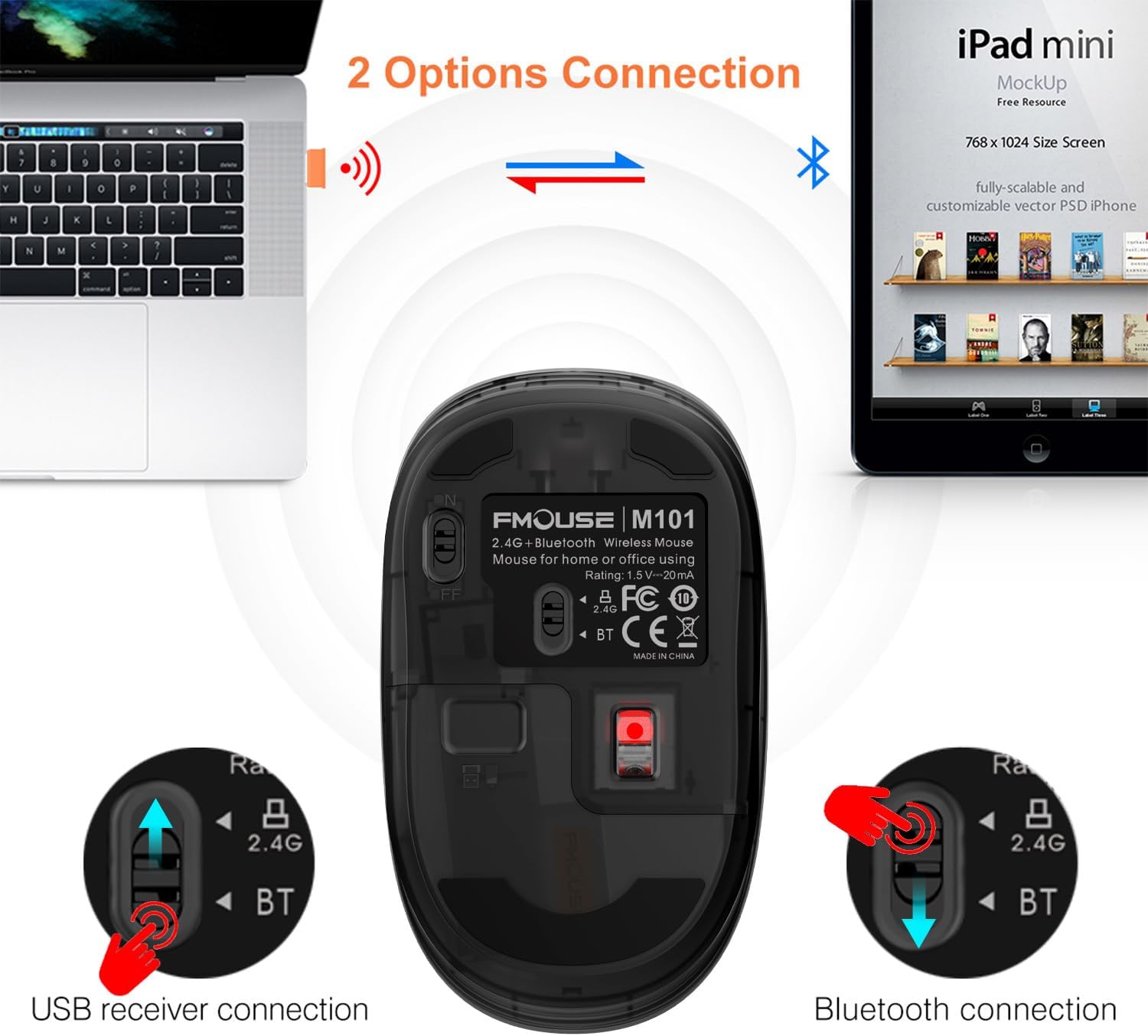
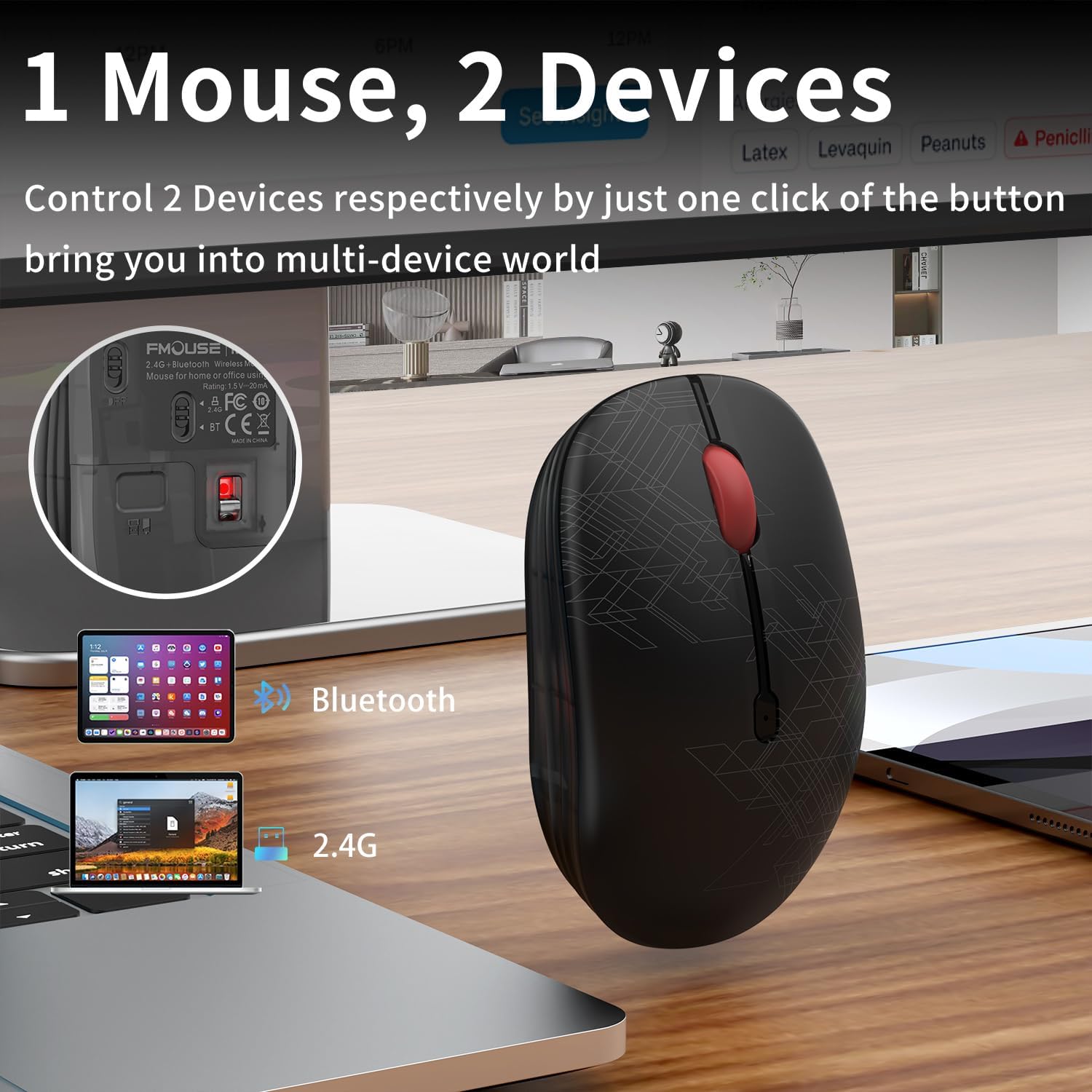
- צווייענדיק מאָדע קאָנעקטיוויטי: Seamlessly switch between 2.4GHz USB receiver and Bluetooth connections for use with two different devices.
- שטיל קליק דיזיין: Specially engineered buttons provide quiet clicks, minimizing disturbance in shared environments.
- ערגאָנאָמיק טרייסט: Designed for a comfortable grip, suitable for extended use by students and business professionals.
- ענערגיע עפעקטיוו: Features an intelligent power-saving mode that activates after 10 minutes of inactivity, extending battery life.
- וניווערסאַל קאַמפּאַטאַבילאַטי: Connects easily with MacBook, iPad, Laptops, and Desktop devices across Windows, MacOS, iPadOS, and Android systems.
- פּאָרטאַטיוו פּלאַן: סאָליד און לייטווייט פֿאַר גרינג אַריבערפירן.
3. פּעקל אינהאַלט
ביטע זיכער מאַכן אַז אַלע זאכן זענען פאַראַן אין דיין פּעקל:
- FMOUSE Dual Mode Wireless Mouse M101
- 2.4 גהז וסב ופנעמער
- באַניצער מאַנואַל (דעם דאָקומענט)
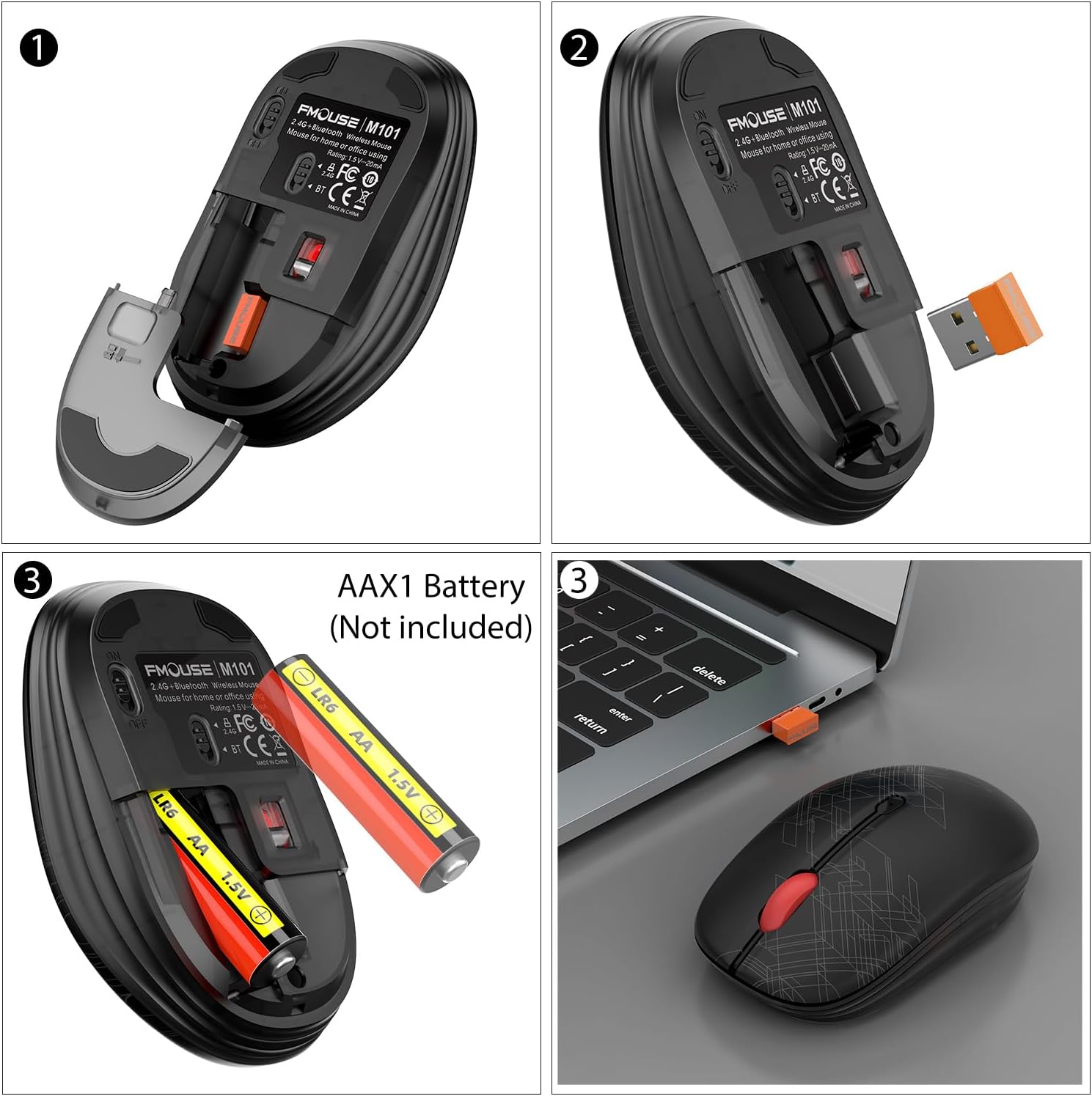
באַמערקונג: 1 AA באַטאַרייע איז פארלאנגט און איז נישט אַרייַנגערעכנט אין דער פּאַקעט.
4. סעטאַפּ גייד
4.1. באַטאַרייע ייַנמאָנטירונג
- הייבט אויף פארזיכטיק דעם אויבערשטן דעקל פון דער מויז פון הינטן צו אנטפלעקן דעם באַטעריע אָפּטייל.
- Insert one AA battery into the compartment, ensuring correct polarity (+/-).
- לייג צוריק דעם אויבערשטן דעקל, זיכער מאכנדיג אז עס גייט זיכער אריין אין פלאץ.
4.2. פֿאַרבינדן זיך דורך 2.4GHz USB ריסיווער
- Locate the 2.4GHz USB receiver stored inside the mouse's battery compartment.
- צאַפּן די וסב ופנעמער אין אַ בנימצא וסב פּאָרט אויף דיין קאָמפּיוטער.
- Slide the switch on the bottom of the mouse to the '2.4G' position. The indicator light will flash green.
- די מויז זאָל זיך אויטאָמאַטיש פֿאַרבינדן צו דיין קאָמפּיוטער.
4.3. קאַנעקטינג דורך בלועטאָאָטה
- Slide the switch on the bottom of the mouse to the 'BT' (Bluetooth) position. The indicator light will flash blue.
- On your device (laptop, tablet, etc.), go to Bluetooth settings and enable Bluetooth.
- זוכן פֿאַר available devices and select 'FMOUSE M101' from the list.
- גיי קיין פּראַמפּס אויף דעם עקראַן צו פאַרענדיקן דעם פּערינג פּראָצעס.

5. אַפּערייטינג ינסטרוקטיאָנס
5.1. Dual Mode Switching
The FMOUSE M101 allows you to switch between two connected devices using the mode switch on the bottom of the mouse. Simply slide the switch to the desired connection type (2.4G or BT) to instantly connect to the corresponding device.
5.2. Silent Click Operation
The mouse features silent click buttons, ensuring a quiet working environment. This is particularly beneficial in libraries, offices, or during late-night use to avoid disturbing others.

6. מאַכט מאַנאַגעמענט
The FMOUSE M101 is designed for energy efficiency. It enters a sleep mode after 10 minutes of inactivity to conserve battery life. To wake the mouse, simply click any button.
The mouse is powered by one AA battery. When the battery is low, the scroll wheel will flash red as an alert.
7. קאַמפּאַטאַבילאַטי
The FMOUSE M101 is compatible with a wide range of operating systems and devices, including:
- Windows
- מאַקאָס
- iPadOS
- אַנדרויד
- MacBook, iPad, Laptops, Desktop devices
8. ספּעסאַפאַקיישאַנז
| שטריך | דעטאַל |
|---|---|
| מאָדעל נומער | M101 |
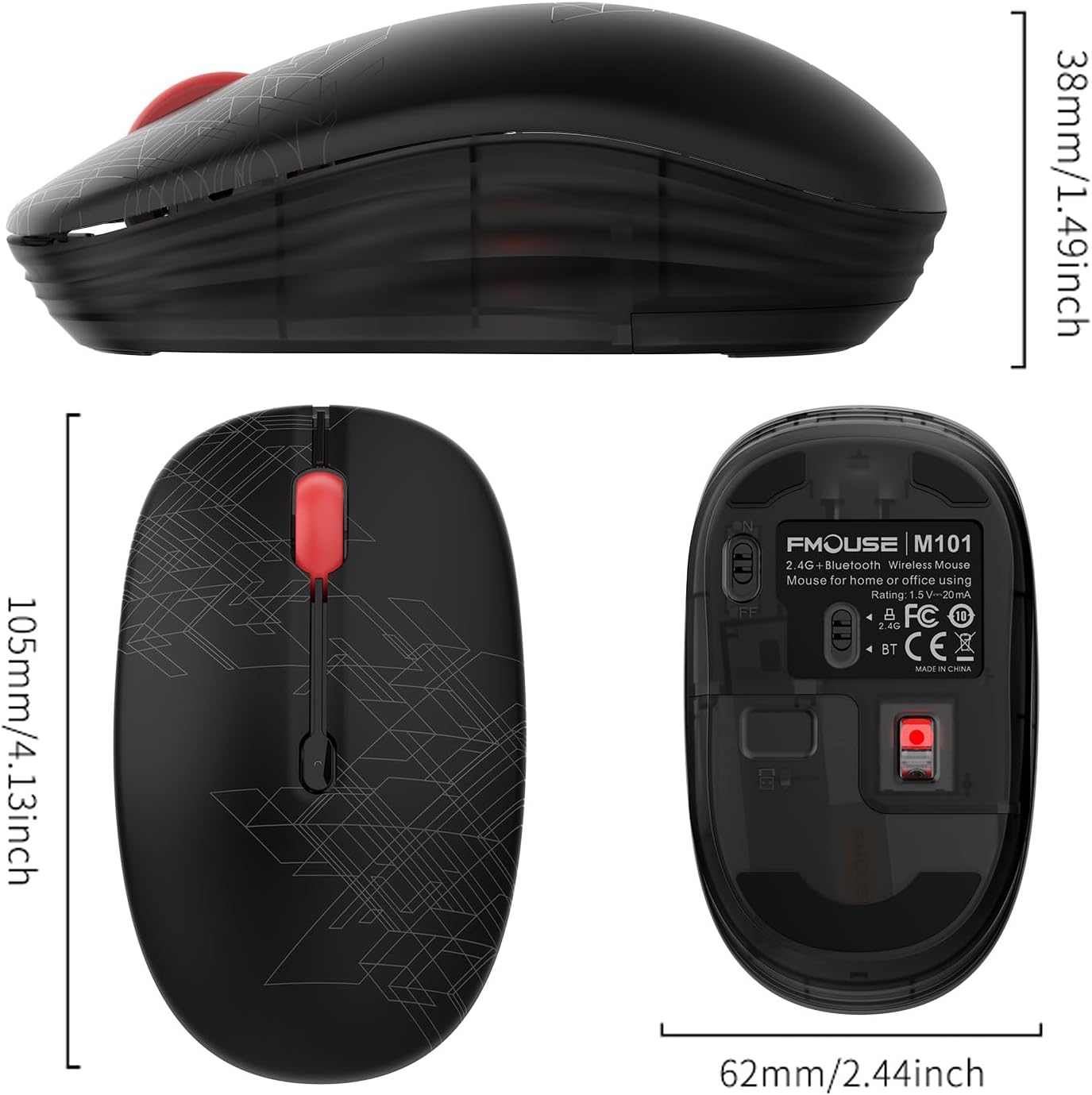
| פּראָדוקט דימענשאַנז | 4.13 X 2.44 X 0.1 אינטשעס |
| פּונקט וואָג | 2.05 אונסעס |
| באַטעריז | 1 אַאַ באַטאַרייע פארלאנגט (ניט אַרייַנגערעכנט) |
| קאַנעקטיוויטי טעכנאָלאָגיע | Bluetooth, 2.4GHz USB |
| באַוועגונג דעטעקשאַן טעכנאָלאָגיע | אָפּטיש |
| ספּעציעלע שטריך | Soundless (Silent Click) |
9. טראָובלעשאָאָטינג
9.1. מויז רעאַגירט נישט
- קאָנטראָלירן די באַטאַרייע: זיכער מאַכן אַז די AA באַטעריע איז ריכטיק אינסטאַלירט און האט גענוג אָפּצאָל. פאַרבייטן אויב נייטיק.
- מאַכט סוויטש: Verify the ON/OFF switch on the bottom of the mouse is in the 'ON' position.
- מאָדע סעלעקציע: Confirm the mode switch (2.4G or BT) matches your intended connection method.
9.2. 2.4GHz Connection Issues
- וסב ופנעמער: זיכער מאַכן אַז דער USB ריסיווער איז זיכער אַרײַנגעשטעקט אין אַ פֿונקציאָנירנדיקן USB פּאָרט אויף אײַער קאָמפּיוטער. פּרוּווט אַן אַנדער USB פּאָרט.
- ינטערפיראַנס: Move the mouse closer to the USB receiver to rule out signal interference.
9.3. בלועטוט קאַנעקשאַן פּראָבלעמען
- בלועטאָאָטה ענייבאַלד: Ensure Bluetooth is enabled on your device and the mouse is in 'BT' mode.
- איבערפּאַרן דעם מיטל: If the mouse was previously paired, try removing it from your device's Bluetooth list and re-pairing it.
- דיווייס קאַמפּאַטאַבילאַטי: Confirm your device supports Bluetooth connectivity.
10. וואָראַנטי און שטיצן
FMOUSE products come with a standard manufacturer's warranty. For detailed warranty information, technical support, or customer service inquiries, please refer to the contact information provided on the product packaging or visit the official FMOUSE webפּלאַץ.