
1. סעטאַפּ
1.1. פּעקל אינהאַלט
מאַכן זיכער אַז אַלע קאַמפּאָונאַנץ זענען פאָרשטעלן אין דעם פּעקל:
- AUSDOM 108-Key Wireless Keyboard
- AUSDOM Wireless Mouse
- USB ריסיווער (געהאַלטן אין דער מויז)
- וסב-C טשאַרדזשינג קאַבלע
- באַניצער מאַנואַל
1.2. Connecting the Combo
- געפינט דעם USB ריסיווער: The 2.4GHz USB receiver is conveniently stored in a compartment on the underside of the wireless mouse. Gently slide open the battery cover to access it.
- אַרײַנשטעלן דעם ריסיווער: Plug the USB receiver into an available USB port on your computer (PC, laptop, or tablet). The system will automatically detect and install the necessary drivers.
- מאַכט אויף דיווייסאַז: Ensure both the keyboard and mouse are switched to the 'ON' position. The power switch for the keyboard is located on its top edge, and for the mouse, it is on the underside.

1.3. Charging the Combo
Both the keyboard and mouse are equipped with built-in rechargeable Lithium Polymer batteries. Use the provided USB-C cable to charge them.
- Connect the USB-C end of the cable to the charging port on the keyboard (located on the top edge) or the mouse (located on the front).
- Connect the USB-A end of the cable to a powered USB port on your computer or a USB wall adapter.
- A full charge takes approximately 2 hours and provides up to 300 hours of standby time.

2. אַפּערייטינג ינסטרוקטיאָנס
2.1. קלאַוויאַטור פֿעיִקייטן
The AUSDOM KAM200X keyboard features a full-size 108-key layout, including a dedicated numeric keypad and various function keys for enhanced productivity.
- Mechanical-Feel Keys: Experience tactile feedback similar to mechanical keyboards, combined with quiet scissor-switch mechanisms and a short 3.8mm key travel for comfortable and precise typing.
- Multimedia and Shortcut Keys: Utilize dedicated media controls (volume, play/pause) and app-switching shortcuts for streamlined workflow. Refer to the user manual for a complete list of function key combinations.
- OS Switching: Easily switch between Windows and macOS layouts using specific function key combinations (e.g., Fn + P for Windows, Fn + O for Mac).


2.2. מויז פֿעיִטשערז
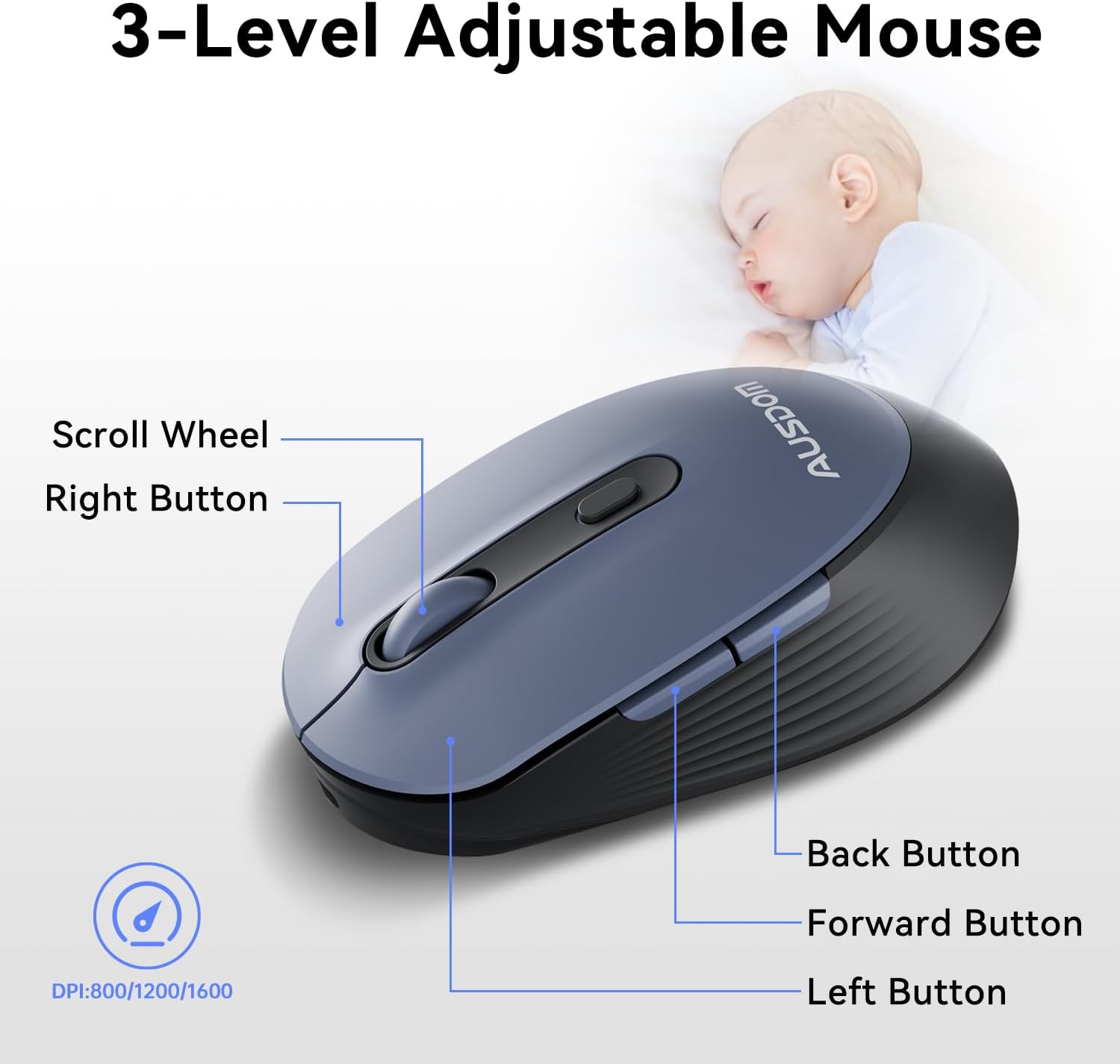
The ergonomic wireless mouse is designed for comfortable use and precise control.
- אַדזשאַסטאַבאַל דפּי: Cycle through 3 DPI levels (800, 1200, 1600) using the dedicated DPI button to adjust cursor sensitivity for different tasks.
- פאָרויס/צוריק קנעפּלעך: ניצט די זייט קנעפּלעך פֿאַר שנעלער נאַוויגאַציע אין web בראַוזערז און אַפּליקאַציעס.
- שטילע קליקן: The mouse features silent click buttons to minimize noise in quiet environments.
2.3. ברייט קאָמפּאַטיביליטי
The AUSDOM wireless combo is compatible with a broad range of operating systems and devices, ensuring seamless integration into your existing setup.
- אַפּערייטינג סיסטעמס: Compatible with Windows XP/ME/Vista/7/8/10/11 and macOS.
- מכשירים: Works instantly with desktops, laptops, and other computers without requiring additional software or drivers.

3. וישאַלט
3.1. רייניקונג
To ensure the longevity and optimal performance of your AUSDOM combo, regular cleaning is recommended.
- ניצט אַ ווייכן, טרוקענעם, לינט-פֿרייעם שטאָף צו ווישן די ייבערפֿלאַכן פֿון דער קלאַוויאַטור און מויז.
- פֿאַר שווערן שמוץ, אַ ביסל דampen the cloth with water or a mild cleaning solution, ensuring no liquid enters the device openings.
- ויסמיידן ניצן שטרענגע כעמיקאַלן, אַברייסיוו רייניגער, אָדער סאָלוואַנץ.
3.2. סטאָרידזש
When not in use for extended periods, store the keyboard and mouse in a cool, dry place away from direct sunlight and extreme temperatures. The USB receiver can be stored inside the mouse to prevent loss.
4. טראָובלעשאָאָטינג
4.1. קשר ישוז
- טשעקן דעם באַקומער: Ensure the USB receiver is firmly plugged into a working USB port on your computer.
- מאַכט אויף: איבערצייגט אז ביידע די קלאַוויאַטור און מויז זענען אויף דער 'ON' פּאָזיציע.
- באַטערי מדרגה: Confirm that both devices have sufficient battery charge. Recharge if necessary.
- פרובירט אן אנדערן פארט: Plug the USB receiver into a different USB port on your computer.
4.2. Lag or Unresponsiveness
- רעדוצירן ינטערפיראַנס: ריקט די קלאַוויאַטור און מויז נענטער צום USB ריסיווער. פֿאַרמייַדט צו שטעלן גרויסע מעטאַלענע אָביעקטן צווישן די דעוויסעס און דעם ריסיווער.
- Check for Other Devices: Other 2.4GHz wireless devices might cause interference. Try to minimize their use or move them further away.
- ריטשאַרדזש: Ensure both devices are fully charged.
4.3. Keyboard Specific Issues
- קנעפּלעך רעאַגירן נישט: Gently clean around the affected keys to remove any debris.
- Incorrect Key Output: Check your computer's operating system settings to ensure the correct keyboard layout is selected.
4.4. Mouse Specific Issues
- Erratic Cursor: Clean the optical sensor on the underside of the mouse. Ensure you are using the mouse on a suitable, non-reflective surface.
- אַדזשאַסטינג DPI: Press the DPI button on the top of the mouse to cycle through the 800/1200/1600 DPI settings.
5. פּראָדוקט ספּעסאַפאַקיישאַנז
| שטריך | באַשרייַבונג |
|---|---|
| סאָרט | אויסטראַליע |
| מאָדעל נומער | KAM200X |
| פּראָדוקט דימענשאַנז | 17.44 X 5.31 X 0.79 אינטשעס |
| פּונקט וואָג | 1.8 פונט |
| באַטעריז | 2 ליטהיום פּאָלימער באַטעריז פארלאנגט (אַרייַנגערעכנט) |
| קאַנעקטיוויטי טעכנאָלאָגיע | 2.4Ghz ווירעלעסס |
| ספּעציעלע פֿעיִקייטן | Lightweight, Rechargeable, Scissor Switch, Wireless |
| קאַמפּאַטאַבאַל דעוויסעס | לאַפּטאַפּ, פערזענלעכע קאָמפּיוטער, טאַבלעט |
6. וואָראַנטי אינפֿאָרמאַציע
For detailed warranty information regarding your AUSDOM KAM200X Wireless Keyboard and Mouse Combo, please refer to the official documentation included in your product packaging or visit the manufacturer's official webזייטל. גאַראַנטיע טערמינען און באדינגונגען קענען זיין אַנדערש לויט געגנט און פּראָדוקט.
7. קונה שטיצן
If you encounter any issues or have questions about your AUSDOM KAM200X Wireless Keyboard and Mouse Combo, please contact AUSDOM customer support through their official channels. You can often find support contact information, FAQs, and additional resources on the AUSDOM Store Page אָדער זייער באַאַמטער webפּלאַץ.