
1. הקדמה
This manual provides essential instructions for the proper setup, operation, and maintenance of your RayNeo HDMI-C to AR Glasses Charging Adapter (Model HC 2.0). This adapter allows for simultaneous video transmission to your AR glasses and charging of your source device, ensuring an uninterrupted experience.
2. פּעקל אינהאַלט
ביטע באַשטעטיקן אַז אַלע זאכן וואָס זענען ליסטעד אונטן זענען אַרייַנגערעכנט אין דיין פּעקל:
- 1 x RayNeo HDMI-C to AR Glasses Charging Adapter
- 1 x USB-A צו וסב-C טשאַרדזשינג קאַבלע
- 1 x HDMI קאַבלע
- 1 x שנעל אָנהייב גייד

בילד: אַלע קאָמפּאָנענטן אַרייַנגערעכנט אין דעם פּראָדוקט פּעקל.
3. שליסל פֿעיִקייטן
- גלייכצייטיגע אפעראציע: Connect your AR glasses and charge your source device concurrently.
- הויך-גיכקייַט טשאַרדזשינג: Delivers up to 50W of power to your AR glasses. Actual charging speed depends on the connected device's specifications.
- ברייט מיטל קאַמפּאַטאַבילאַטי: Compatible with devices adhering to the USB-C standard protocol, including Steam Deck, ROG Ally, and Legion Go.
- הויך האַכלאָטע שטיצן: Supports resolutions up to 8K for crisp, lossless image quality. Features are dependent on source device and display capabilities.
- דוראַבאַל קאַנסטראַקשאַן: Made from aluminum alloy for enhanced durability.
- Smart Hardware Protection: Safeguards against overvoltagE שעדיקן.
- באַניצער-פרייַנדלעך: Supports hot-swapping, plug-and-play functionality, and requires no software installation.
4. סעטאַפּ אינסטרוקציעס
Follow these steps to connect your RayNeo HDMI-C to AR Glasses Charging Adapter:
- Connect AR Glasses: Plug your AR glasses into the USB-C output port on the adapter.
- קאָננעקט מקור מיטל: Use the provided HDMI cable to connect your source device (e.g., gaming console, PC, laptop) to the HDMI-IN port on the adapter.
- פאַרבינדן מאַכט: Connect the USB-A to USB-C charging cable to a power adapter (not included) and then to the DC 5V or Type-C charging input port on the adapter. This will provide power to both your AR glasses and charge your source device.

Image: Connection diagram for the adapter with AR glasses, a gaming console, and a power source.
5. אַפּערייטינג ינסטרוקטיאָנס
Once connected, the adapter operates on a plug-and-play basis. Your AR glasses should automatically display content from your source device, and your source device will begin charging.
- Gaming/Streaming: Enjoy uninterrupted gaming or streaming sessions as the adapter ensures continuous power supply to your AR glasses while simultaneously charging your connected device.
- רעזאלוציע: The adapter will automatically adapt to the highest supported resolution up to 8K, based on the capabilities of your source device and AR glasses.

Image: Adapter connected to a laptop, AR glasses, and power for simultaneous use and charging.
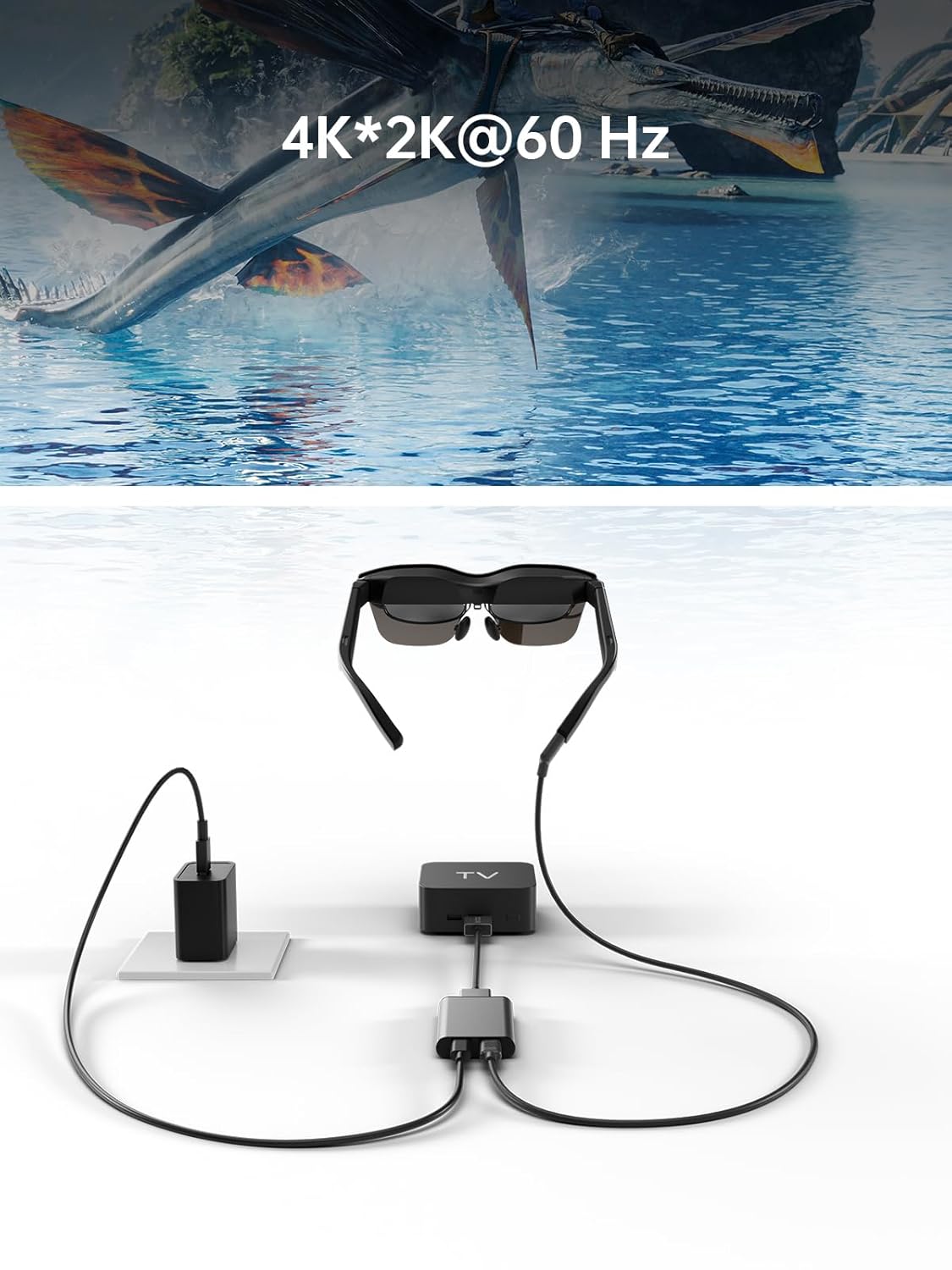
Image: Adapter facilitating 4K*2K@60Hz video output from a TV box to AR glasses.
6. קאַמפּאַטאַבילאַטי
The RayNeo HDMI-C to AR Glasses Charging Adapter is designed for broad compatibility. Ensure your devices meet the following criteria:
6.1. Source Devices (HDMI-IN)
Compatible with any device that outputs video via HDMI, including but not limited to:
- Gaming Consoles (e.g., PlayStation 5/4, Xbox Series X/S, Nintendo Switch, Steam Deck, ROG Ally, Legion Go)
- פערזענלעכע קאָמפּיוטערס (פּיסי)
- לאַפּטאָפּס
- Streaming Devices (e.g., Apple TV)
6.2. AR Glasses (USB-C OUT)
Compatible with AR glasses that accept video input via USB-C, such as:
- RayNeo Air 2s
- רייַנעאָ עיר 2
- TCL NXTWEAR S
באַמערקונג: Your source device must adhere to the USB-C standard protocol for charging and data transmission to function correctly with this adapter.

Image: Visual representation of the adapter's wide compatibility with various input devices and AR glasses.
7. טראָובלעשאָאָטינג
If you encounter issues, please refer to the following common solutions:
- No Display on AR Glasses:
- Ensure all cables (HDMI, USB-C to AR glasses) are securely connected.
- Verify that your source device is powered on and outputting video.
- Check if your AR glasses are powered on and functioning correctly.
- Test with different HDMI or USB-C cables if available.
- Source Device Not Charging:
- Confirm the power adapter is connected to the adapter's charging port and to a working power outlet.
- Ensure the power adapter provides sufficient wattage (ביז 50 וואט געשטיצט).
- Verify that your source device supports charging via its USB-C port when connected to an external adapter.
- Low Resolution or Poor Image Quality:
- קאָנטראָלירט די רעזאָלוציע סעטטינגס אויף אייער מקור מיטל.
- Ensure your HDMI and USB-C cables are high-quality and support the desired resolution.
- The maximum resolution is dependent on both the source device and the AR glasses.
- אַדאַפּטער נישט דערקענט:
- Disconnect and reconnect all cables.
- ריסטאַרט דיין מקור מיטל.
8. וישאַלט
כדי צו זיכער מאַכן די לאַנגלעבעניש און אָפּטימאַלע פאָרשטעלונג פון דיין אַדאַפּטער, נאָכפאָלגן די וישאַלט גיידליינז:
- רייניקונג: ניצט אַ ווייכע, טרוקענע שטאָף צו רייניקן דעם אַדאַפּטער. פֿאַרמייַדט פֿליסיקע רייניגער אָדער אַברייסיוו מאַטעריאַלן.
- סטאָרידזש: האַלט דעם אַדאַפּטער אין אַ קיל, טרוקן אָרט אַוועק פון דירעקט זונשייַן און עקסטרעמע טעמפּעראַטורן.
- האַנדלינג: פֿאַרמײַדט צו לאָזן דעם אַדאַפּטער פֿאַלן אָדער אים אויסשטעלן צו שטאַרקע קלאַפּן. פּרוּווט נישט צו צענעמען דאָס אַפּאַראַט.
- קאַבלע זאָרגן: Do not bend cables excessively or pull them forcefully from the ports.
9. ספּעסאַפאַקיישאַנז
| שטריך | באַשרייַבונג |
|---|---|
| מאָדעל נומער | HC 2.0 |
| סאָרט | RayNeo |
| קאַנעקטער טיפּ | USB Type C (Output), HDMI (Input) |
| טשאַרדזשינג אַרייַנשרייַב | DC 5V / USB Type C |
| Max Power Delivery | אַרויף צו 50 וו |
| מאַקסימום רעזאָלוציע שטיצע | 8K |
| מאַטעריאַל | אַלומינום צומיש |
| קאָליר | זילבער |
| פּונקט וואָג | 2.89 אונסעס |
| פּעקל דימענשאַנז | 5.39 X 2.64 X 0.94 אינטשעס |

Image: Dimensional drawing of the adapter.
10. וואָראַנטי און שטיצן
For warranty information and customer support, please refer to the documentation included with your product or visit the official RayNeo webפּלאַץ. האַלטן דיין קויפן קאַבאָלע פֿאַר וואָראַנטי קליימז.