
1. הקדמה און איבערview
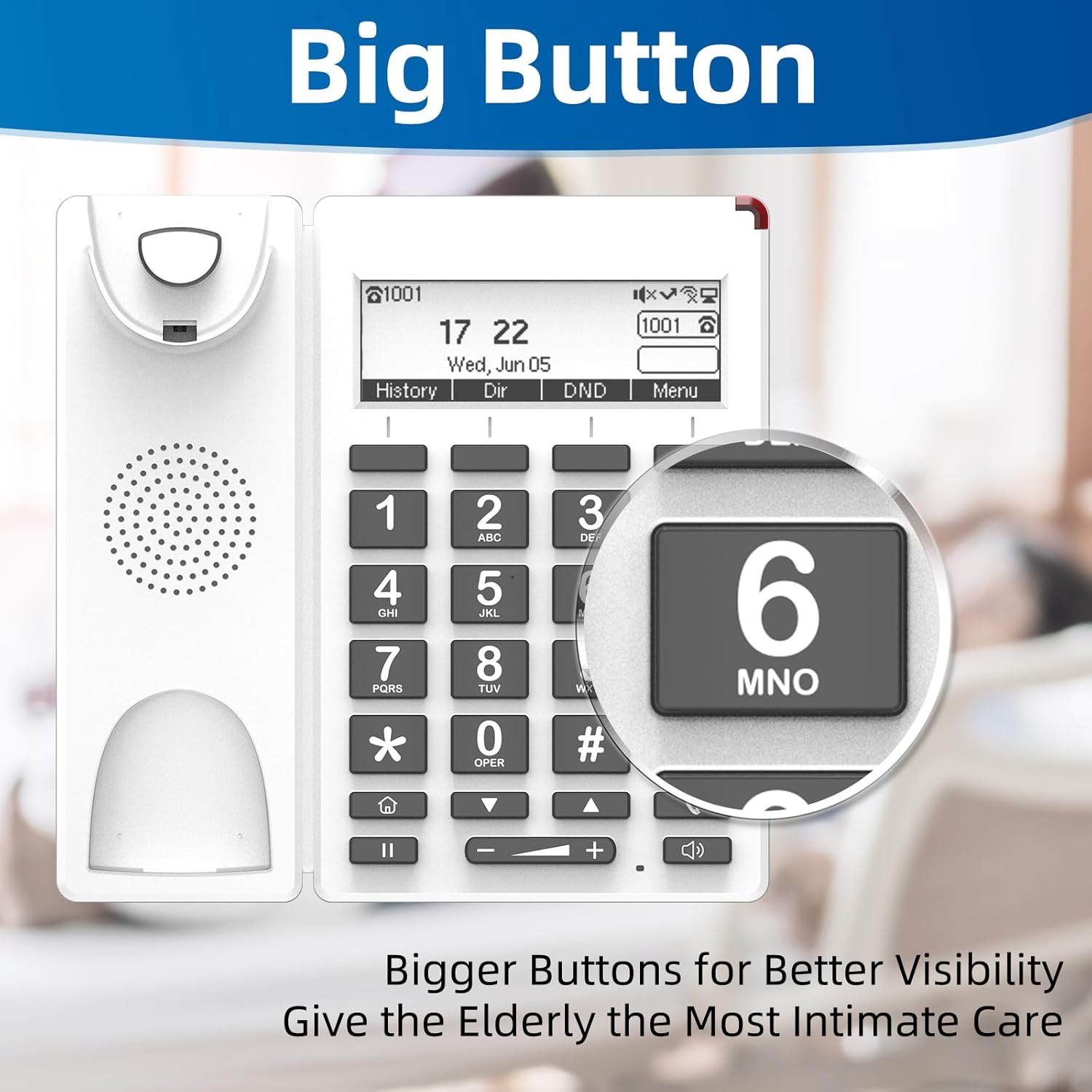
The FLYINGVOICE FIP12WP is a Voice over Internet Protocol (VoIP) phone specifically designed to be user-friendly for seniors, including those in nursing homes, hospitals, or living independently. It features large, easy-to-read buttons, adjustable volume, and dedicated quick-dial keys to ensure reliable and accessible communication.

2. שליסל פֿעיִקייטן
- Customized ABC Keys for Quick Dialing: Easily program the A, B, and C keys to store emergency contacts or frequently called numbers, providing instant access during urgent situations.
- Big Buttons & HELP Key: Large, easy-to-see buttons are designed for users with reduced vision. A dedicated HELP key provides immediate access to emergency assistance.
- Adjustable Enhanced Volume: Handset volume exceeds 90dB and speakerphone volume exceeds 110dB, ensuring clear calls even for users with hearing loss. Volume adjustments are conveniently made via on-phone buttons.
- Red Indication Light: A bright red light on top alerts users to incoming calls or missed messages, beneficial for those with hearing impairments.
- וואנט-מאָונטאַבלע פּלאַן: The phone can be easily wall-mounted to save space and prevent accidental knock-overs.
- באַקלייט לקד ווייַז: Provides clear visibility of time, date, and call information.
- HD Voice Quality: Supports G.722, G.711 WB, Opus, and AMR-WB codecs for superior audio clarity.
- Wi-Fi and PoE Support: Offers flexible connectivity options, including 2.4G Wi-Fi and Power over Ethernet (PoE) for simultaneous data and power transmission.


3. סעטאַפּ
Follow these steps to set up your FIP12WP VoIP Phone:
- פֿאַרבינדן דעם האַנדסעט: Plug one end of the coiled handset cord into the handset and the other end into the designated port on the phone base. Ensure it clicks securely into place.
- Attach the Stand (for Desktop Use): If using the phone on a desktop, align the stand with the slots on the back of the phone and push firmly until it snaps into place. This allows for a 45-degree desktop angle.
- וואַנט מאַונטינג (אָפּטיאָנאַל): For wall mounting, use the provided screws to secure the phone to a wall. The phone is designed for a 15-degree wall-mount angle.
- Power and Network Connection: Connect the phone to your network and power source. The FIP12WP supports both Wi-Fi (2.4G) and Power over Ethernet (PoE) for simplified cabling. If using PoE, connect an Ethernet cable from a PoE-enabled switch or injector to the phone's LAN port. If not using PoE, connect the power adapter (not included) to the phone and a standard power outlet, then connect an Ethernet cable to the LAN port for network access.


4. אַפּערייטינג ינסטרוקטיאָנס
מאַכן און באַקומען קאַללס
- צו מאַכן אַ רוף: Lift the handset or press the speakerphone button. Dial the desired number using the large numeric keypad. Press the dial key (often represented by a phone icon) to initiate the call.
- Using Quick Dial Keys (A, B, C): Press and hold one of the pre-programmed A, B, or C keys to automatically dial the assigned contact. These keys are ideal for frequently called family members or caregivers.
- Emergency Calls with HELP Button: In an emergency, press the dedicated HELP button. This will automatically dial a pre-configured emergency number, providing quick access to assistance.
- צו באַקומען אַ רוף: When the phone rings, lift the handset or press the speakerphone button to answer. The red indication light will also flash for incoming calls.
- Adjusting Volume During a Call: Use the volume up (+) and volume down (-) buttons located below the keypad to adjust the handset or speakerphone volume during an active call.
ווייַז און ינדיקאַטאָרס
- The backlit LCD display shows the current time, date, and call status.
- The red indication light on top of the phone will illuminate for missed calls or new messages.
5. וישאַלט
To ensure the longevity and optimal performance of your FIP12WP phone, follow these maintenance guidelines:
- רייניקונג: Use a soft, dry cloth to wipe down the phone's surface. For stubborn marks, a slightly damp cloth with mild soap can be used, but ensure no liquid enters the phone's openings. Do not use harsh chemicals or abrasive cleaners.
- האַנדסעט שנור: Periodically check the coiled handset cord for any kinks or damage. Replace if necessary to maintain clear audio.
- אָרט: Place the phone in a stable location, away from direct sunlight, excessive heat, moisture, and strong electromagnetic fields.
- מאַכט צושטעלן: Ensure the power supply (if used) is securely connected and not damaged.
6. טראָובלעשאָאָטינג
If you encounter issues with your FIP12WP phone, try the following solutions:
| פּראָבלעם | מעגלעך סיבה | לייזונג |
|---|---|---|
| קיין דייאַל טאָן / קען נישט מאַכן רופן | Network connection issue, power issue, or VoIP service not registered. | Check Ethernet cable connection or Wi-Fi status. Ensure power adapter is connected (if not using PoE). Verify VoIP service registration status on the phone's display. Restart the phone and your network router. |
| קען נישט הערן דעם רופער / רופער קען מיך נישט הערן | Volume too low, handset not properly connected, or network quality issue. | Adjust volume using the +/- buttons. Ensure handset cord is securely plugged in. Check network stability. |
| Red indication light is on constantly | Missed calls or new voicemail messages. | Check your call history or voicemail. The light should turn off once messages are cleared. |
| Phone not connecting to Wi-Fi | Incorrect Wi-Fi password, out of range, or router issue. | Double-check Wi-Fi password. Move phone closer to the router. Restart router. |
If the problem persists after trying these steps, please contact FLYINGVOICE customer support for further assistance.
7. ספּעסאַפאַקיישאַנז
- מאָדעל נומער: FIP12WP
- פּראָדוקט דימענשאַנז: 7.72 X 3.07 X 10.63 אינטשעס
- קאָליר: ווייַס
- מאַטעריאַל: פּלאַסטיק
- טעלעפאָן טיפּ: קאָרדעד VoIP טעלעפאָן
- מאַכט מקור: עלעקטריש מיט שנור (שטיצט PoE)
- ענטפער סיסטעם טיפּ: דיגיטאַל
- קאַמפּאַטאַבאַל דעוויסעס: VoIP services, PSTN/ISDN networks, Caller ID services, Conference call-capable devices
- קאָנפֿערענץ רופן פיייקייט: 3-וועג
- מולטיליין אָפּעראַציע: איין-ליניע אָפּעראַציע
- האַנדסעט באַנד: מער ווי 90 דב
- רעדנערפאָון באַנד: מער ווי 110 דב
- ווי-פי: 2.4G ווי-פי
- די-עס-עס שליסלען: 4 (A/B/C/HELP)

8. וואָראַנטי און שטיצן
FLYINGVOICE is committed to providing high-quality products and customer satisfaction. For any technical assistance or inquiries regarding your FIP12WP phone, please utilize the following resources:
- 1-to-1 Tech Support: Contact FLYINGVOICE directly for personalized technical support.
- רימאָוט מאַנאַגעמענט מכשירים: The phone can be centrally managed via FLYINGVOICE FACS (Cloud-based) and FDC (Local Network) management tools, which may be utilized by your service provider or IT administrator for remote configuration and troubleshooting.
- וואָראַנטי אינפֿאָרמאַציע: Please refer to the warranty card included with your product or visit the official FLYINGVOICE webזייטל פֿאַר דעטאַלירטע וואָראַנטי טערמינען און באדינגונגען.
